Data-Driven Testing best practices
This document explains the best practices when working with data-driven testing.
Data-Driven Testing (DDT) is considered the best testing framework introduced by Katalon Studio, designed to separate test logic from input data by fetching variables from external sources like CSV, Excel, database, and internal data sources.
Scenario: login testing with multiple user credentials
-
Design a single, data‑driven login test case that reads user credentials from an external data source (e.g., Excel or CSV), and execute it with multiple data rows representing valid users, invalid credentials, and locked accounts.
-
By parameterizing the username, password, and expected outcome (SUCCESS, FAILURE, ACCOUNT_LOCKED), you avoid creating 5+ separate test cases, improve coverage of positive and negative scenarios, and make it easy to add or update user types simply by editing the test data file instead of changing test logic.
Purpose and strategic value
| Benefit | Impact |
|---|---|
| Reduced Maintenance | One test case instead of 5 hardcoded variations |
| Improved Coverage | Test all user types systematically |
| Scalability | Add new users by adding data rows, not new test cases |
| Separation of Concerns | Test logic independent from test data |
| Cost Efficiency | Reduce automation effort by 60% |
Key takeaways
One test case executes multiple times with different data sets
Test logic separated from test data
Support for Excel, CSV, Internal Data, and Database sources
Variables in test cases replaced with actual values at runtime
Non-technical users can add test data without code changes
Requirements
-
Katalon Studio 7.0+ (Free or Enterprise edition)
-
Test Data File: Excel/CSV with user credentials
-
Test Objects: Login form elements (username, password, login button)
-
Sample Data Structure:
| username | password | expectedResult |
|---|---|---|
| john@test.com | Pass123! | SUCCESS |
| jane@test.com | Pass456! | SUCCESS |
| invalid@test | WrongPass | FAILURE |
| locked@test | Pass789! | ACCOUNT_LOCKED |
Best practices steps
Step 1: Create a test data file
- Go to File > New > Test Data
-
Name:
LoginCredentials -
Select Excel File (or CSV)
-
Browse and select your Excel file
-
Check "Use first row as header"
-
Click OK and save
Step 2: Create a test case with variables
-
File > New > Test Case → Name:
Login_DDT -
Click Variables tab
-
Add variables:
| Name | Type | Default |
|---|---|---|
| username | String | john@test.com |
| password | String | Pass123! |
| expectedResult | String | SUCCESS |
Step 3: Write a test script
import com.kms.katalon.core.webui.keyword.WebUiBuiltInKeywords as WebUI

// Navigate to login page
WebUI.navigateToUrl('https://example.com/login')

// Fill login form with variables
WebUI.setText(findTestObject('Object Repository/Username_Input'), username)
WebUI.setText(findTestObject('Object Repository/Password_Input'), password)
WebUI.click(findTestObject('Object Repository/Login_Button'))

// Verify result based on expected outcome
if (expectedResult == 'SUCCESS') {
    WebUI.verifyElementPresent(findTestObject('Object Repository/Dashboard_Page'), 5)
    println("✓ Login successful for: ${username}")
} else if (expectedResult == 'FAILURE') {
    WebUI.verifyElementPresent(findTestObject('Object Repository/ErrorMessage'), 5)
    println("✓ Error handling verified for: ${username}")
} else if (expectedResult == 'ACCOUNT_LOCKED') {
    WebUI.verifyElementPresent(findTestObject('Object Repository/LockedMessage'), 5)
    println("✓ Account locked message verified for: ${username}")
}
Step 4: Configure data binding to test case variables
-
In test case, click Data Binding tab
-
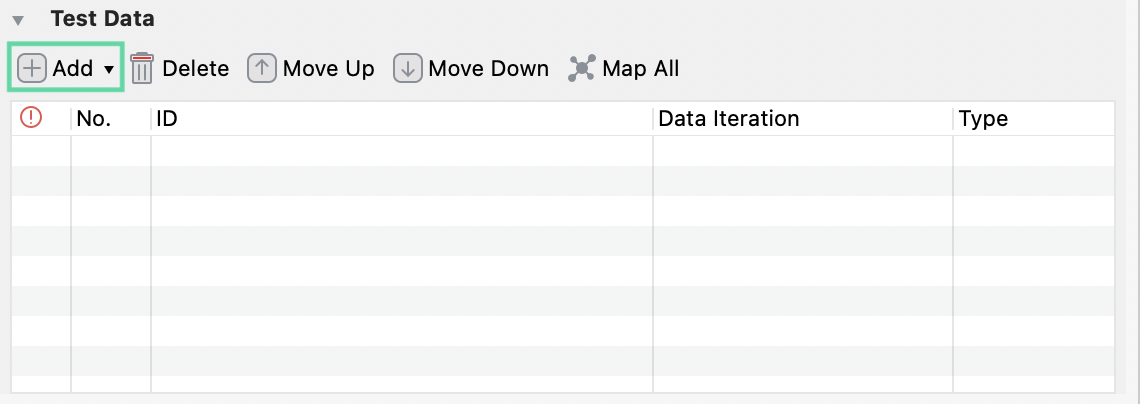
Click Add in Test Data section
-
Select
LoginCredentialsfile -
In Variable Binding section:
-
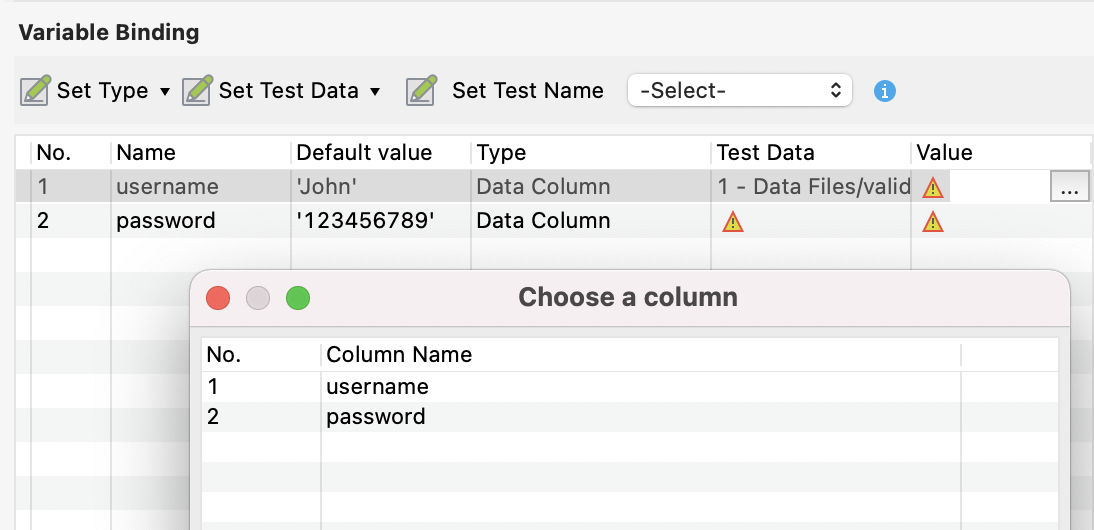
Map
username→ Column:username -
Map
password→ Column:password -
Map
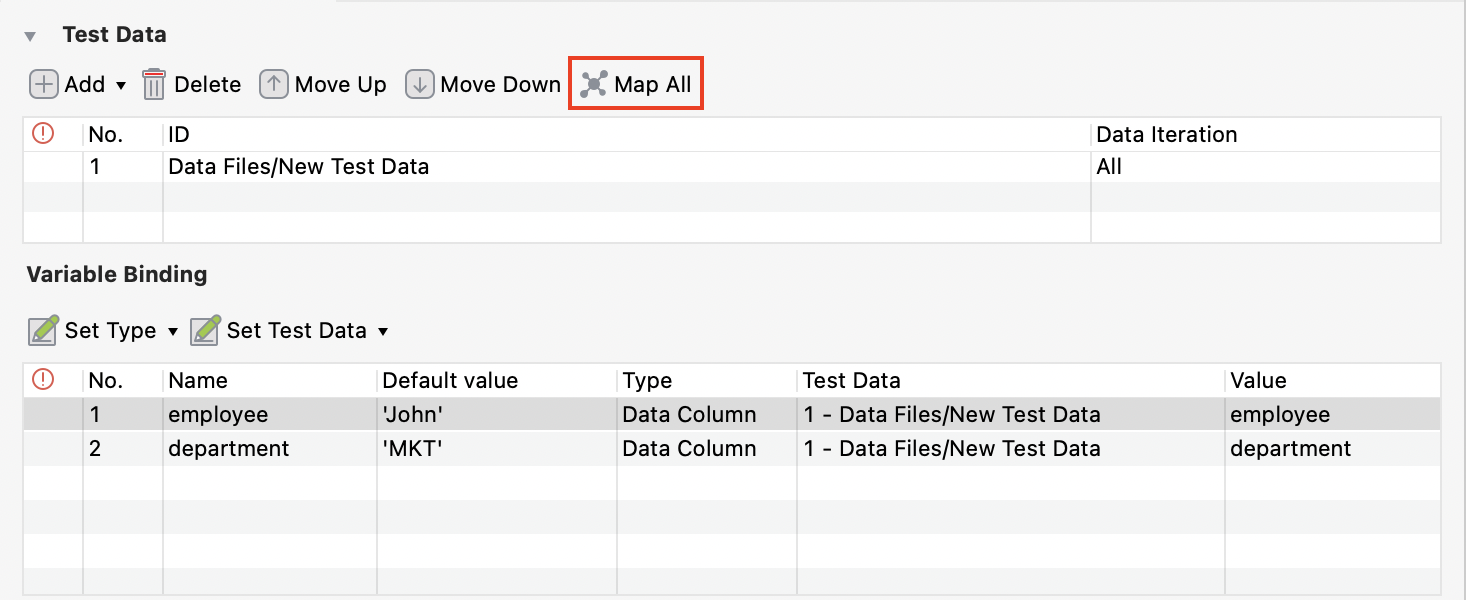
expectedResult→ Column:expectedResult
-
- Click Map All (if column names match variable names)
Step 5: Execute test
-
Click Run button
-
Katalon executes test case once for each data row (4 iterations)
-
View results in Log Viewer:
Test Cases/Login_DDT (2.5s) ├── Iteration 1 - username=john@test.com, password=Pass123! (0.6s) - PASSED
├── Iteration 2 - username=jane@test.com, password=Pass456! (0.6s) - PASSED
├── Iteration 3 - username=invalid@test, password=WrongPass (0.7s) - PASSED
└── Iteration 4 - username=locked@test, password=Pass789! (0.6s) - PASSED
Step 6: Troubleshoot errors
// Validate data before execution
if (username == null || username.isEmpty()) {
    throw new Exception("Username cannot be empty")
    }
if (!(username =~ /^[a-zA-Z0-9._%+-]+@[a-zA-Z0-9.-]+\.[a-zA-Z]{2,}$/)) {
    throw new Exception("Invalid email format: ${username}")
    }
// Handle missing password
String pwd = (password == null || password.isEmpty())
    ? "DefaultPass123"
    : password println("✓ Data validation passed for: ${username}")
Common pitfalls to avoid
When designing variables and referencing external data files for DDT, adherence to clean code naming conventions is essential:
-
Global Variables: When declaring global variables, use the Uppercase string convention.
-
Local/Test Cases Variables: Use CamelCase when declaring local or test case variables.
-
Variable Naming: Avoid using variable names that have no meaning or using keywords. Instead, ensure that you add appropriate comments or descriptions to define the variable's purpose.
-
Data File References: Ensure that you select the "Use relative path" option in the file information settings when referencing data files.
Conclusion
Key learnings
-
One test case replaces 4+ hardcoded test cases
-
Adding new users requires only adding data rows
-
Test maintenance is centralized in one place
-
Non-technical users can manage test data
Scaling recommendations
-
Organize data files by feature (Authentication/, Checkout/, etc.)
-
Use database data sources for large datasets (100+ rows)
-
Implement CI/CD integration to run DDT automatically
-
Use Katalon TestOps for centralized reporting