Katalon Docker Image (KDI)
This tutorial shows you how to run tests with Katalon Docker Image (KDI).
KDI contains up-to-date browsers, including Google Chrome, Mozilla Firefox, Microsoft Edge, and Katalon Studio. With KDI, you do not need to use the Katalon Studio and Runtime Engine apps installed on your local machine.
KDI for Katalon Studio is available on Docker Hub: katalonstudio/katalon.
- Install Docker. For instructions, see Get Docker.
- Have an active Katalon Runtime Engine floating license. See Types of licenses.
- You can find the source code of the Docker image in the GitHub repository: KDI.
- You can download the GitHub sample project for CI configurations using Docker image: CI samples.
Pull Katalon Docker Image (KDI)
Follow these steps to pull the Katalon Docker Image (KDI).
-
Open Terminal from your local machine.
-
Copy and paste the following command:
docker pull katalonstudio/katalon:11-latest-slimDocker opens and pulls the latest Katalon Runtime Engine
11.xversion.tip- The
11-latest-slimtag applies to the latest Katalon Runtime Engine, which we recommend for production use. - You can also use the
11-latesttag to pull in WebDriverManager and Gradle. - The major version number in the tag (
11-latest-slim,10-latest,9-latest-slim) should match your major version of Katalon Studio (11.1.0,10.0,9.7).
- The
You should see the katalonstudio/katalon image in your Docker application.
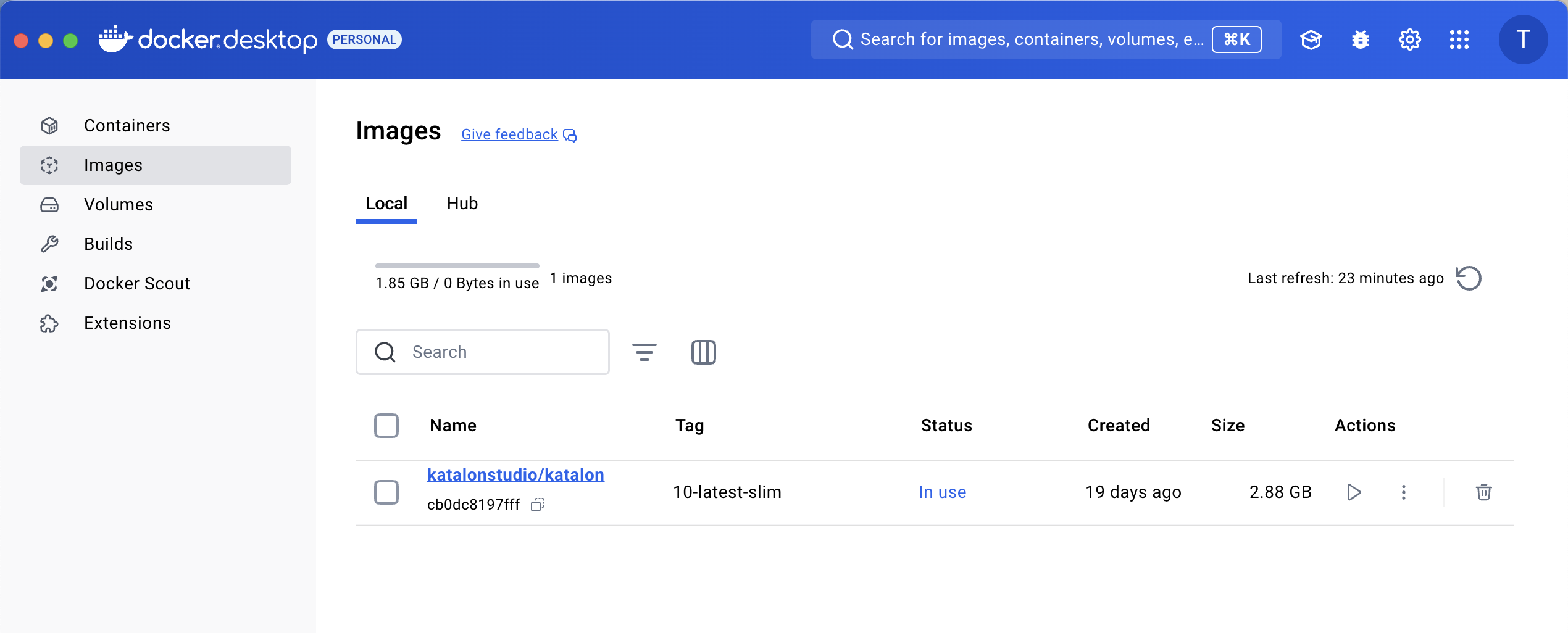
To check which Chrome and Firefox versions are supported by the Katalon Docker Image, run the following command:
docker run -t --rm katalonstudio/katalon:10-latest-slim cat /katalon/version
Execute Katalon Studio tests with Katalon Docker Image
- Use Katalon Docker Image version
7.2.1or later. - Keep Docker open while running the test.
-
Open Terminal, then go to the test project directory you want to run.
For example, to run the CI sample test project, go to the CI sample project folder on your local machine.
-
In your test project folder, enter one of the following commands:
For macOS:
docker run -t --rm -v "$(pwd)":/tmp/project katalonstudio/katalon katalonc.sh -projectPath=/tmp/project [Option1] [Option2] ... [OptionN]For Windows PowerShell:
docker run -t --rm -v ${pwd}:/tmp/project katalonstudio/katalon katalonc.sh -projectPath=/tmp/project [Option1] [Option2] ... [OptionN]For Windows CMD:
docker run -t --rm -v "%cd%":/tmp/project katalonstudio/katalon katalonc.sh -projectPath=/tmp/project [Option1] [Option2] ... [OptionN]note- The
katalonc.shcommand starts Katalon Studio and other necessary components. - All Katalon Studio console mode arguments are accepted except
runMode. For more command-line options, see Command-line syntax.
- The
-
To run the
TS_RegressionTesttest suite from the CI sample project with the Chrome browser in KDI, enter the following command:docker run -t --rm -v "$(pwd)":/tmp/project katalonstudio/katalon katalonc.sh -projectPath=/tmp/project -browserType="Chrome" -testSuiteCollectionPath="Test Suites/TS_RegressionTestCollection" -apiKey="<your_API_key>" note
note- To avoid syntax errors, you can use Command Builder to generate commands. To learn more about Command Builder, see Command Builder.
<your_API_key>is the API key that verifies your credentials. The API key command-line optionsapiKey=andapikey=are both accepted. To learn more about API keys, see API key.
-
View the console log in Docker during the test.

-
To view your report files, go to
<your-project-folder>/Reportsor your third-party integration, such as Katalon TestOps, Azure DevOps, or qTest.Katalon Studio supports exporting test reports in HTML, CSV, PDF, and JUnit.
Configure proxy settings
To configure proxies for Katalon Studio, see Proxy options.
Use proxy options with the --config parameter. For example:
docker run -t --rm -v "$(pwd)":/tmp/project katalonstudio/katalon katalonc.sh -projectPath=/tmp/project -browserType="Chrome" -retry=0 -statusDelay=15 -testSuitePath="Test Suites/TS_RegressionTest" -apikey="<your_API_key>" --config -proxy.option=MANUAL_CONFIG -proxy.server.type=HTTP -proxy.server.address=192.168.1.221 -proxy.server.port=8888
Prevent user permission issues on your machine
You can run the test under the current user ID using the KATALON_USER_ID environment variable. This helps avoid permission issues when accessing artifacts generated after the test execution.
- The
KATALON_USER_IDvariable is not available for KDIslimversion andnofirefoxversion.
-
Open Terminal, then run the following command:
id -u $USERThe result shows your current user ID. In this example, the user ID is
502.
-
To execute the test with the current user ID, enter the following command:
docker run -t --rm -e KATALON_USER_ID=<the-current-userID> -v "$(pwd)":/tmp/project katalonstudio/katalon katalonc.sh -projectPath=/tmp/project [Option1] [Option2] ... [OptionN]For example, to run the test with the user ID from step 1, enter the following command:
docker run -t --rm -e KATALON_USER_ID=502 -v "$(pwd)":/tmp/project katalonstudio/katalon katalonc.sh -projectPath=/tmp/project [Option1] [Option2] ... [OptionN]
Execute Katalon Studio tests with Katalon Docker Image versions earlier than 7.2.1
Keep Docker open while running the test.
Inside your test project directory, enter the following command:
docker run -t --rm -v "$(pwd)":/katalon/katalon/source katalonstudio/katalon katalon-execute.sh [Option1] [Option2] ... [OptionN]
All Katalon Studio console mode arguments are accepted except -runMode, -reportFolder, and -projectPath. For more command-line options, see Command-line syntax.
Command-line option descriptions:
katalon-execute.sh: This command starts Katalon Studio and other necessary components./katalon/katalon/source: Thekatalon-execute.shcommand looks for the test project inside this directory.
If you do not want to use this command line, define the test project directory with the docker run -w argument:
docker run -t --rm -v "$(pwd)":/tmp/source -w /tmp/source katalonstudio/katalon katalon-execute.sh [Option1] [Option2] ... [OptionN]
Known limitations for ARM64-based platforms
Starting from Katalon Studio version 10.0.0, Katalon Docker Image supports ARM64 platforms, including macOS (M1, M2) and Linux (Ubuntu ARM64). However, a few limitations exist when working with these platforms:
- Docker slim tags, for example,
9.6.0-slimand9-latest-slim, are not supported yet for ARM64. - Chrome and Edge Chromium browsers are not supported on ARM64 platforms. Executing tests with Chrome and Edge Chromium on these Docker images is not supported yet.