Create test case overview
After you create your Katalon project, you can create your first test case. A test case in Katalon Studio is a sequence of test steps, built from keywords that represent user actions on the Application Under Test (AUT).
Ways to create a test case
Katalon Studio offers several ways to build test steps. Choose the one that fits your skills and your application, and mix them in the same test case if needed.
| Method | Best for | Coding needed |
|---|---|---|
| Record your actions | Capturing real user flows on web, mobile, or desktop apps quickly. | No |
| Use the AI agent | Generating a test case from a plain-language prompt. | No |
| Add steps in Manual view | Building steps one by one from built-in keywords. | No |
| Write scripts in Script view | Full control with Groovy/Java, with AI help when you need it. | Yes |
You can start most of these from the main toolbar: the recorder buttons for web, mobile, and Windows apps, and Create new Test Case for a blank test case.

Record your actions
Interact with your application while Katalon Studio records each action as a test step and captures the related test objects.
- Web: Web Recorder and Web Recorder Plus.
- Mobile: Mobile Recorder and Smart Mobile Recorder.
- Desktop (Windows): Windows Recorder and Native Windows Recorder.
Use the AI agent
Describe what you want to test in plain language. Katalon AI Assistant in Agent mode uses your project context to create the test case for you. You can review the changes before you keep them. See Katalon AI Assistant Agent mode.
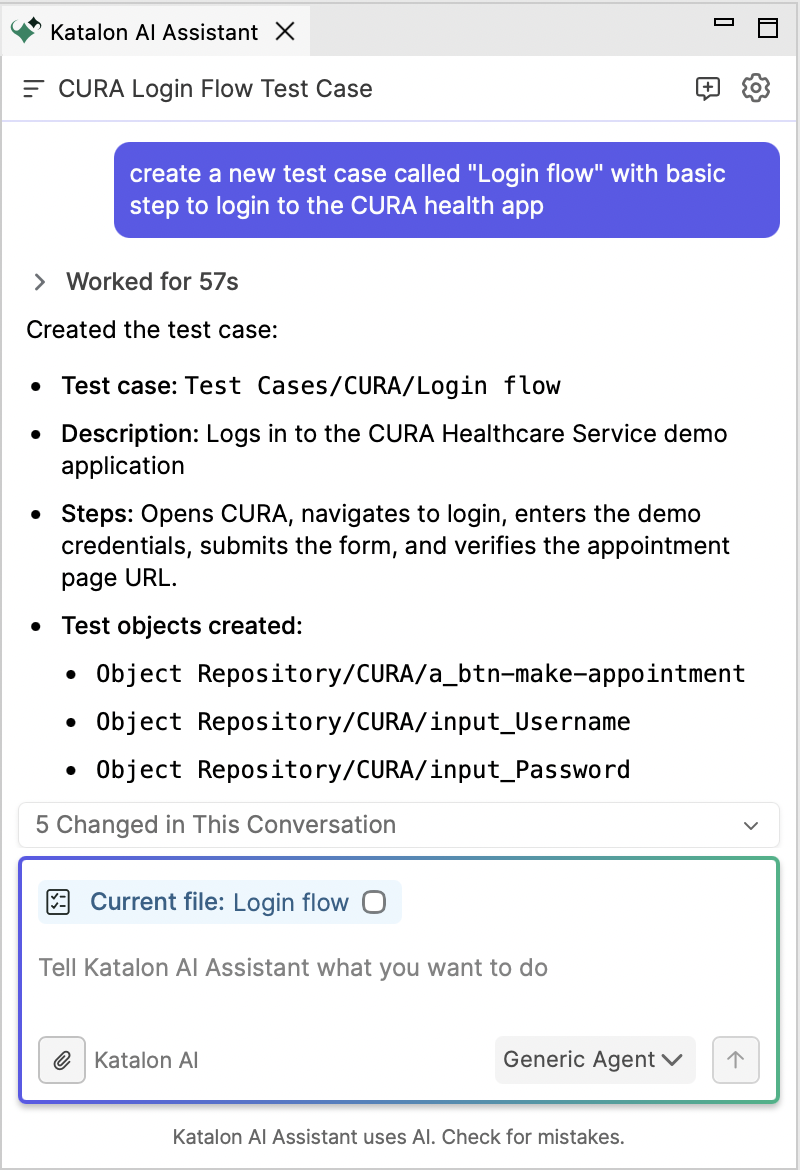
For API testing, the AI agent can also generate and run API tests from your OpenAPI specification. See Generate API tests with Katalon Studio's AI (beta).
Add steps in Manual view
Add, edit, and reorder test steps in a table by choosing keywords, test objects, and input values. No programming experience required.
See Generate test steps in Manual view.
Write scripts in Script view
Write and modify tests in Groovy/Java for full flexibility, such as custom logic and reusable code. Katalon AI Assistant can generate and explain code directly in the script editor.
See:
Manual view and Script view stay in sync. For example, you can record a flow, refine it in Manual view, then add custom logic in Script view.
Learn more
This section also guides you through:
- Creating a new test case. See Create a new test case.
- Supported value types in Katalon Studio. See Value types.
- Adding statements to your test case. See Statements.
- Calling another test case as a test step. See Call test case.
- Configuring the setUp/tearDown methods and the test listeners in Katalon Studio. See Test fixtures and test listeners (test hooks).
- Using text encryption directly inside the test script. See Working with sensitive text.
- For API testing:
- For BDD testing: Create BDD test cases.
- Combining Katalon Studio with SAP Scripting Tracker for Windows. See Combine Katalon Studio with SAP Scripting Tracker for Windows.