Create a new test case in Katalon Studio
Open the Katalon Studio project where you want to create a test case. If you need help opening a project, see Manage test project in Katalon Studio overview.
Create a test case
-
Open the New Test Case dialog in one of these ways:
-
On the main toolbar, click Create new Test Case.

-
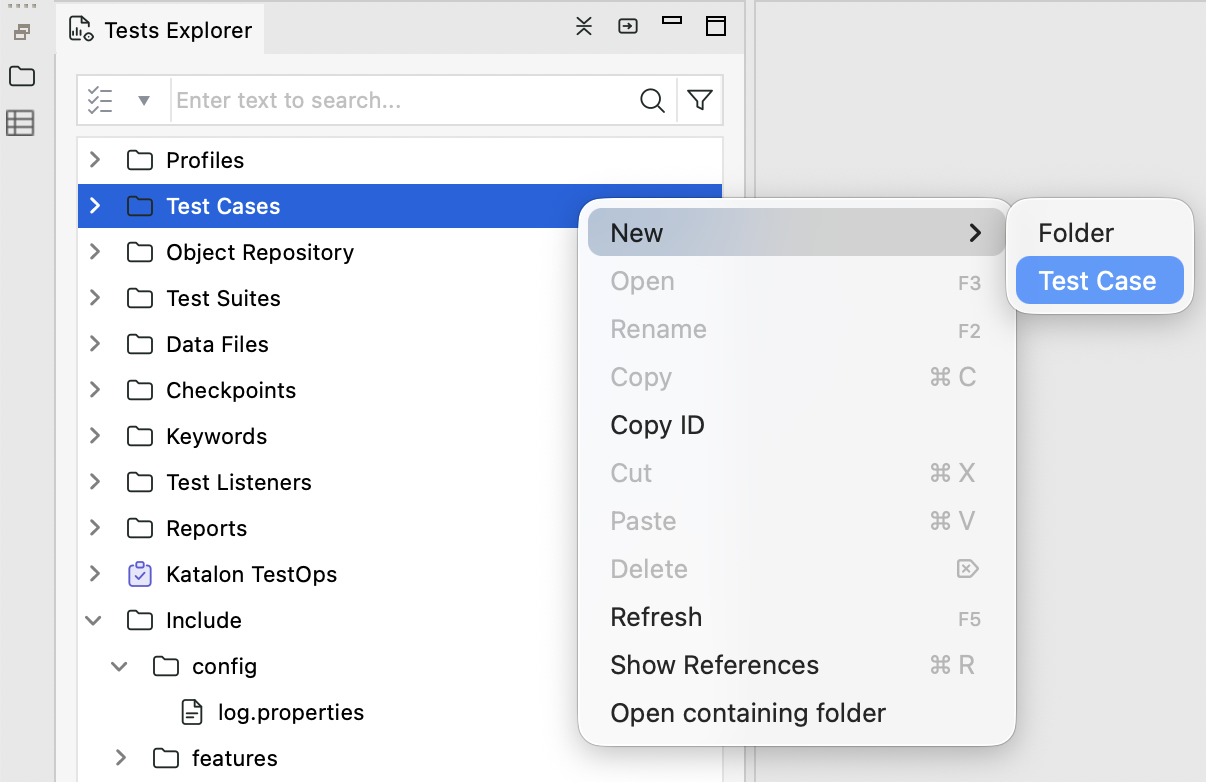
In Tests Explorer, right-click the Test Cases folder, then select New > Test Case.
-
From the main menu, select File > New > Test Case.
-
-
Enter a name for the test case. You can also add a description and tag, then click OK.
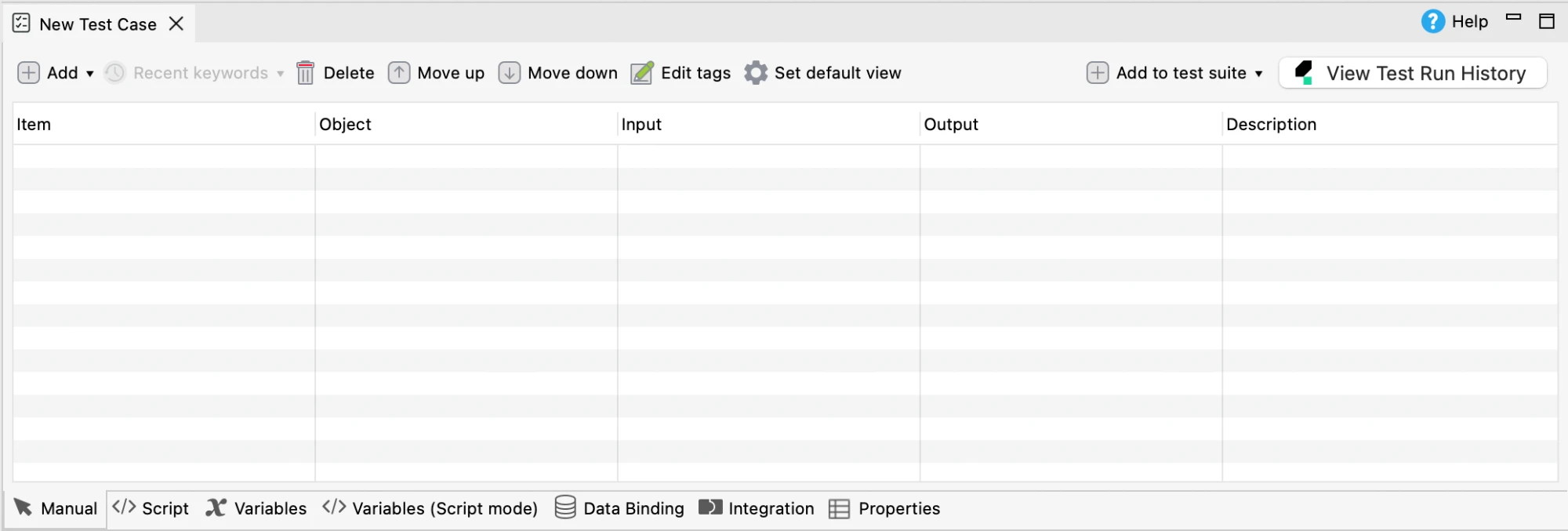
The new test case opens in Manual view, where you can add test steps without writing code. To edit the test case as a script, switch to the Script tab.
To organize test cases in a new folder, right-click Test Cases in Tests Explorer and select New > Folder. For help using tags, see Test case management with tags.