Katalon AI Assistant Overview
Katalon AI Assistant is Katalon Studio's built-in AI assistant that helps you design, generate, and maintain automated tests. It supports workflows ranging from quick natural-language Q&A to fully guided, project-aware automation powered by Model Context Protocol (MCP) servers.
- Katalon Studio Enterprise (KSE) license – required to use the built-in Katalon AI Service without your own API key.
- Or a personal API key from a supported provider (OpenAI, Azure OpenAI, Google Gemini, AWS Bedrock, or an OpenAI-compatible service). Configure this in Katalon AI Assistant Preferences.
Modes
You can switch between two modes in the Katalon AI Assistant chat window:
- Ask mode: Conversational chat for questions, code snippets, and explanations. Supports multiple locally saved conversations. See Katalon AI Assistant Ask mode.
- Agent mode (default): Executes multi-step, project-aware actions via MCP servers and tailored agent profiles. Conversations are scoped to the mode and Agent Profile they were created with. See Katalon AI Assistant Agent mode.
Open chat window
The Katalon AI Assistant chat window opens automatically on the right panel when Katalon Studio starts. Alternatively, click the Katalon AI Assistant icon in the main toolbar, or use Ctrl + Shift + N (Windows) and ^ + ⌥ + N (macOS).
Manage conversations
Conversations are saved locally on your machine and remain available after you close the chat window or restart Katalon Studio.
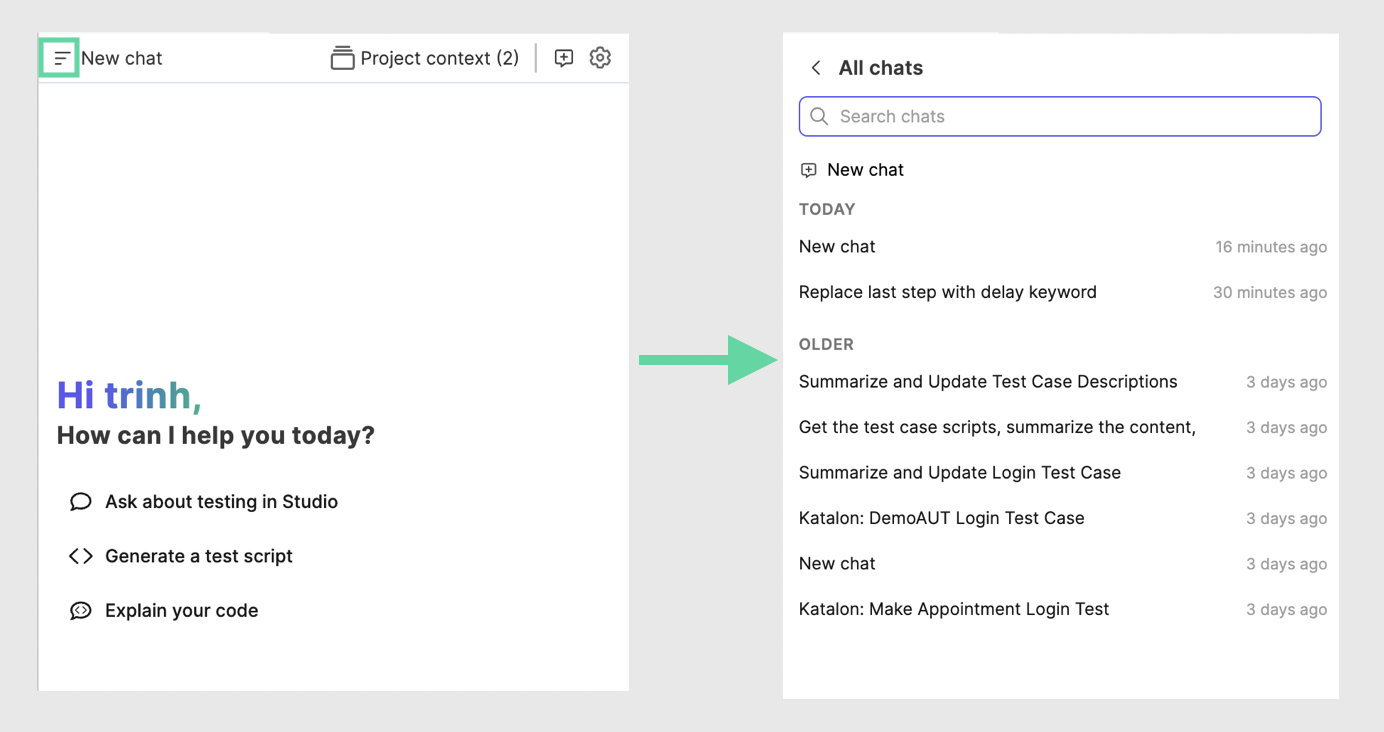
- Click New chat to start a separate conversation without losing the current one.
- Click All chats to view previous conversations and switch between them.
- Hover over a conversation in All chats, then click the more options menu to Rename or Delete it.
- New conversations use New chat as the temporary title. After you send the first message, Katalon AI Assistant automatically generates a short title that summarizes the conversation.
- Conversations are tied to the mode and agent profile they were created with. Reopening a conversation automatically switches back to that mode and agent profile.
Conversations are stored at the application level for the current local user, not in the project folder. The conversation list is filtered by your current project and enabled Agent Profiles.
All chats shows conversations based on project context and enabled Agent Profiles. If no project is open, Ask mode and generic-agent conversations appear. If a project is open, conversations from Agent Profiles enabled in that project also appear. If an Agent Profile is disabled or deleted, conversations associated with it do not appear in All chats while that profile is unavailable.
For long conversations, Katalon AI Assistant automatically summarizes earlier messages when a conversation gets long. This helps keep both Ask mode and Agent mode conversations within the active model's context limit without requiring you to manually clear the chat.
If summarization fails, no messages are removed. You can continue chatting, but starting a new chat might produce better results for a different task or context.
Response streaming
- Katalon Studio version 11.4.0 onwards.
Katalon AI Assistant shows an answer progressively as the model produces it, instead of displaying nothing until the full response is ready. The progress indicator clears as soon as the text starts appearing, and you can stop the response at any point, including while the text is still streaming.
Streaming needs no configuration and applies to:
- Ask mode and Agent mode conversations.
- Generate code and Explain code in the script editor.
- AI features that run during execution, such as AI self-healing and AI failure analysis in reports.
Streaming works with every supported AI provider, and in Katalon Runtime Engine as well as Katalon Studio.
Use current file as context
Available in both Ask mode and Agent mode.
Katalon AI Assistant automatically includes the content of the file you are actively editing as context, so you do not need to copy-paste file content into the chat.
The Current file box is selected by default in the chat window. When you switch between files, the context updates automatically. To turn this off, untick the box. Current file context is scoped to the active conversation and follows the mode and agent profile tied to that conversation.
- Test case
- Test suite
- Dynamic test suite
- Test listener
- Web service request
- Custom keyword
- BDD feature file
- Profile
- Step definition (
.groovyfile) - Java class (
.javafile)
AI capabilities
Katalon Studio has nine AI capabilities. Katalon AI Assistant is listed as two rows, one for each mode. Each capability runs in one of two ways:
- User-triggered: runs only when you chat, click, or select something.
- Background: runs automatically, for example during or after a test run.
| Area | Capability | Description | Benefit | How it runs |
|---|---|---|---|---|
| AI Assistant | Katalon AI Assistant: Ask mode | Conversational chat for questions about Katalon Studio, keywords, or testing concepts. Conversations are saved locally in chat history, and long conversations are summarized automatically. See: Katalon AI Assistant Ask mode and Manage conversations. | Instant guidance and knowledge retrieval. | User-triggered |
| AI Assistant | Katalon AI Assistant: Agent mode | Executes multi-step, project-aware actions through MCP servers. See: Katalon AI Assistant Agent mode.
| Automated creation and modification of project artifacts, and resolving failed test cases without manual code editing. | User-triggered |
| Script editor | Generate code | Generates script code from a commented description and adds it to the open script. See Generate and explain code in the script editor. | Faster scripting. | User-triggered |
| Script editor | Explain code | Explains the selected script code and adds the explanation to the open script. See Generate and explain code in the script editor. | Easier debugging. | User-triggered |
| AI during execution | AI Self-Healing | Finds fixes for broken locators during test runs. Test objects change only after you approve the suggestions. See Configure AI Self-healing. | Fewer test failures caused by changed locators. | Background |
| AI during execution | LLM keywords | Keywords that use AI in your test scripts during execution, such as Ask, Assert Text, and Assert File. Available from version 11.5.0. See Call AI from test scripts with LLM keywords. | AI-powered validation without building custom HTTP integrations. | User-triggered |
| AI during execution | AI Failure Analysis in Reports | Analyzes why a test failed and adds the reason to HTML, PDF, and email reports. See AI Failure Analysis in Reports. | Faster issue diagnosis and less debugging time. | Background |
| Test creation | Web Recording Agent | Lets an AI agent drive the Web Recorder to create a Web UI test case. See Generate a Web UI test case with AI. | Creates Web UI tests without recording each step by hand. | User-triggered |
| Test creation | AI-Generated API Tests | Generates API test cases and test objects from an OpenAPI specification. See Generate API tests with Katalon Studio's AI. | Builds API testing workflows more quickly. | User-triggered |
| MCP | Katalon Studio MCP Server | Lets AI clients read, create, and edit tests in your Katalon Studio project. See Katalon built-in MCP servers and Host Katalon Studio MCP Server. | Works with your project from the AI client of your choice. | User-triggered |
To customize the system prompts used by Ask mode, Agent mode, code generation, code explanation, and failure analysis, see Customize engineering prompts with Prompt Library.
Access and licensing
| Service Type | Requirement | Setup |
|---|---|---|
| Katalon AI Service | KSE License | None – enabled automatically. |
| Personal API Key | KSE License, user-provided key from a supported provider | Configure in Katalon AI Assistant Preferences. |
Supported external providers: OpenAI, Azure OpenAI, Google Gemini, OpenAI-compatible providers, and AWS Bedrock.
To select your preferred provider and model, and to see the full list of supported models for each provider, see: AI service configuration.
Common use cases
- Ask mode use cases – Q&A, code snippets, test concept explanations.
- Agent mode use cases – Automated test creation, editing, and project-aware actions.
Known limitations
- AI hallucinations: Katalon AI Assistant may generate code with non-existent built-in keywords. Always review and validate generated code before running it.
- Debugging expertise required: Generated code may need programming knowledge to debug, especially for complex test scenarios.
FAQs
Do I need my own API key to use Katalon AI Assistant?
No. With a KSE license, Katalon AI Assistant uses the built-in Katalon AI Service without requiring your own API key. To use a different provider, configure a personal API key in Katalon AI Assistant Preferences.
Can I use keyboard shortcuts with Katalon AI Assistant?
Yes. Highlight code or a comment in the script editor, then use:
macOS:
- Generate code:
^+⌥+C - Explain code:
^+⌥+E
Windows:
- Generate code:
Ctrl+Alt+C - Explain code:
Ctrl+Alt+E
What should I do when generated test scripts fail to run?
Generated scripts may fail when test objects, variables, or action steps are missing or undefined. Before generating code, prepare your project:
- Capture the test objects in the Object Repository.
- Define all variables the script will reference.
- List each action step with its corresponding test object and variable.
Why is Agent mode not calling any MCP tools?
You may be using a legacy API version. Update to a newer API version for your provider. See: AI service configuration.
Why is Katalon AI Assistant not working?
Use the table below to identify and resolve common issues:
| Symptom | Likely Cause | Resolution |
|---|---|---|
| Warning when enabling AI features | AI features disabled at the Account level | Contact the Account Owner to enable AI features. |
| AI assistant unavailable | Not on a KSE license | Upgrade your license. |
| AI assistant unavailable | Logged in via a License Server | Not supported. Log in via cloud authentication instead. |
| AI not working | Proxy misconfiguration | Update to version 9.4.0 or later. |
Error: Session not active or invalid_grant | Logged in on multiple devices simultaneously | Log out from all devices, then log in again. |
Error code {"code":8} (Katalon AI Service) | Input too large or usage limit reached | Clear the current conversation, disable Auto-include project context information, or split your prompt into smaller parts. |