Katalon AI Assistant Preferences
This guide shows you how to set up AI services in Katalon AI Assistant, use AI to generate test cases, add project context automatically, get follow-up question suggestions in the Katalon AI Assistant chat window, and customize prompts in the Prompt Library.
- AI services and Katalon AI are enabled for your Account, see Configure AI Services.
You can configure to use Katalon AI Assistant to further improve your experience.
In Katalon Studio, go to Katalon Studio > Preferences > AI configurations and select a model.
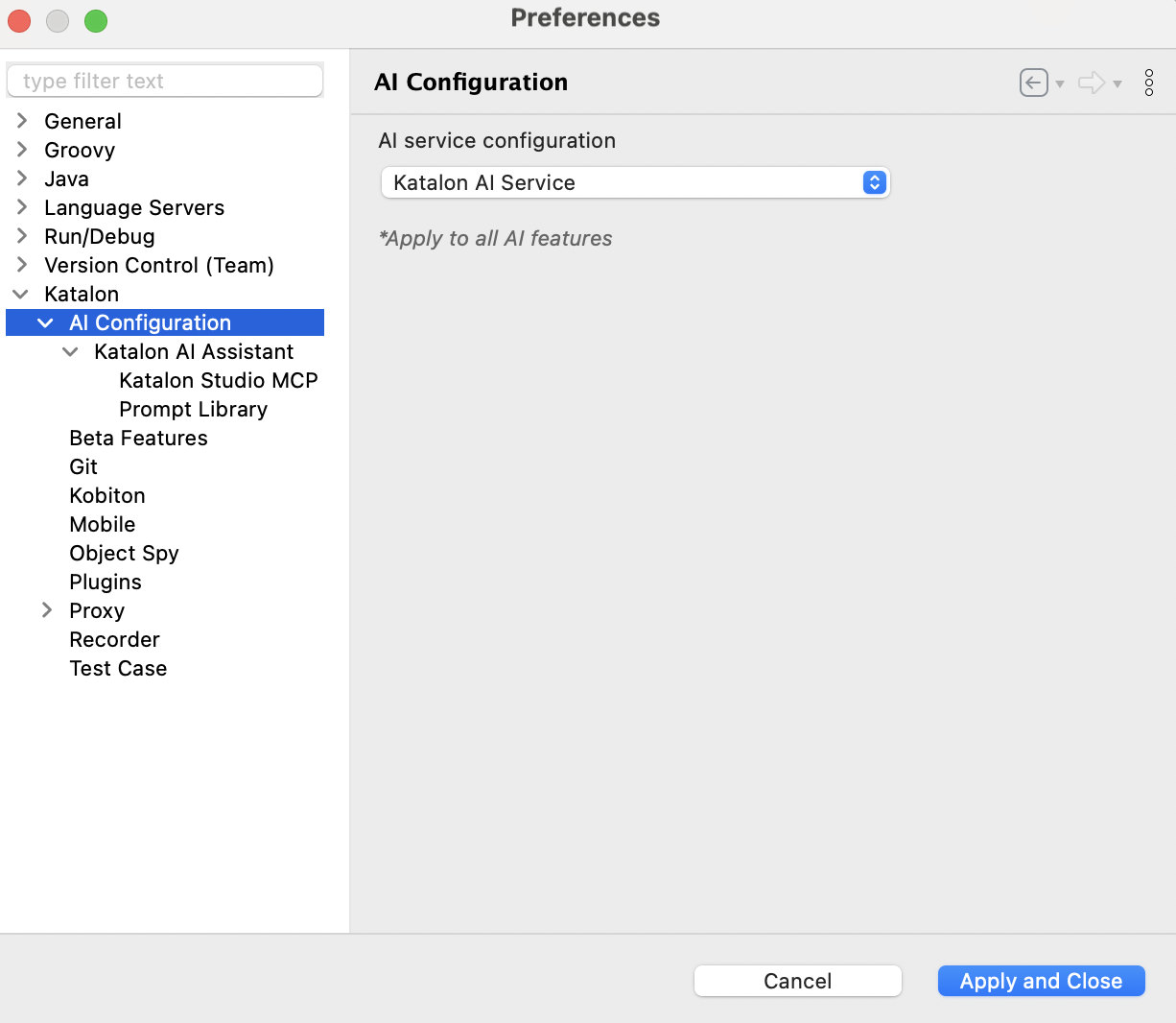
If your account has no configured AI model, the following notification appears: There is no AI model in your account. You can then click Request Access to contact your account owner to enable AI features, or add your own API key.
For OpenAI compatibility information, refer to OpenAI Supported Models.
AI service configuration
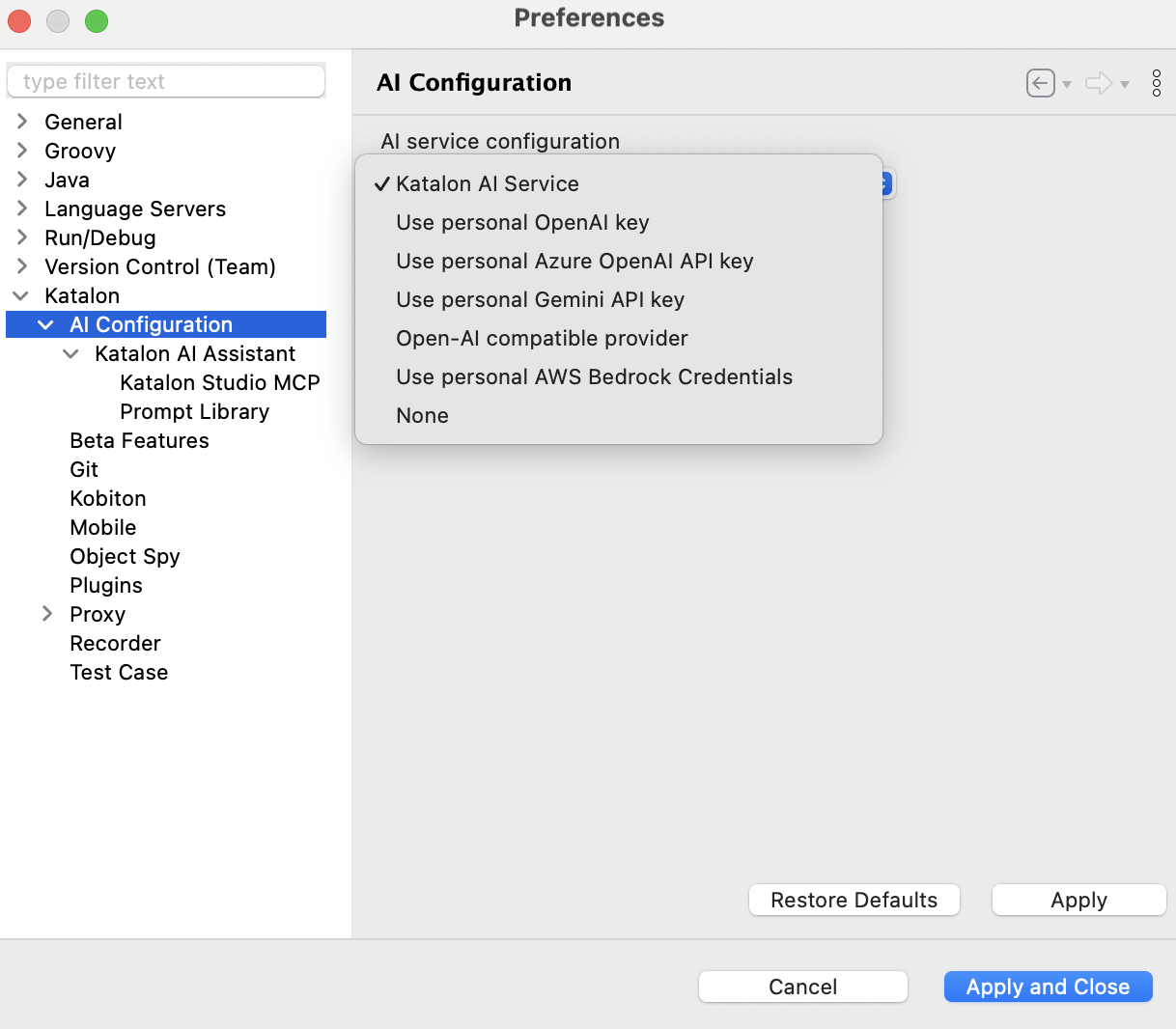
When AI services and Katalon AI are enabled for your Account, you can freely choose between using:
| AI Provider | Supported model | Notes |
|---|---|---|
| Katalon AI Service | gpt-5.6-luna for all features: Agent mode, Web Recording Agent, AI self-healing, Ask mode, Generate and Explain code in the script editor, and AI failure reason analysis in email and HTML reports. | Built-in; no configuration needed. Supports multilingual inputs. |
| Personal OpenAI |
| Supports multilingual inputs. |
| Azure OpenAI | User-specified deployment Tested with:
| Requires specifying the deployment name in configuration. Notes: Some older API versions do not support tool calls in Agent mode. |
| Gemini |
| URL points to the latest supported version of the Google Generative Language API. |
| OpenAI-Compatible Provider |
| API key passed via the Authorization HTTP header. |
| AWS Bedrock |
| Requires credential-based authentication configuration. |
Click on the tab below to find more information about the AI service.
- Katalon AI
- Preset AI Service
- Personal AI keys
When selected, there is no need to to set up a key for Katalon AI Service.
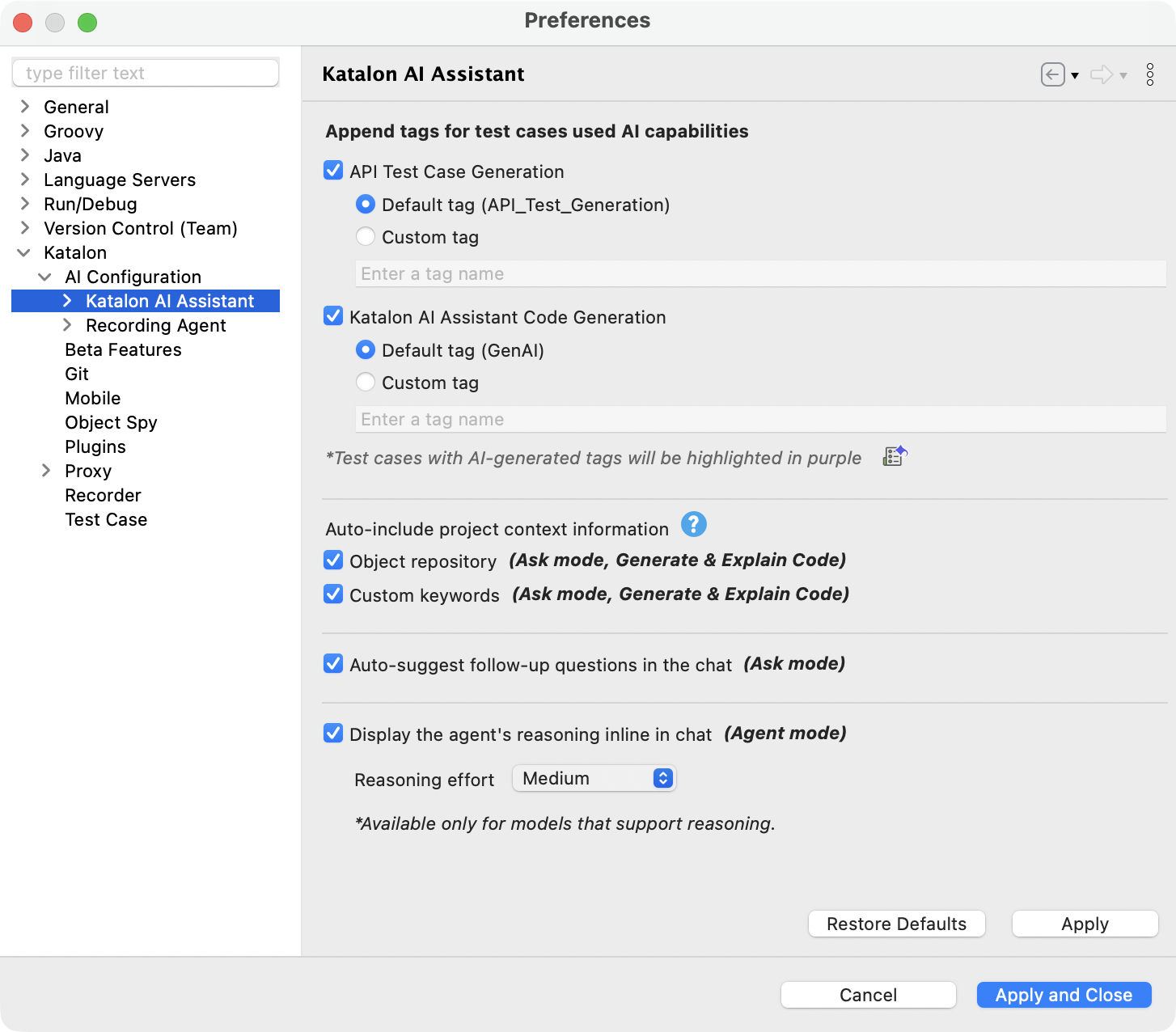
You can, however, configure Katalon AI Assistant to auto-tag AI-generated test cases, including API test cases, code generation, and Web Recording Agent test cases, with default or custom tags. You can also include project context such as the Object Repository and Custom Keywords, and enable follow-up question suggestions in the chat for a more guided AI experience.
If your Admin has enabled the use of the organization’s AI key, the AI provider is shown at the top of the dialog as: "AI provider name – managed by your organization".
With this setting, you can configure the token limit and model for the AI service. You cannot switch between services (Katalon AI, OpenAI, Azure, Gemini, or OpenAI compatible provider).
In the case of AI features are disabled, you can opt for your personal OpenAI key, Azure OpenAI API key, Gemini API key, Open-AI compatible provider, or AWS Bedrock key.
- Provide service provider configuration.
-
Use personal OpenAI key: Provide the following information before using:
- Secret key: To get your Secret key, refer to the provider's instruction: Where do I find my secret key?.
- Max completion token: The default value that sets the maximum number of tokens the model can return in its response. The default value is 16000. To learn more about the token limits, refer to the OpenAI rate limits documentation: OpenAI Token Limits.
- Organization ID (optional): The organization ID on OpenAI is the unique identifier for your organization which can be used in API requests.
- Model: The OpenAI model you want to use. If not changed, the
gpt-4o-minimodel is used by default.
-
Use personal Azure OpenAI API key: Provide the following information before using:
- Base URL: The base URL for your Azure OpenAI resource in the following format:
https://{your-resource-name}.openai.azure.com. - Deployment name: Azure OpenAI uses the deployment name to call the model. Enter the deployment name of your choosing, make sure that the model supports chat completion.
- API key: To get your Azure OpenAI key, refer to this article: How to get Azure OpenAI Keys and Endpoint
- Max completion token: The default value that sets the maximum number of tokens the model can return in its response. The default value is 16000.
- API version: API version is selected for you by default.
- Base URL: The base URL for your Azure OpenAI resource in the following format:
-
Use Gemini API key: Provide the following information before using:
- Base URL: The base URL used to connect to the Gemini API service. This URL should point to the correct version of the Google Generative Language API.
- API key: Your Gemini key. Create a key for free in Google AI Studio.
- Model: The Gemini model you want to use. If not, Katalon AI Assistant will use the latest supported version of the Google Generative Language API by default.
- Max completion token: The default value that sets the maximum number of tokens the model can return in its response.
-
Use Open-AI compatible provider: Provide the following information before using:
- Base URL: The API endpoint for your OpenAI-compatible service.
- API key: Your API key.
- API key header name: The name of the HTTP header where the API key is passed (commonly
Authorization). This allows support for providers with different header naming conventions. - Model: The model you want to use. If not changed, the
gpt-4.1-minimodel is used by default. - Max completion token: The default value that sets the maximum number of tokens the model can return in its response.
-
Use personal AWS Bedrock key: Provide the following information before using:
- AWS access key: Your AWS access key ID. To learn how to create one, see Managing access keys for IAM users.
- AWS secret key: The secret key paired with your access key ID for authentication. You can only view it once when creating the key pair.
- AWS session token: A temporary security credential provided by AWS Security Token Service (STS). Required only if you use temporary credentials, such as those from assuming an IAM role or MFA authentication. For details, see
GetSessionToken. - AWS region: The AWS region where your Bedrock model is available.
- Model: The model ID in your AWS Bedrock account. See Supported foundation models in Amazon Bedrock.
- Max completion token: Sets the maximum number of tokens the model can return in its response. The default value is 16000.
noteKatalon Studio currently does not support proxy connections for AWS Bedrock.
-
Disable Katalon AI Assistant: If you don't want to use any AI provider, you can disable Katalon AI Assistant by selecting None from the AI service provider list. When disabled, the chat window will display that no AI is available in your account.
-
Katalon AI Assistant Preferences options
Refer to the items below for the list and descriptions of Katalon AI Assistant Preferences options.
Append tags for test cases used AI generated capabilities
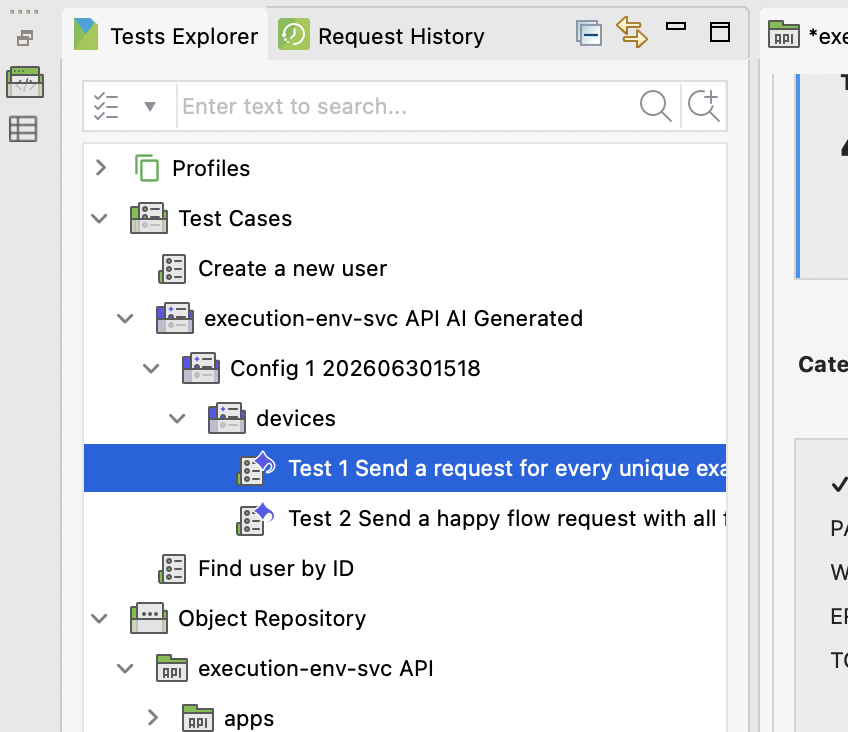
Test cases with AI-generated tags are highlighted in purple.
-
API Test Case Generation - Check this option to automatically tag AI-generated API test cases with a default tag (
API_Test_Generation) or custom tag name of your choice. When enabled, Katalon AI Assistant adds an AI tag (default or custom) to each API test case it generates. For details, see Generate API tests. -
Katalon AI Assistant Code Generation - Check this option to automatically tag AI-generated test automation scripts from structured user prompts with a default tag (
GenAI) or custom tag name of your choice. This option will automatically add the tag for these two actions:-
Generate code via Script View: When you use Katalon AI Assistant to generate code directly within the Script mode of an existing test case. See Generate code.
-
Create and edit test cases via Katalon MCP Server: When you use Agent mode to perform actions like creating a new test case or editing an existing one based on your prompts. Learn more in Katalon AI Assistant Agent mode.
-
-
Web Recording Agent - Go to Katalon > AI Configuration > Recording Agent > Web to automatically tag test cases generated by Web Recording Agent. You can use the default tag or enter a custom tag. Test cases with AI-generated tags display the AI-generated indicator in the Test Explorer.
Auto-include project context information
To improve responses and generated scripts from Katalon AI Assistant, you can enable both the Object repository and your Custom keywords. Katalon AI Assistant will then automatically use the list of all test object IDs and available custom keywords in the project as context. This feature applies to Ask mode, Generate Code, and Explain Code. Agent mode can already connect to MCP servers and utilize their tools to access project context or create custom keywords. Learn more about Katalon AI Assistant's Katalon built-in MCP tools.
Enabling this option helps Katalon AI Assistant deliver more tailored responses, reduces the need to specify exact object paths or test objects, and lets you reuse predefined actions through custom keywords directly in the generated scripts.
Auto-suggest follow up questions in the chat
When enabled, Katalon AI Assistant automatically suggests follow-up questions after providing a successful answer. This gives users greater control over their chat experience, whether they prefer guided suggestions or a more minimal interface. The feature works only for Ask mode.
Display the agent's reasoning inline in chat
- Katalon Studio version 11.4.0 onwards.
When enabled, Agent mode shows the model's reasoning inline in the chat as it works. Each turn displays a thinking note above the tool calls that turn triggers. This option is enabled by default and applies to Agent mode only. Ask mode streams the answer without a thinking note.
Use Reasoning effort to control how much reasoning the model does before it answers:
| Level | How it works |
|---|---|
| Low | The model reasons briefly. Use this level for straightforward tasks and the fastest responses. |
| Medium | The default level. Balances reasoning depth against response time. |
| High | The model reasons more thoroughly before answering. Use this level for complex tasks that involve several tools or files, and expect longer responses. |
When you clear Display the agent's reasoning inline in chat, the Reasoning effort list is disabled, and Agent mode no longer requests or displays reasoning.
- Reasoning is available only for models that support it. If your selected model does not support reasoning, Katalon AI Assistant answers without it instead of returning an error, and skips reasoning for that model for the rest of the session.
- The model spends part of its output budget on reasoning. If a response stops before the answer is complete, lower Reasoning effort or raise Max completion token for your provider, then try again.
For details on how reasoning appears in a conversation, see Follow the agent's reasoning.
Customize engineering prompts with Prompt Library
Customize your engineering prompts using Prompt Library to provide more context and improve the accuracy of Katalon AI Assistant responses. This works for both Ask mode and Agent mode.
- Click Katalon Studio on the main navigation and select Settings to open the Preferences dialog.
- Select Katalon > Katalon AI Assistant > Prompt Library.
- Configure your Prompt Library. Click on the prompt type you want to customize. Edit this text directly to include more context or specific instructions about how you want the AI to respond.
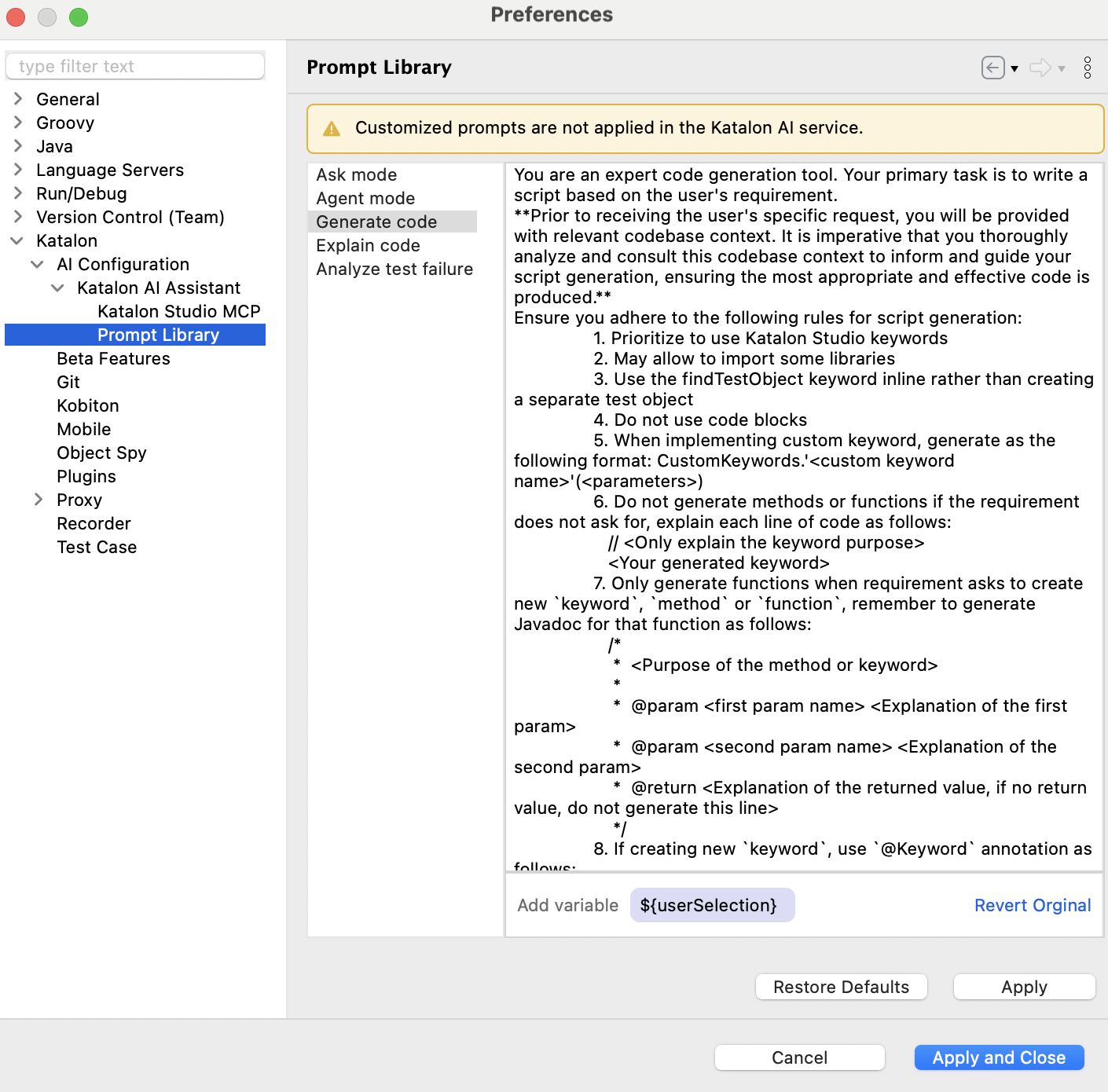
- Ask mode: Used in the Katalon AI Assistant Ask mode. This controls how Katalon AI Assistant responds to your general questions or guidance requests in Ask mode conversations. Add more context about your application under test (AUT) or focus area, so you don’t have to repeat this every time you start a new Ask mode chat.
- Agent mode: Used in Agent mode conversations. This defines the agent's behavior, tool priorities, and response patterns for Agent mode and Agent Profile conversations. You can customize this prompt to match your workflow, team conventions, or testing methods, for example, setting tool priority. Changes take effect right away and are saved across restarts. You can click Revert Original or leave the prompt empty to use the default prompt from Katalon AI Assistant system.
- Generate code: Used in the script editor, add style guide details or coding preferences to make the generated code better fit your project.
- Explain code: Used in the script editor, specify if you want detailed technical explanations or a high-level summary, depending on your needs.
- Analyze test failure: Used to customize the system prompt for AI Failure Analysis. This defines how Katalon AI Assistant interprets failure logs and generates analysis results.
- Click Apply or Apply and Close to save.
You can now use Katalon AI Assistant with your customized prompts. If the generated output is not to your expectation, simply open the Prompt Library and select Revert Original to revert each prompt or click Restore to Defaults to restore all prompts.
- Use
${userSelection}for Generate code and Explain code. This variable represents the specific piece of text or code you have highlighted (selected) in the script editor. - Customize prompt is not applied for Katalon AI service.