Self-healing tests in Katalon Studio
This article guides you through Katalon Studio's different self-healing mechanisms of broken object locators while maintaining test cases.
An active Katalon Studio license
When the application under test (AUT) changes, some object locators might no longer work due to UI changes, and the test case fails to identify target elements that worked before.
To assist with test maintenance, Katalon Studio supports different self-healing mechanisms to self-heal broken object locators during executions.
We also offer a sample project for you to try out. You can clone or download this sample project from our GitHub repository: Self-healing sample project. Learn more with our Katalon Academy course: Self-Healing Mechanism in Test Automation.
Classic self-healing and AI self-healing
- Self-healing suggestions with Smart Locators that are not approved in version 9.3.1 will not be visible when the project is opened in previous versions.
When Katalon Studio can no longer locate a test object using the original locator, it triggers self-healing, trying other known locators associated with that object. If one of them works, the test continues to run without interruption, and once completed, Katalon Studio suggests replacing the broken locator with the one that worked.
For details on approving suggestions and reusing saved fixes, see Approve suggestions in Self-healing Insights.
If none of the existing locators can recover the object through classic self-healing, Katalon Studio then moves to AI self-healing. This capability uses a Large Language Model (LLM) to analyze signals such as page source, accessibility tree, full-page screenshot, and element screenshots to identify the target element and suggest an alternative locator.
If both fail to detect the test object, Katalon Studio may stop or continue, depending on the failure handling option you have configured. See Failure Handling.
- AI self-healing might have issues finding the element with the image locator. This module will be improved in upcoming releases.
Enable or disable self-healing
In both configuration views for WebUI and Mobile, you can enable or disable self-healing:
- WebUI
- Mobile
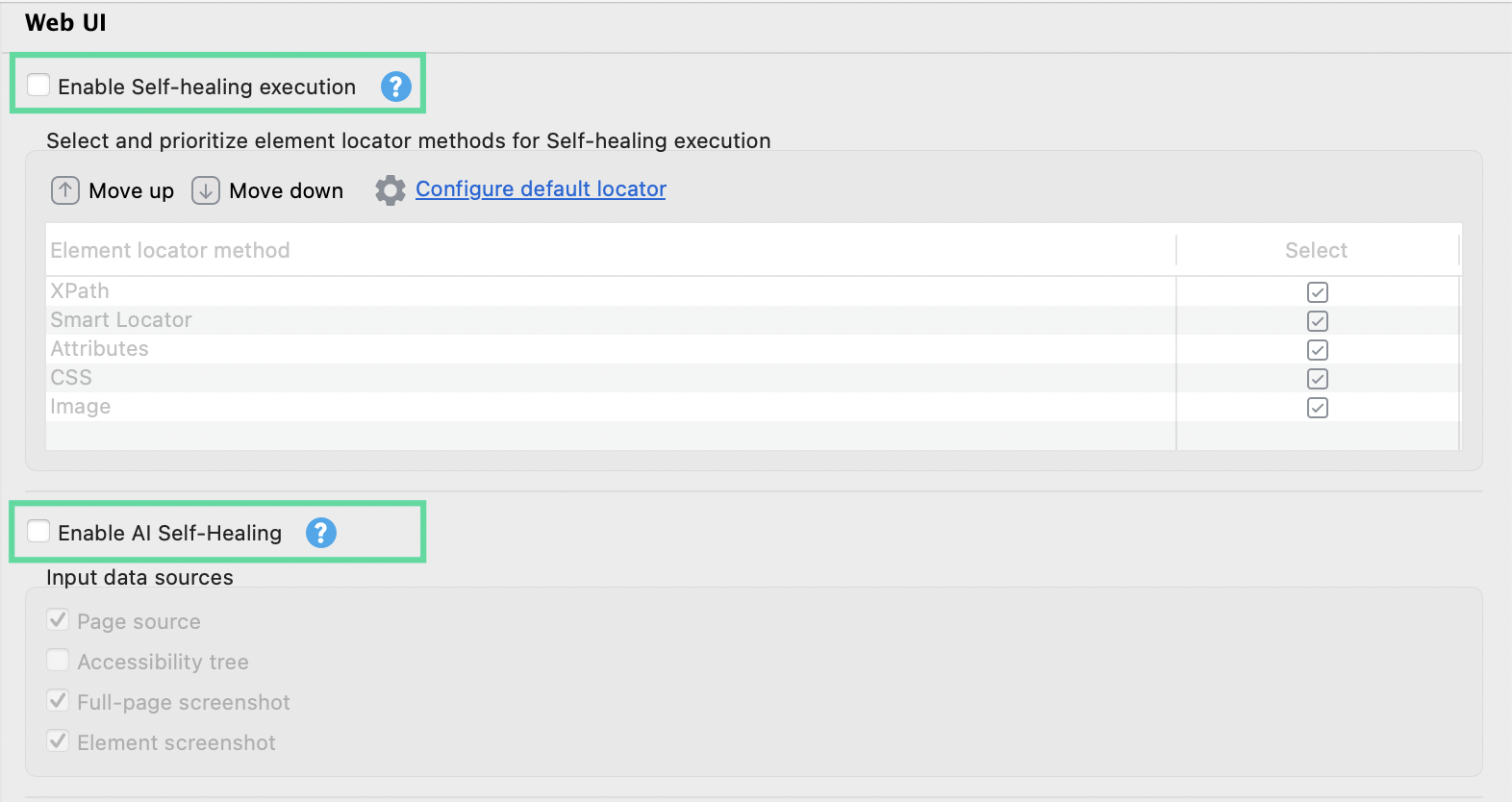
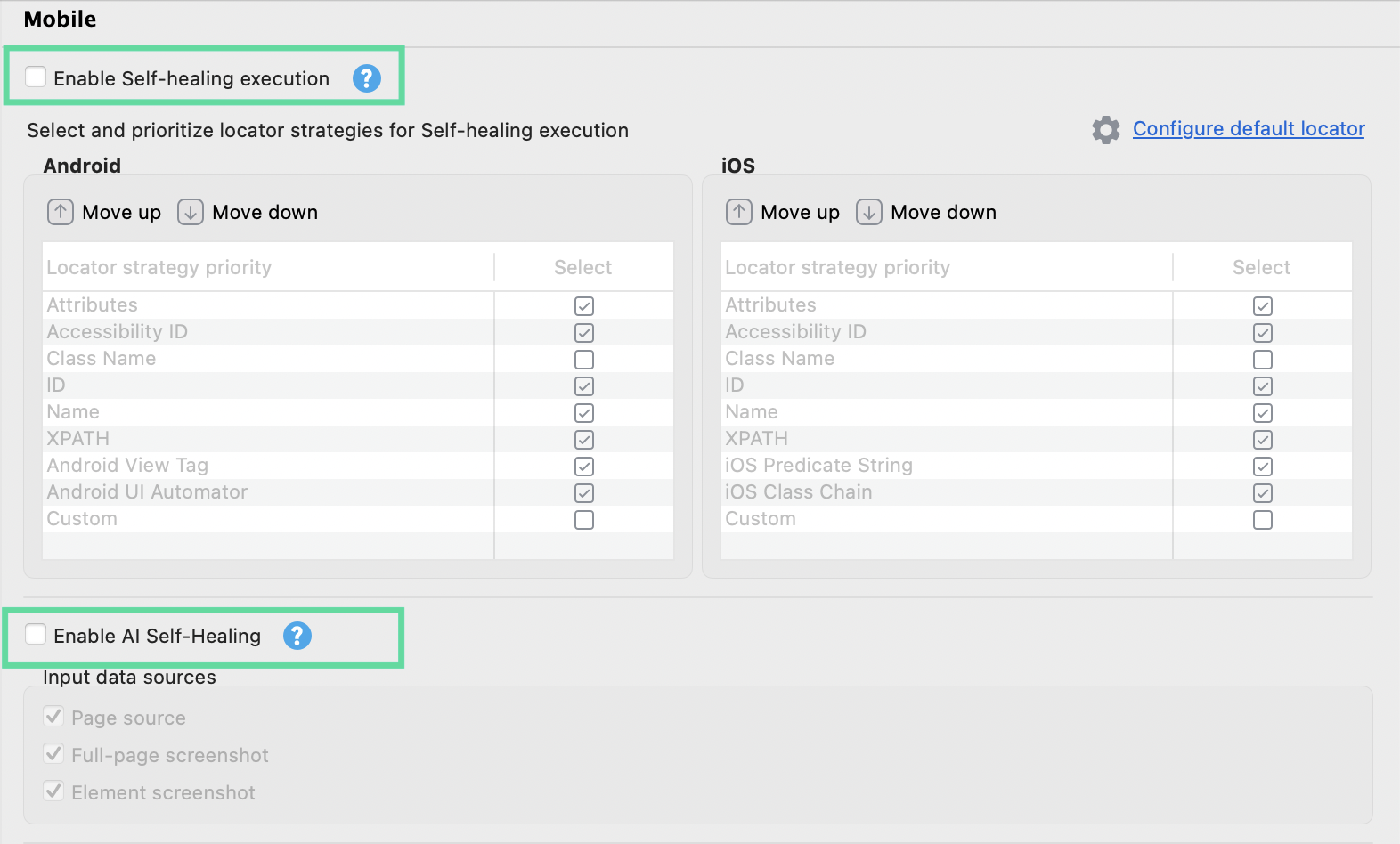
Configure classic Self-Healing
Self-healing configurations are accessible in Project Settings > Self-Healing. You can also click the Self-Healing icon in the main navigation panel to open the Project Settings dialog.
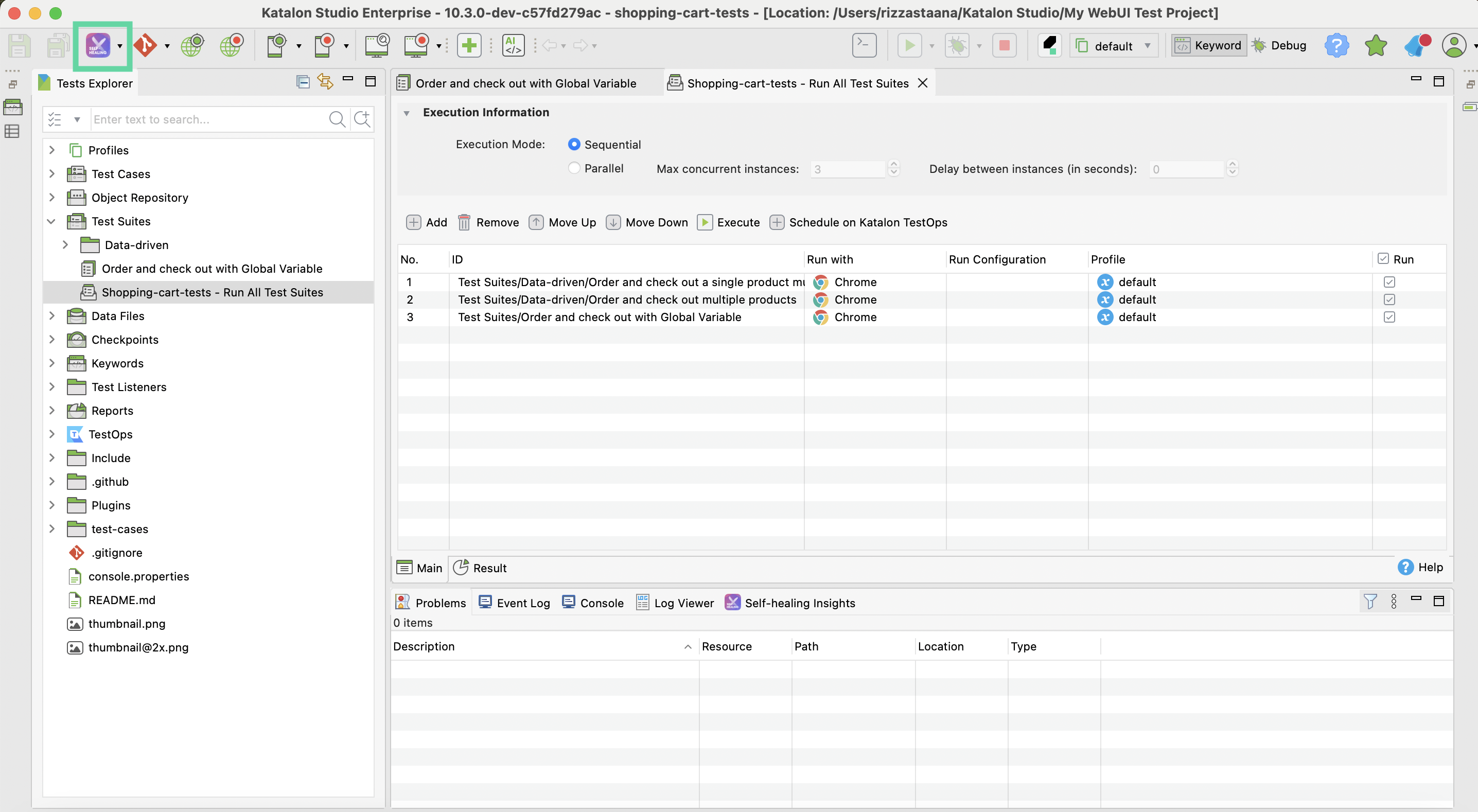
In this panel, configure self-healing behaviors depending on your project type (WebUI/Mobile).
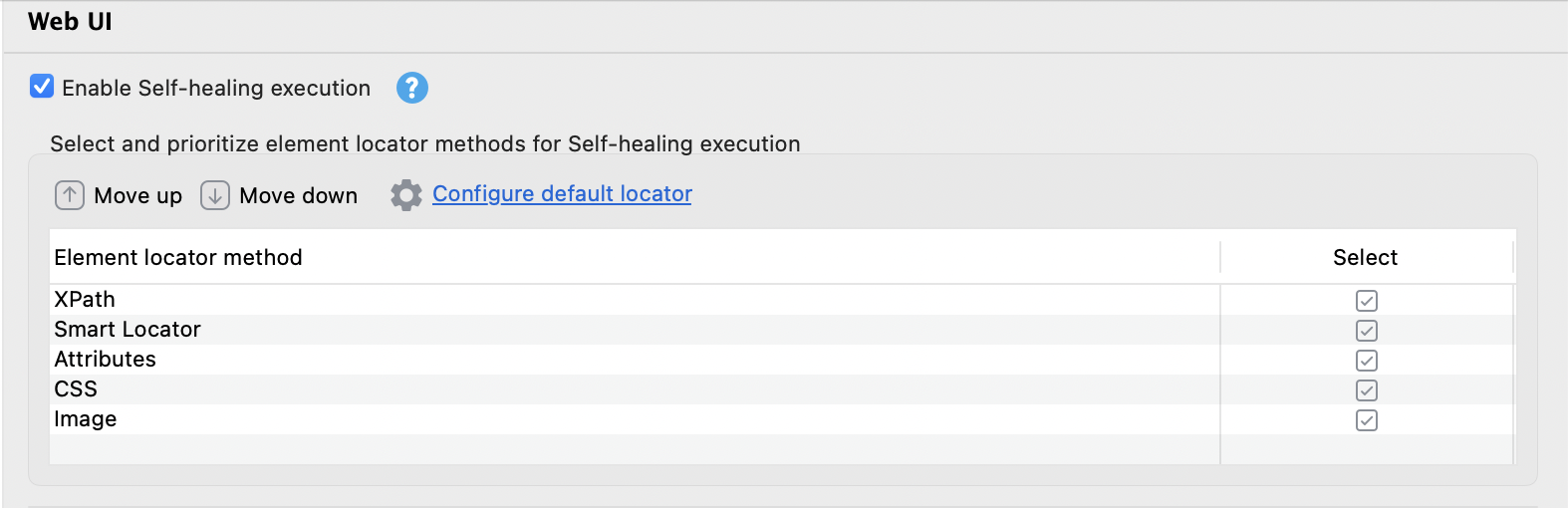
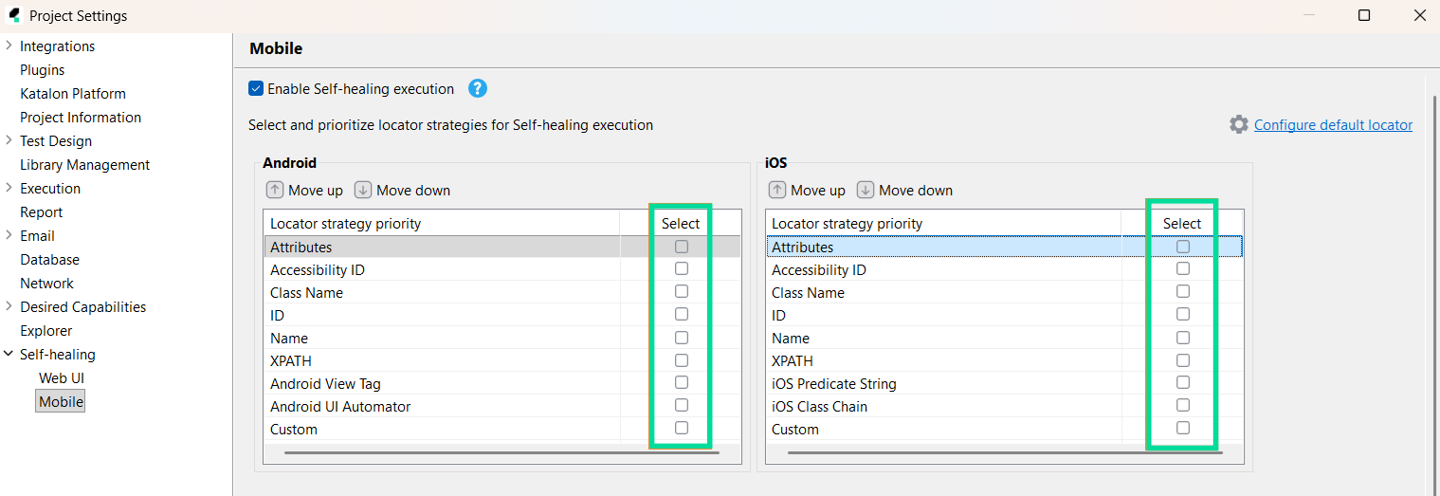
Select and prioritize element locator methods
Katalon Studio tries to generate the object locator with the method at the top first. If it fails, it will try alternative methods, from the top down.
- WebUI
- Mobile
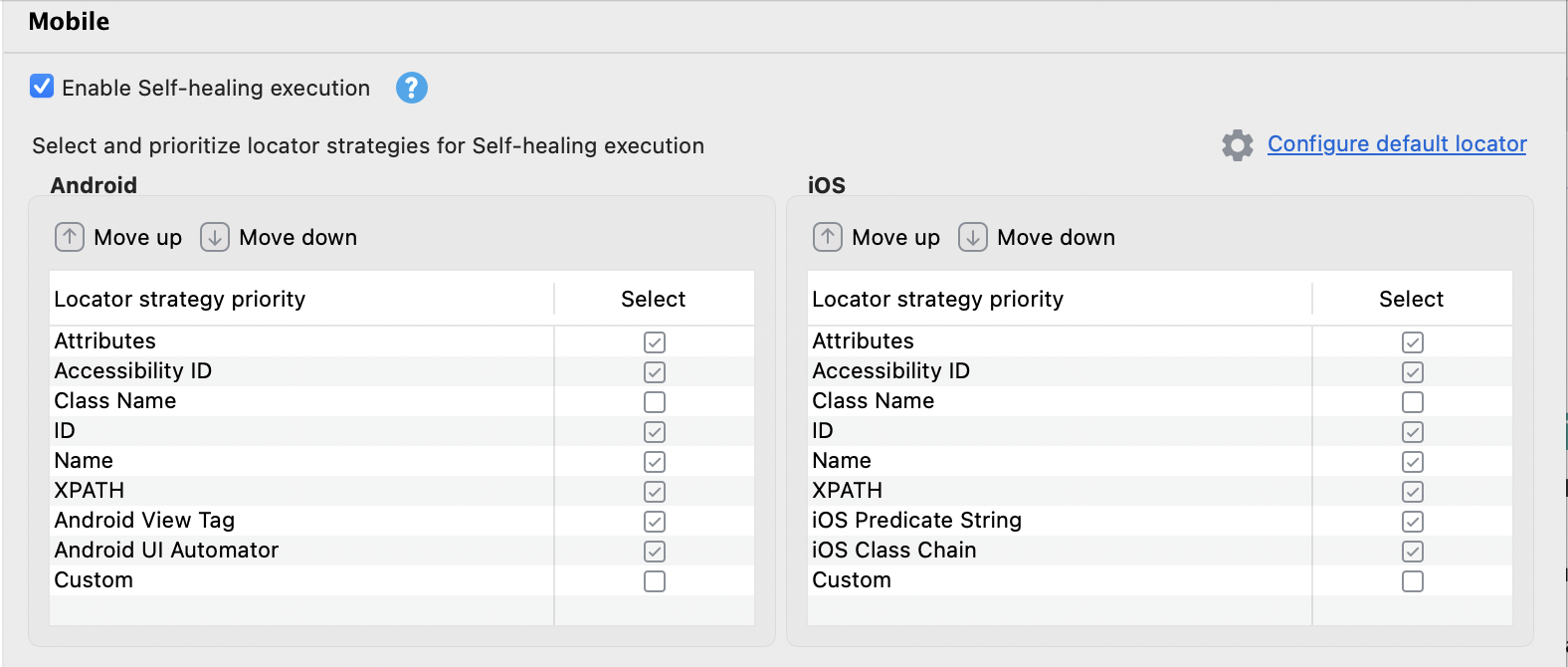
Configure default locators
Clicking Configure Default Locator will transfer you to the corresponding page for a WebUI or Mobile's default locator settings, in Test Design. When you use record or spy, Katalon Studio will auto-generate a locator for test objects using this default locator method.
Prioritize attributes that are consistently used and unique (e.g., id, name). Avoid using dynamic values like class if they frequently change.
- WebUI
- Mobile
Choose a default locator strategy: XPath (default), Attributes, CSS, Image, and Smart Locator.
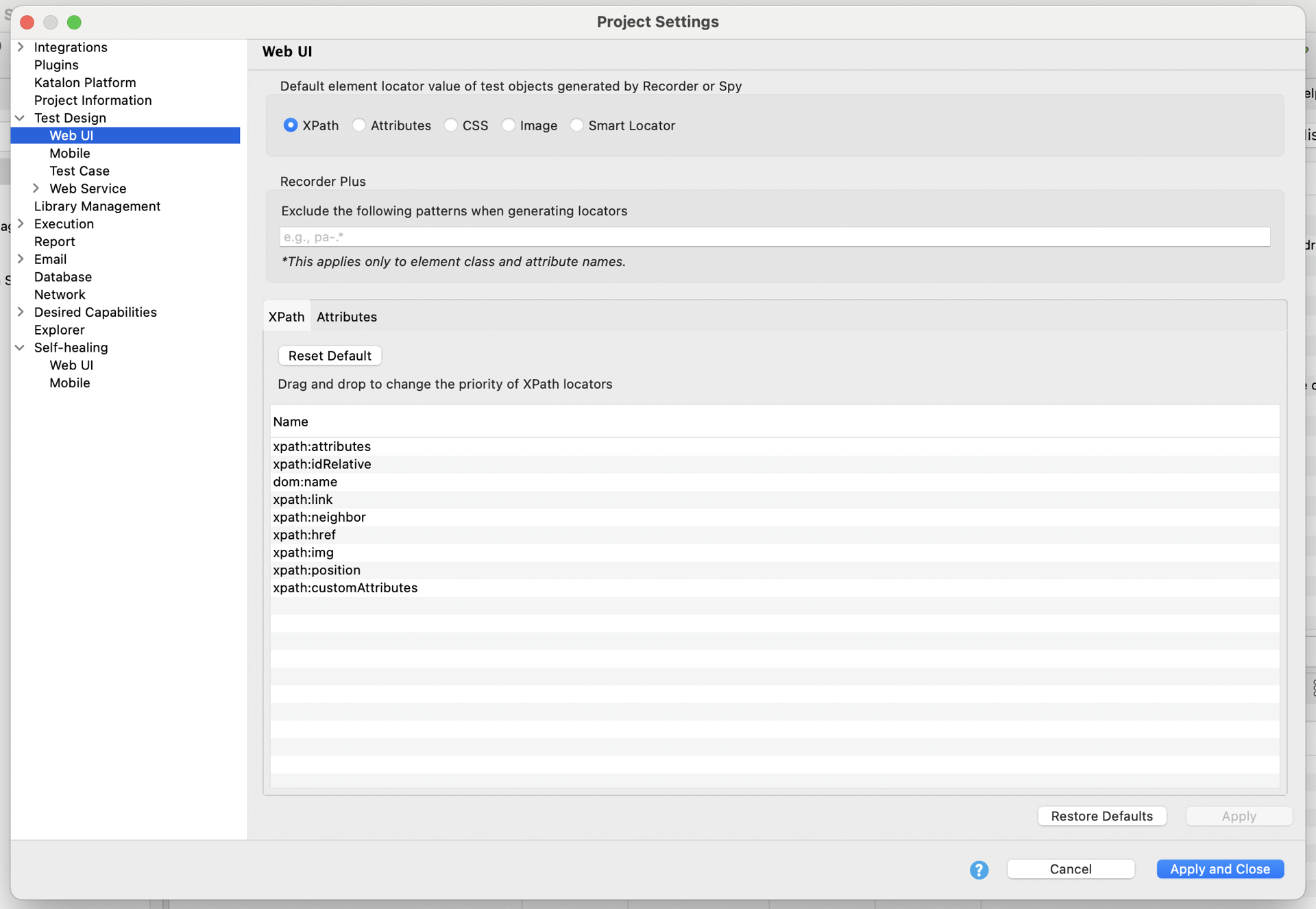
- Select the strategy that works best with your application structure. XPath is flexible but can be fragile in dynamic DOMs. CSS and Smart Locator may offer better resilience.
- Move the most stable or unique locators higher in the list to improve test resilience.
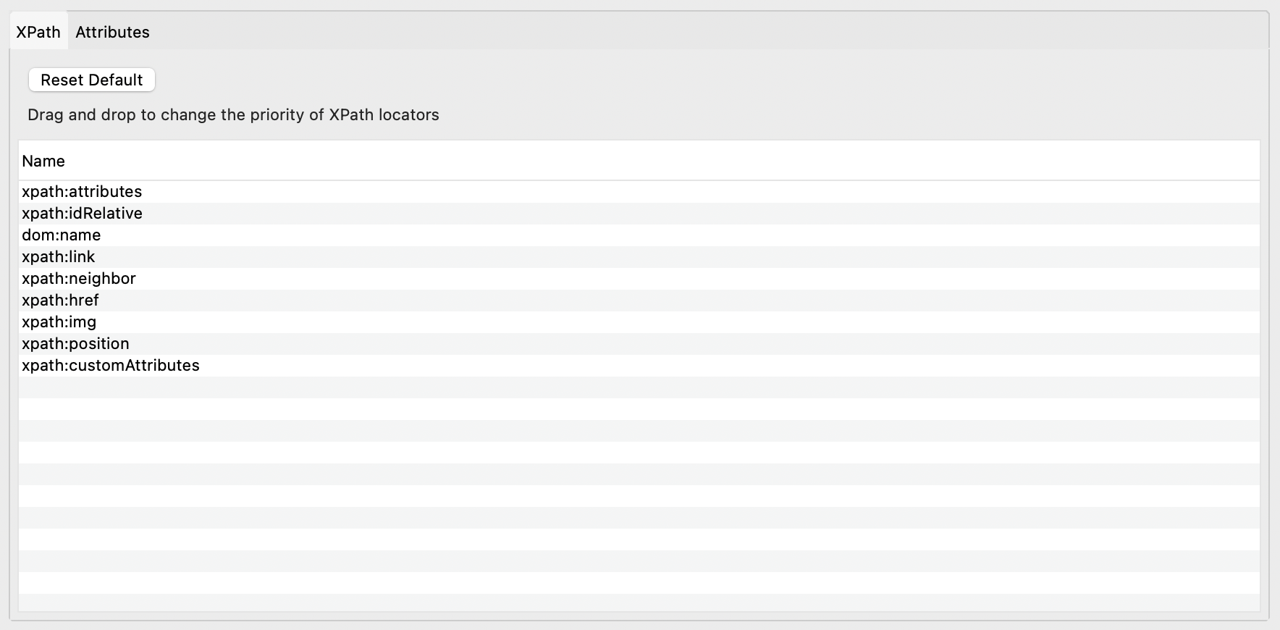
If you select XPath as the default locator, you can also set your locator priorities by dragging and dropping the types to change their evaluation order:
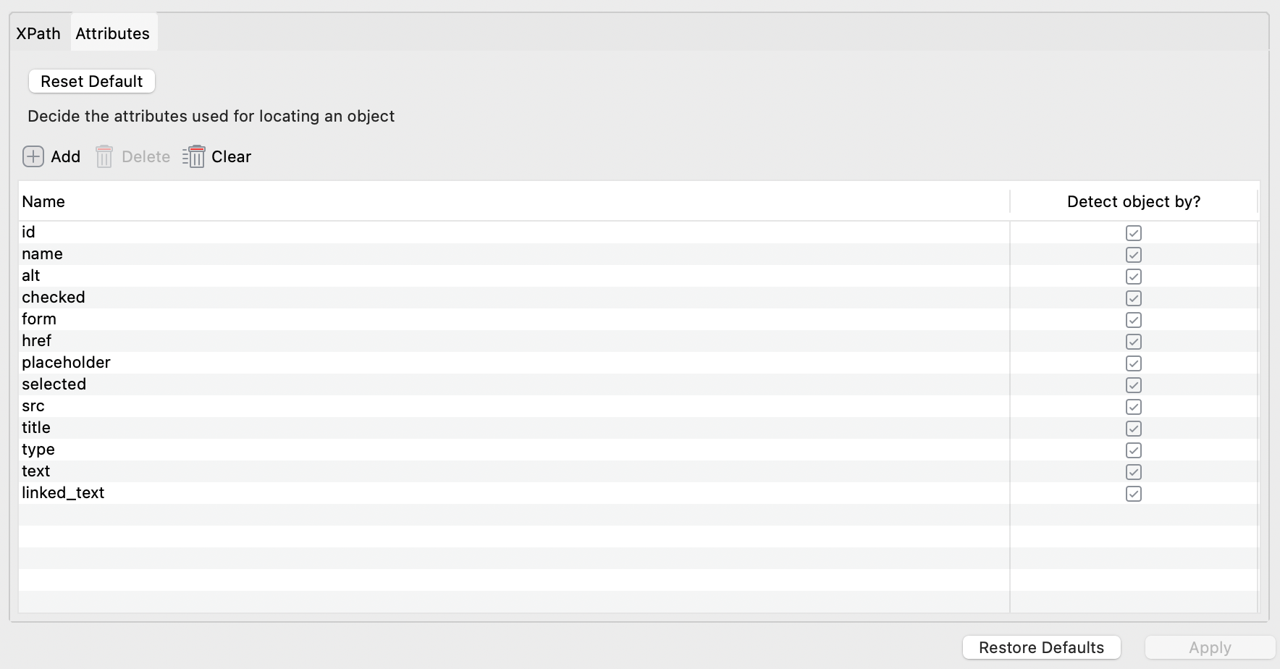
If you select Attributes as the default locator, you can configure attribute-based locators to specify which HTML attributes should be considered when detecting objects.
To learn more about selection methods for web objects, see Selection methods for Web objects.
From the dropdown, choose your preferred locator strategy:
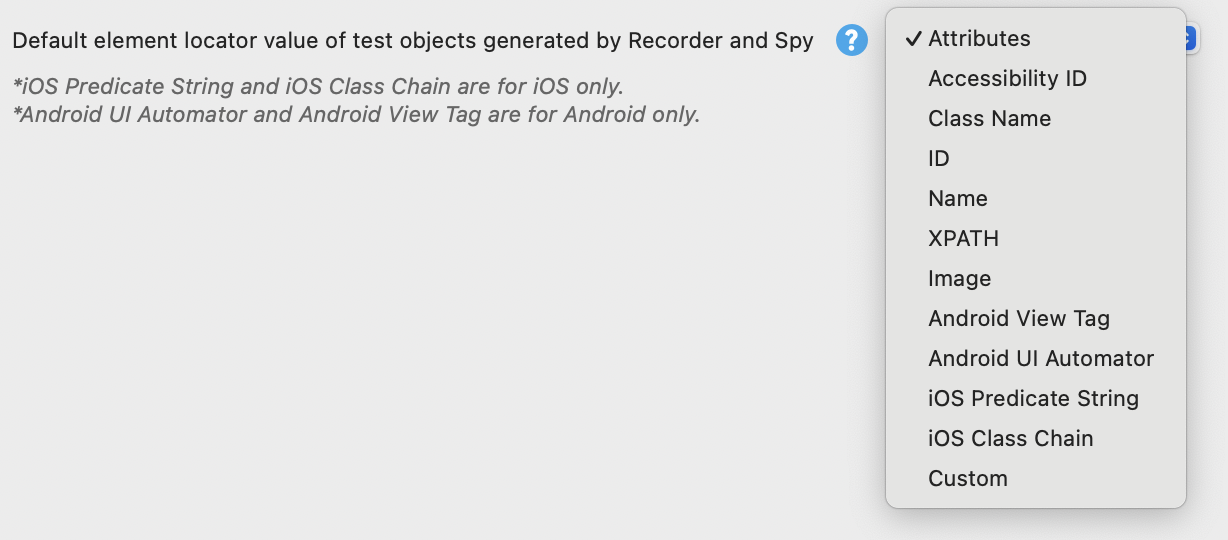
This setting determines how Katalon Studio identifies and saves elements during mobile recording/spying. To learn more about locator strategies for Mobile objects, see Locator strategies for Mobile objects.
For iOS apps, you can also choose to display the object tree in full or in minimal display mode:
- If you select Minimal, the display shows a simplified object hierarchy.
- If you select Full, the display shows the complete object hierarchy, including all parent and nested UI elements.

Frequently switching between display options may affect test execution stability.
Exclude keywords
In some scenarios, you may not want the test engine to try out different locators to find an object that doesn't exist.
To handle this, Katalon Studio allows you to exclude specific keywords from self-healing. When an object is used with one of these keywords, Katalon Studio skips the self-healing process.
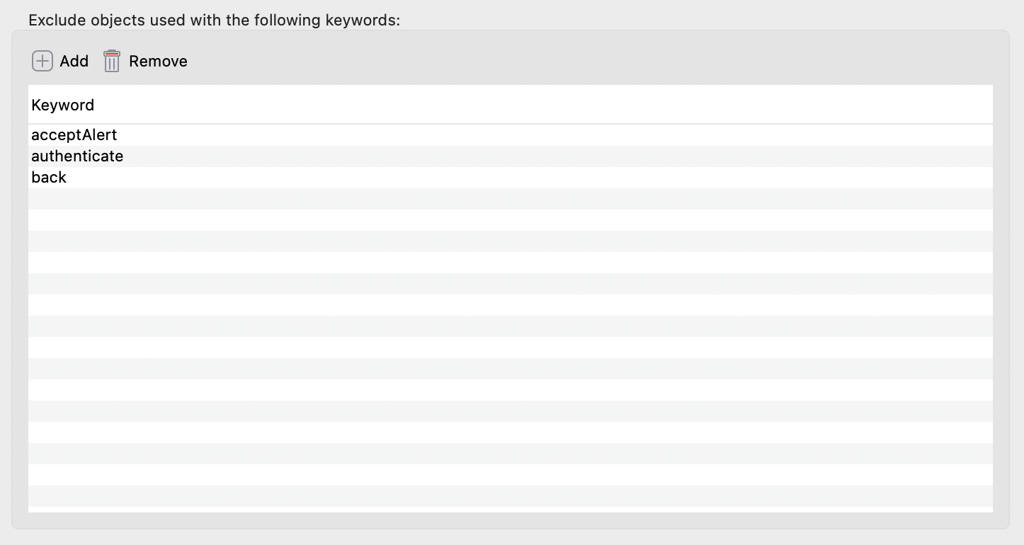
For example:
You add the verifyElementPresent keyword to the exclusion list. Suppose the input_Username_username object has a broken locator. You run the following script:
WebUI.openBrowser('https://katalon-demo-cura.herokuapp.com/')
WebUI.click(findTestObject('null'))
def username = findTestObject('Object Repository/Page_CURA Healthcare Service/input_Username_username')
WebUI.setText(username, 'John Doe')
WebUI.verifyElementPresent(username, 5)
Since verifyElementPresent is in the exclusion list, Katalon Studio will not attempt self-healing on the username object, and the test fails as expected.
Auto-excluded keywords
The following keywords are automatically excluded from classic self-healing by default.
- WebUI
- Mobile
Enabling Self-Healing for Wait and Verify keywords may lead to false positives and test flakiness. We recommend applying this capability only to interaction steps.
Excluded keywords are pre-defined as below:
| Web Auto-Excluded Keywords |
|---|
VerifyOptionNotPresentByLabelKeyword |
VerifyOptionNotPresentByValueKeyword |
VerifyOptionNotSelectedByIndexKeyword |
VerifyOptionNotSelectedByLabelKeyword |
VerifyOptionNotSelectedByValueKeyword |
VerifyOptionPresentByLabelKeyword |
VerifyOptionPresentByValueKeyword |
VerifyOptionSelectedByIndexKeyword |
VerifyOptionSelectedByLabelKeyword |
VerifyOptionSelectedByValueKeyword |
VerifyOptionsPresentKeyword |
VerifyTextNotPresentKeyword |
VerifyTextPresentKeyword |
VerifyElementAttributeValueKeyword |
VerifyElementCheckedKeyword |
VerifyElementClickableKeyword |
VerifyElementHasAttributeKeyword |
VerifyElementNotCheckedKeyword |
VerifyElementNotClickableKeyword |
VerifyElementNotHasAttributeKeyword |
VerifyElementNotPresentKeyword |
VerifyElementNotVisibleInViewportKeyword |
VerifyElementNotVisibleKeyword |
VerifyElementPresentKeyword |
VerifyElementTextKeyword |
VerifyElementVisibleInViewportKeyword |
VerifyElementVisibleKeyword |
WaitForElementAttributeValueKeyword |
WaitForElementClickableKeyword |
WaitForElementHasAttributeKeyword |
WaitForElementNotClickableKeyword |
WaitForElementNotHasAttributeKeyword |
WaitForElementNotPresentKeyword |
WaitForElementNotVisibleKeyword |
WaitForElementPresentKeyword |
WaitForElementVisibleKeyword |
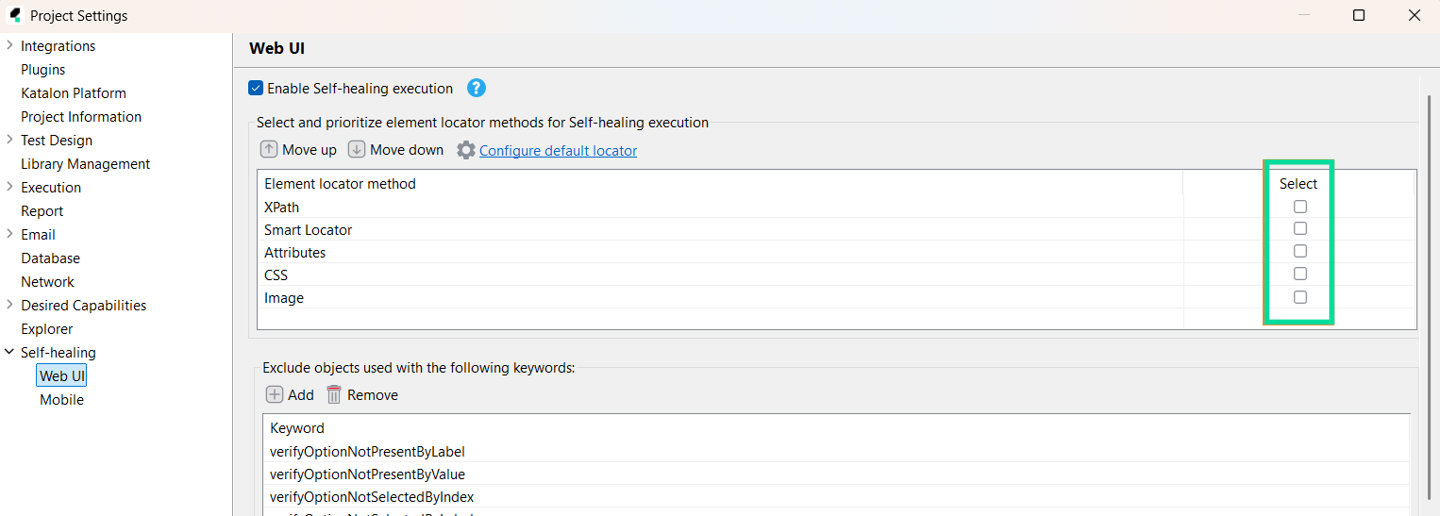
Excluded keywords are excluded by design, not visible, and cannot be modified or removed.
| Mobile Auto-Excluded Keywords |
|---|
verifyElementExist |
verifyElementNotExist |
verifyElementVisible |
verifyElementNotVisible |
verifyElementAttributeValue |
verifyElementHasAttribute |
verifyElementNotHasAttribute |
verifyElementChecked |
verifyElementNotChecked |
verifyElementText |
verifyElementPresent |
WaitForElementNotPresent |
WaitForElementNotHasAttribute |
WaitForElementHasAttribute |
WaitForElementPresent |
ScrollToText |
Locator Override in Object view
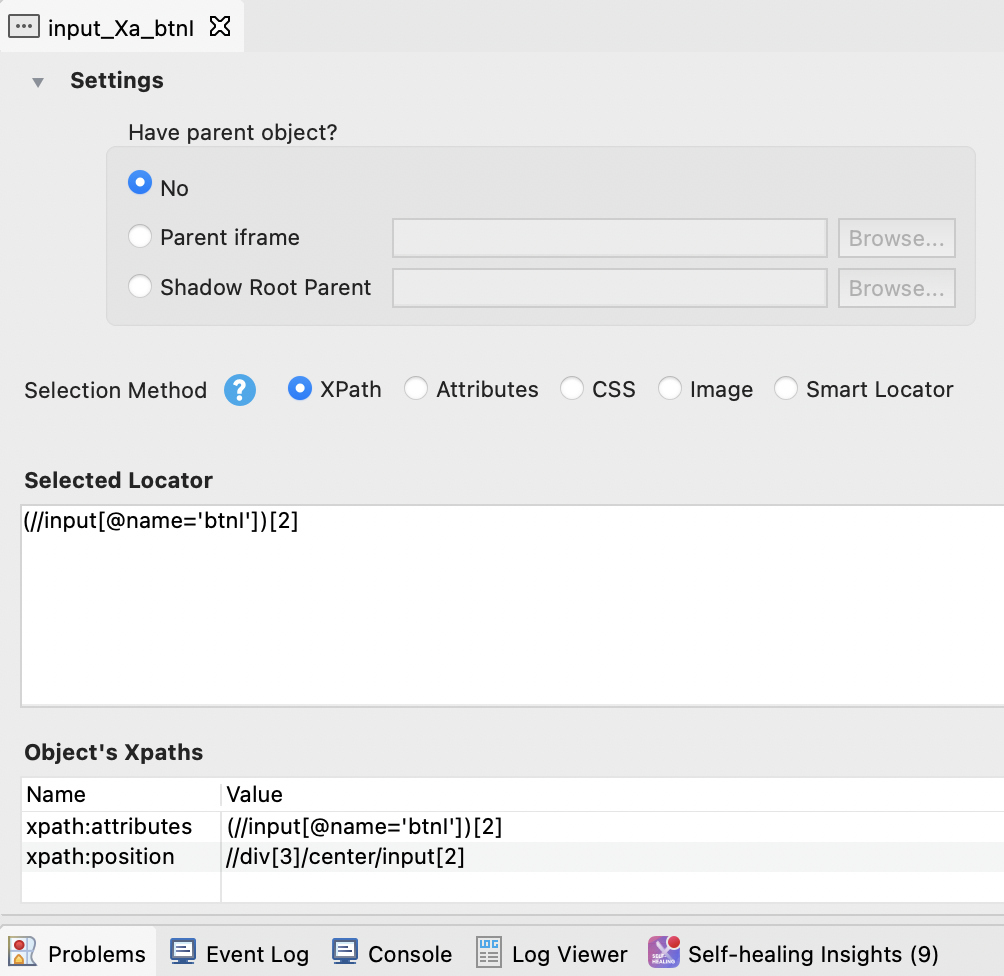
In the locator selection setting for each object, you can decide the default selection method for detecting that object during execution. This configuration overrides the Self-Healing global settings.
Configure AI Self-healing
If classic self-healing fails to heal the locator, Katalon Studio will trigger AI self-healing.
- Execution Viewer enabled in Project Settings > Execution. See View and customize execution log in Katalon Studio for more details.
Once you enable AI Self-Healing, configure different input data sources for the AI:
- WebUI
- Mobile
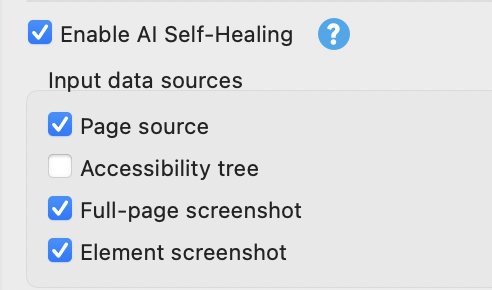
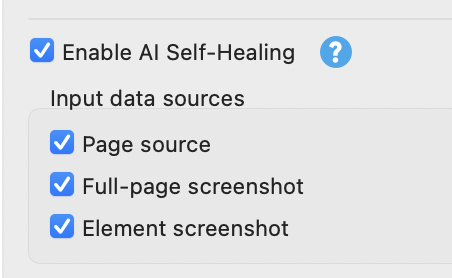
Selecting more sources increases healing accuracy but may slightly increase processing time and cost. For example, using Screenshots incurs a higher processing cost compared to Accessibility tree or Page source.
Provide an AI model for AI self-healing
By default, AI Self-Healing uses the AI model as configured in Preferences > AI Configurations, as other AI services (E.g. Katalon AI Assistant).
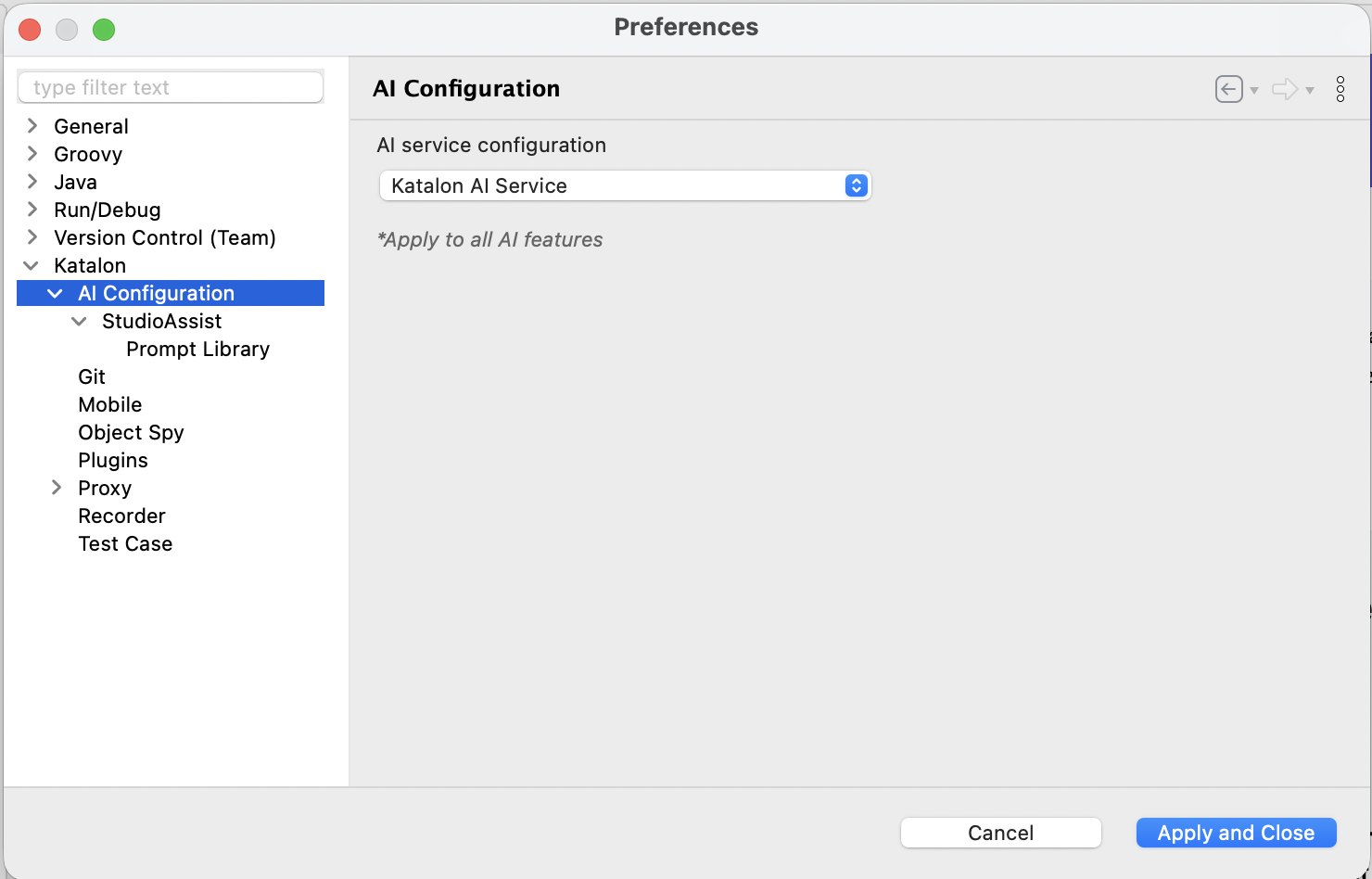
If you want to use a different model for AI self-healing, you can provide your own personal API key via two methods:
- Declare the API key in Project Settings > Execution > Launch Arguments and enter:
-DOPENAI_API_KEY=${{ YOUR_API_KEY }}. This method is convenient, but it risks exposing your OpenAI API key. - Store your API key in a Global Variable, then declare the AI model and API key, and include the following script in your test case or a test listener:
//set the AI model. If you dont, system falls back to "gpt-4o-mini"
System.setProperty("SELF_HEALING_AI_MODEL", "${{ YOUR_AI_MODEL }}")
//set the API key for your AI model.
System.setProperty("OPENAI_API_KEY", "${{ YOUR_API_KEY }}")
Replace ${{ YOUR_AI_MODEL }} and ${{ YOUR_API_KEY }} with the corresponding global variables.
Approve suggestions in Self-healing Insights
Next to the Log Viewer tab, the Self-healing Insights tab displays a table containing suggestions for replacing broken locators, from either classic self-healing or AI self-healing.
The table includes the following columns:
-
Test Object ID: The ID of the broken test object.
-
Broken Locator: The original locator that failed to detect the object during execution.
-
Proposed Locator: The alternative locator that successfully located the object. If the object was found using its screenshot, this value is a newly generated smart XPath.
-
Recovered By: The selection method Katalon Studio used to detect the object.
-
Screenshot: When an object is located using an alternative locator, Katalon captures a screenshot of the test object so you can verify if it is correct. Click Preview to review the healed object.
-
Select: Choose the locator(s) you want to take action on.
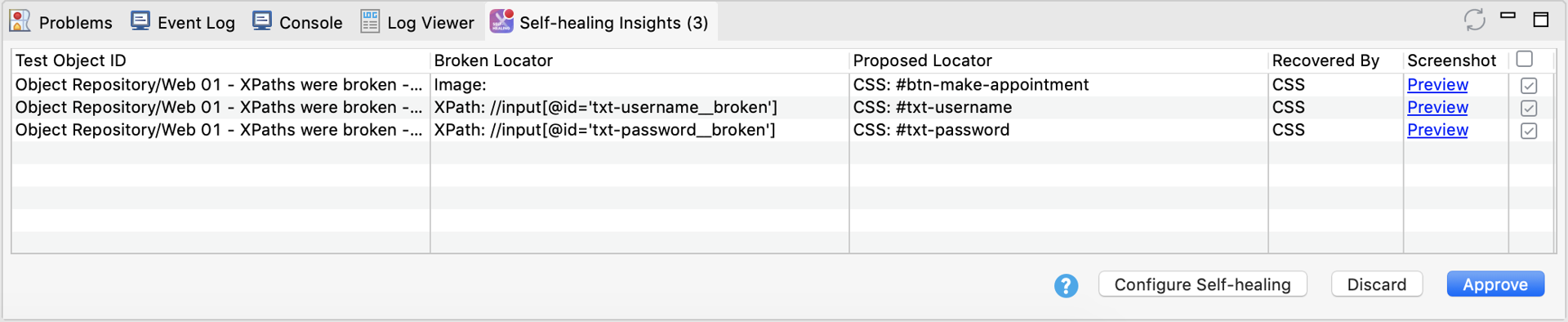
After verifying that the found object is correct, you can select one or more suggested locators and click:
-
Approve: Save the proposed locator as the new default.
-
Discard: Reject the proposed locator.
From version 11.6.0, WebUI self-healing reuses an approved fix only for the same Test Object and locator method. For XPath, CSS, Image, and Smart Locator, the failing locator's value must also match the value that was previously healed.
For example, if a Test Object uses the XPath //h5[text()='${reportTitle}'] across multiple steps, Katalon Studio compares the locator after substituting the variable value. A fix saved for one report title is not reused when a different report title's locator fails. Instead, Katalon Studio attempts self-healing again according to your self-healing settings.
The Attributes method matches the Test Object and locator method without comparing locator values.
Troubleshoot AI self-healing
AI self-healing might return the error java.io.IOException - The filename or extension is too long if your directory to Katalon Studio is too long:
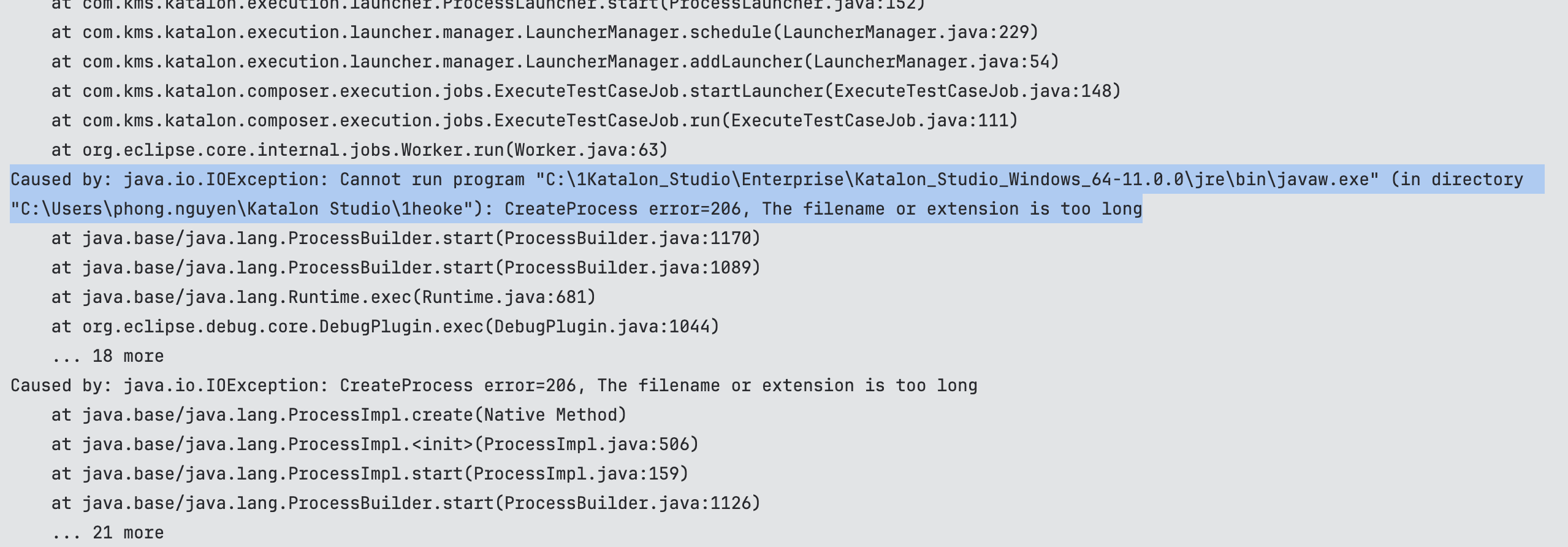
Solution: Keep the path to KSE shorter, by relocating KSE to a higher-level directory and prevent deep-nesting it.