Katalon AI Assistant Ask mode
Katalon AI Assistant Ask mode is a chat interface built into Katalon Studio that lets you interact with an AI assistant without leaving your workspace. Use it to:
- Ask questions about Katalon Studio features and built-in keywords
- Generate and explain test scripts (Web, Mobile, API)
- Create and explain custom keywords
- Troubleshoot execution failures
- Refactor and optimize existing test code
An AI provider must be configured before using Ask mode. See Katalon AI Assistant Preferences.
For shared features — opening the chat, managing conversations, attaching files, response streaming, and using the current file as context — see Katalon AI Assistant Overview.
Common use cases
Write test scripts
Write a web test script using existing objects
Specify the application type, test objects, variables, and steps clearly. If you already have test objects in your project, reference them directly.
I have the following test objects:
- Make appointment button: 'Page_CuraHomepage/btn_MakeAppointment'
- Username: 'Page_Login/txt_UserName'
- Password: 'Page_Login/txt_Password'
- Login button: 'Page_Login/btn_Login'
- Appointment div: 'Page_CuraAppointment/div_Appointment'

I also have a URL stored in GlobalVariable.G_SiteURL and two string variables: Username and Password.

Write a test case that:
1. Opens the browser to G_SiteURL
2. Clicks the Make Appointment button
3. Fills in username and password using the variables
4. Clicks the Login button
5. Closes the browser
For a ready-made set of test objects to practice with, refer to Sample WebUI Healthcare project.
Write a mobile test script
Provide the app ID and a list of test objects captured with Mobile Object Spy.
Write me a mobile test case with the following steps:
1. Start application, uninstalling the application automatically after run
2. Tab on the linear layout, timeout 0
3. Get text 'HorizontalNestedScrollView', timeout 0
4. Close the app
My app ID: 6261b88f-275b-4ae5-b0d1-b95fbf2560bd
Object list:
findTestObject('Object Repository/android.widget.LinearLayout')
findTestObject('Object Repository/android.widget.TextView - HorizontalNestedScrollView')
Write an API test script
Specify the endpoint, HTTP method, and expected behavior explicitly.
Write me an API test case with the following steps:
1. Send a GET request to 'https://reqres.in/api/users?page=2'
2. Verify that the response status code is 200

Use the object ID: findTestObject('getAllUsers')
Create a custom keyword
Provide detailed requirements for the keyword.
Write a custom keyword for login handling:
- Method name: login
- Accept TestObjects for username, password fields, login button
- Accept Strings for username, password
If your project already has a custom keyword library, reference them directly in your request to build new test scripts.
I have the following custom keywords available:
- com.example.keywords.WebActions.clickElement(TestObject element)
- com.example.keywords.WebActions.fillField(TestObject field, String value)
- com.example.keywords.WebActions.waitForPageLoad(int timeoutSeconds)

I have these test objects:
- Login button: findTestObject('Page_Login/btn_Login')
- Email field: findTestObject('Page_Login/txt_Email')
- Password field: findTestObject('Page_Login/txt_Password')

Write a test case that:
1. Waits for the page to load (timeout: 10 seconds)
2. Fills in the email field with GlobalVariable.G_Email
3. Fills in the password field with GlobalVariable.G_Password
4. Clicks the login button
Troubleshoot failures using real error output
Instead of describing a failure in abstract terms, attach the execution log directly to the chat. Katalon AI Assistant can identify the root cause and suggest a fix with the actual error context in scope.
My test case failed with the following error. Identify the most likely cause and suggest a fix:
//Paste your execution log here
Refactor existing test code
Clarify the optimization intent, then make a general request to improve or refactor your code.
Optimize this code for better performance:
for (int i = 0; i < array.length; i++) {
    if (array[i] % 2 == 0) {
        System.out.println(array[i]);
    }
}
Attach context
You can attach files, images, and screenshots to provide more context for AI Assistant.
Attach context with one of the following methods:
- Click the paperclip icon.
- Drag image or text-based files from your file explorer or desktop into the chat input area.
- Paste screenshots or images from the clipboard.
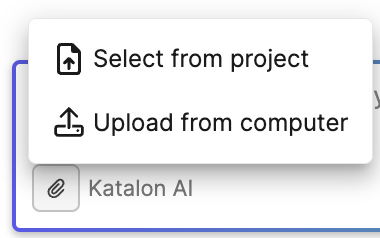
| Item | Supported behavior |
|---|---|
| Image formats | PNG, JPEG, WEBP, and GIF |
| File size | Up to 10 MB per file |
| Attachments per prompt | Up to 10 files |
- Attachments appear above the input field and are also shown under each sent message.
- You cannot add attachments while Katalon AI Assistant is generating a response.
- For attachments in past conversations, Katalon AI Assistant stores a reference to the file. If the original file is renamed, moved, deleted, or cannot be read when you reopen the conversation, the chat indicates that the file is no longer available and asks you to re-attach it.
Tips for getting better responses
-
List your steps explicitly. When you need multiple actions, provide a numbered list rather than a paragraph description.
-
Specify the application type. State whether you are testing a Web, Mobile, or API application.
Write me a mobile test case. -
Enable auto-populate for object IDs. Turn on Auto-include project context information in Katalon AI Assistant Preferences to automatically include test object paths in your prompts.
-
Use separate conversations for separate tasks. Start a New chat or select an existing conversation from All chats when switching contexts. Attachments remain part of the conversation where they were added, so separating unrelated work helps keep responses relevant.
-
Set completion tokens to 16,000 in Katalon AI Assistant Preferences for optimal response length on complex requests.
Known limitations
- Limited knowledge base: Katalon AI Assistant does not pull information directly from Katalon Studio's official documentation. For complex or uncommon queries, use Agent mode.
- Project context limitations: Katalon AI Assistant is not aware of global variables, custom keywords, other test cases, or test data by default. Specify these explicitly in your prompt, or switch to Agent mode for project-aware responses.
- Local conversation history: Conversations are stored locally and are not synced across devices.
- AI response accuracy: Responses may be inaccurate due to hallucination. Always verify AI-generated output before implementation. You can rate responses as Good or Not Relevant, but feedback is not used to train the AI model.
- Performance: Projects with more than 200 test objects may cause timeouts when Katalon AI Assistant enumerates all objects.
- No reasoning display: Ask mode streams the answer only. To see the model's reasoning inline in the chat, use Agent mode.