Sample Katalon AI Assistant project
This sample project helps you get familiarized with Katalon AI Assistant's two features: Generate code and Explain code. These features aim to reduce your time and effort when developing and maintaining test scripts, as well as increase your productivity and improve your experience with Katalon Studio overall.
To learn more about Katalon AI Assistant, you can refer to Katalon AI Assistant in Katalon Studio.
- You have an active KSE license.
Open the Katalon AI Assistant sample project
To open the project, go to File > New Sample Project and select Sample Katalon AI Assistant Tests Project.
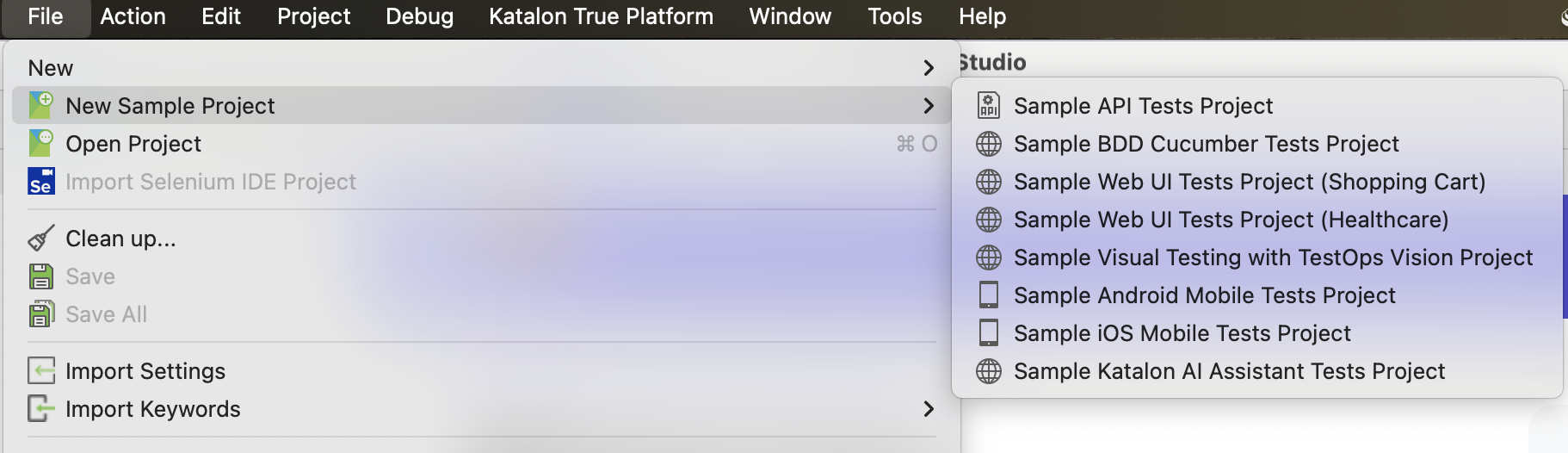
Alternatively, you can download the Katalon AI Assistant sample project from our GitHub repository: Katalon AI Assistant sample.
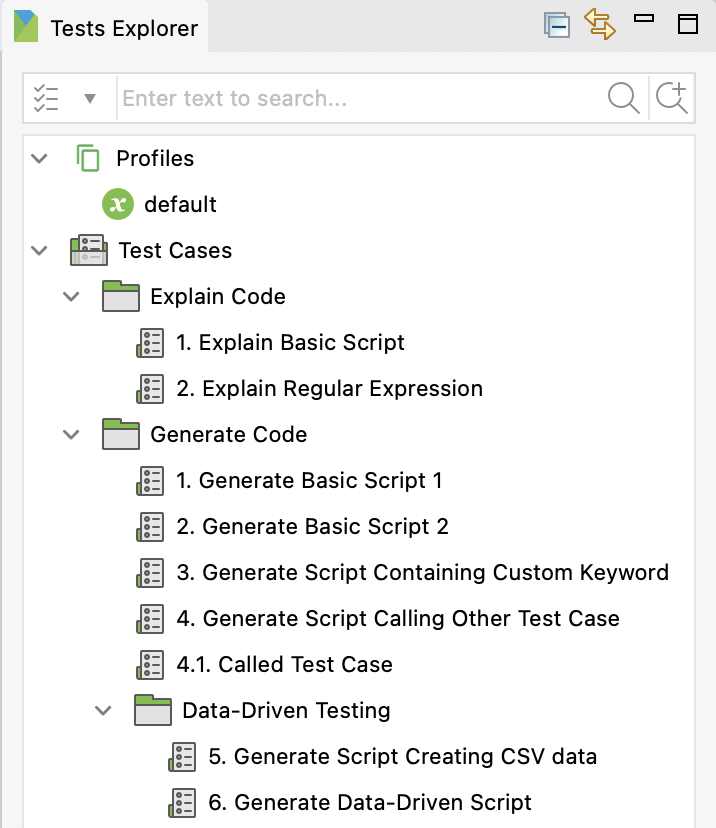
Once opened, go to Tests Explorer panel > Test Cases. Here you will find the Explain Code and Generate Code folders, corresponding with the two features.
Explain code
The Explain Code folder contains two test cases: Explain Basic Script and Explain Regular Expression. This section shows you how to use the code explaining feature with the Explain Basic Script test case.
-
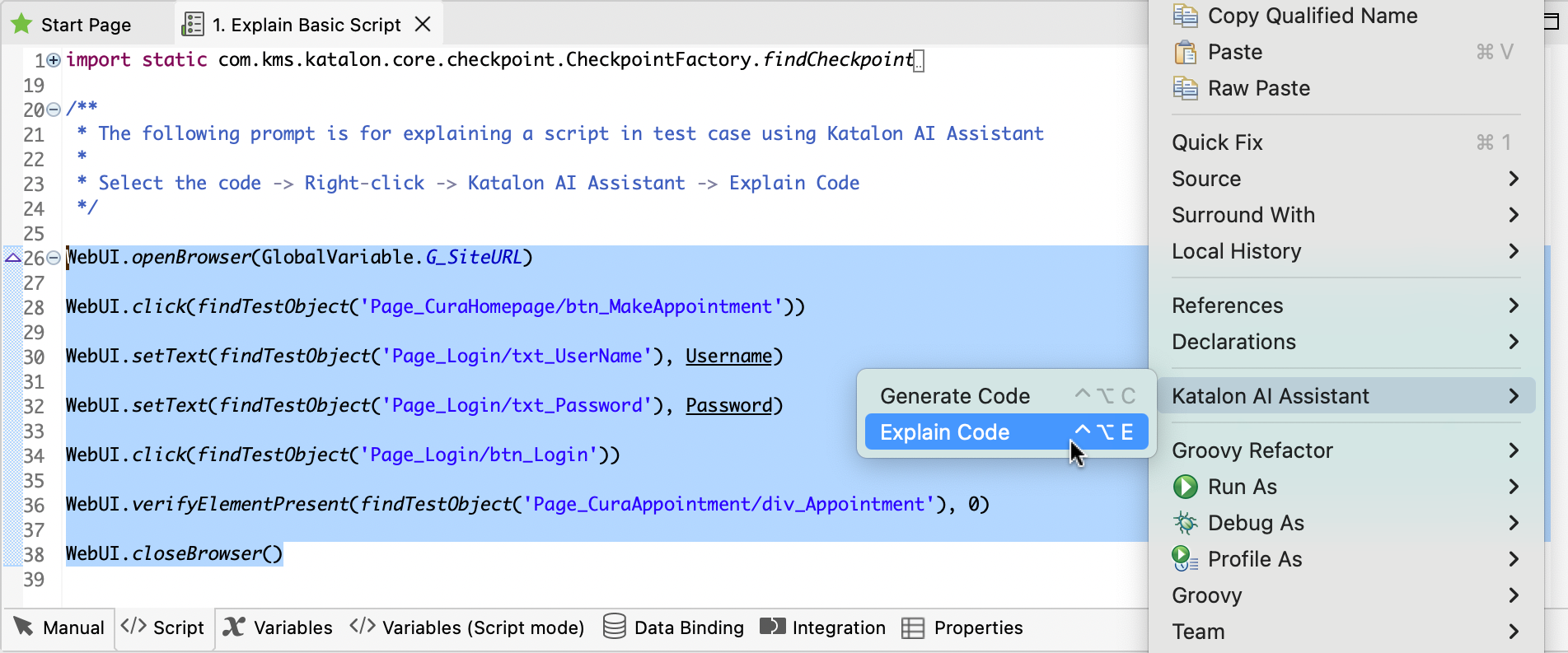
Open the Explain Basic Script test case and switch to the Script view.
-
Select the script, then right-click > Katalon AI Assistant > Explain Code.
Result
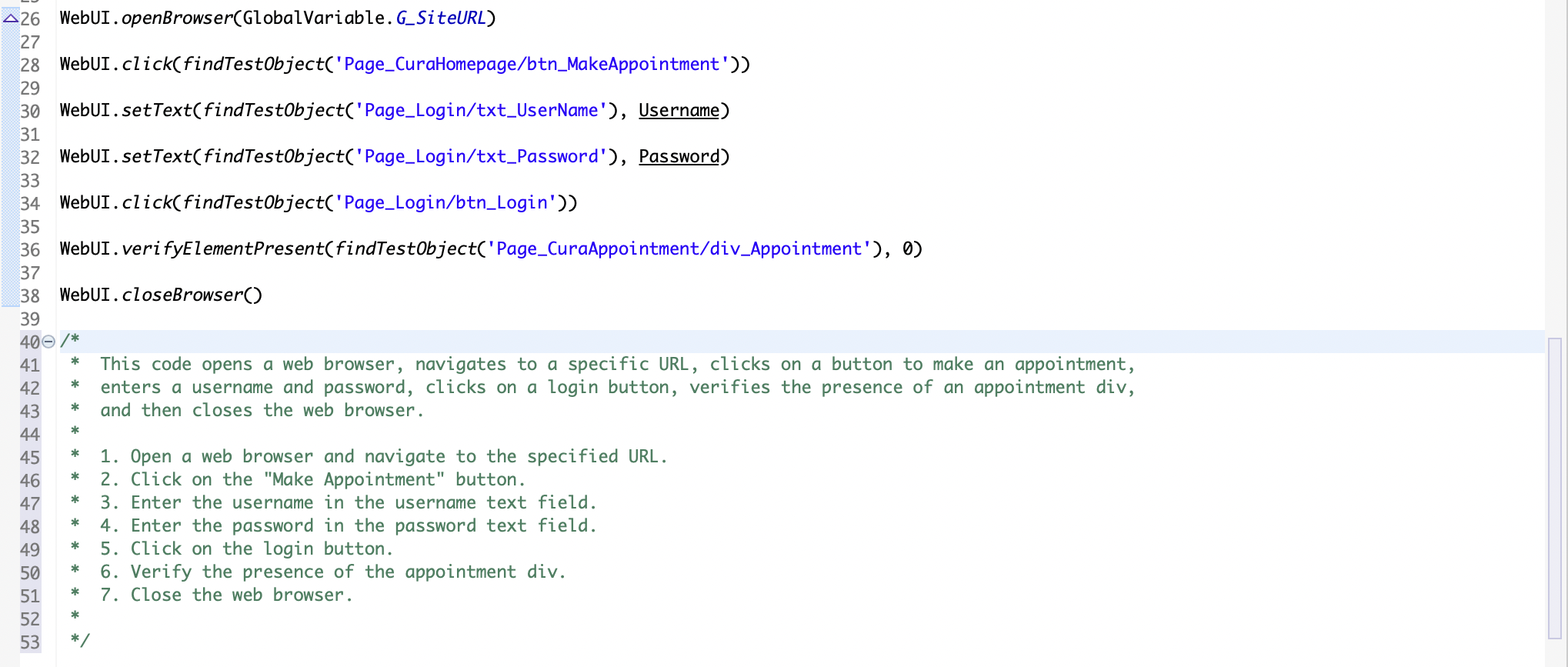
Katalon AI Assistant generates an explanation for the selected script:
Generate basic scripts
The Generate Basic Script 1 and Generate Basic Script 2 test cases demonstrate two different ways you can write prompts to generate the same code.
- In Generate Basic Script 1, the prompt lists the actions step by step, along with the corresponding test objects and variables.
- In Generate Basic Script 2, the test steps are listed separately from the test objects and variables.
The test objects are defined in the Object Repository, and the variables are defined in the Variables tab.
This section shows you how to generate code with Generate Basic Script 1 test case.
-
Open Generate Basic Script 1 in the Script view.
-
Select the prompt, right-click > Katalon AI Assistant > Generate Code. Katalon AI Assistant generates the test script from the prompt accordingly.
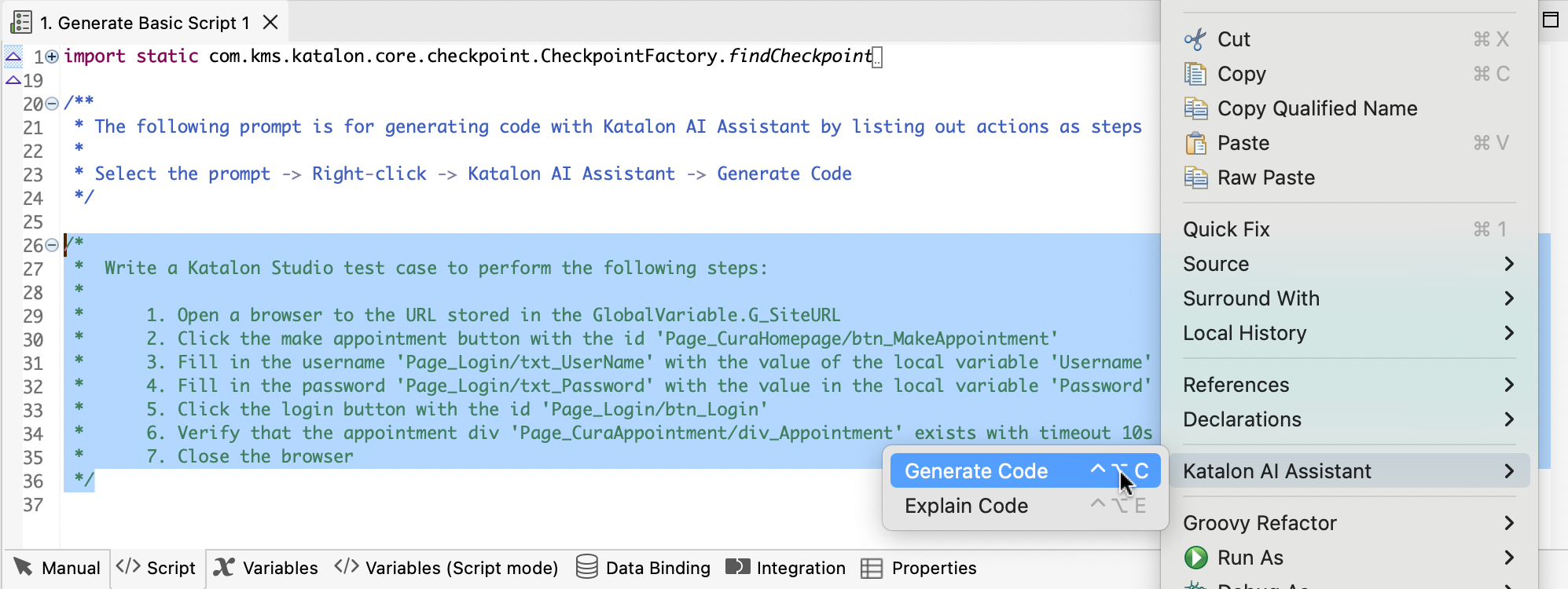
Katalon AI Assistant generates the test script from the prompt accordingly.
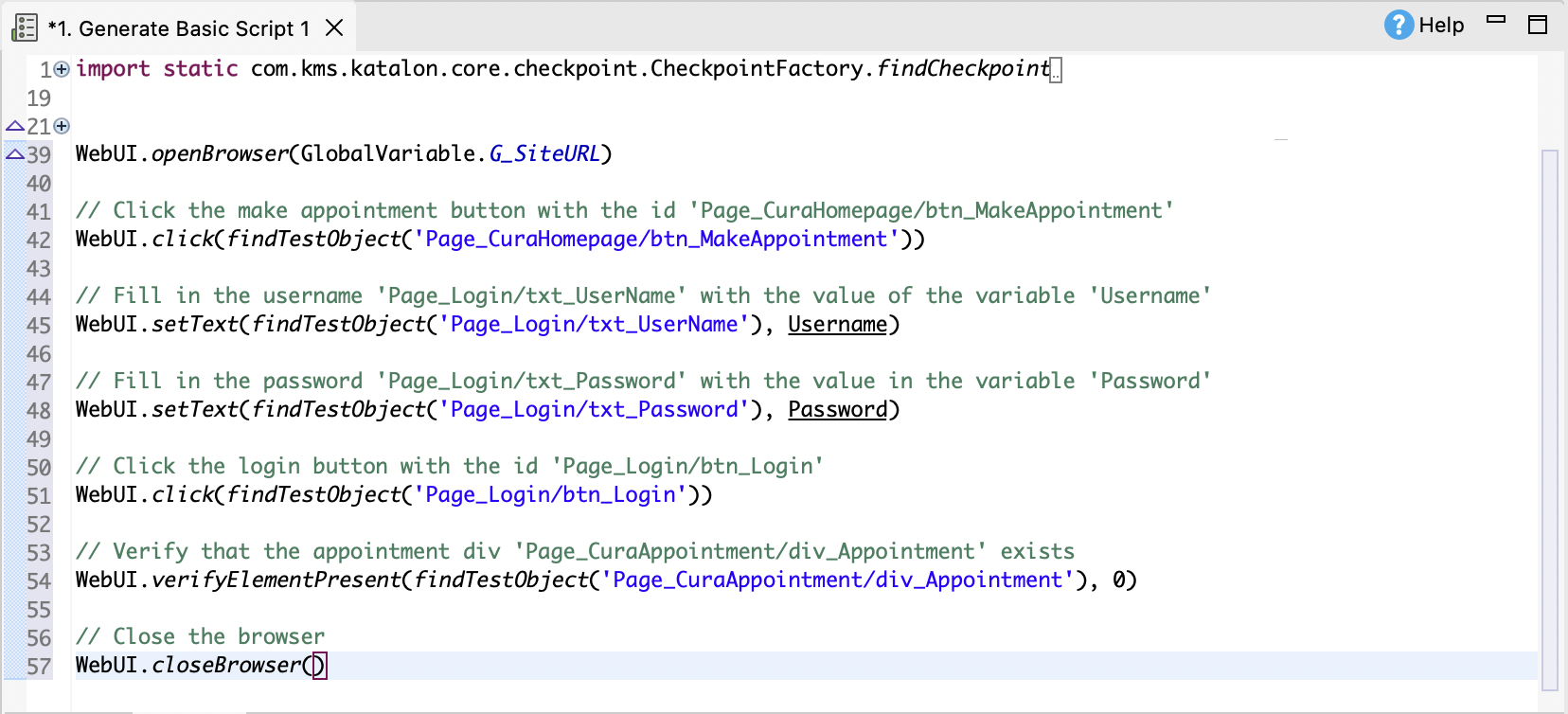
-
Click Run from the main toolbar to execute the test script.
Generate call test case script
In Katalon Studio, you can call another test case as a test step in manual and script view. To learn more about this function, see Call test case in Katalon Studio.
This section demonstrates how to generate a call test case script with Katalon AI Assistant.
-
Open the Generate Script Calling Other Test Case in Script view.
-
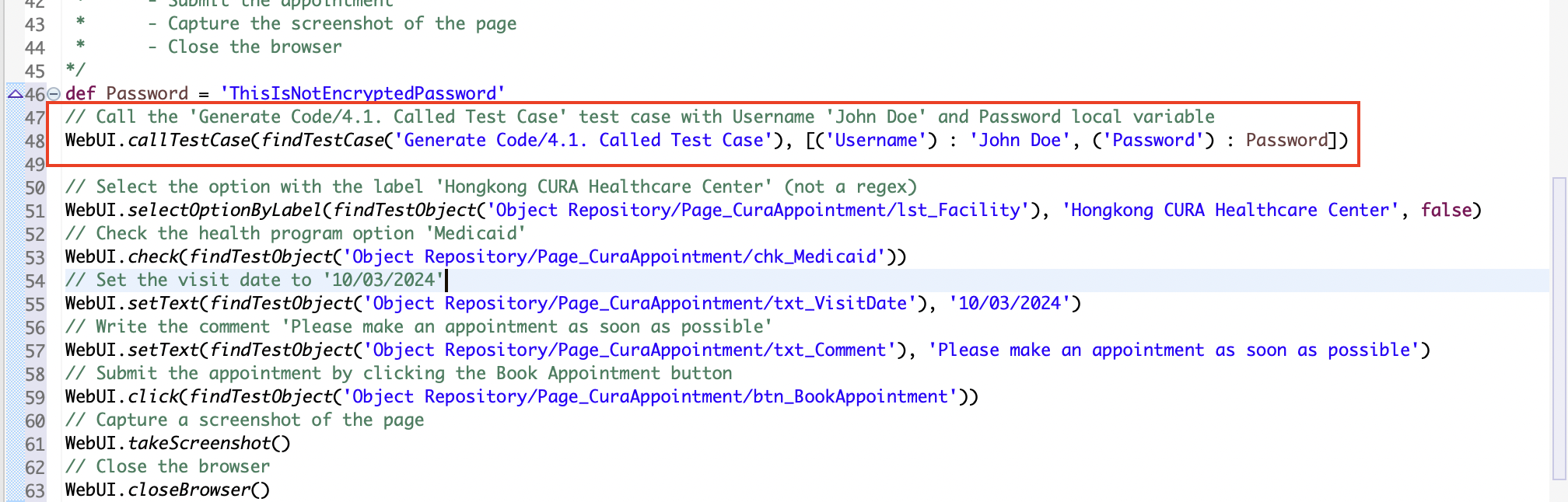
Select the prompt, right-click > Katalon AI Assistant > Generate Code. Katalon AI Assistant generates a test script with a Call test case step:
-
Click Run from the main toolbar to execute the test script.
Generate script and custom keyword
This section demonstrates generate a custom keyword and script containing that keyword with the Generate Script Containing Custom Keyword test case.
To learn more about custom keywords, you can refer to Introduction to custom keywords in Katalon Studio.
Generate custom keyword:
-
Go to Keywords > com.example. Open the
MyCustomKeyword.groovyfile. -
Select the prompt, right-click > Katalon AI Assistant > Generate Code. Katalon AI Assistant generates the following
clickElementkeyword.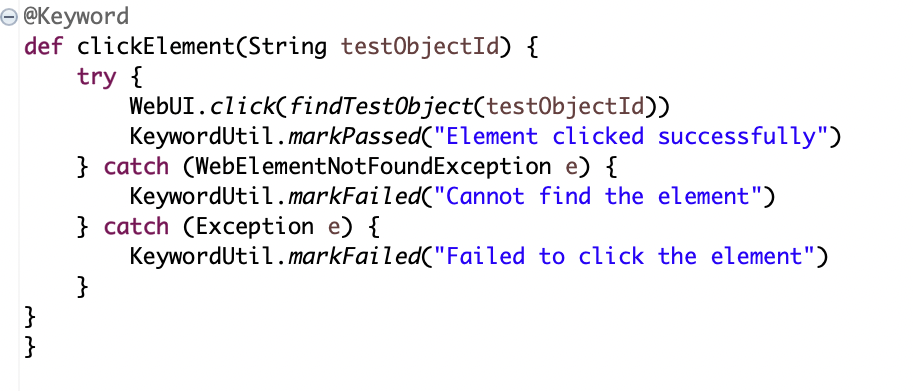
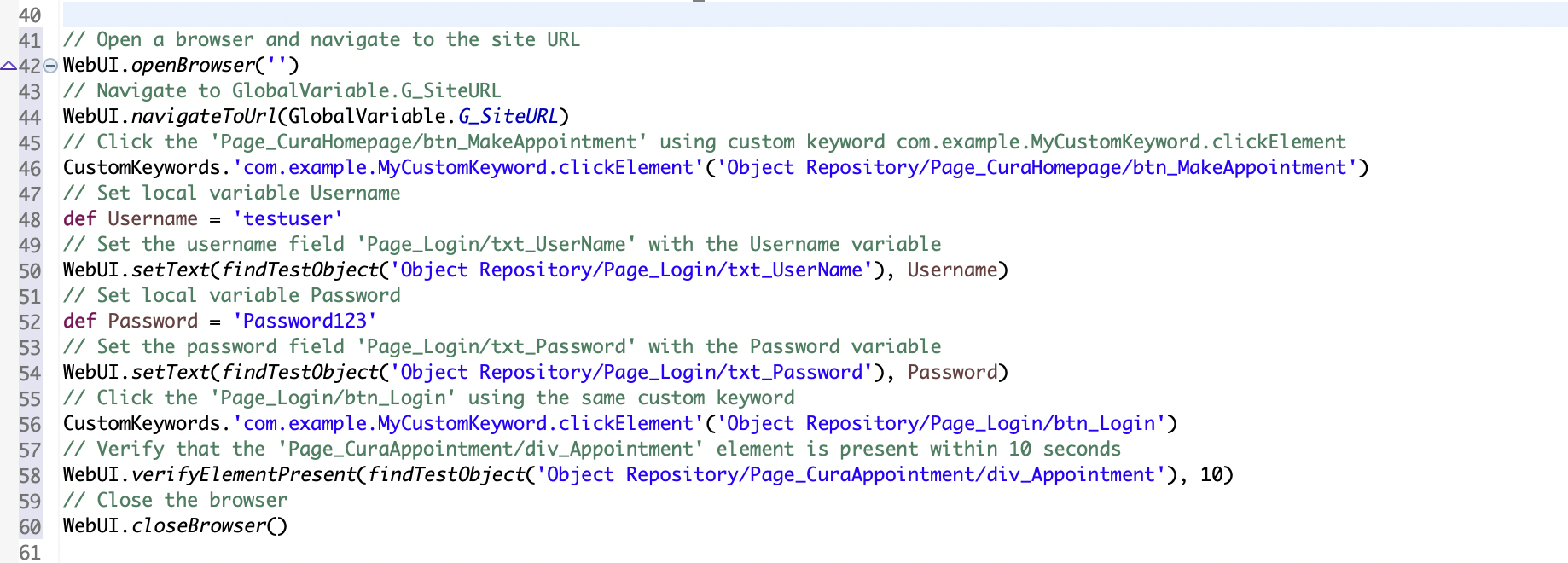
Generate test case script containing custom keyword
-
Open the Generate Script Containing Custom Keyword in the Script view.
-
Select the prompt and generate the following test script:
-
Click Run from the main toolbar to execute the test script.
Data-driven testing with Katalon AI Assistant
Data-driven testing (DDT) is a testing method that allows you to run a test script with various data sets. To learn more about DDT with Katalon Studio, see Data-driven testing with Katalon Studio.
You can use Katalon AI Assistant to generate test script that creates a CSV data file and data-driven script to perform data-driven testing. Do as follows:
Generate CSV data file
-
Open the Generate Script Creating CSV data test case in Script view.
-
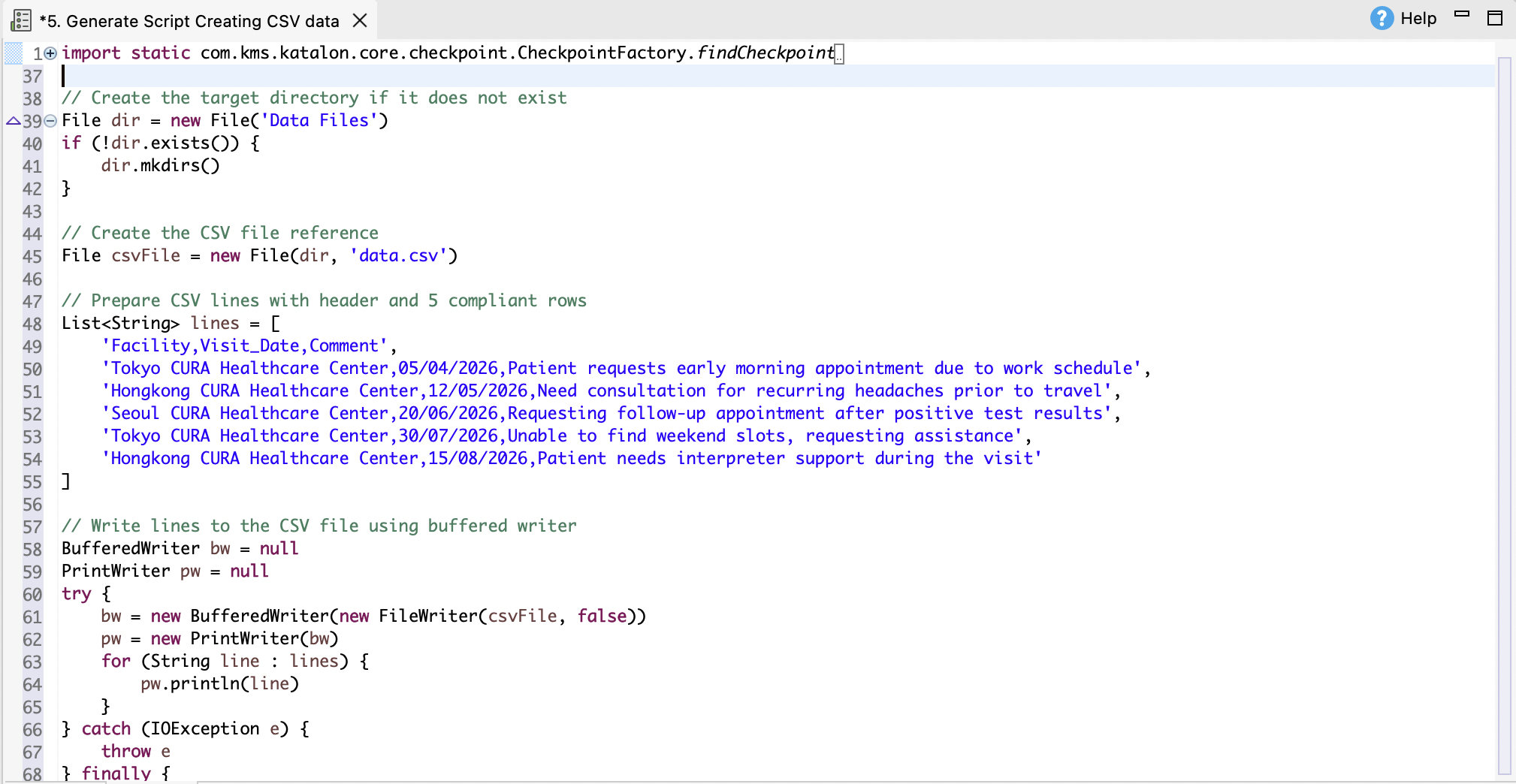
Select the prompt, right-click > Katalon AI Assistant > Generate Code. Katalon AI Assistant generates a test script that creates a CSV data file.
-
Run the generated test script.
The CSV data file will be saved in the project folder on your machine.
-
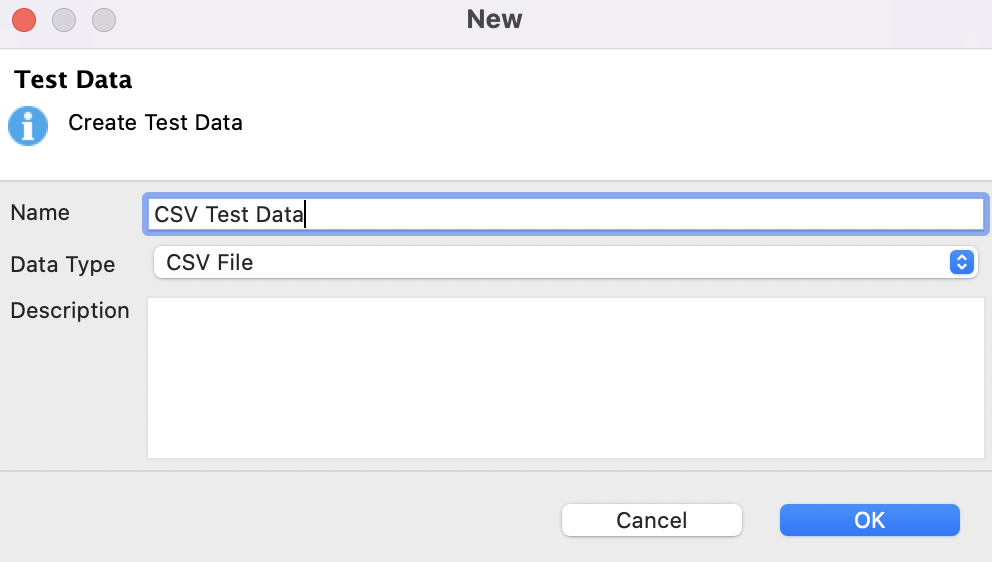
In the Tests Explorer panel, right-click Data Files > New > Test Data.
-
In the New Test Data dialog, enter a name and select Data Type as CSV File. Then click OK.
-
-
Click Browse and select the
test_data.csvfile to import to Katalon Studio.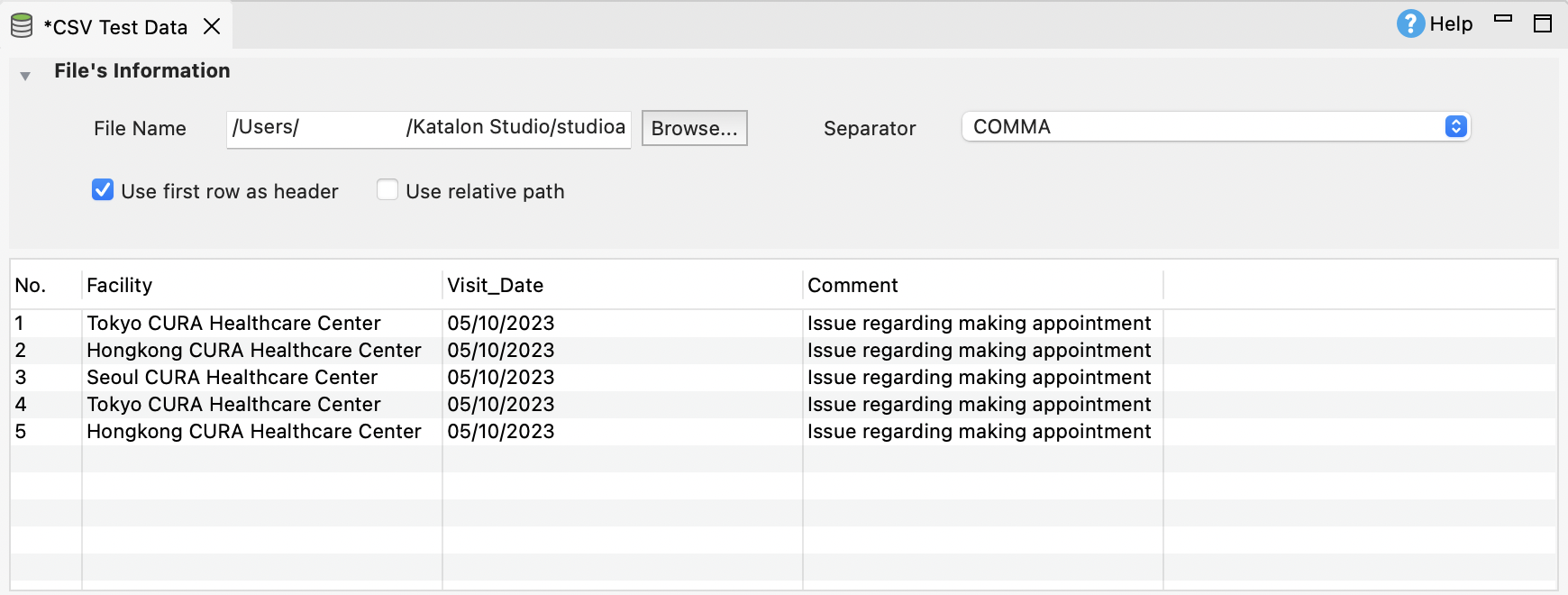
Generate Data-Driven script
-
Open the Generate Data-Driven Script in the Script view.
-
Generate code from the prompt to get the following result:
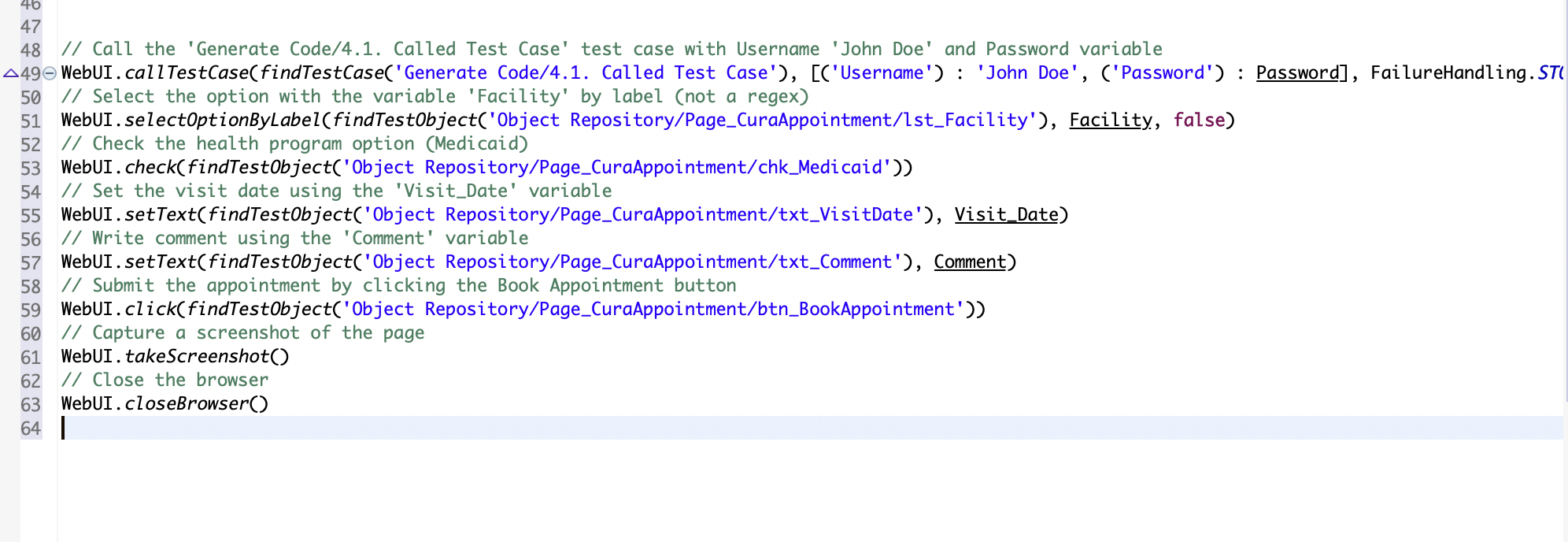
The predefined variables are fetched from the Variables tab of the test case.
Perform data binding
-
Switch to the Data Binding tab.
-
In the Test Data section, click Add and select the
CSV Test Datafile.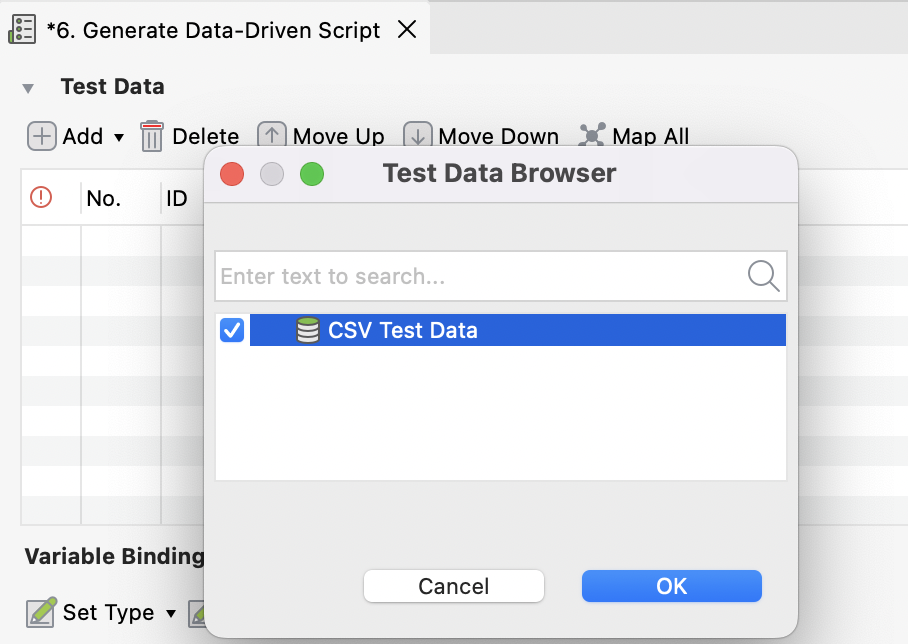
Then click OK.
-
Click Map All to quickly match the variables with the data file column headers that share the same name.
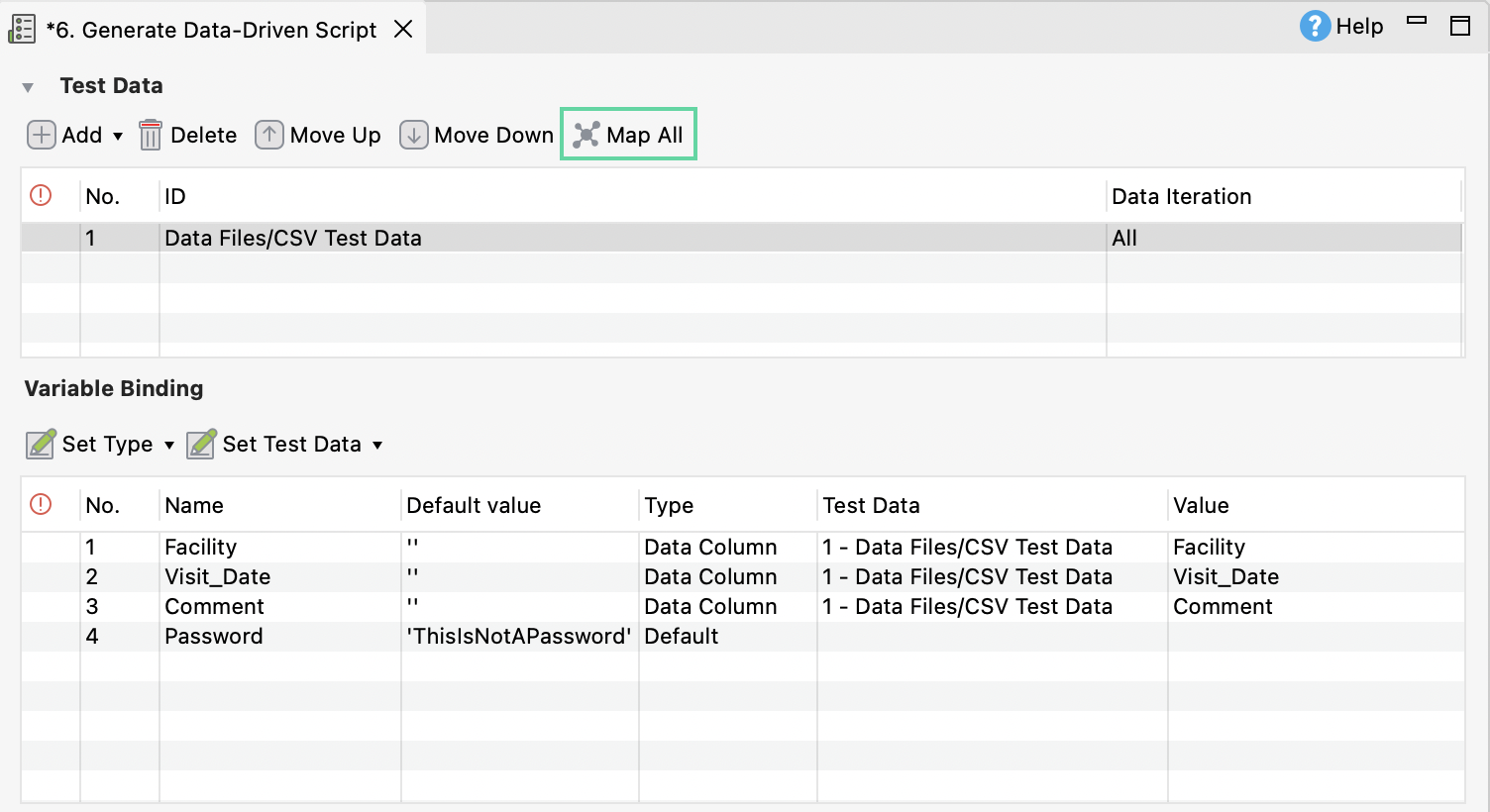
-
Click Run from the main toolbar to execute the test script.