Quick start guide for mobile testing
Use this guide to turn one important mobile user journey into a test you can run and improve. You do not need to design a complete framework first. Start with a real interaction, let Katalon Studio capture the app's objects and actions, then use AI to add checks and help diagnose failures.
By the end, you will have a test that:
- Exercises a useful path through your Android or iOS app.
- Verifies an outcome instead of only replaying taps.
- Runs on a local or cloud device.
- Gives you enough failure context to make the next fix quickly.
The example in this guide is a sign-in journey, but you can use the same approach for onboarding, search, checkout, or any short critical flow.
Before you start
You need Katalon Studio and an application file:
- Android:
.apkor.aab. - iOS:
.ipafor real or cloud devices, or.appfor a local simulator.
Choose where to work:
| Device | Choose this when | What to prepare |
|---|---|---|
| Cloud device (recommended) | You want the shortest path or need broader device coverage. | Upload the app in Katalon True under Device Cloud > Applications. |
| Local device, emulator, or simulator | You already have a development device available. | Connect the device and complete the local Appium setup. |
For the cloud path, see Upload a mobile app. For the local path, see Execute mobile tests with Appium.
AI assistance is optional. To use it, configure Katalon AI Assistant as described in Katalon AI Assistant Overview. Without AI assistance, you can still complete the recorder and execution steps below.
Capture a working user journey
Pick a journey that takes about five to ten actions and has an observable result. For example:
- Launch the app.
- Enter a username and password.
- Tap Sign in.
- Verify that the home screen appears.
Keeping the first journey small makes it easier to tell whether a failure comes from the app, the test, or the device environment.
Create a mobile project
- In Katalon Studio, select File > New > Project.
- Enter a project name and select Mobile as the project type.
- Choose Blank to test your own app, or choose a mobile sample project to explore the workflow with a ready-made app.
- Select a location, then click OK.
Record the journey
The Smart Mobile Recorder observes the real app session. It creates both the interaction steps and the mobile test objects that later give AI useful, project-specific context.
-
Go to Preferences > Recorder, enable Smart Mobile Recorder, then click Apply and Close.
-
Click Record Mobile on the main toolbar.
-
In the Mobile Recorder dialog, under Recording in, select a source:
- For a cloud device, select Katalon TestCloud. Under Device, choose the platform (Android or iOS), the OS version, and a device. Then select your app under Application. If your app isn't listed, click Upload.
- For a local device, select Local Device, choose the connected device, then provide the application file or application ID.
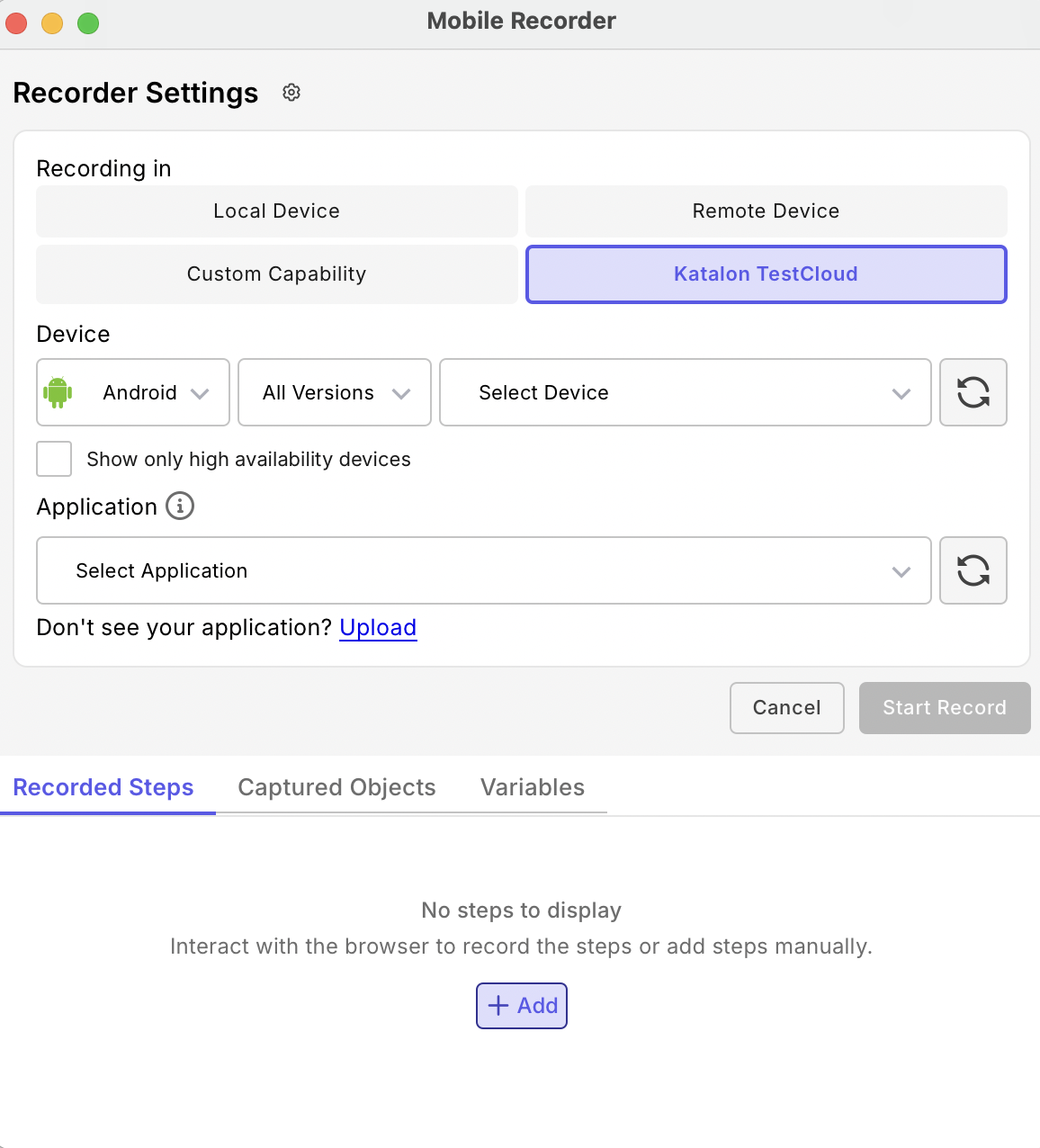
Tip: Select Show only high availability devices to see only cloud devices that are most likely free at the moment.
-
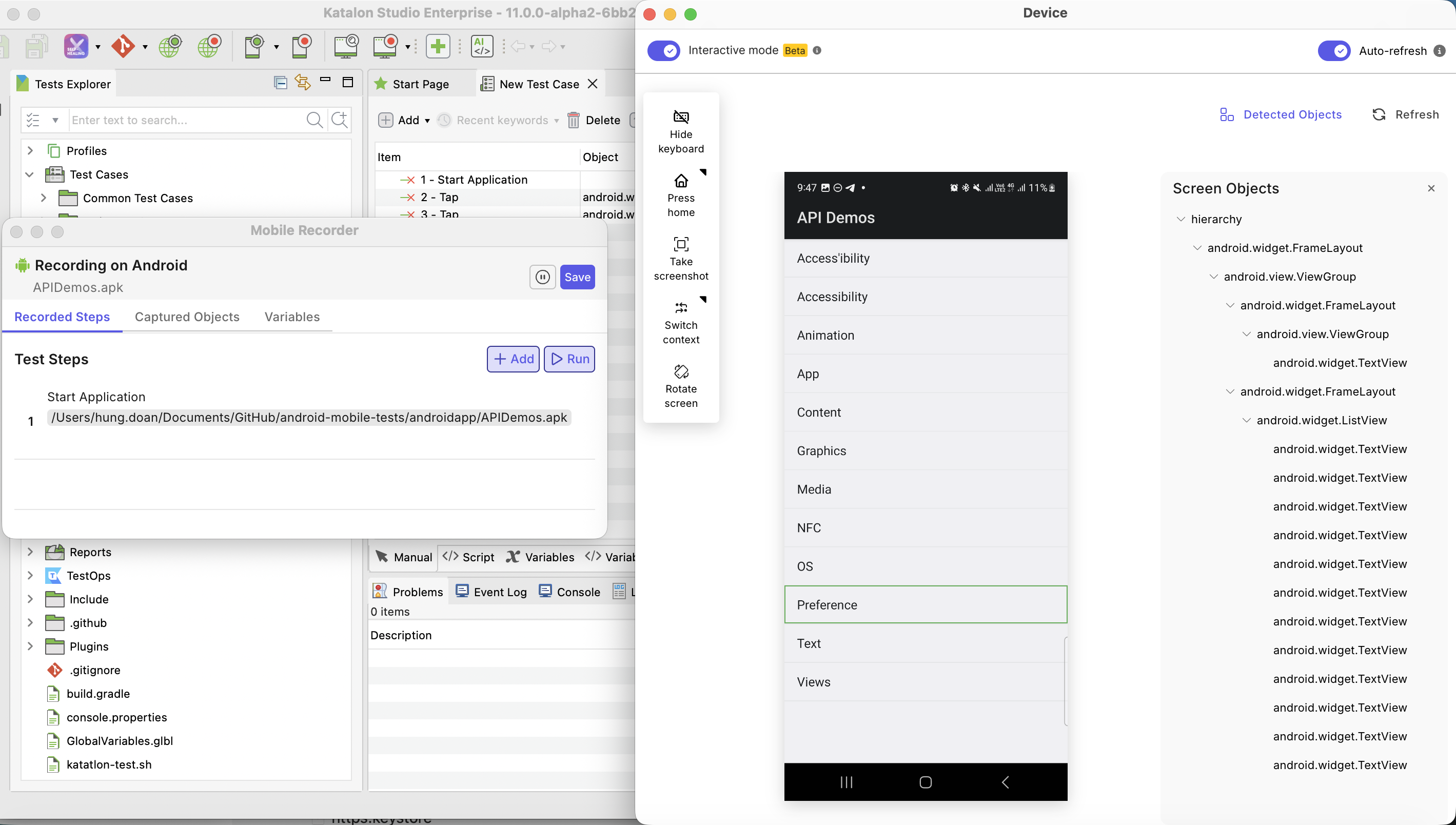
Click Start Record and wait for the app to appear in Device View.
-
Enable Interactive Mode, then perform your chosen journey in Device View.
-
Pause and click Run to replay the captured steps. Fix any missed or incorrect action while the session is still open.
-
Click Save and name the test case after the behavior, for example,
Sign_in_with_valid_account.
You now have a runnable baseline. Keep it even if you plan to use AI: the recorded objects and observed actions ground the generated changes in your actual app. For recorder controls and requirements, see Smart Mobile Recorder.
Turn the recording into a real test with AI
A recording shows that Katalon Studio can repeat your actions. A useful test also states what must be true. Use Katalon AI Assistant Agent mode to review the recorded test and add focused waits and verifications.
- Open the recorded test case.
- Open Katalon AI Assistant chat and select Agent mode.
- Give the assistant the behavior, expected result, and constraints. For example:
Review the open mobile test case for a successful sign-in.

Use only mobile test objects that already exist in this project.
Add explicit waits before interactions and verify that the home screen
is visible after sign-in. Keep the test short and readable. Do not invent
credentials, objects, or application behavior. Explain any assumption.
- Review every proposed file change in Modified Files. Check that the assistant used the right objects and that each verification represents user-visible behavior, then keep the changes you want.
- Run the revised test once. If it fails, attach the error log or screenshot in the same conversation and prompt:
Analyze this failure. Decide whether it is most likely an app issue,
test script issue, test data issue, or environment issue. Propose the
smallest fix, but do not remove the final verification.
Treat generated steps as a draft: AI can misunderstand the intended behavior or generate an invalid keyword. Your recording, expected outcome, and review remain the source of truth. For more prompting patterns, see Katalon AI Assistant Agent mode.
You can also skip manual recording and let the agent build the test end to end:
- Add the Mobile Next MCP server (
mobile-mcp) to Katalon AI Assistant. See Add an external MCP server in Katalon AI Assistant. - Start your app on an emulator, simulator, or physical device.
- In Agent mode, tell the agent what journey to test. The agent interacts with the app through the MCP tools and generates the test case, mobile test objects, and verifications in your project.
- Review the changes in Modified Files, then run the test.
Once the test passes locally, scale fast by running it on many real devices with Katalon TestCloud. See Run on the device that matters.
Run on the device that matters
- Open the test case and use the dropdown next to Run.
- Choose an execution target:
- Katalon TestCloud: In the Katalon TestCloud Configuration dialog, select Mobile Native Apps, choose the OS, OS version, device, and uploaded app, then click Run.
- Local Android or iOS: Select the connected device, then click OK.
- Watch the execution log and confirm that the final verification passes.
Do not begin with a large device matrix. First make the test reliable on one representative device. Then rerun the same test on one older OS version and one different screen size. This small matrix often reveals layout, keyboard, permission, and timing problems without creating unnecessary noise.
Katalon TestCloud lets you run the same test on many real Android and iOS devices without maintaining your own device lab. Add devices once the test is stable to widen coverage quickly.
Centralize reports in Katalon TestOps
Connect your project to Katalon TestOps to collect results from every run, local or cloud, in one place. Your team can review logs, screenshots, and videos, track pass rates and flaky tests across devices, and share results without passing files around.
To turn on automatic uploads:
- Go to Project > Settings > Katalon TestOps Integration.
- Select Enable Katalon TestOps Integration, then choose your TestOps Project.
- Select Enable Katalon TestCloud Integration to run on cloud devices.
- Select Automatically upload all test reports to Katalon TestOps.
- Click Apply and Close.
Katalon Studio uploads reports from test suites and test suite collections, not from single test cases. Add your test case to a test suite to see its results in TestOps. For details, see Integrate Katalon TestOps and TestCloud with Katalon Studio.
- Replace fixed delays with waits for a specific mobile object or app state. Katalon AI Assistant can suggest these changes, but review the timeout and failure handling before accepting them.
- Move credentials or search terms into test case variables. Add a meaningful negative case and verify the error shown to the user.
- Enable mobile self-healing in Project > Settings > Self-Healing. Review any suggested locator before accepting it. See Self-healing tests.
- For test-suite runs, select the report outputs under AI failure reason analysis in Project > Settings > AI Capabilities (Katalon Studio 11.7.0 onwards; earlier versions: Analyze failed reason using AI under Project > Settings > Report). Confirm the generated diagnosis against the execution log, screenshot, and app behavior.
You are ready to expand when
Your first test is a sound building block when it:
- Has a name that describes user behavior.
- Uses captured, reviewable test objects.
- Waits for app state instead of relying on arbitrary delays.
- Verifies a result the user can observe.
- Passes repeatedly on one device before you add more devices.
- Produces a log or screenshot that makes failures actionable.
Choose the next critical journey and repeat the same loop: capture, strengthen with AI, run, diagnose, and refine.