Execute mobile tests with Appium
This document explains how to configure and execute mobile tests with Appium on Katalon Studio version 11.0.0.
Requirements
- Starting version 11.0.0, Katalon Studio supports Appium 3.0. If your team is migrating from previous Katalon Studio and Appium versions, refer to the following documents for details:
- Katalon Studio version 11.0.0
- Node.js 20.19.0+
- Node Package Manager 10+ (NPM). This is often bundled with Node.js, but if you choose to upgrade independently, you can choose version 10+.
We recommend downloading and installing Node.js from the official website instead of using package manager brew or apk to avoid issues.
Install Appium and execute mobile tests
Follow these steps:
1. Install Appium 3.x
Run the following NPM command to install appium v3.0.0 globally:
npm i --location=global appium@3.0.0
2. Install Appium drivers (XCUITest and UiAutomator2)
Appium 3.x does not come with drivers for mobile devices. Install XCUITest and UiAutomator2 separately for your testing device:
- Android
- iOS
Run the following command to install the recommended version of the Appium UiAutomator2 driver (version 7.0.0):
appium driver install uiautomator2@7.0.0
The Appium UiAutomator2 Driver for Android native and web apps (via hybrid mode) is based on the Google UiAutomator framework. Refer to its Appium repository on GitHub to learn more.
Run the following command to install the latest version of Appium XCUITest driver (version 7.21.1):
appium driver install xcuitest@7.21.1
The Appium XCUITest Driver is used for iOS native and web apps (via hybrid mode), and can only be used on macOS. Refer to its Appium repository on GitHub to learn more.
Installing Appium does not automatically install WebDriverAgent and configure the driver in Xcode. See Install WebDriverAgent for more details.
3. Configure Appium location in Katalon Studio Preferences
Appium should be installed at the following directories:
- For Windows:
C:\Users\<Your_Username>\AppData\Roaming\npm\node_modules\appium - For Mac/Linux:
/usr/local/lib/node_modules/appium
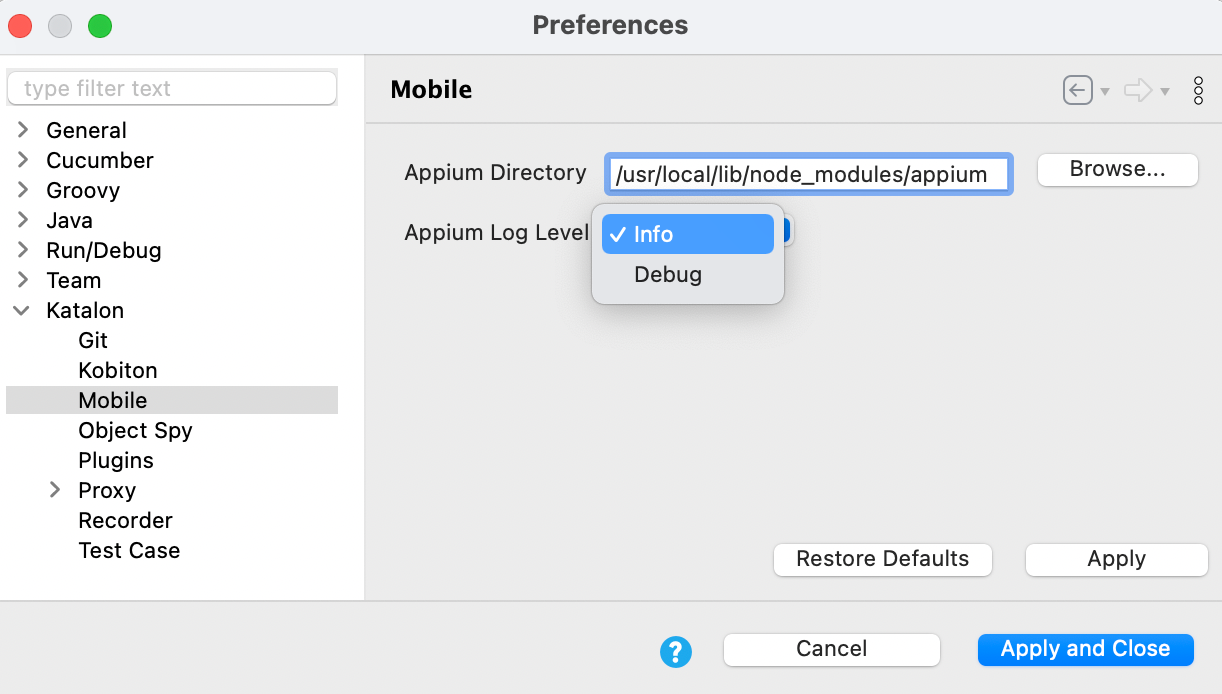
Go to the directory on your device to verify, then make sure the path is configured in Preferences > Katalon > Mobile > Appium Directory.
Result
You can now execute mobile test in Katalon Studio
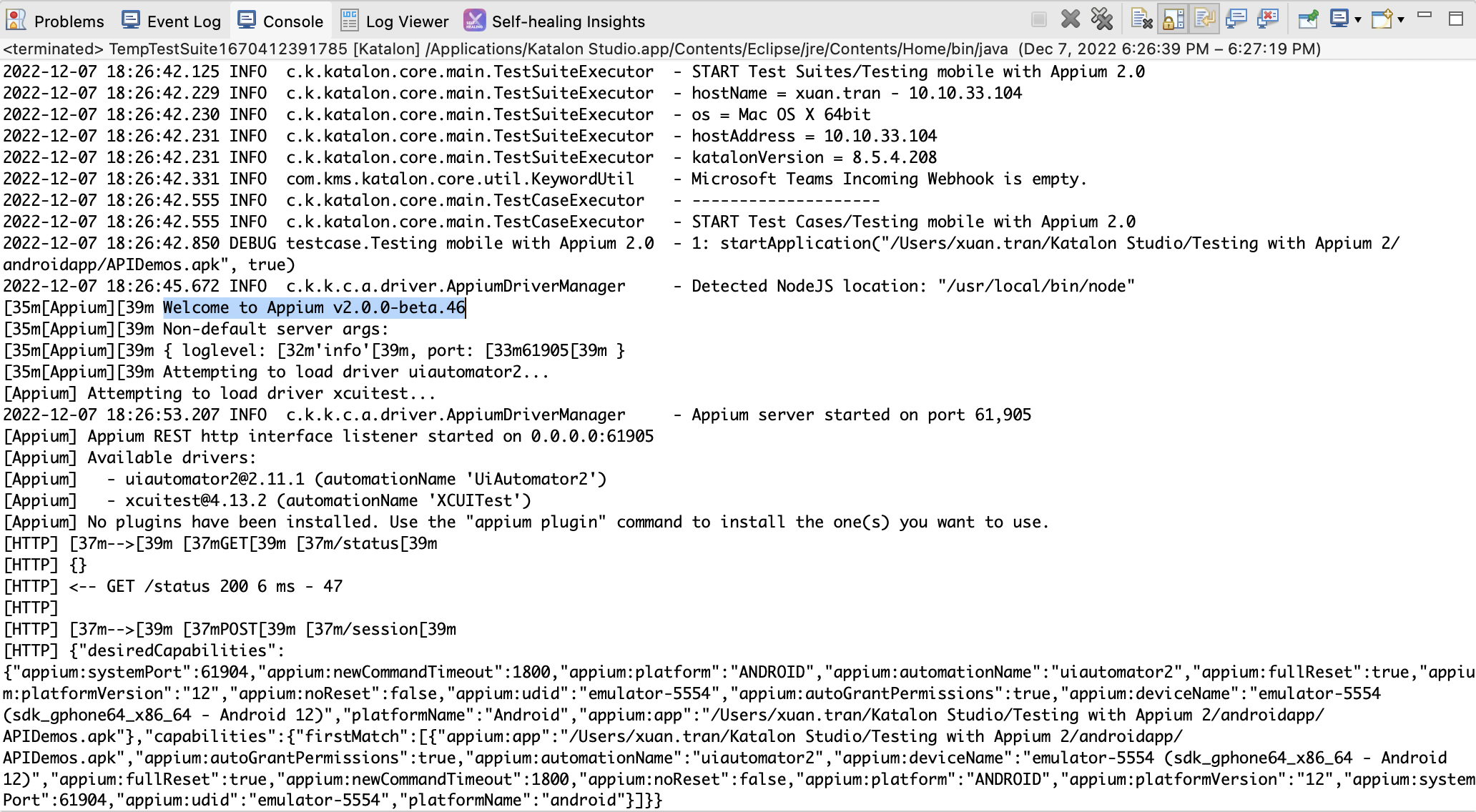
To verify, execute your test in Katalon Studio, and switch to the Console tab and check if KS:
- Detects the NodeJS directory.
- Starts Appium.
- Loads all configured drivers.
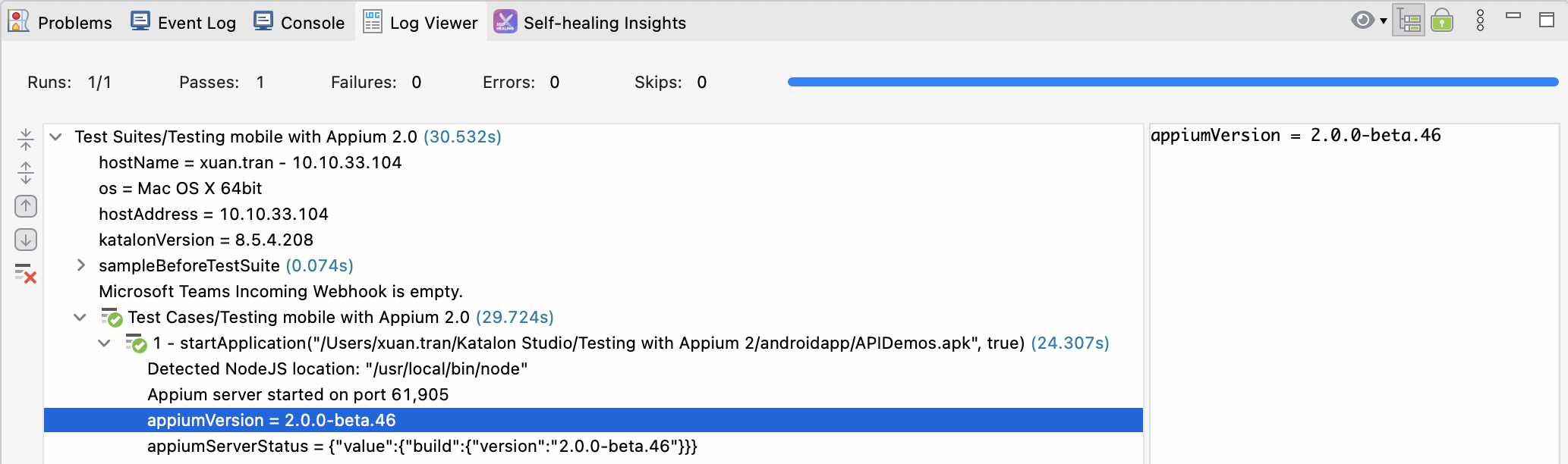
In the Log Viewer, the example below shows that Katalon Studio has successfully started the application with Appium:
To learn more about execution logs in Katalon Studio, refer to View and customize execution log in Katalon Studio.
For troubleshooting, refer to Unable to Start Application on this device: Appium directory is invalid.