Set up TrueTest for SAP UI5 and SAP Fiori applications
- System requirements:
- SAP UI5/SAP Fiori application (on SAP BTP or on-premise S/4HANA)
- Access to modify UI5 index file or shell script (e.g., index.html, Component.js, or custom bootstrap)
- Access to SAP transport system (if on-premise)
- TrueTest workspace created in Katalon Platform
- Permission enabled:
- Developer access to SAP UI5 code
- Permission to deploy UI5 apps (BTP transport or ABAP transport)
- Permission to embed external JS (TrueTest agent)
Katalon TrueTest enables automated test generation by capturing real user interactions inside SAP UI5 and SAP Fiori applications.
How it works: By embedding a lightweight JavaScript Traffic Agent directly into your UI5 application, TrueTest Agent can observe front-end events and send them securely to Katalon Platform.
This guide walks you through:
- Supported installation methods
- Recommended integration patterns
- Verifying and troubleshooting the installation
Installation steps
TrueTest Agent can be injected into the SAP UI5 application using two supported methods: injecting into the index.html file or via SAP UI5 onAfterRendering.
Inject code snippet into index.html
This is the preferred setup because the agent loads before UI5 fully initializes, allowing full lifecycle tracking. It ensures the Traffic Agent is active early enough to observe rendering, routing, and user actions.
Add the TrueTest code snippet above the UI5 bootstrap as follows:
<!DOCTYPE html>
<html>
<head>
    <meta charset="UTF-8">
    <!-- TrueTest Agent Script -->
    <script
        defer
        async
        client-code="KA-****-***"
        src="https://static.katalon.com/libs/traffic-agent/v1/traffic-agent.min.js">
    </script>
    <!-- SAP UI5 bootstrap -->
    <script id="sap-ui-bootstrap" src="resources/sap-ui-core.js"
        data-sap-ui-libs="sap.m"
        data-sap-ui-theme="sap_fiori_3"
        data-sap-ui-resourceroots='{"my.app":"./"}'>
    </script>
</head>
Inject via onAfterRendering Lifecycle Hook
Use this method when you cannot modify index.html, such as UI5 apps deployed through Fiori Launchpad.
Important: You must add this to your
Component.jsroot component and not inside individual views. UI5 may re-render views multiple times, so using this hook ensures the DOM is ready each time.
/**
 * Inject Katalon Traffic Agent Script
 * Called after the component has been rendered
 * @public
 * @override
 */
onAfterRendering: function() {
    UIComponent.prototype.onAfterRendering.apply(this, arguments);

    const katalonTrafficAgent = document.createElement('script');
    katalonTrafficAgent.async = true;
    katalonTrafficAgent.defer = true;
    katalonTrafficAgent.src = 'https://static.katalon.com/libs/traffic-agent/v1/traffic-agent.min.js';
    katalonTrafficAgent.id = 'katalonTrafficAgent';
    katalonTrafficAgent.addEventListener('load', function() {
        globalThis.startTrafficAgent('KA-***-***');
    });
    document.head.appendChild(katalonTrafficAgent);
},
Why onAfterRendering() works well
- It is called every time after the view is rendered.
- At this point, the HTML is already in the DOM, so the agent can safely observe UI elements and interactions.
- It avoids issues where the DOM is not yet ready (which can happen in
onInitoronBeforeRendering).
Verify & Troubleshoot installation
Follow these steps to verify that the Traffic Agent is working correctly in in the browser’s Developer Tools.
Step 1. Verify the Agent loads
-
Open your SAP UI5 app in the browser.
-
Open DevTools and navigate to the Network tab.
-
Reload the page.
-
In the Network filter, select JS, or type
traffic-agent.min.jsin the filter box.Confirm there is a request to
https://static.katalon.com/libs/traffic-agent/v1/traffic-agent.min.js
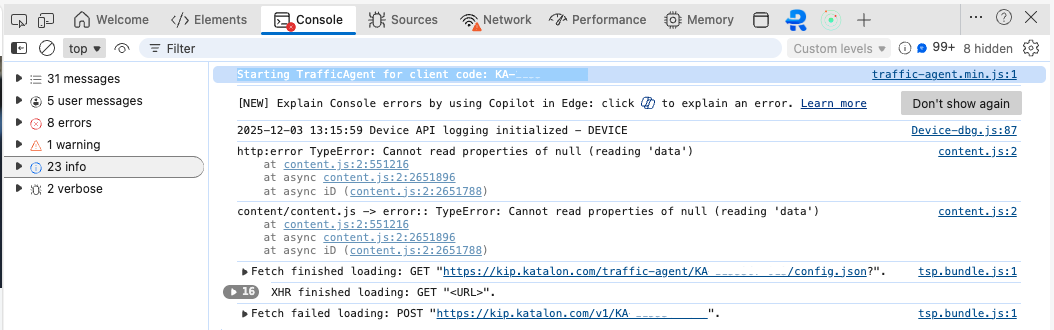
If this file is not loaded:
- Double‑check the
<script>tag inindex.htmloronAfterRendering.- Check for ad‑blocker / CSP / network proxy blocking
static.katalon.com.
Step 2. Verify the Agent initializes
- In DevTools, switch to the Console tab.
- Reload the page.
- Look for a log entry similar to
Starting TrafficAgent for client code: KA-***-***.
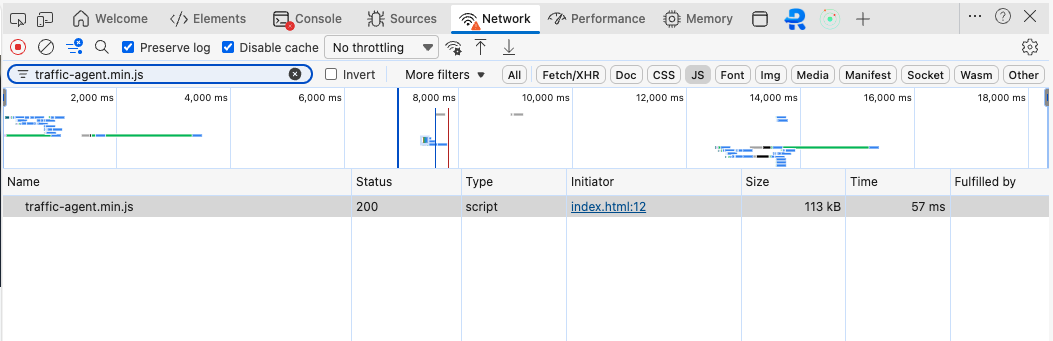
If you do not see this message:
- Ensure the
client-codeattribute is correct.
Step 3. Verify Traffic Config & Event Sending
Go to Network → All, then perform several actions in your app.
You should see in the log:
- Config fetch:
https://kip.katalon.com/traffic-agent/KA-***-***/config.json
- Event/Action sending:
https://kip.katalon.com/v1/KA-****-***
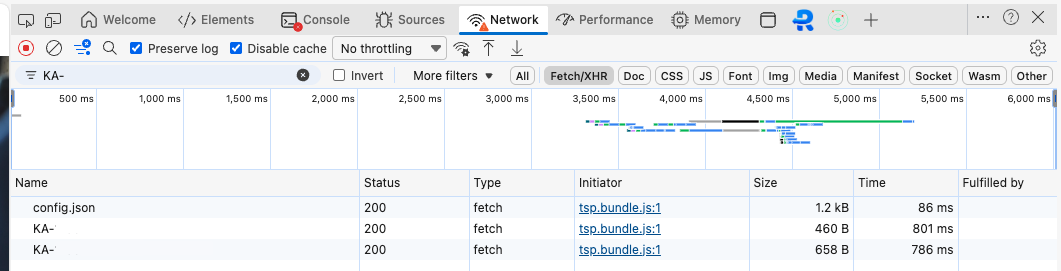
If config or event calls are missing:
- Check network restrictions (firewall, proxy, or VPN) to
kip.katalon.com.- Confirm that the client code used in the script matches the one configured in Katalon Platform.
- Check Console for errors originating from the Traffic Agent.