Install plugins online from Katalon Store
Last updated: April 2026
This article shows you how to install plugins online from the Katalon Store.
- To access the Katalon Store via Katalon Studio, click the dropdown next to the Profile icon, then select Visit Plugin Store.
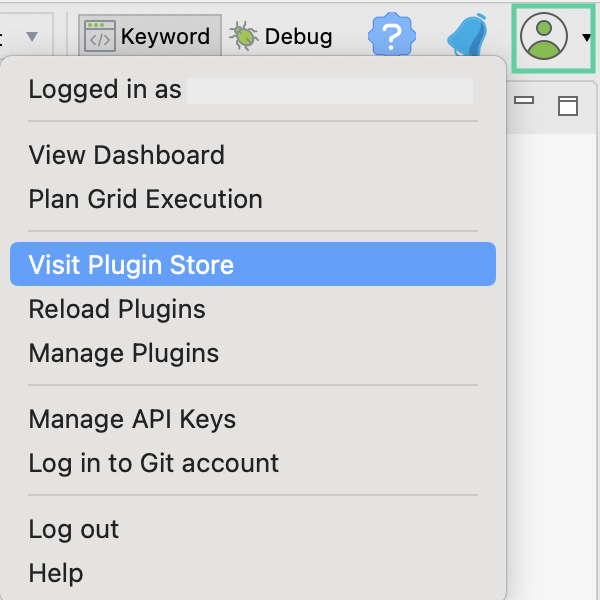
You are directed to the Katalon Store website.
- In the Katalon Store homepage, browse for the plugin you want to install, or type the plugin name in the search bar.
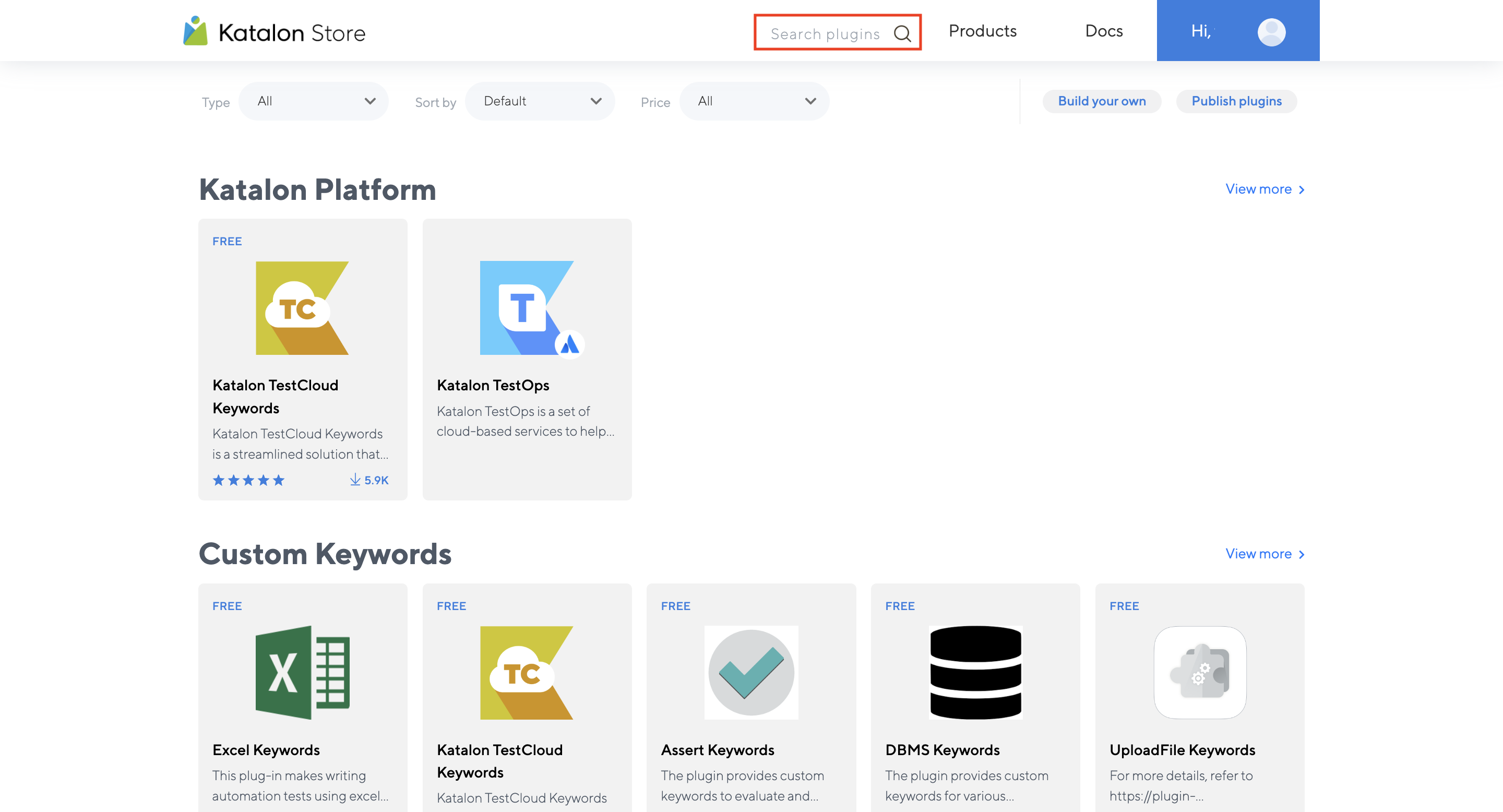
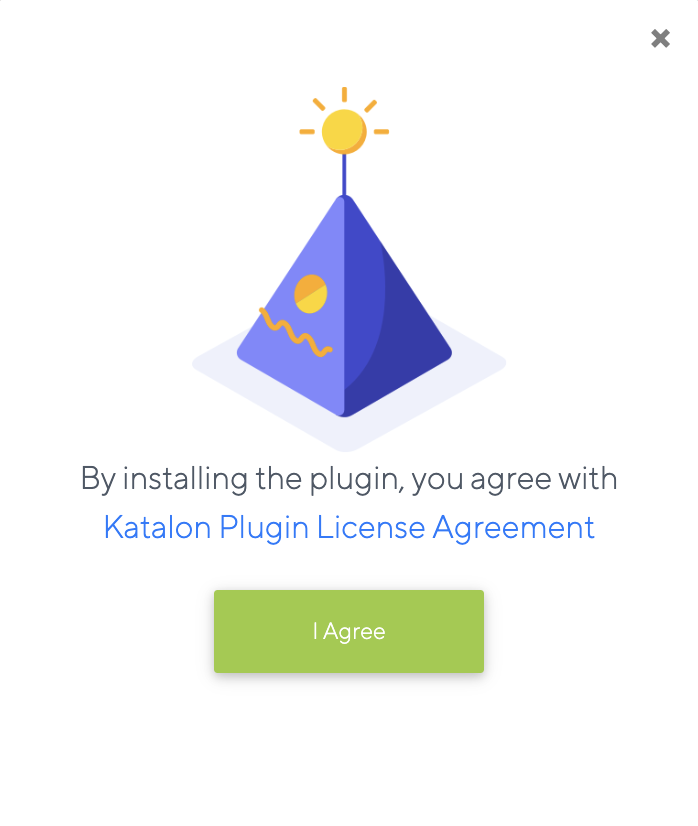
- Select the plugin thumbnail. In the product details page, click Install, then click I Agree in the pop-up dialog.
Once the plugin is installed, a Plugin Successfully Installed! message appears.
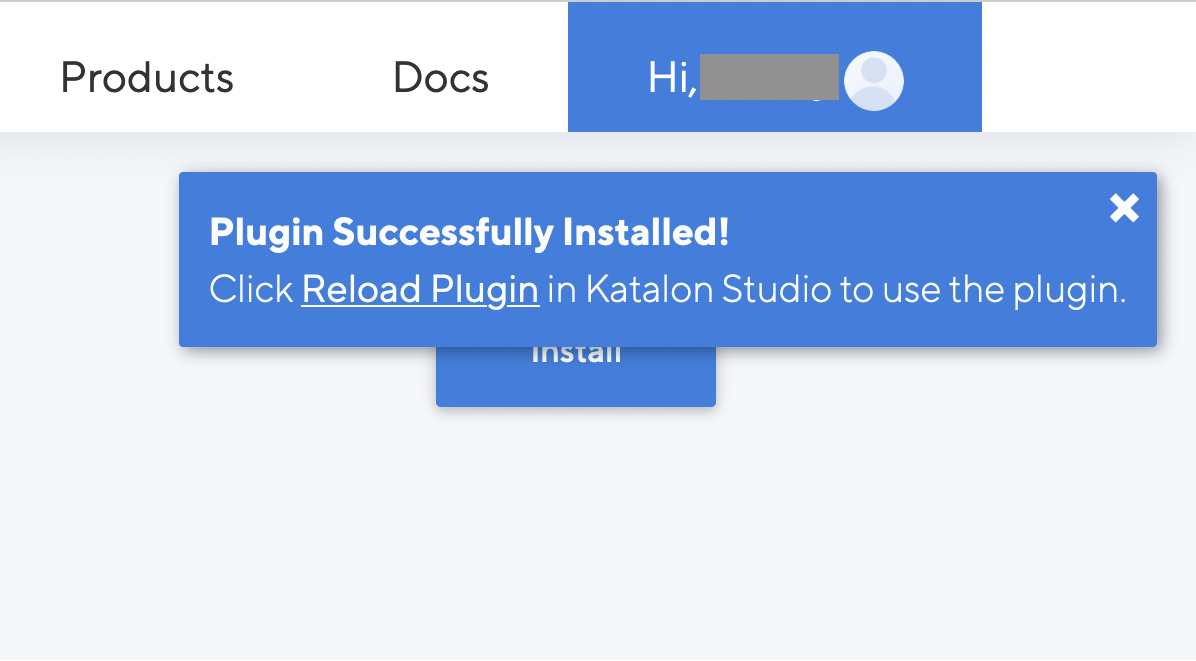
- In Katalon Studio, open the Profile dropdown menu and select Reload Plugins.
The Plugins dialog appears with a list of installed plugins, plugin versions, links to review plugins in Katalon Store, and reload status that indicates whether installation succeeded or failed.
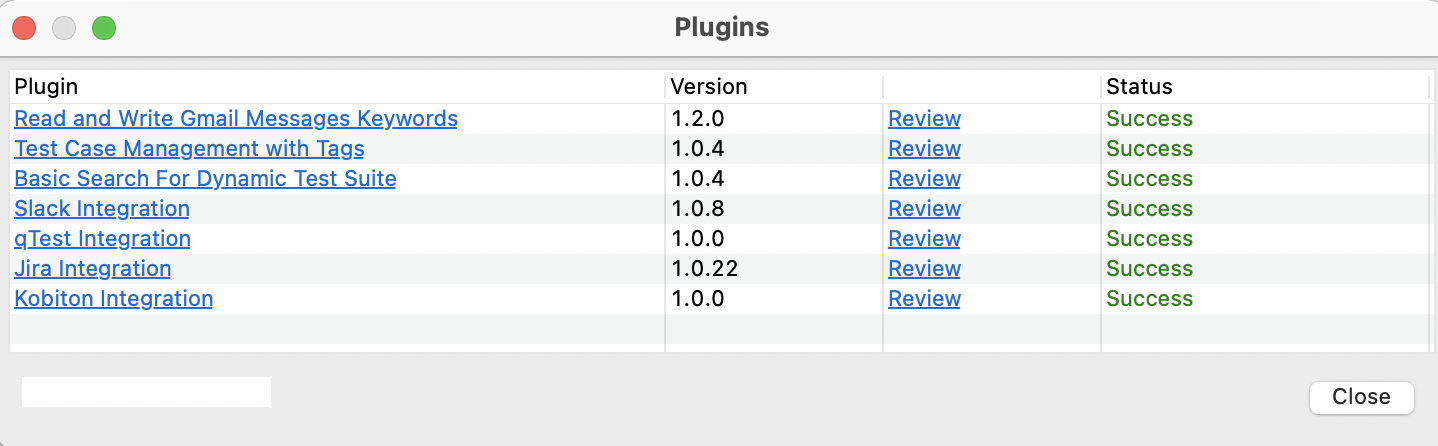
After you reload plugins, newly installed plugins are automatically activated. If you install a Katalon Studio plugin, you can see the plugin logo in the main toolbar. Custom Keywords plugins do not have logos. For Custom Keywords plugins, you can find a list of ready-to-use custom keywords in Keyword Browsers.