Mobile test object and recorder settings
From Katalon Studio 11.4.0, mobile test object and Mobile Recorder settings are consolidated in Project > Settings > Test Design > Mobile.
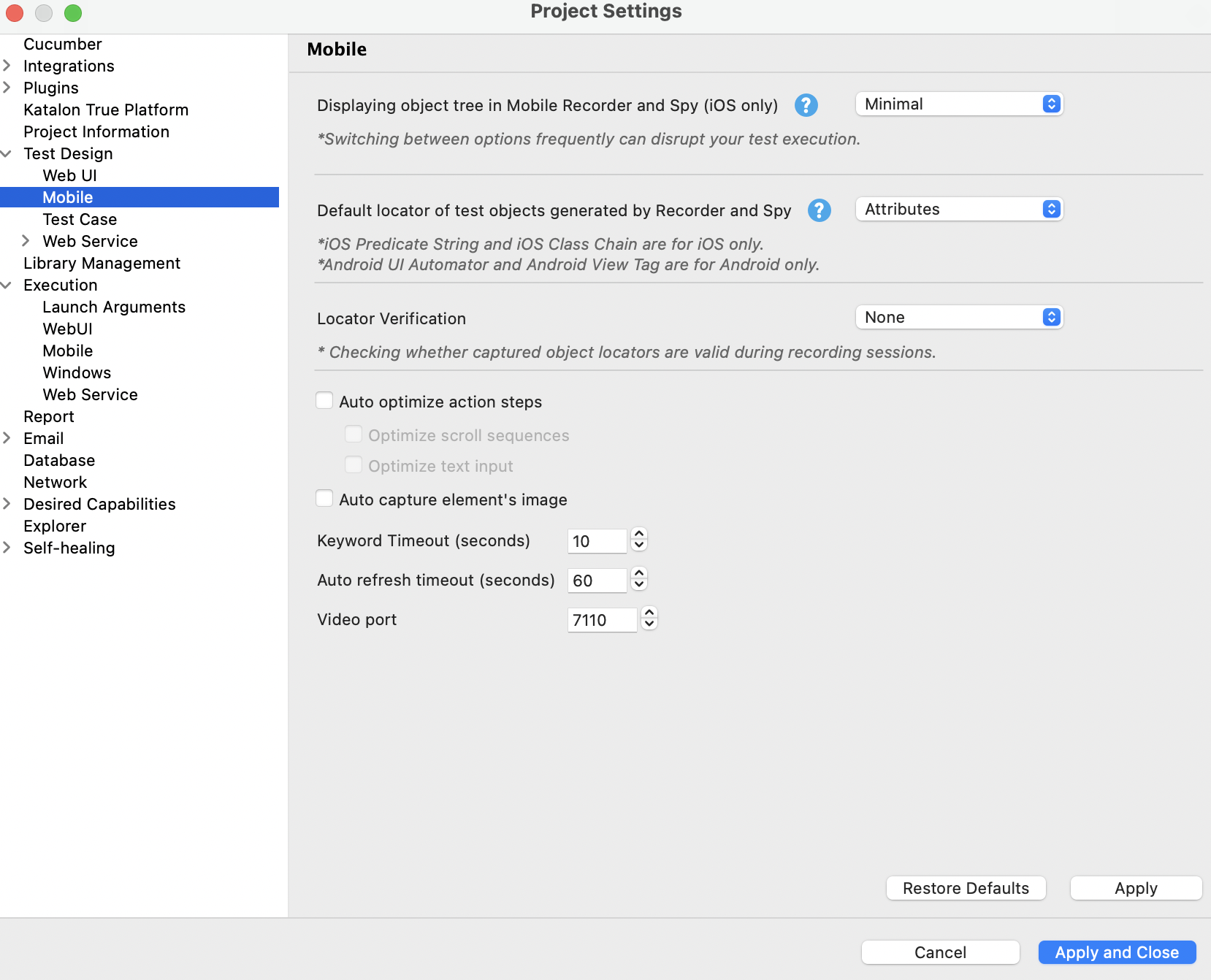
Mobile setting details
Jump to a section
Displaying object tree in Mobile Recorder and Spy (iOS only)
This setting controls how Katalon Studio retrieves and displays the iOS object tree in Mobile Recorder and Mobile Spy.
- Minimal: Default option. Uses the
Driver.execute("mobile: source")method and displays minimal elements in the object tree. Better performance, but some elements might be missing. - Full: Uses the
Driver.getPageSource()method and displays all elements in the object tree. Might cause performance issues.
Note: Switching between modes frequently can disrupt test execution. Choose one mode and keep it stable for a complete recording session.
Default locator of test objects generated by Recorder and Spy
This is the primary setting that shapes your test's maintainability. The strategy you select here will be used automatically when Recorder captures elements.
Recommended defaults by scenario:
- Cross-platform testing → Accessibility ID (if the app has good accessibility attributes) or ID (most stable)
- Android-only → ID or Android UI Automator (for complex matching)
- iOS-only → Accessibility ID or iOS Predicate String (more expressive than ID)
See Supported mobile locator strategies for detailed guidance on each strategy.
Locator Verification
During a Smart Mobile Recorder session, this setting controls which locators Katalon validates to ensure they uniquely identify a single element.
How it works: In Katalon Studio recording sessions, a locator is considered "invalid" when it points to more than one test object. Configuring Locator Verification helps detect these ambiguous locators quickly during recording. When validation is enabled, test steps with invalid locators are marked with warning icons so you can resolve them before saving.
| Option | Affected locators | Performance impact | When to use |
|---|---|---|---|
| None (default) | None | None | You want to verify locators after recording, or your app's UI is highly dynamic |
| Default Locator | Only the locator type configured in Default locator of test objects | Minor slowdown | You want to catch issues with your primary locator strategy while recording |
| All Locators | All non-empty locators captured during recording | Significant slowdown | You want comprehensive validation during recording and performance is not a priority |
How to resolve invalid locators: When a step is marked with a warning icon, open the Captured Objects panel in Smart Mobile Recorder to inspect and fix the problematic locators. Select a different locator type or refine the locator expression to ensure it matches only one element.
If not resolved: Steps with unresolved invalid locators still run, but Katalon uses the first matched element from the list, ignoring others.
Auto optimize action steps
This setting tells Recorder to simplify your recorded actions automatically. Enable this field if you want cleaner, more readable recorded scripts and don't need to capture every individual action.
It has two sub-options:
- Optimize scroll sequences — Condenses multiple small scroll actions into a single larger one. Useful for reducing redundant steps.
- Optimize text input — Combines consecutive keystrokes into a single text input action.
Auto capture element's image
When enabled, Recorder captures a screenshot of each element immediately before performing an action on it. This can be useful for:
- Debugging why an action failed
- Creating visual references for your test reports
- Detecting visual changes in the UI between recordings
Keyword Timeout (seconds)
The maximum time (in seconds) that Recorder waits for a single recorded action to complete before timing out.
If you're experiencing timeouts:
- Increase this value (e.g., from 30 to 60 seconds) if actions regularly take longer than expected.
- Check if the device is slow, the app is unresponsive, or the network is unstable.
If Recorder seems sluggish, decrease this value to fail faster on slow operations and resume recording sooner.
Typical range: 30–60 seconds. Most applications respond much faster; adjust based on your environment.
Auto refresh timeout (seconds)
The interval (in seconds) at which Recorder automatically refreshes the device view in the Recorder UI.
- If the device view is stale, decrease this value to refresh more frequently (e.g., 1–2 seconds), though this increases processing overhead.
- If Recorder is slow, increase this value to reduce refresh frequency (e.g., 5–10 seconds), but expect delayed visual updates.
Typical range: 2–5 seconds. Choose based on how responsive your app is and how much visual feedback you need during recording.
Video port
The network port used to stream the device video feed to Recorder.
You can change the value when:
- The default port (e.g., 5900) is already in use by another service on your machine.
- You're running multiple Recorder sessions and need to isolate them.
If you're not sure, Leave this at the default. Changing it without reason can cause device connection issues.
Supported mobile locator strategies
Katalon Studio supports Appium locator strategies, except for Android Data Matcher. The best strategy is one that identifies a single element through a stable application attribute and continues to work when the screen layout changes.
- Use Accessibility ID or ID for most elements.
- Use a platform-specific strategy (Android UI Automator, iOS Predicate String, or iOS Class Chain) when basic attributes cannot uniquely identify your target.
- Use XPath or Image only when stable identifiers are unavailable. Both require more maintenance as the application evolves.
Cross-platform strategies
Accessibility ID identifies an element through its accessibility metadata: the accessibility identifier or name on iOS and content-desc on Android. It is usually fast, readable, and independent of the element hierarchy. Use it when developers can provide unique, stable accessibility values. Avoid values copied from visible text if the application is localized or the text changes frequently.
ID uses the native element identifier: resource-id on Android and name on iOS. It is typically one of the fastest and most stable choices because it does not require traversing the complete UI hierarchy. Prefer IDs that are unique and controlled by the application rather than values generated dynamically at runtime.
Class name matches the element's native type, such as android.widget.TextView on Android or XCUIElementTypeButton on iOS. Class names are useful for finding a collection of elements of the same type, but they rarely identify one element by themselves. Use another attribute or an index only when the resulting locator remains unambiguous.
Name matches the name exposed by the active Appium driver. Its underlying value can differ by platform and can be derived from other accessibility properties. Use it only after confirming that the captured name is unique and remains stable across application versions and languages.
XPath searches the XML representation of the application hierarchy and supports complex relationships between elements. It can locate elements that have no useful native identifier, but it is slower than native strategies and is sensitive to hierarchy changes. If XPath is necessary, prefer a short expression based on stable attributes instead of an absolute path containing many parent nodes or indexes.
Image locates an element by comparing a reference image with the current device screenshot. It is useful for canvas content, games, charts, or other visual elements that Appium cannot expose in the UI hierarchy. Image matching is sensitive to resolution, scaling, theme, orientation, and visual changes, so use it as a fallback and maintain reference images for each relevant device configuration. Before using this strategy, set up image-based mobile testing.
Android-specific strategies
Android UI Automator uses Android's native UI Automator selector APIs. It can combine properties such as text, class, resource ID, state, and description, and it can locate an element while scrolling through a container. Use it when a simple ID or Accessibility ID cannot express the required condition. Because these selectors depend on Android-specific APIs and application attributes, they are not portable to iOS.
Android View Tag matches the tag value assigned to an Android view. With the Appium Espresso driver, it maps to the native withTagValue matcher; for Jetpack Compose, it can match a test tag. This strategy is fast and stable when the application team intentionally assigns unique test tags. It is unavailable when the application does not expose a tag.
iOS-specific strategies
iOS Predicate String uses a native XCTest predicate to filter elements by attributes such as type, name, label, value, visibility, or enabled state. Predicates support compound and partial-string conditions and are generally much faster than XPath. Use the smallest set of stable attributes that uniquely identifies the target element. See Predicate locator strategy.
iOS Class Chain follows the iOS element hierarchy and can apply predicates at individual levels of the chain. It is useful when the target is best described by its relationship to a container or another element, while remaining faster than an equivalent XPath expression. Avoid long chains or position-based indexes when the screen hierarchy changes frequently. See XCUITest locator strategies.
Extension-based strategy
Custom uses a locator strategy supplied by an Appium driver or plugin. Use it when a supported extension provides application-specific element lookup that the built-in strategies cannot perform. The same extension and configuration must be available in every local, CI, and remote execution environment, which can reduce test portability. See Define valid locator strategies in an Appium driver.