Manage test data
External data: You can import data files in Excel and CSV format, or from database servers.
Internal data: You can input the data manually within Katalon Studio. You can decide the number of columns, rows, and what values for each cell.
This document shows you how to create test data files with external and internal data in Katalon Studio.
Create an Excel data file
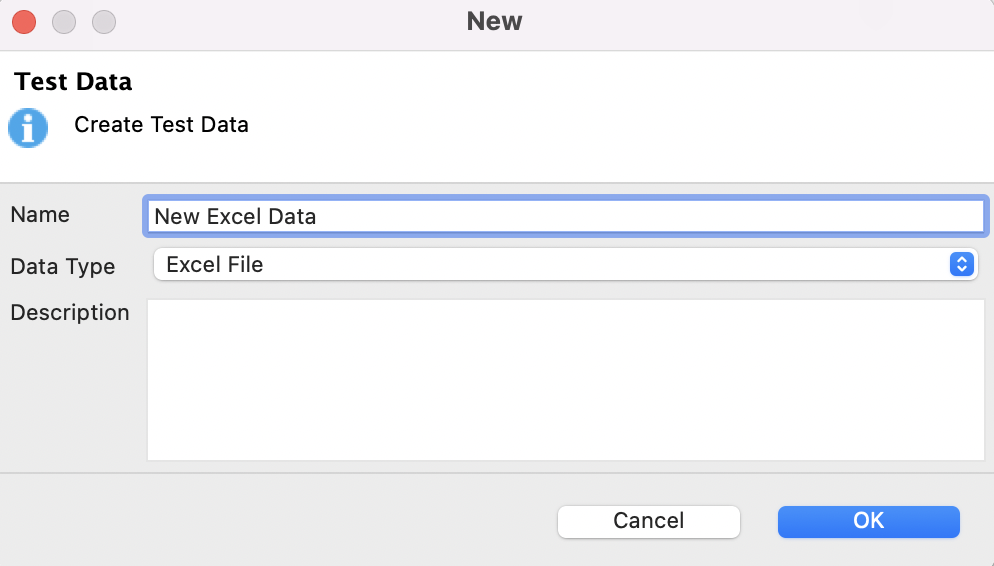
- Select File > New > Test Data from the main menu. The New Test Data dialog appears as below. Enter the name for your test data and select Data Type as Internal Data. Click OK.
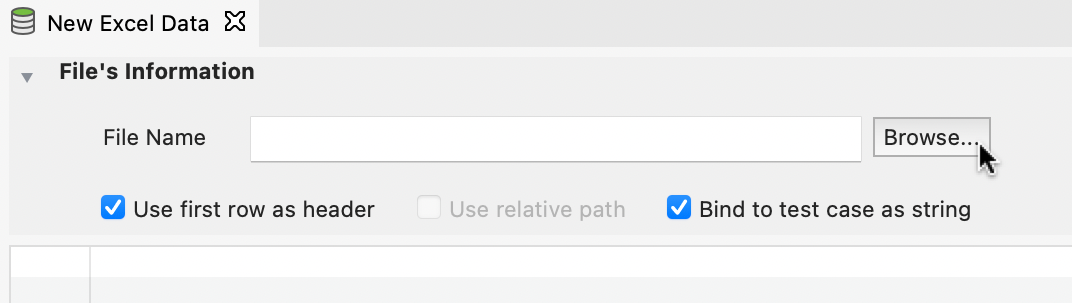
- Browse to the Excel file that you want to import into Katalon Studio.
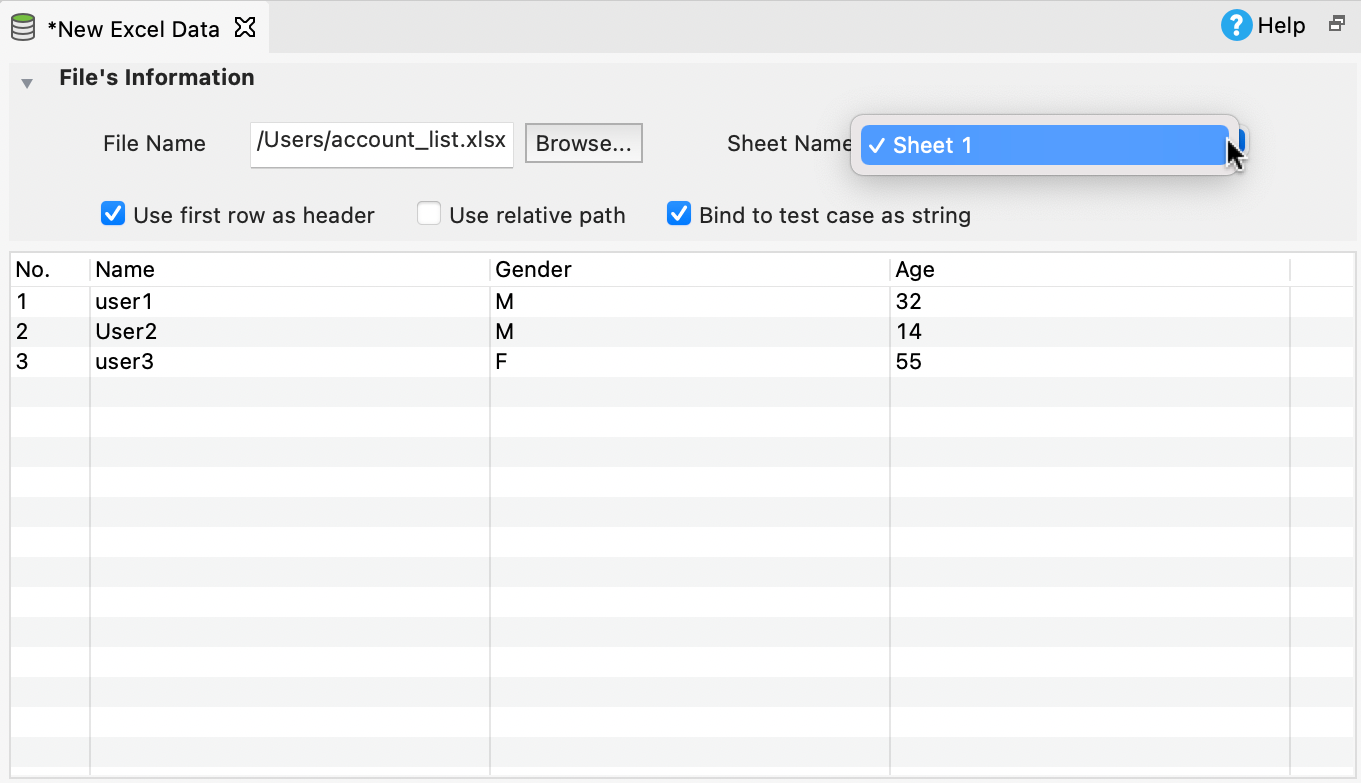
- Data from the selected Excel file is loaded into the preview section below.
You can choose the sheet you want to use.
 Note:
Note:- By default, Katalon Studio converts variables to strings to perform data binding. You can disable Bind to test case as string option to configure variable binding to read test data values as the intended test data types.
Create a CSV data file
- Select File > New > Test Data from the main menu.
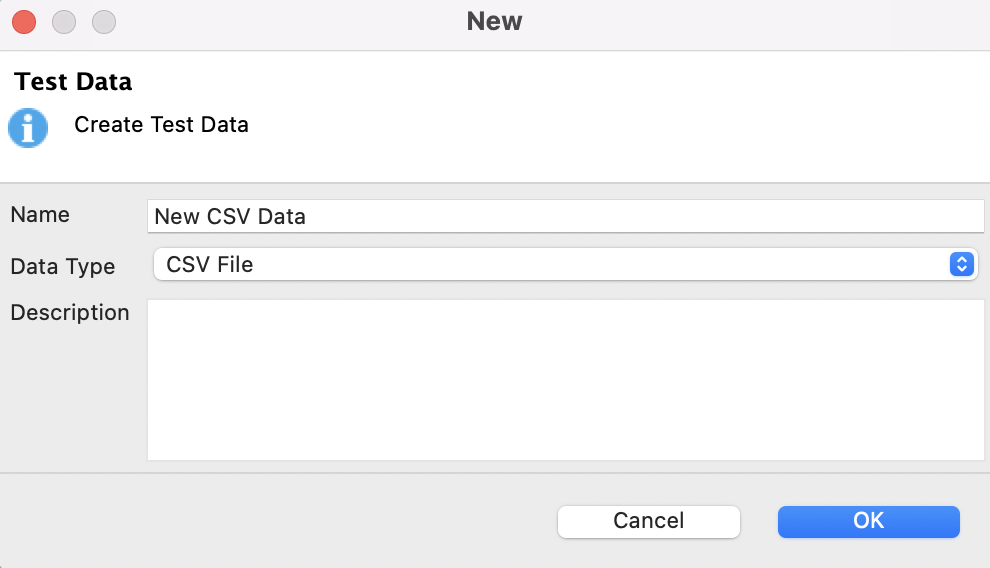
The New Test Data dialog appears as below. Enter the name for your test data and select Data Type as CSV File. Click OK.
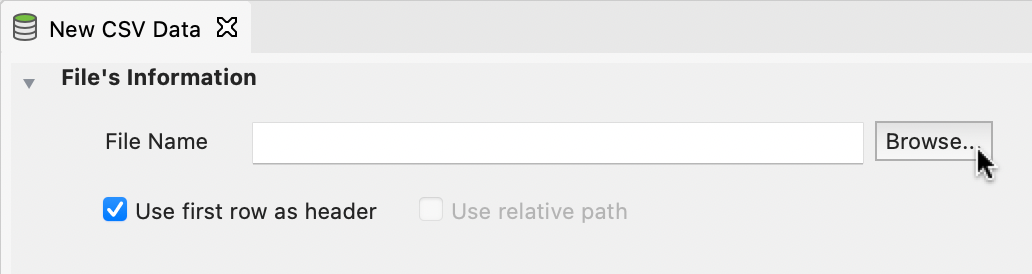
- Browse to the CSV file that you want to import into Katalon Studio.
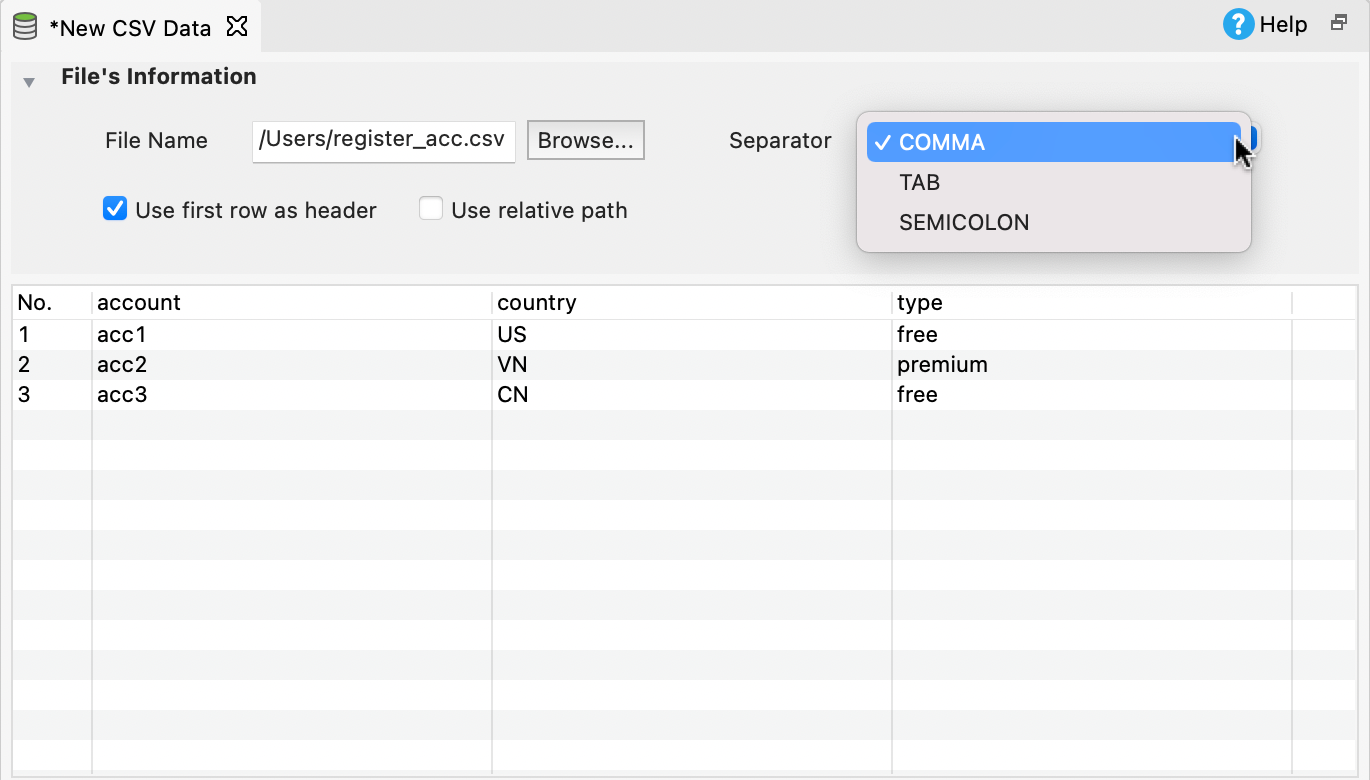
- Data from the selected CSV file is loaded to the preview section below.
Create a Database data file
- You have already set up your database. For more details, refer to Set up database connection.
- Your database is running.
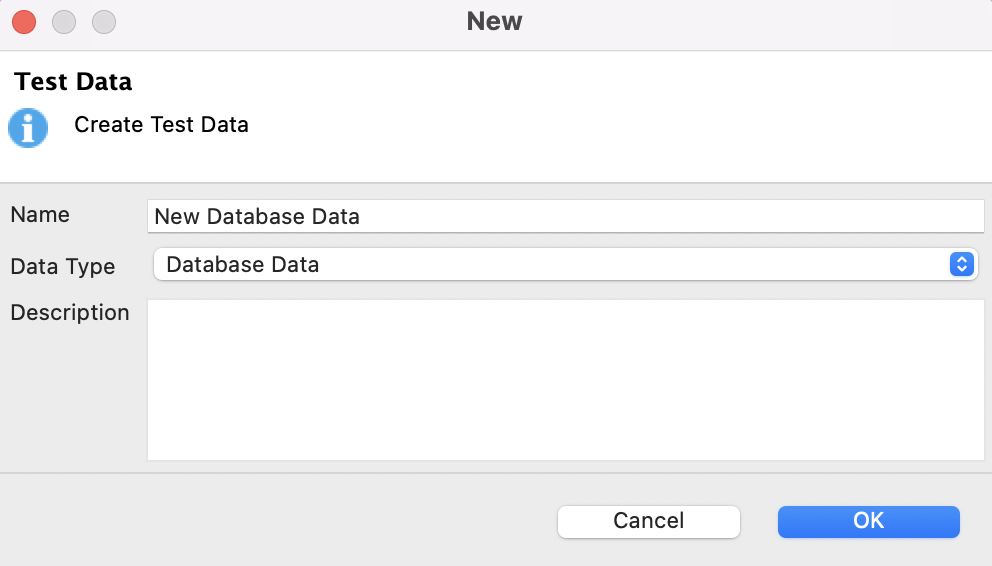
- Select File > New > Test Data from the main menu. The New Test Data dialog appears as below. Enter the name for your test data and select Data Type as Database Data. Click OK.
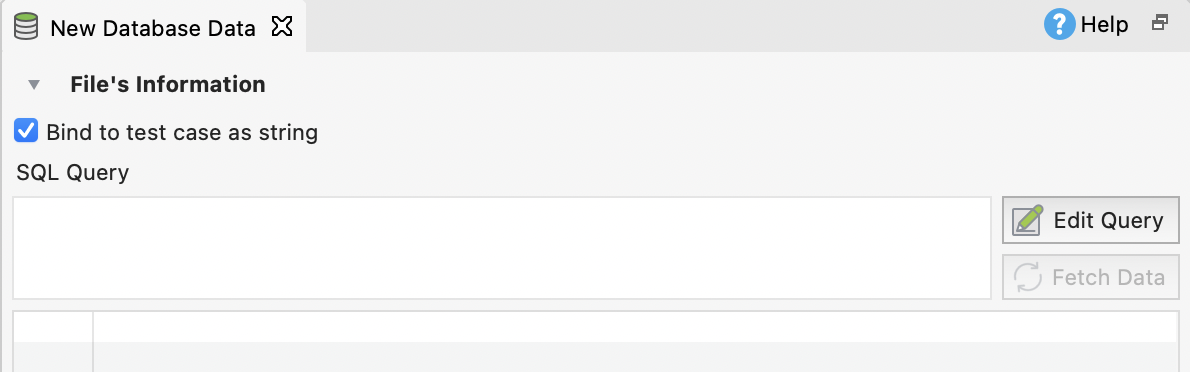
- Click Edit Query to open the Database Connection and Query Settings dialog.
- Enter the connection details and the data query. Click Test Connection to verify whether your database is connected successfully.
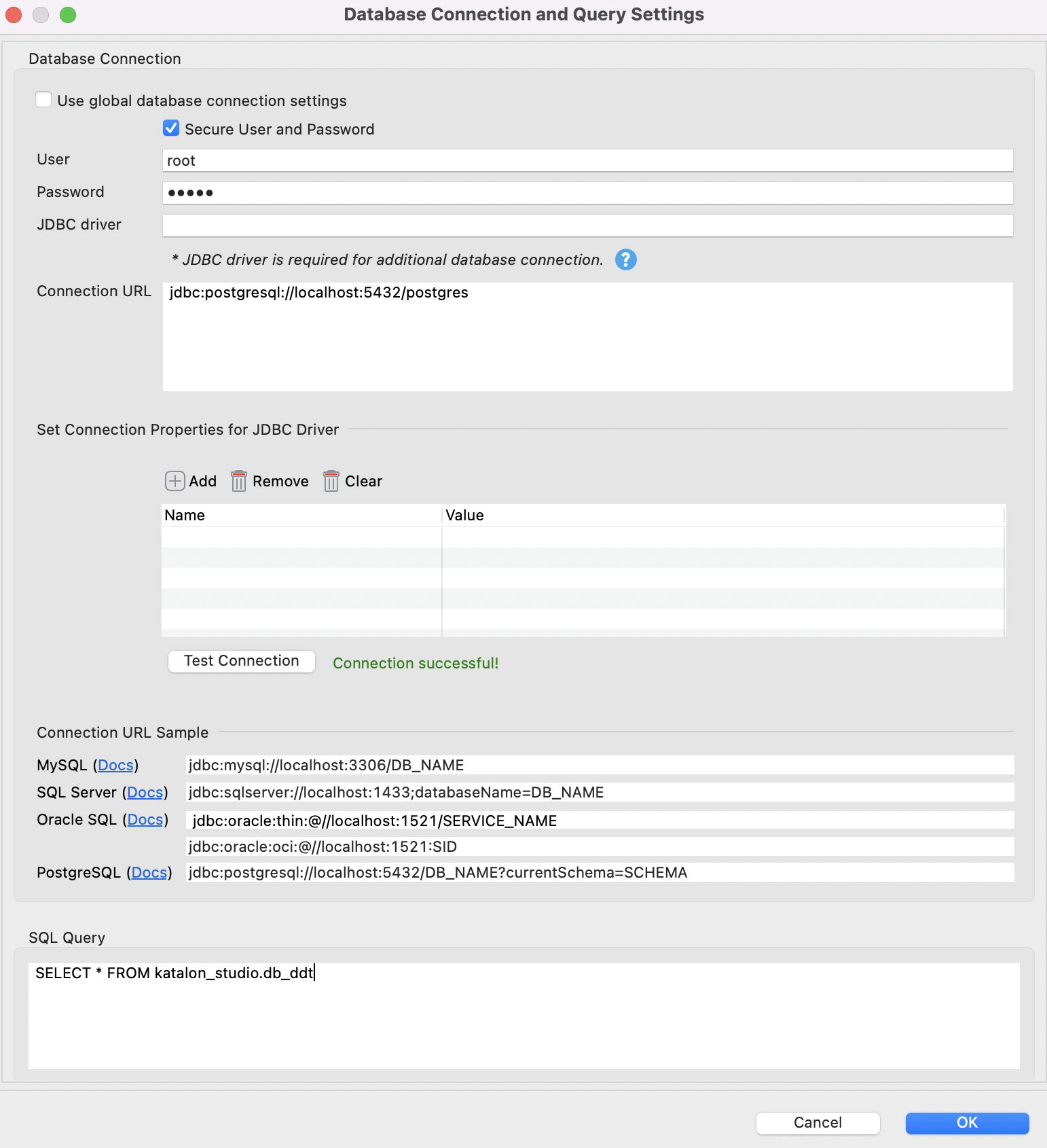 In the JDBC Driver field, you can enter the ClassDriverName of the database with a library support connection (JDBC) toquery data from additional database sources.Note:
You can check Use global database connection settings to use the connection defined in project settings. See Database Settings.
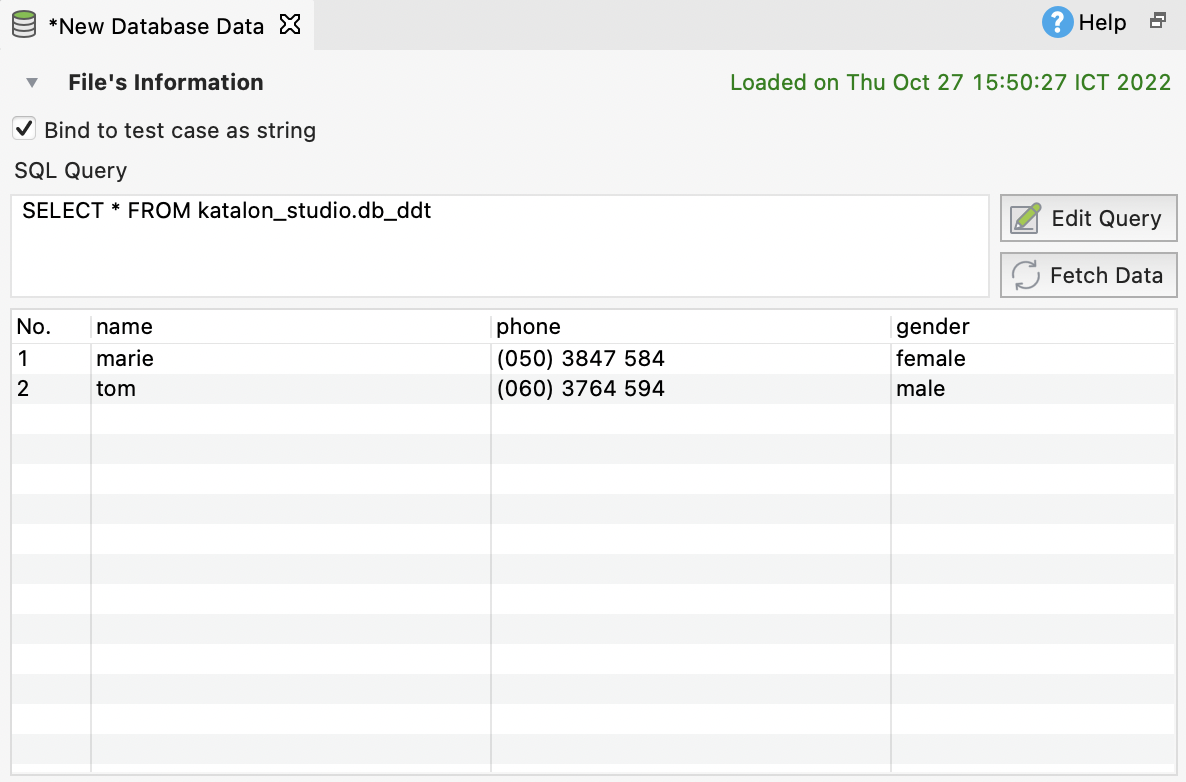
- Click OK. The queried data is fetched and loaded into the preview section as below.
 Note:
Note:- By default, Katalon Studio converts variables to strings to perform data binding. You can disable Bind to test case as string option to configure variable binding to read test data values as the intended test data types.
Create an Internal data file
- Select File > New > Test Data from the main menu.
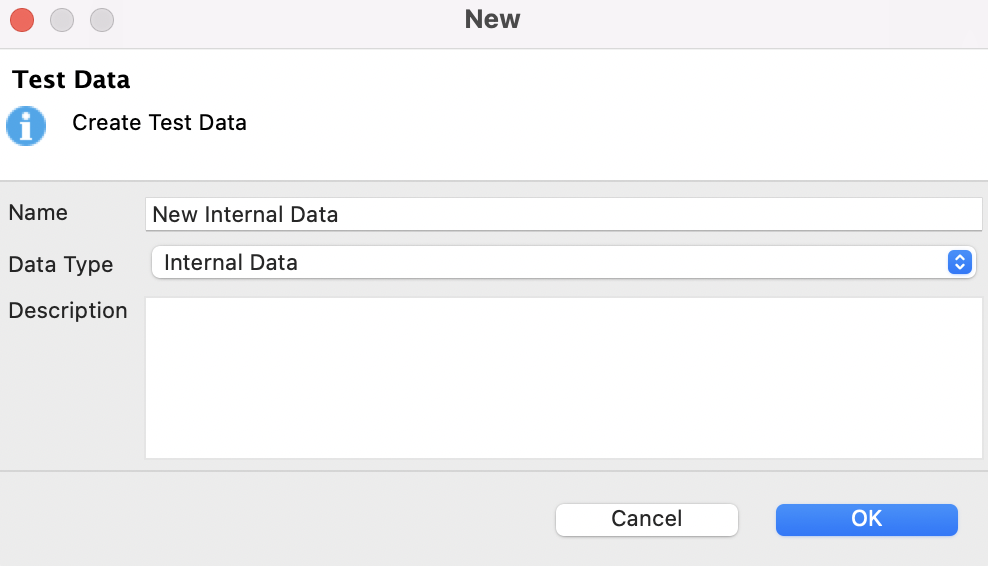
The New Test Data dialog appears as below. Enter the name for your test data and select Data Type as Internal Data. Click OK.
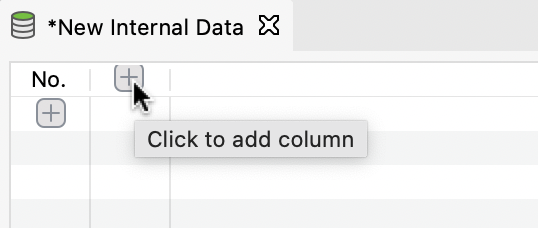
- In the Editor View, select the option to add a new column.
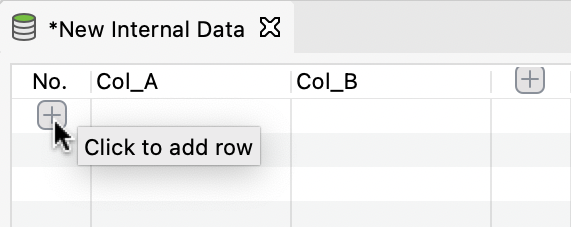
- Select the option to add a new row.
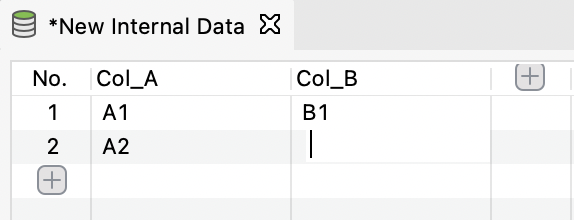
- Click on each cell to input the value for them.
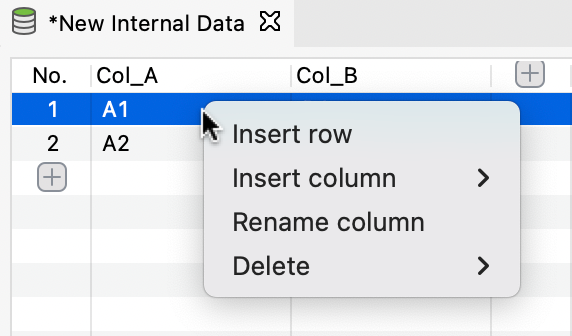
- Right-click to access the context menu to edit or delete the columns (or rows).