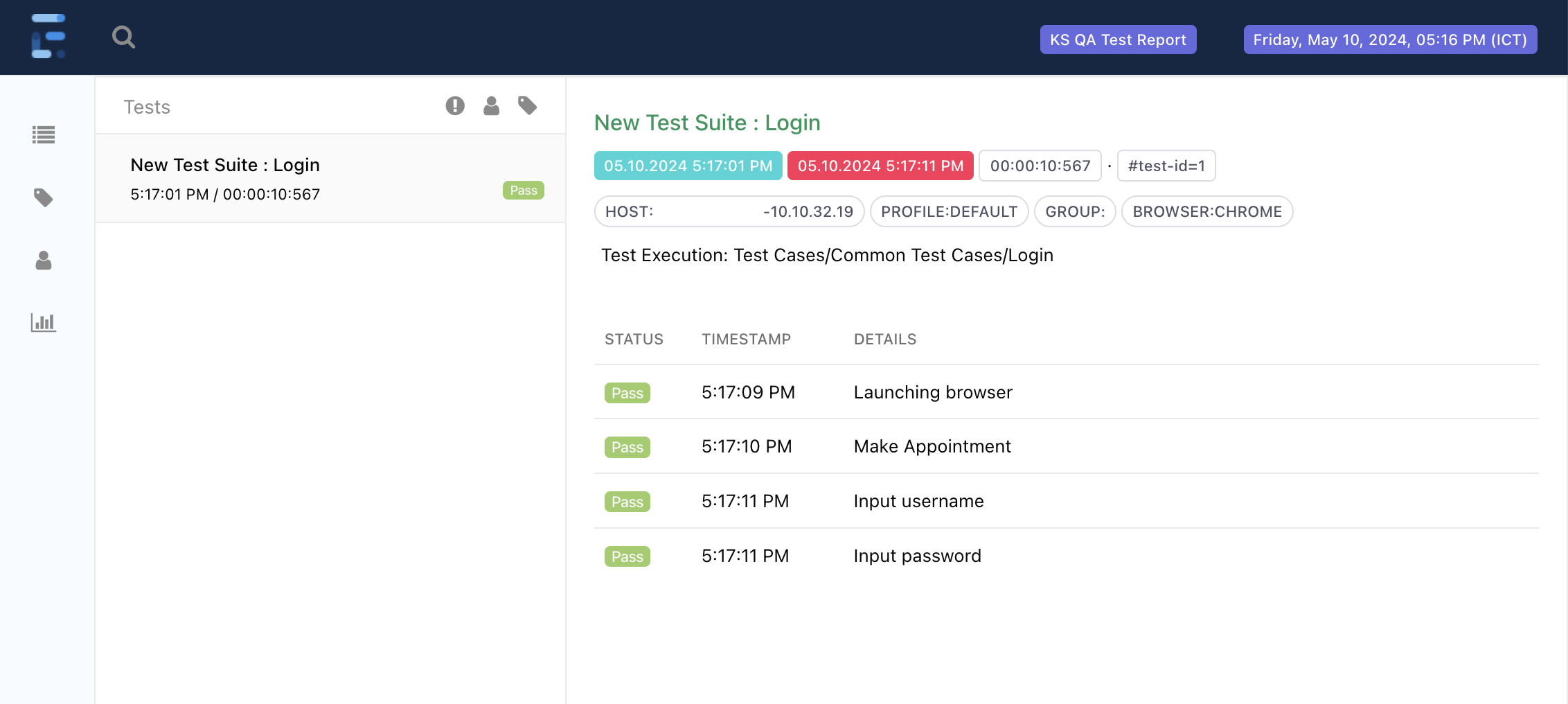
Extent Reports integration
Extent Reports is a customizable HTML reporting library for Java and .NET that provides interactive and detailed test reports. It offers features such as pie charts, logs, screenshots, and more, making it a popular choice for test reporting in automation frameworks.
Integrating with Extent Reports allow you to streamline test reporting and enhance visibility from Katalon Studio built-in test reports. These reports are visually appealing and easy to navigate, making it simpler to understand the test outcomes.
This document shows you how to set up and generate Extent Reports after a test suite execution in Katalon Studio.
- Install the Extent Reports plugin from Katalon Store.
- After installing successfully, go to Katalon Studio > Profile > Reload Plugins to double-check that the plugin is available.
To apply Extent Reports, you need to set up test listeners that initialize and generate Extent Report after each test suite execution.
-
In Tests Explorer, select Test Listeners > New > New Test Listener.
-
Give the test listener a name, for example,
ExtentReportsListeners, then click OK. -
Copy and paste the following code into the test listener script:
Adjust your test report name in this method:attachEReport'(testSuiteContext, "<Report title>", "<Report name>").import com.katalon.extent.ExtentReportManager
import com.kms.katalon.core.annotation.*
import com.kms.katalon.core.context.*
class ExtentReportListener {
@BeforeTestSuite
def beforeSuite(TestSuiteContext suite) {
ExtentReportManager.startSuite(suite, "Extent Report", "KSE2 QA Test Report")
}
@BeforeTestCase
def beforeCase(TestCaseContext testCase) {
ExtentReportManager.startTestCase(testCase)
}
@AfterTestCase
def afterCase(TestCaseContext testCase) {
ExtentReportManager.endTestCase(testCase)
}
@AfterTestSuite
def afterSuite(TestSuiteContext suite) {
ExtentReportManager.endSuite()
}
} -
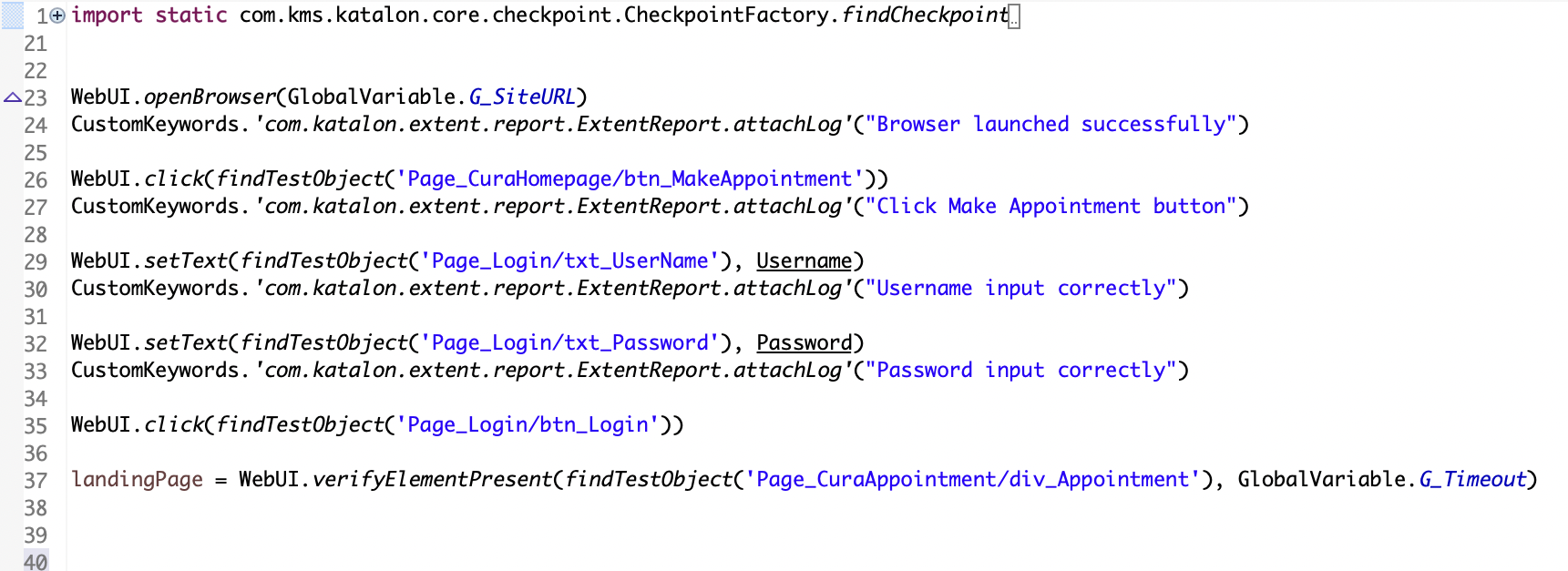
Open your test case, copy and paste the custom keyword(s) under the corresponding test step you want to capture test execution events.
Currently Katalon Studio supports two custom keyword for Extent Reports:- Attach log to the test step:
CustomKeywords.'com.katalon.extent.report.ExtentReport.attachLog'("Add Test Description Here") - Take screenshot of the test step:
CustomKeywords.'com.katalon.extent.report.ExtentReport.addScreenshot'()
- Attach log to the test step:
-
Add the test case to a test suite and execute.
-
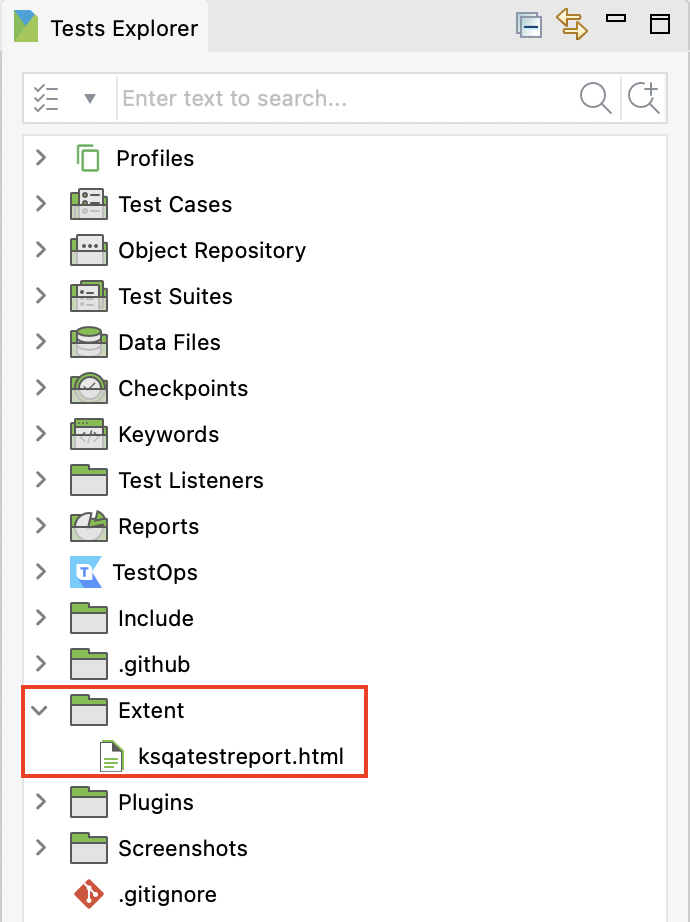
After the execution is finished, click Project > Refresh to load the Extent folder in Tests Explorer.
-
Open the
.htmlreport to view the generated report of your test execution.