Accessibility test automation in Katalon Studio
This integration provides assistance for certain user-specific use cases, but it is not officially supported. Compatibility with all user requirements is not guaranteed.
Axe is a fast and lightweight accessibility testing tool for websites. The tool evaluates if your website follows the Web Content Accessibility Guidelines (WCAG) and other guidelines supported by axe-core library. To learn more about Axe, refer to the documentation on deque: Axe API.
With the axe-core library integrated in Katalon Studio, you can automate accessibility testing alongside your regular testing.
Add the axe-core library
You will use the axe-core library .jar file to import required packages in the code snippet.
-
Download the axe-core library
.jarfiles from the Maven Repository website.We recommend downloading the 4.11.1 version for this guide. The latest version of Axe lacks a few required packages for the script.
-
Go to Project > Settings > Library Management, then Add the axe-core library
.jarfile to the External Libraries.
Run your accessibility test
After you added the axe-core library .jar file, you can run your accessibility test with a custom keyword.
- Create a custom keyword. You can follow this guide here: Introduction to custom keywords in Katalon Studio.
- Add the script below to your keyword file.
import static com.deque.html.axecore.selenium.AxeReporter.getReadableAxeResults;

import java.text.SimpleDateFormat

import org.openqa.selenium.WebDriver
import org.openqa.selenium.WebElement

import com.deque.html.axecore.results.ResultType
import com.deque.html.axecore.results.Results
import com.deque.html.axecore.results.Rule
import com.deque.html.axecore.selenium.AxeBuilder;
import com.deque.html.axecore.selenium.AxeReporter;
import com.kms.katalon.core.annotation.Keyword
import com.kms.katalon.core.configuration.RunConfiguration
import com.kms.katalon.core.testobject.ObjectRepository
import com.kms.katalon.core.testobject.TestObject
import com.kms.katalon.core.util.KeywordUtil
import com.kms.katalon.core.webui.driver.DriverFactory
import com.kms.katalon.core.webui.keyword.WebUiBuiltInKeywords as WebUI


public class accessibility_keywords {

	@Keyword
	def checkAccessibility() {
		Results results = new AxeBuilder().analyze(DriverFactory.getWebDriver())
		List<Rule> violations = results.getViolations()
		if(violations.size() == 0){
			KeywordUtil.logInfo("No Violation Found")
		}
		String AxeReportPath = RunConfiguration.getReportFolder()+ File.separator
		String timeStamp = new SimpleDateFormat("yyyy_MM_dd_HH_mm_ss").format(new java.util.Date())
		String AxeViolationReportPath=AxeReportPath + "AccessibilityViolations_" + timeStamp
		AxeReporter.writeResultsToJsonFile(AxeViolationReportPath,results)
		KeywordUtil.logInfo("Violation Report Path"+ AxeViolationReportPath)

		if(getReadableAxeResults(ResultType.Violations.getKey(),DriverFactory.getWebDriver(),violations) ){
			AxeReporter.writeResultsToTextFile(AxeViolationReportPath,
					AxeReporter.getAxeResultString())
		}
	}
}
-
Add the keyword as a test step in your test case. You should add the keyword after you have navigated to your desired page on the website.
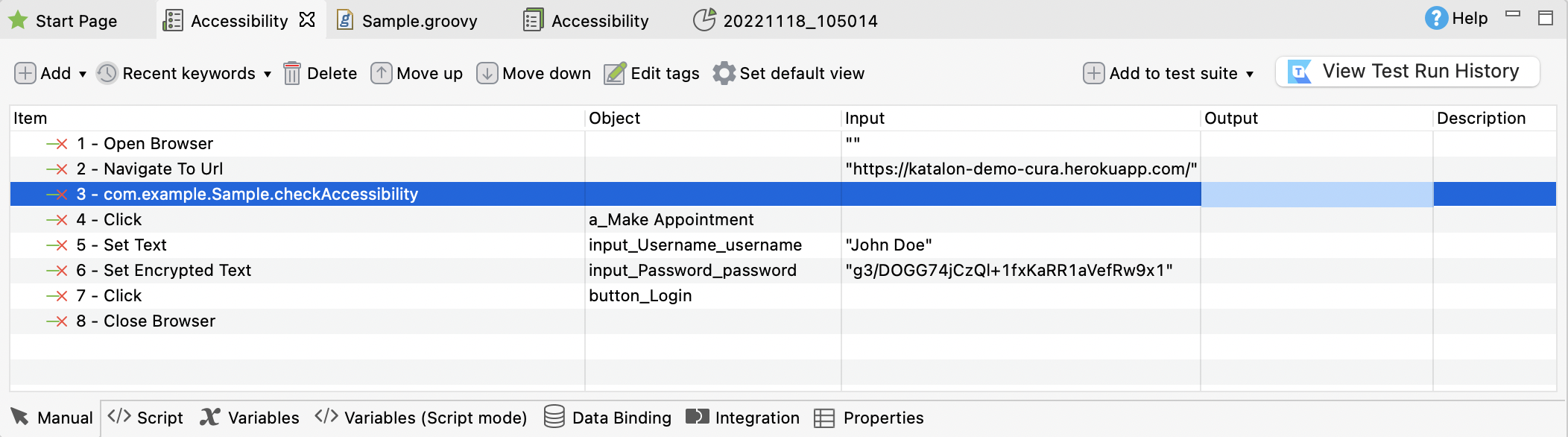
For a more detailed instruction, see this guide here: Using custom keyword.
-
Add your test case to a test suite.
-
Execute your test. You can execute on any browser that Katalon Studio supports (Chrome, Mozilla Firefox, Edge Chromium, Safari). You can use this keyword for different pages on the website depends on your navigation flow.
After you execute the test, the accessibility test reports are generated in TXT and JSON format in Katalon Studio report folder.
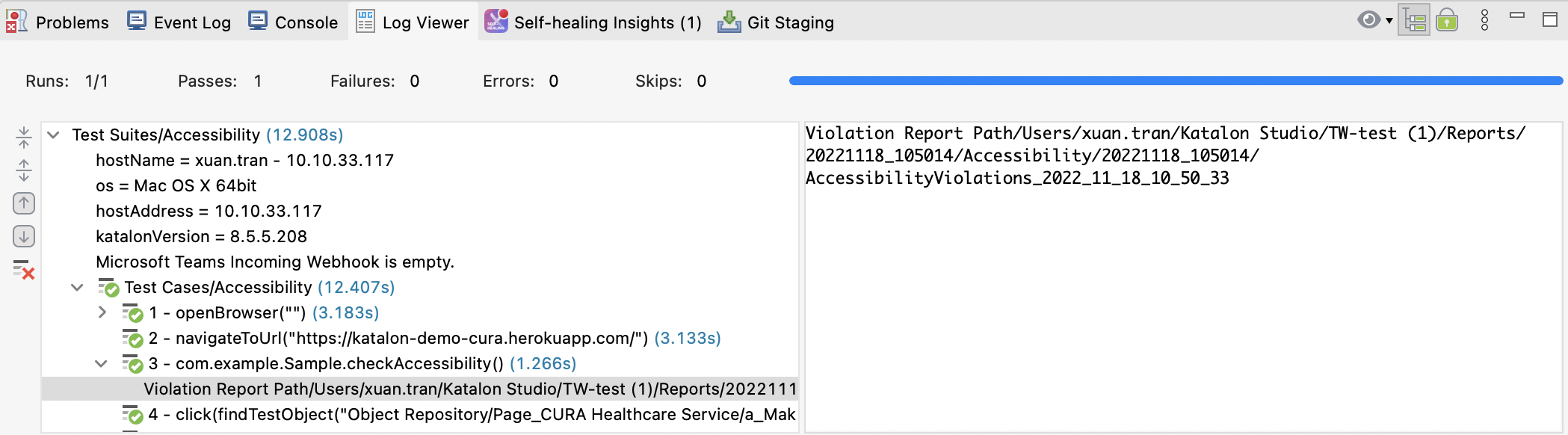
View the accessibility test reports
Right click on the Reports folder > Open Containing Folder to find your desired report.
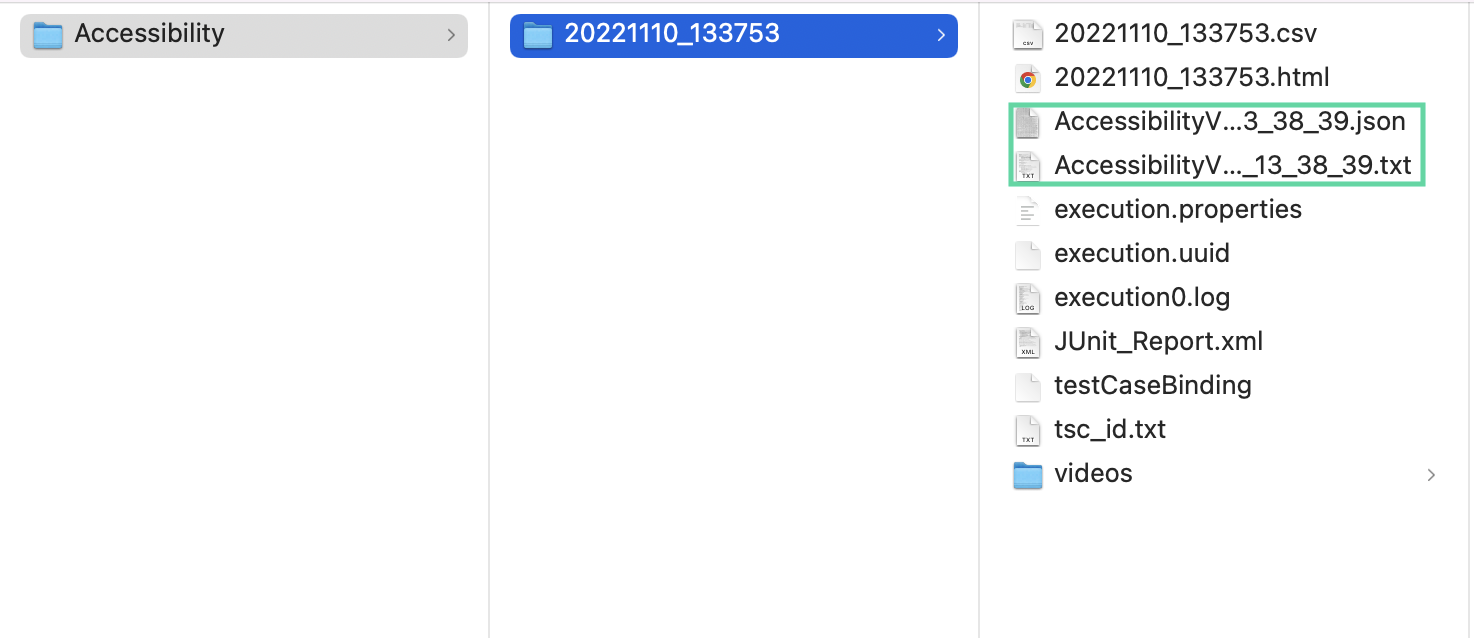
-
The report in TXT file contains the violation information of the accessibility test.
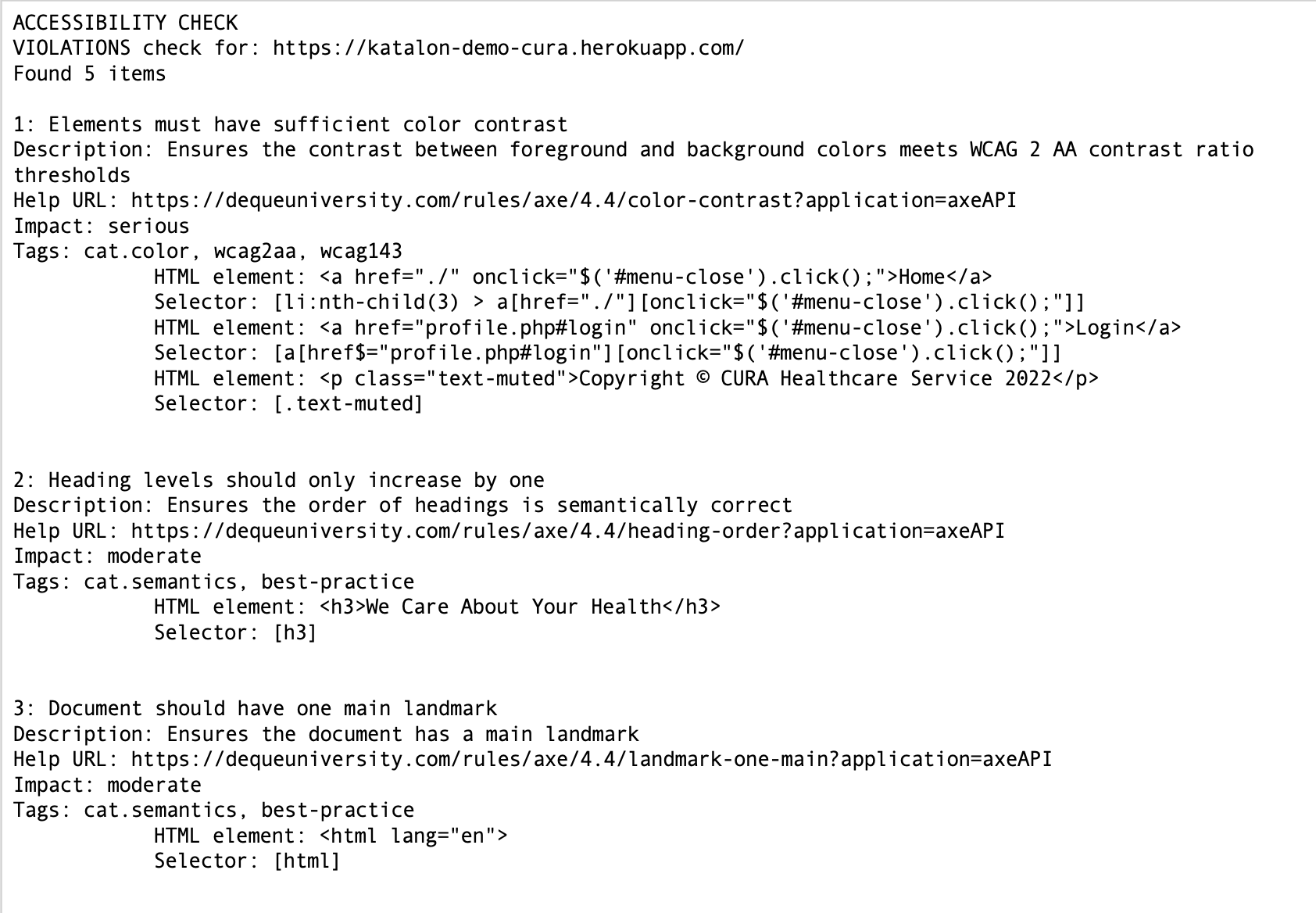
-
The report in JSON file contains the components information of the accessibility test.
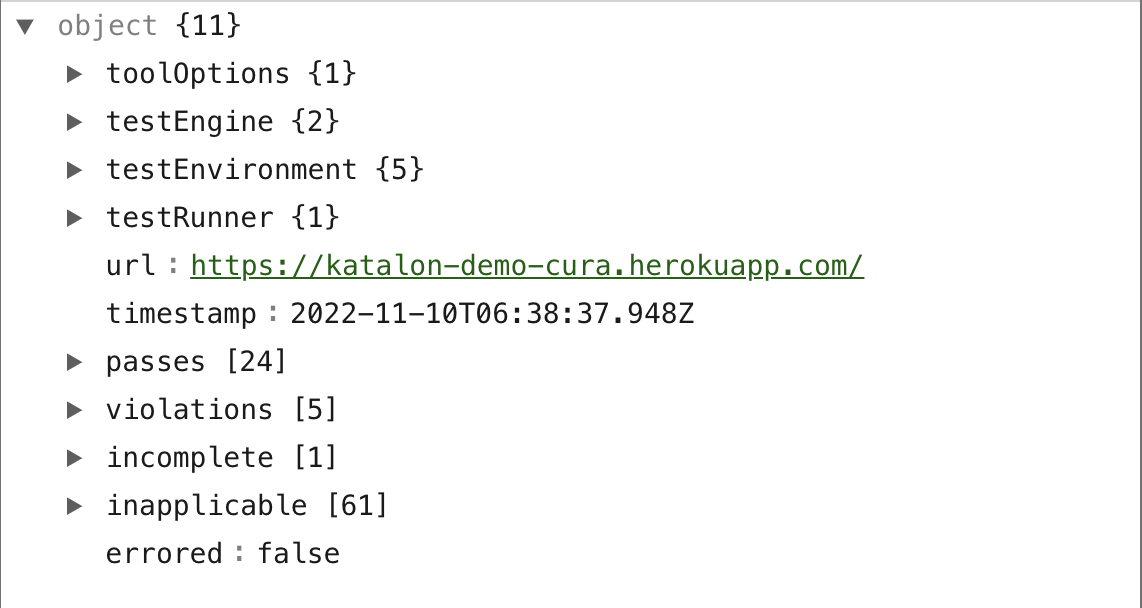
- passes (array): These results indicate what elements passed in the rules.
- violations (array): These results indicate what elements failed in the rules.
- incomplete (array): This contains results that were aborted and require further testing. This can happen due to technical restrictions to what the rule can test, or a JavaScript error occurred.
- inapplicable (array): This indicates rules that did not run because there was no matching content found on the page.