Test hybrid mobile apps in Katalon Studio
Katalon Studio can record and run tests for hybrid mobile apps that combine native screens with embedded WebView content. You can work with native elements and HTML elements in the same test case, on both Android and iOS.
What is a mobile hybrid app
A mobile hybrid app is a native Android or iOS app that shows some of its screens as web content. The app embeds one or more WebViews, which are in-app browser views that load HTML pages, inside its native user interface. For example, the app's navigation and menus are native, while a form or a content page inside the app is a web page.
A hybrid app therefore has two kinds of elements, and Appium exposes each kind in its own context:
| Context | Example name | What you work with |
|---|---|---|
| Native context | NATIVE_APP | Native elements, such as buttons and text fields, in the native view hierarchy |
| WebView context | WEBVIEW_<app package> on Android, WEBVIEW_<number> on iOS | HTML elements of the page loaded in the WebView, in the HTML DOM |
In the native context, WebView content appears at most as generic native elements, such as android.view.View on Android or XCUIElementTypeOther on iOS. These elements do not carry the page's HTML tags or attributes, such as id and class.
Test web content in the WebView context. Switch to the WebView context before you interact with elements inside a WebView, then switch back to the native context for the native screens. In the WebView context, Katalon Studio captures elements with web locators, such as CSS selectors and XPath based on HTML attributes, and runs WebUI keywords on them. Your locators then target the page's real HTML instead of generic native elements, which keeps hybrid tests stable and accurate.
If your app renders all of its screens with native elements and does not use a WebView, test it as a native app. You do not need to switch contexts.
Overview
Hybrid app recording is available only in Smart Mobile Recorder. While you record, you can switch between the native context and the WebView context of your app:
- Switch context: Switch between the Appium contexts available in the app, such as
NATIVE_APPand a WebView context. The recorder records each switch as aMobile.switchToContextstep. - WebView element tree: In a WebView context, the Screen Objects panel shows the page's HTML DOM instead of the native hierarchy.
- Web actions and keywords: The recorder records actions on WebView elements as WebUI keywords, not Mobile keywords.
- Web test objects: The recorder saves WebView elements to the Object Repository as Web test objects with web locators, such as CSS selector and XPath.
- End-to-end execution: A recorded hybrid test case combines Mobile keywords for native steps,
Mobile.switchToContextsteps, and WebUI keywords for WebView steps, and runs on a device or emulator.
Your existing native mobile test cases and mobile test objects keep working without changes.
- Katalon Studio version 11.7.0 or later.
- You meet the Smart Mobile Recorder requirements, and you have enabled Smart Mobile Recorder.
- An Android or iOS hybrid app, and a device configured for recording. See Configure mobile device to record.
- On Android, a ChromeDriver version that supports the Chrome version of the app's WebView. See Set up ChromeDriver for Android hybrid apps.
- WebView debugging is enabled for the application under test (AUT). Without it, Katalon Studio cannot inspect the WebView:
- On Android, enable
setWebContentsDebuggingEnabledin the app's source code before you build the.apkfile. - On a real iOS device, go to Settings > Safari > Advanced and enable Web Inspector.
- On Android, enable
- Appium with the UiAutomator2 driver (Android) or the XCUITest driver (iOS). Hybrid app testing uses the same Appium setup as Smart Mobile Recorder. See Supported environments for Katalon Studio and KRE.
Set up ChromeDriver for Android hybrid apps
On Android, Appium uses ChromeDriver to control the app's WebView. The ChromeDriver version must support the Chrome version that the device's WebView uses. If it does not, switching to a WebView context fails with this message:
The installed ChromeDriver doesn't support this device's WebView Chrome version. Update ChromeDriver to a matching version, or set the "chromedriverExecutable" capability to point at one that supports it.
To use a matching ChromeDriver, do as follows:
-
Check the Chrome version of the WebView on your device. For example, open the app, then open
chrome://inspectin Chrome on your computer. The WebView appears with its Chrome version. See Remote debugging WebViews. -
Download the ChromeDriver version that supports this Chrome version from ChromeDriver downloads, and extract it to a folder on your computer.
-
In Katalon Studio, go to Project > Settings > Desired Capabilities > Mobile > Android.
-
Choose the device, click Add, enter the following values, then apply your changes:
Name Type Value chromedriverExecutableString The full path to the ChromeDriver executable, for example /Users/<username>/Downloads/chromedriverorC:\Users\<username>\Downloads\chromedriver.exe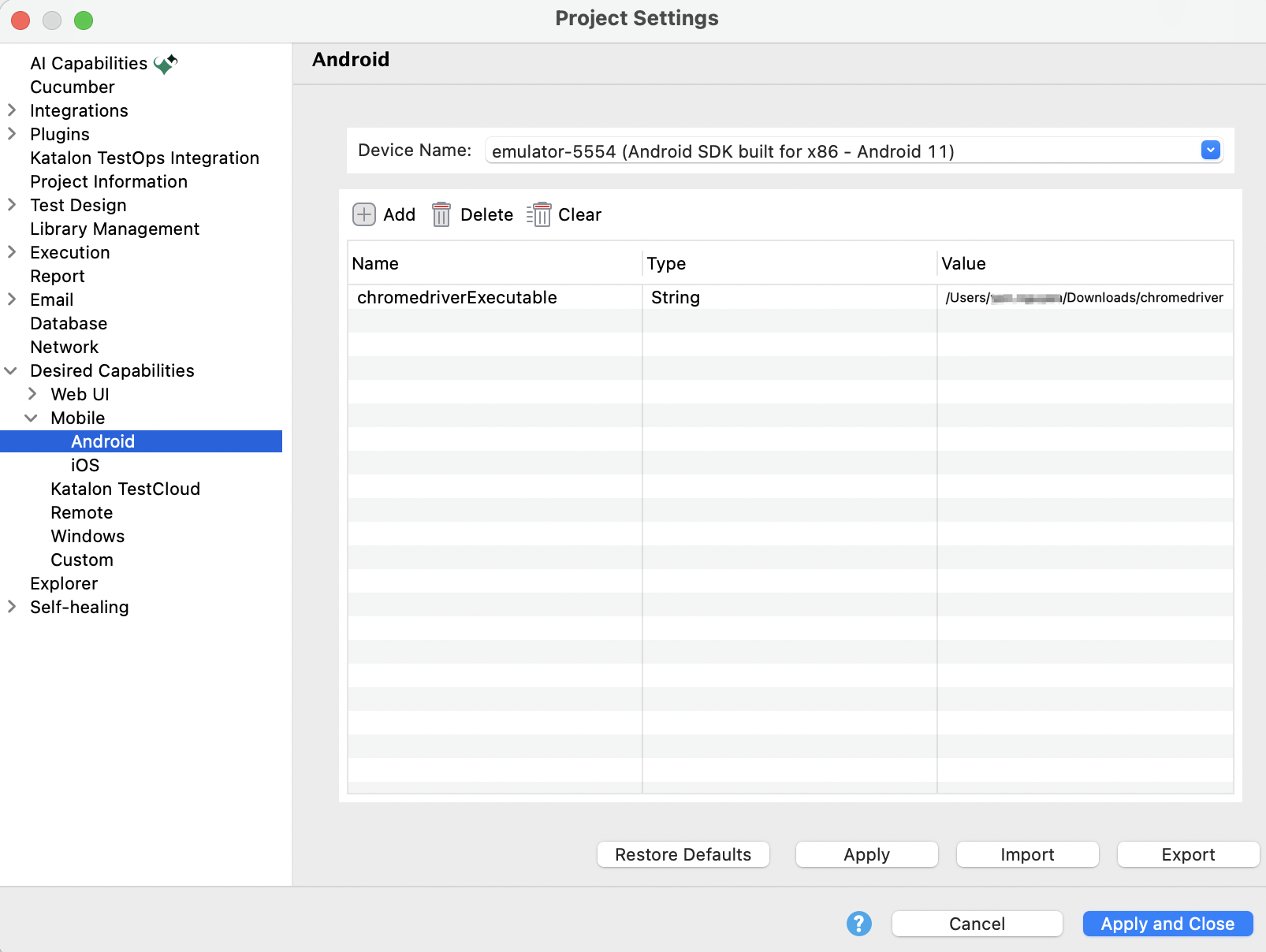
-
Start a new recording session or run the test case again.
If the path does not point to a ChromeDriver executable, Katalon Studio shows a message that starts with The configured "chromedriverExecutable" path doesn't exist. Check the path and the file name.
To learn more about desired capabilities, see Set up Desired Capabilities in Mobile testing.
Record a hybrid mobile app test
Follow these steps:
-
Start a recording session in Smart Mobile Recorder. See Get started with Smart Mobile Recorder.
-
Record the native steps until you reach the screen that shows WebView content.
-
In the global actions on the left panel, click Switch context. The Switch Context dialog lists the contexts available in the app:
NATIVE_APPand the WebView contexts, such asWEBVIEW_<app package>on Android orWEBVIEW_<number>on iOS.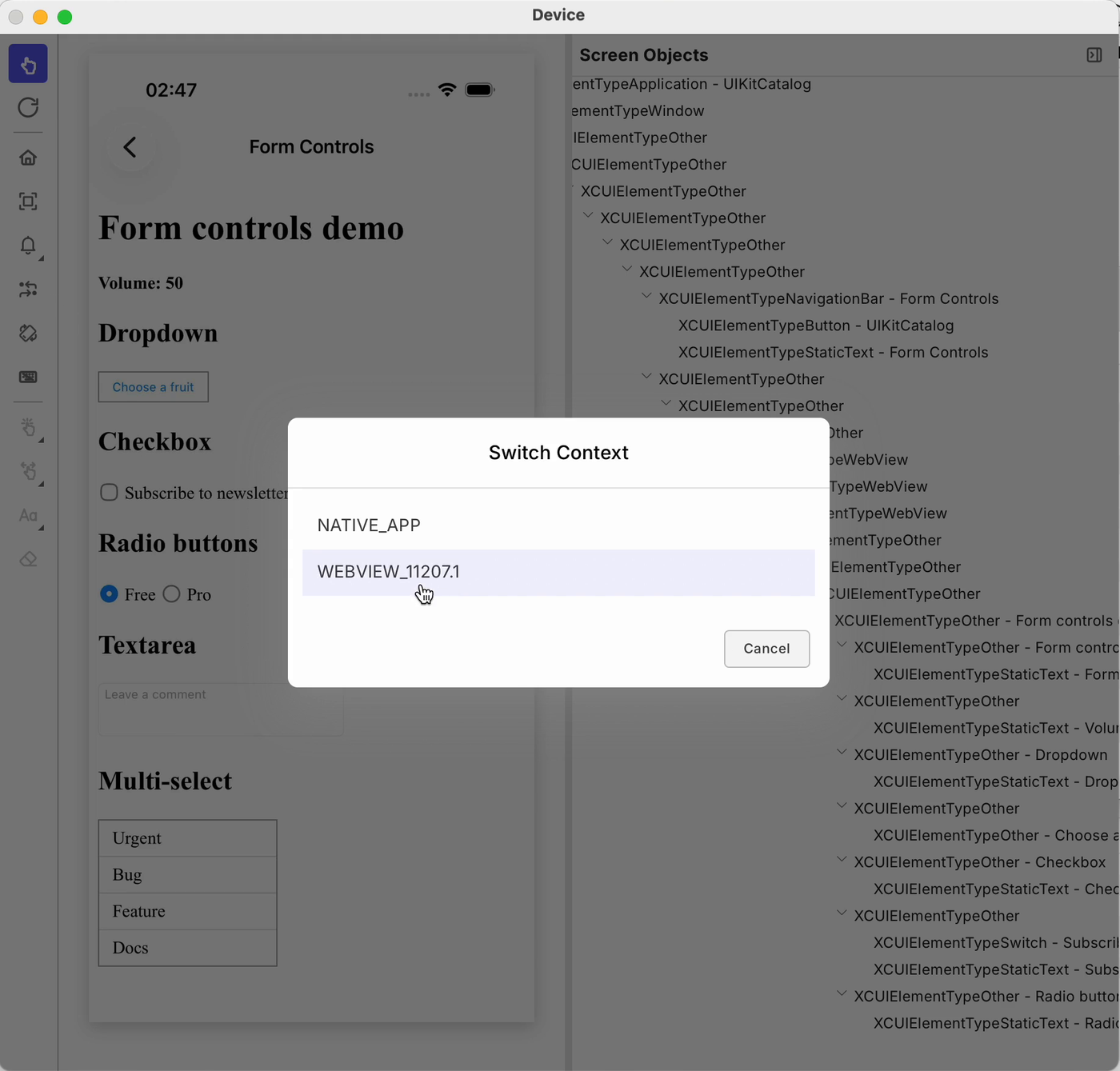 note
If the app returns no context, the dialog shows
No contexts available. Click Cancel to close the dialog. -
Select the WebView context, for example
WEBVIEW_io.appium.android.apis. The recorder refreshes, the Screen Objects panel shows the page's HTML DOM, and the recorder adds aMobile.switchToContextstep with the context name to the Recorded Steps panel.
If the switch fails, the recorder shows
Failed to switch to the selected context.
To tell which context is active, look at the Screen Objects panel: in a WebView context, it shows HTML nodes such as <div class="...">.
-
Record actions on WebView elements. With Interactive mode on, click an element on the Device View to record Click. To choose another action, right-click the element on the Device View or in the Screen Objects panel. Each action runs live on the device and is recorded as a WebUI keyword. See Supported WebView actions.
-
Click Switch context and select
NATIVE_APPto return to the native screens. The Screen Objects panel shows the native element hierarchy again, and the recorder adds anotherMobile.switchToContextstep to the Recorded Steps panel.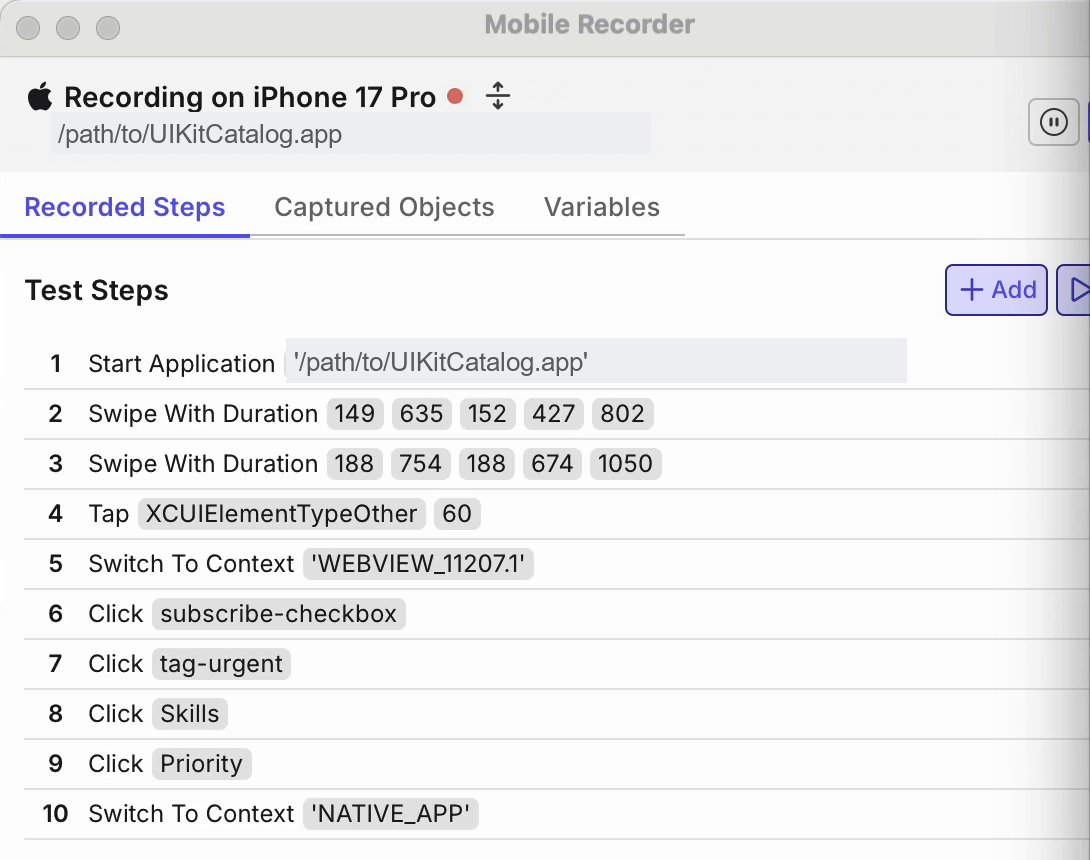
-
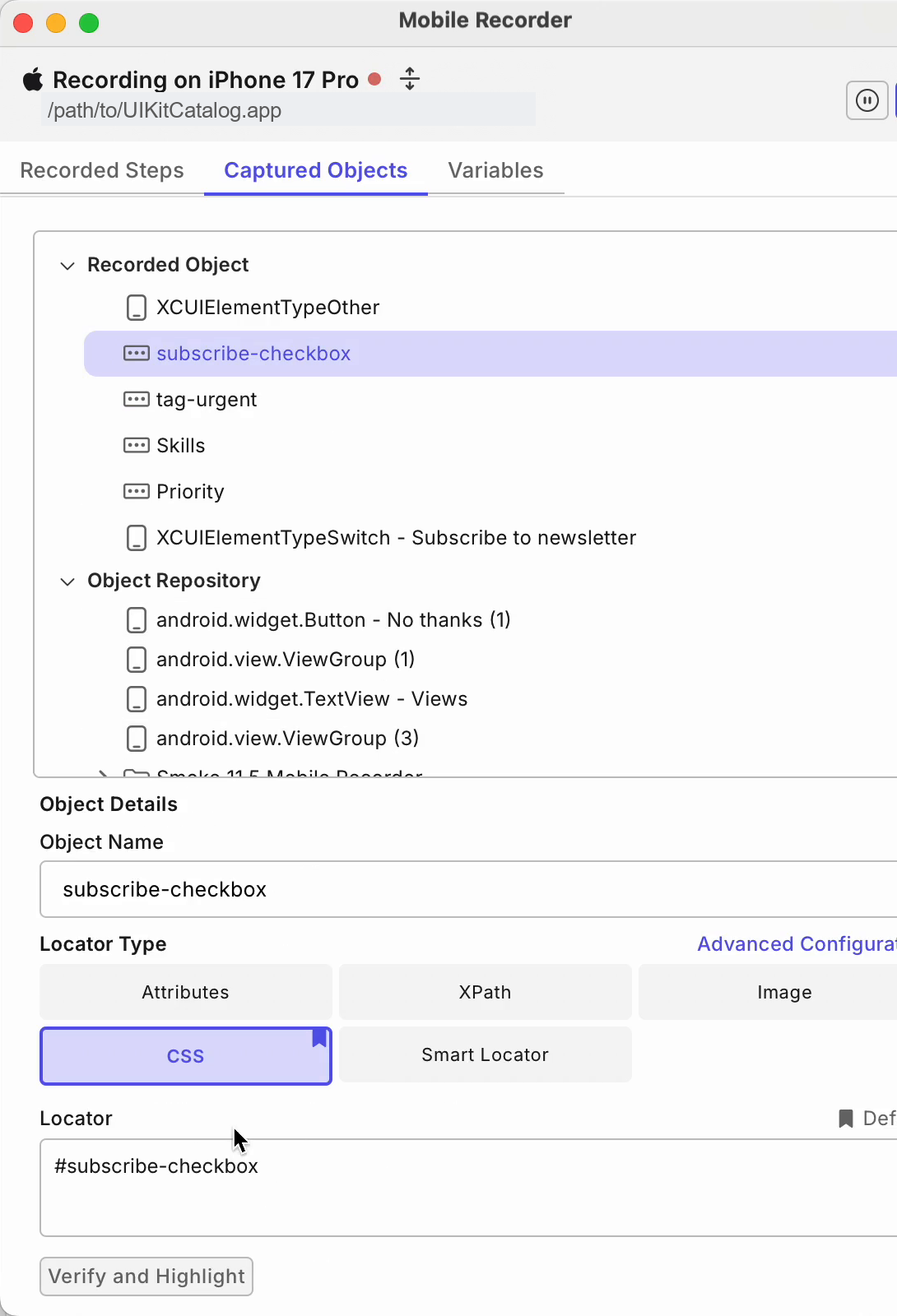
In the Captured Objects panel, review the captured WebView objects and their web locators. See Captured WebView objects and locators.
-
Click Save. Katalon Studio saves the test case and saves the captured WebView objects to the Object Repository as Web test objects.
Feature details
Inspect WebView elements
In a WebView context, the Screen Objects panel shows the HTML DOM of the page. Each node appears like an element in browser developer tools (<tag attribute="value">), so you can scan HTML attributes such as id, class, name, and href.
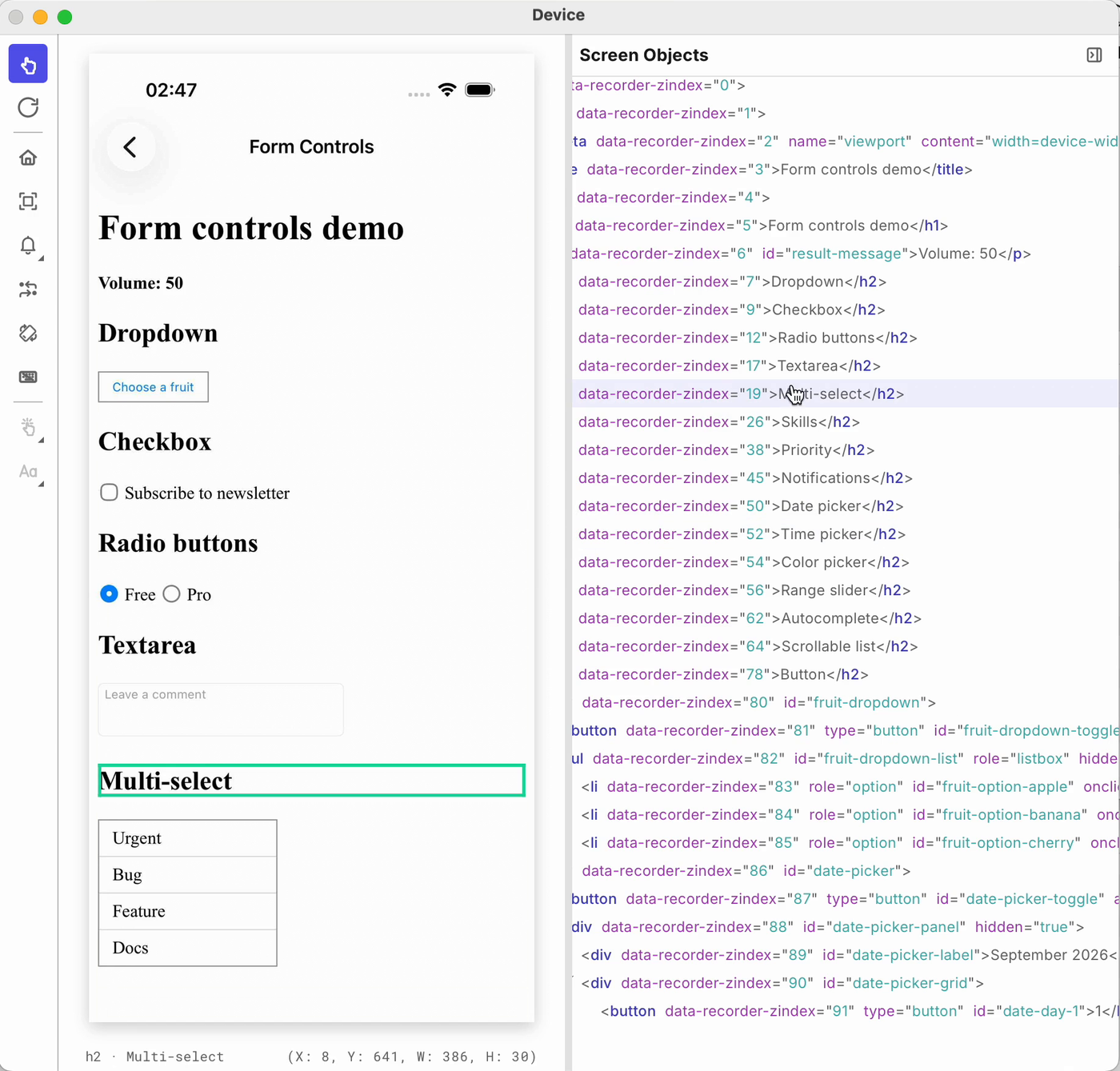
- Click Inspect element on the selected node to show its attributes in the Attributes panel.
- With Interactive mode off, clicking an element on the Device View selects its node in the Screen Objects tree.
- Smart Mobile Recorder can capture, highlight, and act on elements inside the WebView, including elements inside iframes and shadow roots.
Supported WebView actions
In a WebView context, element action labels use web terms: Tap becomes Click, and Double tap becomes Double click. The recorder records actions on WebView elements as WebUI keywords:
| Action | Recorded keyword |
|---|---|
| Click | WebUI.click |
| Double click | WebUI.doubleClick |
| Set text | WebUI.setText |
| Set encrypted text | WebUI.setEncryptedText |
| Send keys | WebUI.sendKeys |
With Interactive mode on, click a <select> element, then select an option from the list that appears | WebUI.selectOptionByValue |
You do not need to record scroll or swipe gestures to reach a WebView element. WebUI keywords scroll to the element before they act on it.
Captured WebView objects and locators
- Katalon Studio saves the WebView elements that you capture to the Object Repository as Web test objects, the same object type that Web Recorder creates, not as mobile test objects. See Manage Web test objects.
- Captured WebView objects get web locators: CSS selector and XPath, with attribute-based locators as a fallback. Web Recorder uses the same capture engine. See Selection methods for Web objects.
- When two sibling elements look identical (same class, no id, name, or text), each captured object keeps a distinct positional locator, for example
.button-inner:nth-child(1)and.button-inner:nth-child(2), so each object resolves to its own element. - For an element inside an iframe or a shadow root, the recorder also saves its parent iframe or shadow host objects, so the saved object finds the element again in later runs.
- The Captured Objects panel lists WebView objects with their web locators. To check a WebView object's locator, replay its recorded step. Verify and Highlight applies to native mobile objects.
Run a hybrid test case
Hybrid test cases run end to end on a device or emulator, with Katalon Runtime Engine, and on cloud devices.
Switch between native screens and web content
A hybrid test case switches the context with Mobile.switchToContext each time it moves between native screens and web content:
| To work with | Switch to | Then use |
|---|---|---|
| Native screens | NATIVE_APP | Mobile keywords |
| Web content inside a WebView | The WebView context, for example WEBVIEW_com.example.app | WebUI keywords |
For example, a test case taps a native button that opens a web form, fills in the form, then returns to the native screens:
'Native screen: open the screen that shows the WebView'
Mobile.tap(findTestObject('Mobile/button_Open_Form'), 10)

'Web content: switch to the WebView context, then use WebUI keywords'
Mobile.switchToContext('WEBVIEW_com.example.app')
WebUI.setText(findTestObject('Web/input_Email'), 'user@example.com')
WebUI.click(findTestObject('Web/button_Subscribe'))

'Native screens again: switch back, then use Mobile keywords'
Mobile.switchToContext('NATIVE_APP')
Mobile.tap(findTestObject('Mobile/button_Done'), 10)
Keep in mind:
- WebUI keywords act on the WebView only while its context is active, and they use the current mobile session. You do not need to open a browser.
- Use
Mobile.switchToContextto enter a WebView.Mobile.switchToWebViewdoes not connect WebUI keywords to the WebView. - If the WebView is still loading,
Mobile.switchToContextwaits about 1 second for its context to appear. If your WebView takes longer to load, add a wait step before the switch.
For all parameters and log messages, see [Mobile] Switch To Context.
Find the WebView context at run time
The recorder saves the context name it sees, for example WEBVIEW_com.example.app on Android or WEBVIEW_11207.1 on iOS. On iOS, this name can change when the app restarts. To keep your test stable, find the WebView context with Mobile.getContexts each time the test runs, then switch to it:
String webViewContext = Mobile.getContexts().find { it.startsWith('WEBVIEW') }
Mobile.switchToContext(webViewContext)
find returns null when no context name starts with WEBVIEW, for example when the WebView has not loaded yet. Check the value before you switch, or Mobile.switchToContext fails with Unable to switch to the context 'null'.
Search by name rather than by position in the list, because the number and order of contexts can vary.
See also
- Smart Mobile Recorder
- [Mobile] Switch To Context
- [Mobile] Get Contexts
- Manage Web test objects
- Selection methods for Web objects
- Supported environments for Katalon Studio and KRE
- [Native render only] Capture elements in hybrid Android apps
- [Native render only] [Webview render] Capture elements in hybrid Android apps in Katalon Studio
- Flutter-based application testing with custom SetText keyword in Katalon Studio