Katalon Studio Recording Engine Extension
This document explains how to install Katalon Studio Recording Engine extension on web browsers for Katalon Web Recorder Plus's active browser and custom capability modes.
From Katalon Studio 11.1.0, Studio skips installing the built-in extension when the packed Recording Engine extension is already installed in your browser profile. This prevents session conflicts and duplicate recorded actions.
Recording with a browser profile requires the packed extension. Follow the setup guide below to install it before recording.
Specify a browser profile
Katalon Studio Recording Engine extension is installed and scoped by browser profile. Before you install, switch to that browser profile, and later on configure the browser profile for recording (see Configure browser profile for the recording extension section below).
- Chrome 135+: Recording with the default profile might cause the browser to hang on launch.
- Chrome 136+: Chrome blocks access to the default profile folder for security purposes.
For Chrome 136+, use a non-default profile folder, or copy your Chrome profile folder to another location. Set user-data-dir to the new path in Desired Capabilities. See Configure browser profile for the recording extension.
Install Katalon Studio Recording Engine extension
Before installing, open chrome://extensions/ (Chrome) or edge://extensions/ (Microsoft Edge) in your selected browser profile. If Katalon Recorder (Selenium tests generator) is installed, turn it off or click Remove. Running this legacy extension alongside the Recording Engine extension can break the Web Recorder popup when you switch between New Browser and Active Browser.
Follow these steps to install the extension on Chrome and Microsoft Edge:
1. Install the extension on a profile
- For Chrome: Install from Chrome Web Store.
- For Microsoft Edge: Install from Edge Add-ons.
2. Check for compatibility
View your Katalon Studio Recording Engine extension's version.
- Chrome
- Microsoft Edge
Go to chrome://extensions/ and search for Katalon Studio Recording Engine.
Go to the Extensions page and search for Katalon Studio Recording Engine extension.
Refer to the following table for checking compatibility:
| KSE version | Katalon Studio Recording Engine extension version |
|---|---|
| Before 10.2.4 | prior to 1.0.8 |
| 10.3.0 to 10.4.3 | 1.0.13 onwards |
| 11.0.0 | 1.0.14 onwards |
As the Chrome Extension Marketplace only provides the latest version, opt for New Browser mode instead in case of incompatibility.
Configure browser profile for the recording extension
Once the extension is installed for a browser profile, add the specified profile to Katalon Studio:
For Chrome
Specify a Chrome profile in Desired Capabilities:
- Go to
Project > Settings > Desired Capabilities > Chrome. - Add
args, and set the type asList.

- In the
Valuecell, click the ... button to open the List Properties Builder dialog. - Add the following values:
| Type | Value |
|---|---|
| String |
|
| String | profile-directory=<your_profile_name> |
- Click Apply and Close. Your profile should now be applied.
Alternatively, select a Chrome profile in Preferences > Recorder > Specify Chrome Profile:
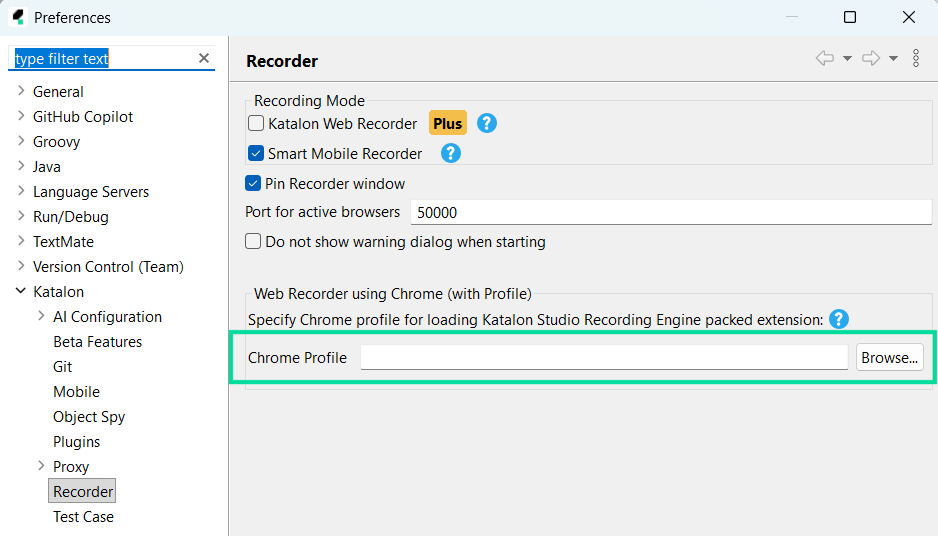
- Open the browser profile with the extension.
- Go to
chrome://versionon Chrome. - Check the value of
Profile Path(E.g.C:\Users\your_username\AppData\Local\Google\Chrome\User Data\your_profile_name). This is the current profile's path. Go to this directory to view all of your profiles.
For Microsoft Edge
Specify a Microsoft Edge profile in Desired Capabilities:
- Go to
Project > Settings > Desired Capabilities > Edge. - Add
ms:edgeOptions, and set the type asDictionary. - In the
Valuecell, click the ... button to open the Dictionary Properties Builder dialog.

- Add
args, and set the type asList. - In the
Valuecell, click the ... button to open the List Properties Builder dialog.

- Add the following values:
| Type | Value |
|---|---|
| String |
|
| String | profile-directory=<your_profile_name> |
- Click Apply and Close. Your profile should now be applied.
- Open the browser profile with the extension.
- Go to
edge://versionon Microsoft Edge. - Check the value of
Profile Path(E.g.C:\Users\your_username\Library\Application Support\Microsoft Edge\Default). This is the current profile's path. Go to this directory to view all of your profiles.