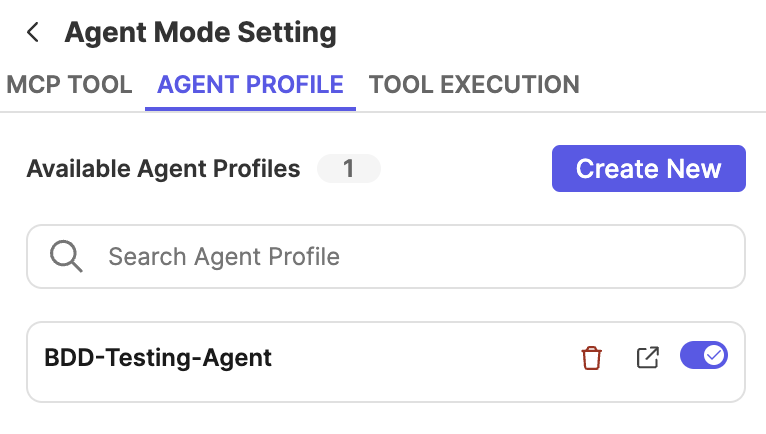
Configure Agent profile
In version 11.0.0, you can create Agent profiles to define how Katalon AI Assistant behaves for a specific testing scenario. An Agent profile defines a fixed set of instructions that Katalon AI Assistant follows only when that profile is explicitly selected. This feature allows team that shares a Katalon Studio project to get consistent AI responses aligned with their test framework.
- Katalon AI Assistant does not automatically choose an Agent profile. You need to manually select the Agent profile you want to use in each chat session.
Agent instructions are written in Markdown. Some examples of instructions you could add are:
- Always provide examples in Groovy.
- Use Katalon built-in keywords whenever applicable.
Create Agent profile
To create an agent profile:
- In the Katalon AI Assistant chat window, click the profile menu at the top-right corner and select + Create Profile.
- Provide a name, then click OK.
Naming rules: Use only alphanumeric (A–Z, a–z, 0–9), hyphens (-), underscores(_). For example:
BDD-Agent,regression_testing_1 - A file named
prompt.mdis opened. - Add your instructions to the file using Markdown syntax.
When you create an Agent profile, Katalon Studio creates a new folder under the Agents directory in your project. Each Agent profile folder contains:
prompt.md: Contains the instruction prompt that defines how Katalon AI Assistant should behave when this Agent profile is selected.agent.json: Manages permissions for MCP tools (e.g., allow once, allow for this conversation, always allow).mcp.json: Lists the MCP server(s) connected to the Agent profile.profile.json: Contains the Agent description. To update the Agent’s description, edit it directly in this file.
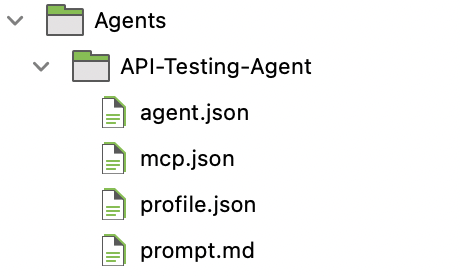
When you open Katalon AI Assistant, it automatically fetches all available Agent profiles defined in your current project and displays them in the Profile list.
If you do not see an Agent profile in the list, verify that all four required files are present, and each file follows the expected structure and format.
Agent profile settings
Learn how to edit, delete, disable an Agent profile. You can:
- Open the Agent Profile list to view existing agent profiles available in the workspace.
- Click the edit/prompt icon to open the agent’s instruction file (
prompt.md). - Click the trash/delete icon next to an agent to remove it.
- Use the toggle to enable or disable an agent profile.