Playwright MCP Server Best Practice
This document explains the best practices for using Playwright MCP server for StudioAssist.
Scenario
Goal: Integrating Playwright’s agentic browser capabilities with Katalon StudioAssist to automate object discovery, test creation, and testing.
Purpose and strategic Value
Efficiency: Reducing script creation time.
Key takeaways
-
Playwright provides the Observation (the data), and StudioAssist provides the Action (the project update).
-
Using
browser_snapshot(Accessibility Tree) instead of raw HTML allows the AI to "see" the page structure much faster and more reliably.
Requirements
-
Katalon Studio Enterprise (v10.3.2 or later).
-
Node.js (LTS version) installed on your machine.
-
Playwright Browsers: Run
npx playwright installto ensure Chromium/Firefox are available.
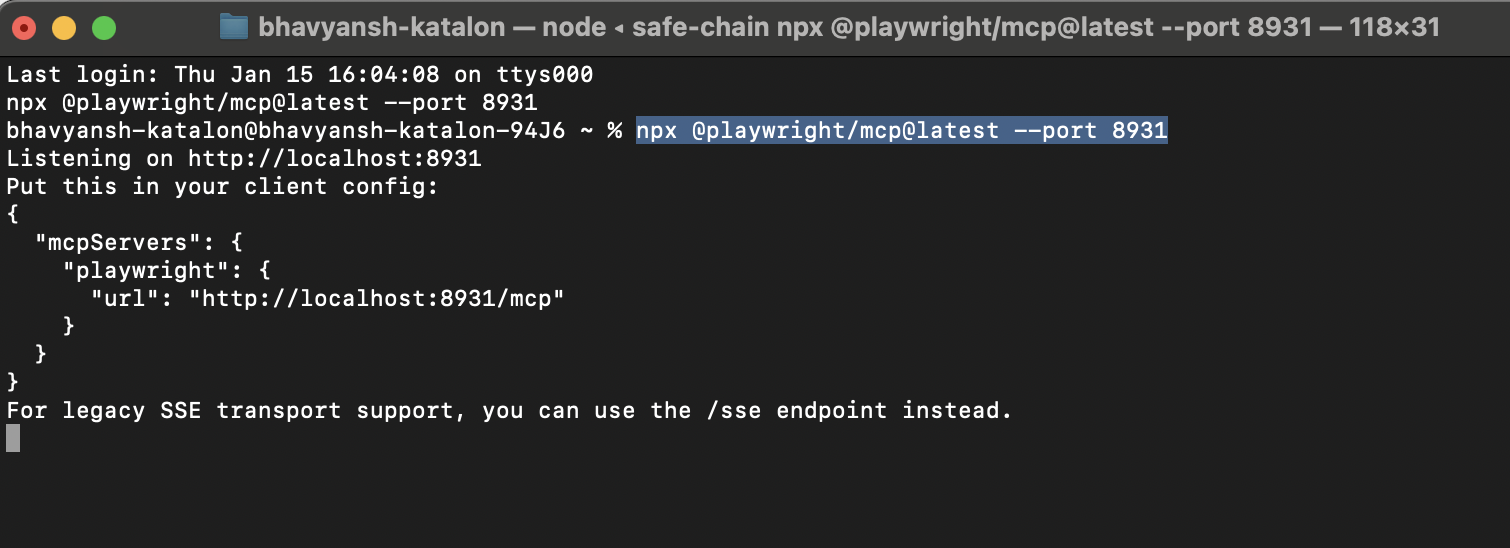
Enable the Playwright MCP Server Listener
npx @playwright/mcp@latest --port 89
Note: The Playwright MCP server typically defaults to port 8931. If this port is occupied, you can change it and update the integration URL accordingly.
Add the Playwright MCP Server to Katalon Studio
-
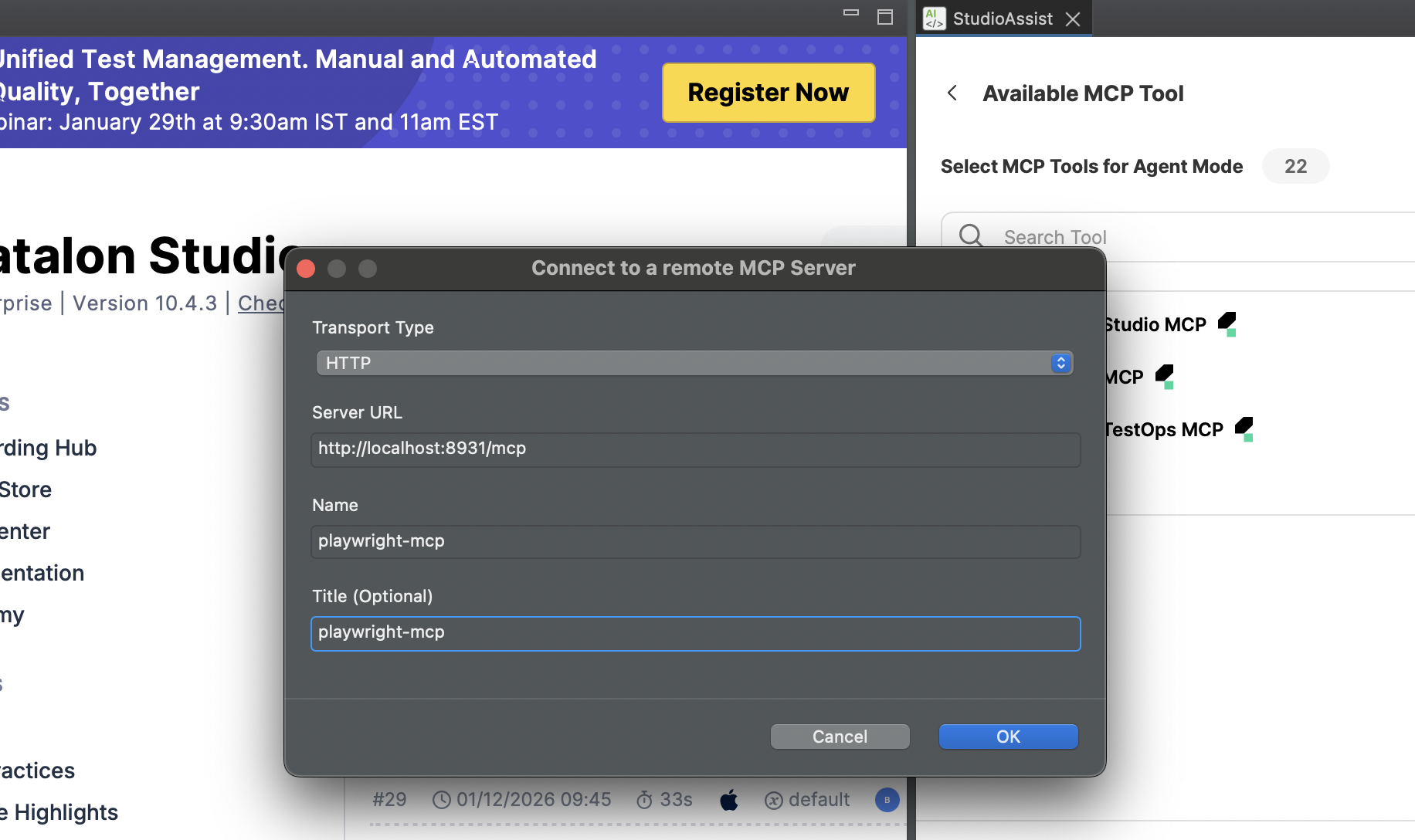
The server will run locally at http://localhost:8931/mcp, and use this URL to set up connection in StudioAssist > Agent Mode > Add External MCP:
-
Transport Type: HTTP
-
Server Url: http://localhost:8931/mcp
-
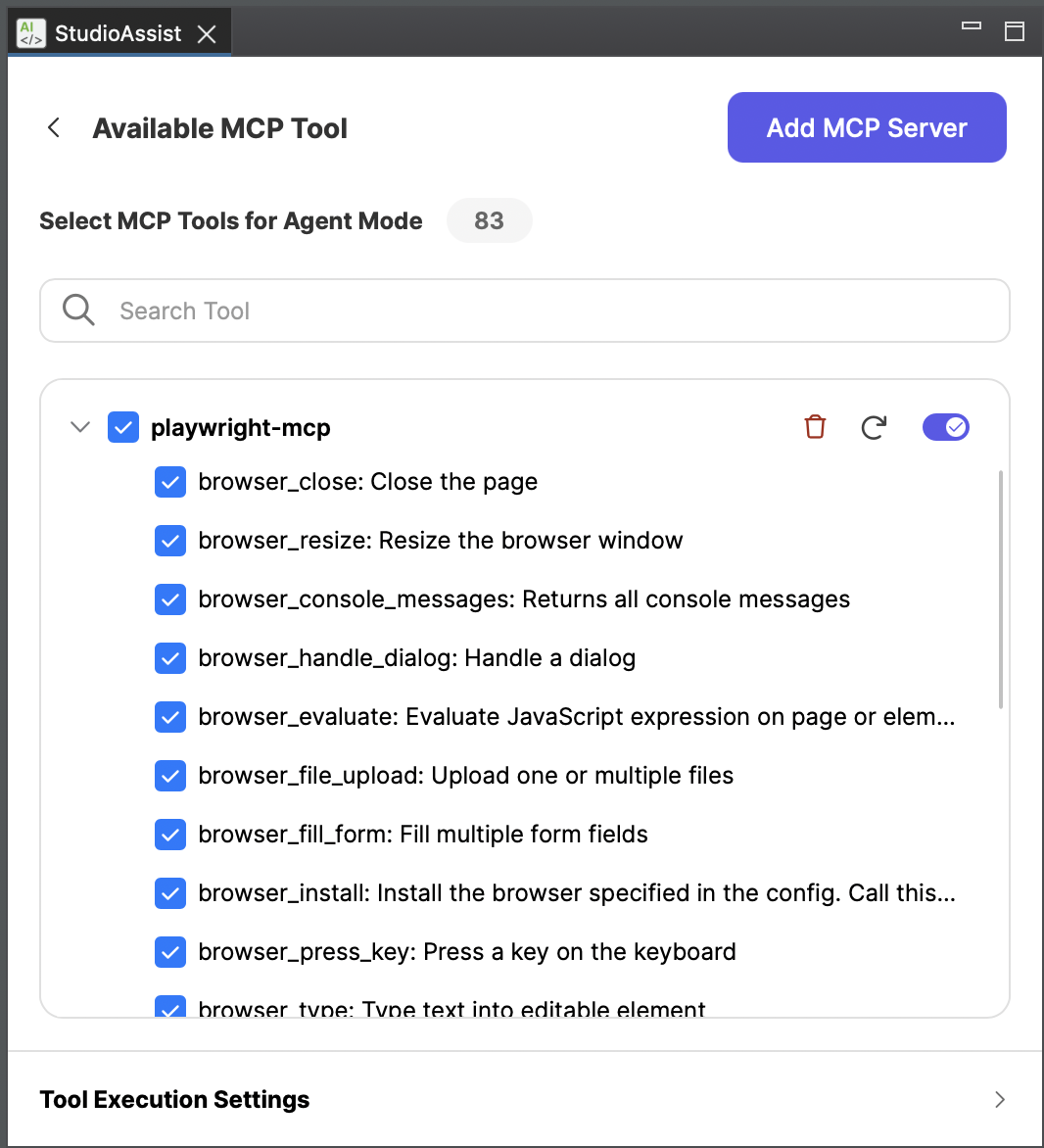
- Browse all the available tools provided by Playwright MCP:
Best Practices Steps
Scenario 1: Smart Object capture and generation
Step 1: Prompt to capture objects
-
Select the MCP to be used: For example, you might start with: “Using the Playwright MCP, … actions”.
-
Specify a clear URL for the website you want to test.
-
Identify the position of the test objects on the webpage that you intend to capture.
You can try the prompt below:
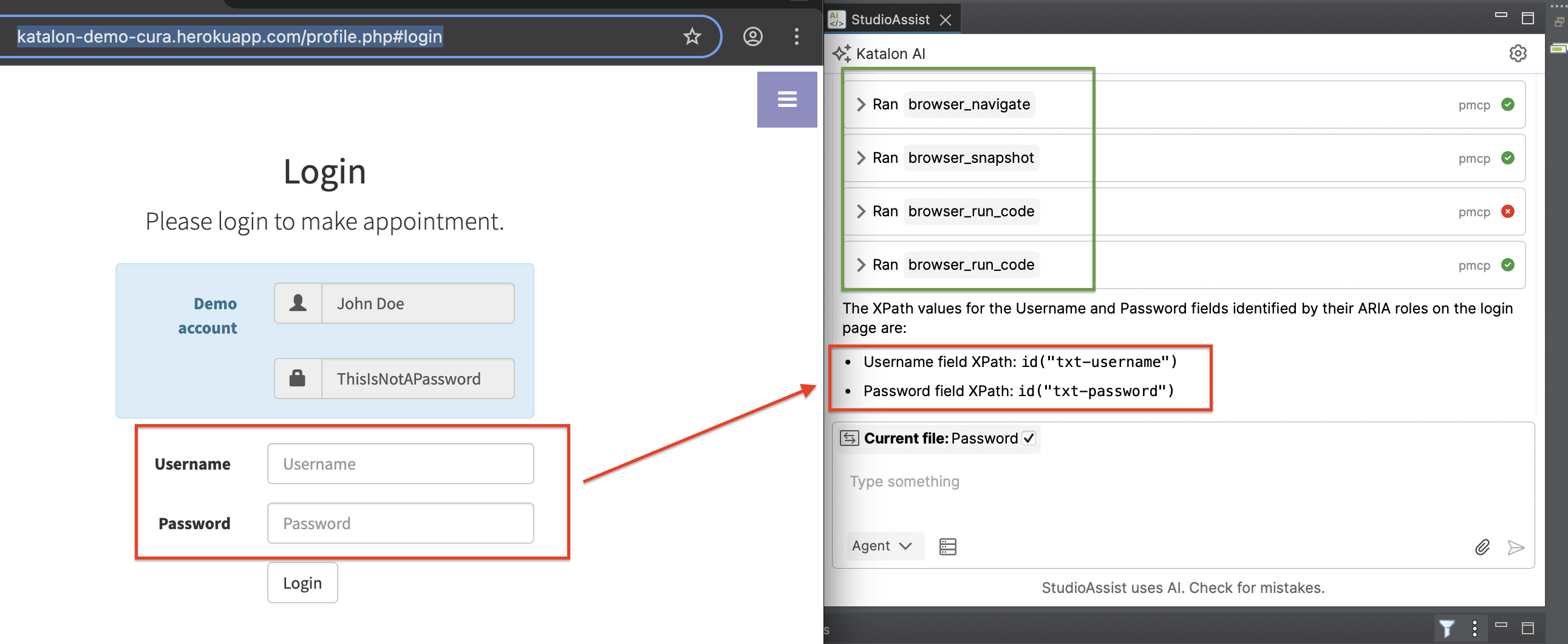
Using Playwright MCP, navigate to the login page: “https://katalon-demo-cura.herokuapp.com/profile.php#login". Use the browser_snapshot tool first to understand the page structure. Then, using browser_run_code, identify the Username and Password fields by their ARIA roles and return their XPaths.
Step 2: Ask Katalon Studio MCP Server to:
-
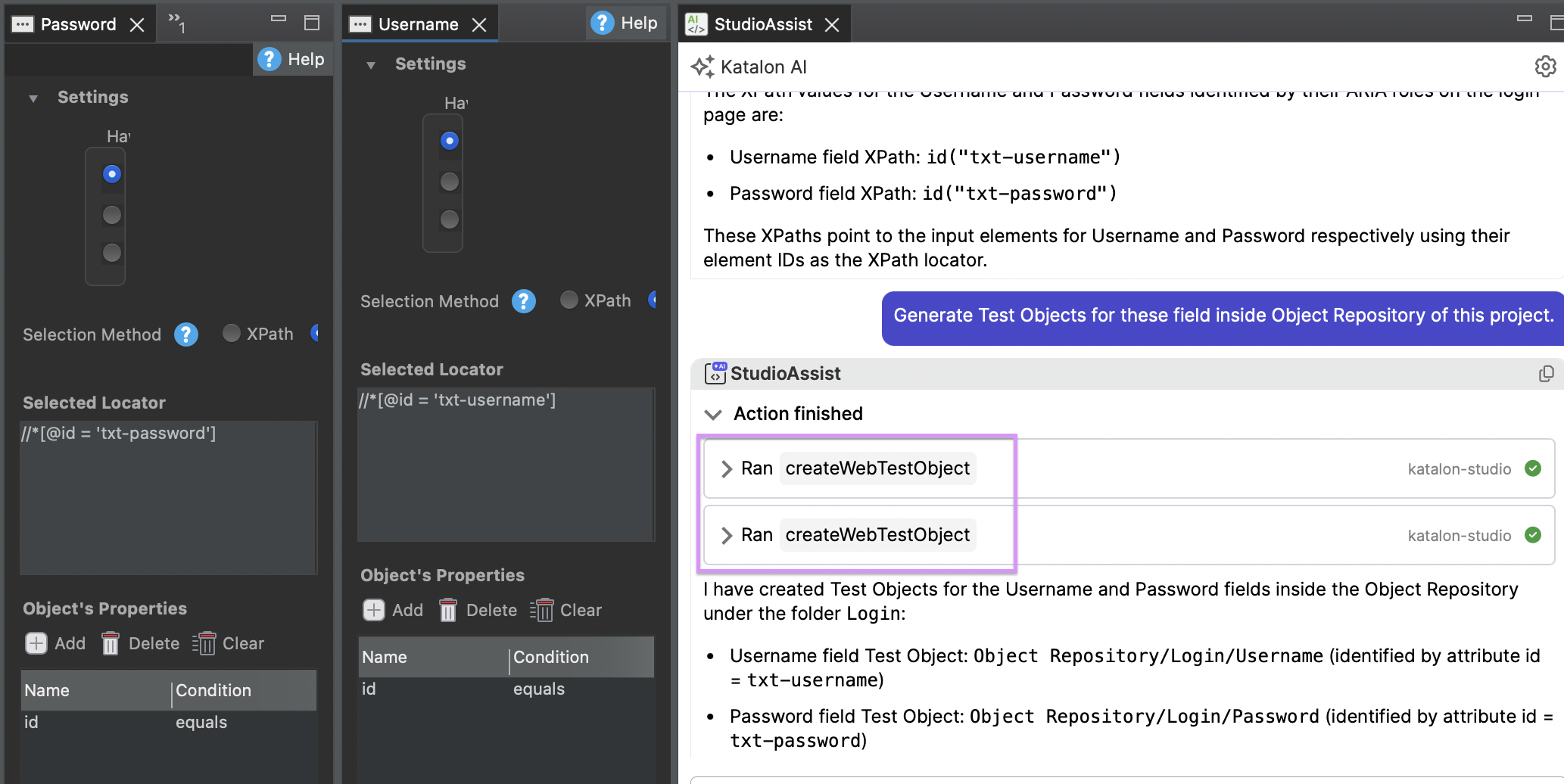
Add captured test objects to the Object Repository folder from the locators received from Playwright MCP
-
Specify a target location if you want to store the captured objects in a particular folder. For example, you can save them under:
Object Repository/playwright
You can try the prompt below:
Yes, please generate/create all objects for the above locators, and save them under Object Repository/playwright
Scenario 2: End-to-End test creation through natural language
Step 1: Define script
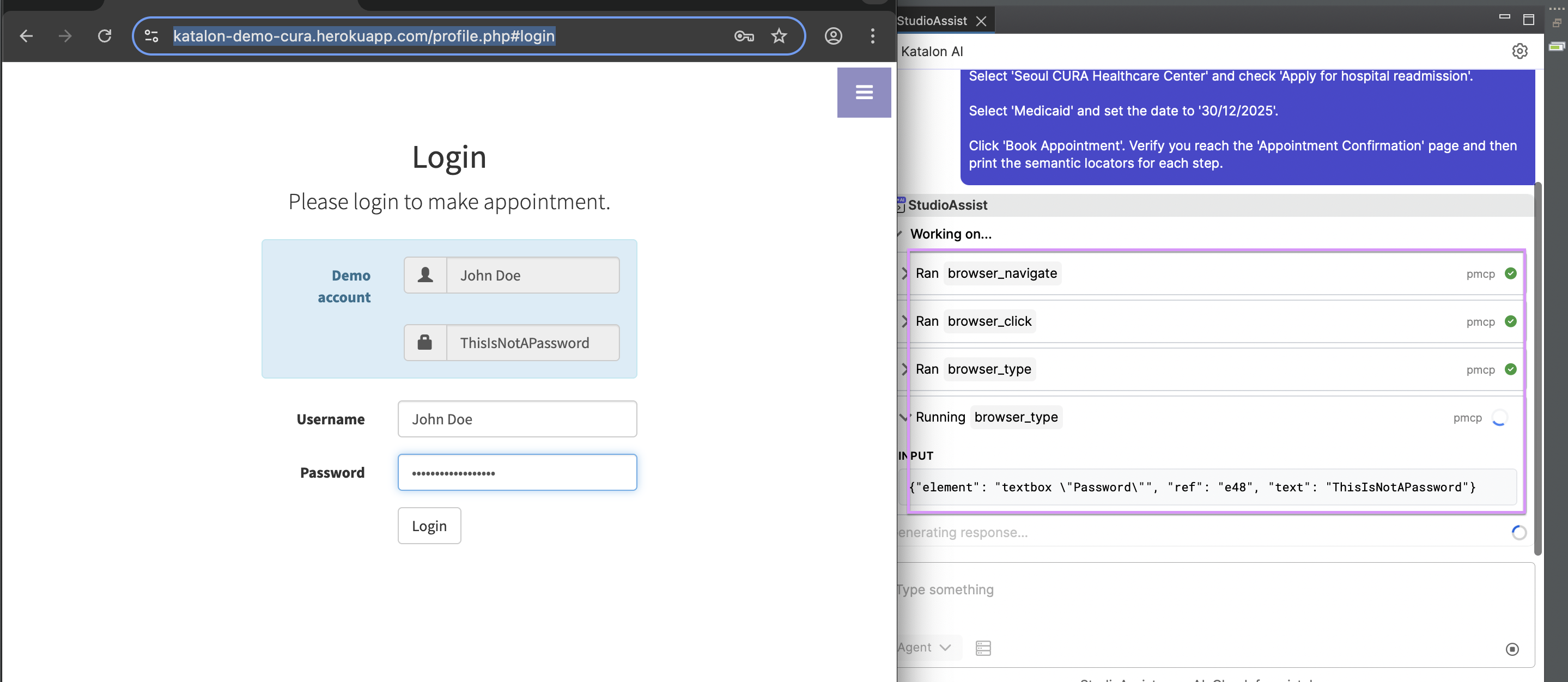
- Before creating the test, the Agent must "scout" the application to ensure the logic holds up.
You can try the prompt below:
Using the playwright-mcp, navigate to https://katalon-demo-cura.herokuapp.com/. Perform a full appointment booking flow:
Click 'Make Appointment'.
Login as John Doe / ThisIsNotAPassword.
Select 'Seoul CURA Healthcare Center' and check 'Apply for hospital readmission'.
Select 'Medicaid' and set the date to '30/12/2025'.
Click 'Book Appointment'.
Verify you reach the 'Appointment Confirmation' page and then print the semantic locators for each step.
Step 2: Capture objects and generate script
- Now that the Agent has verified the flow works in a live browser, tell it to "bridge" that knowledge into your Katalon project and create relevant objects and scripts.
You can try the prompt below:
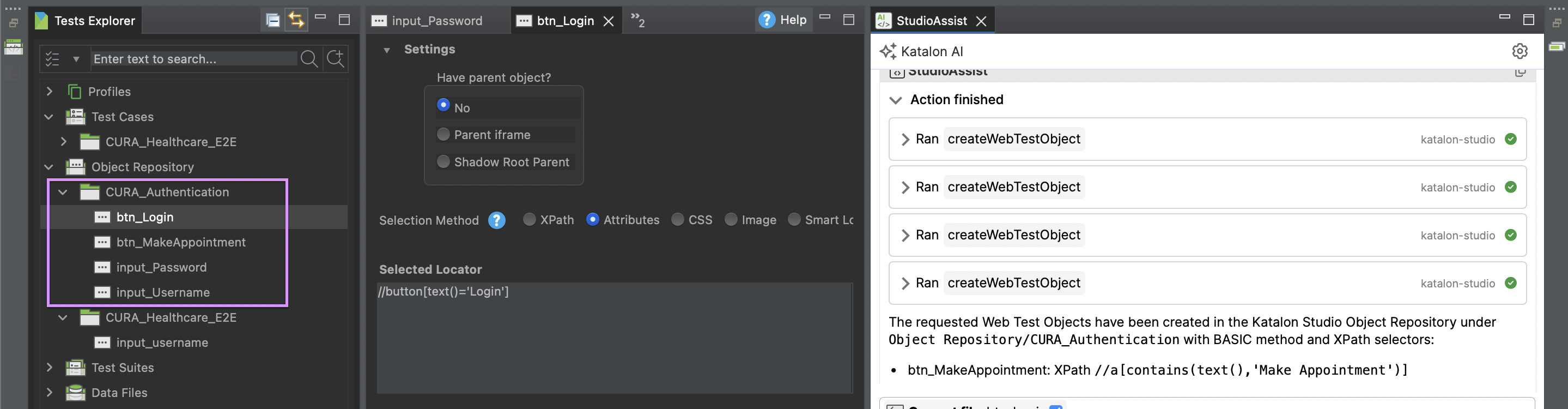
Using the locators from the previous step, create Web Test Objects in the Katalon Studio Object Repository.
Storage Location: Save them under Object Repository/CURA_Authentication.
Selector Method: Use the BASIC method with 'XPath' as the primary property.
Naming Convention: Use clear names like btn_MakeAppointment, input_Username, input_Password, and btn_Login.
- Generate a reusable automated test using the newly created test objects.
You can try the prompt below:
Using the relevant test objects already created in this project: Object Repository/CURA_Authentication, generate a new automated test case that contains the actions performed earlier.
Scenario 3: Responsive UI validation via native mobile emulation
Step 1: Initialize the Mobile Context
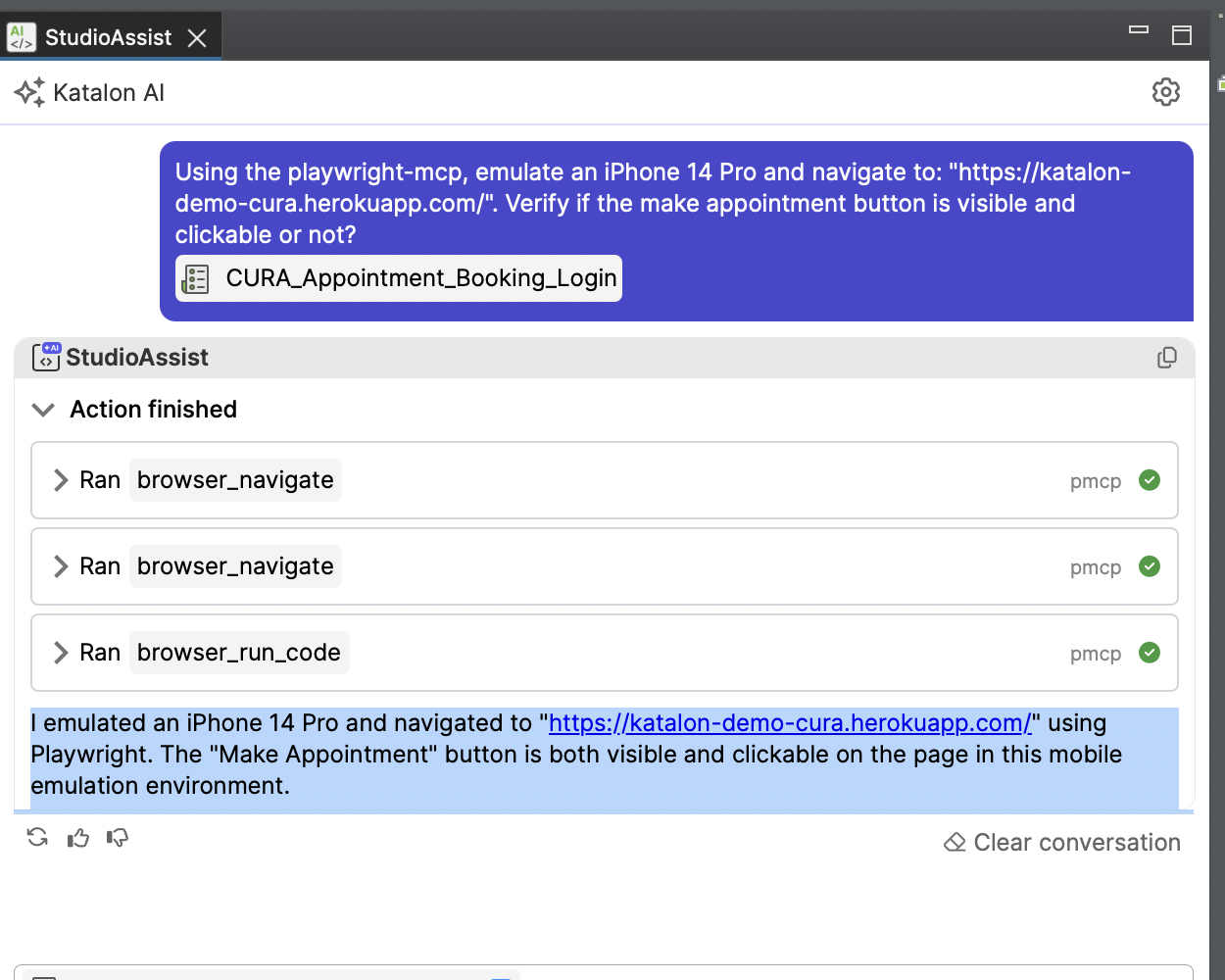
Instead of just navigating, you tell the Agent to "become" a mobile device.
You can try the prompt below:
Using the playwright-mcp, emulate an iPhone 14 Pro and navigate to: "https://katalon-demo-cura.herokuapp.com/".
Verify if the make appointment button is visible and clickable or not?
Step 2: Capture mobile-specific test objects
Because mobile IDs or classes often differ from desktop versions (or elements are completely different), you need to capture them specifically.
You can try the prompt below:
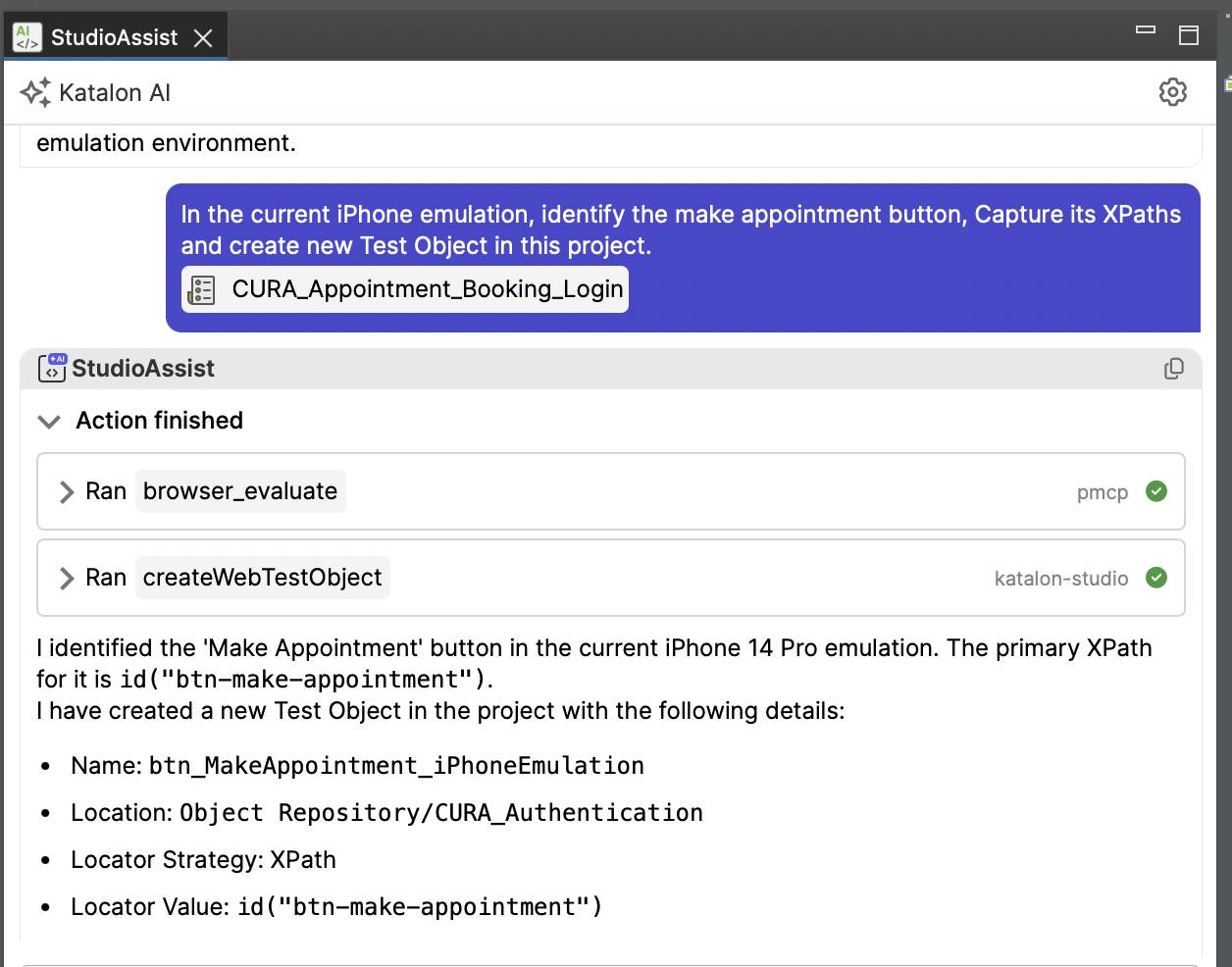
In the current iPhone emulation, identify the make appointment button, Capture its XPaths and create new Test Object in this project.
More scenarios you can try
| Testing Category | Strategic Use Case | Demo Prompt for StudioAssist (Agent Mode) | Tools Used |
|---|---|---|---|
| Visual & Layout | Verify the alignment and color of the "Make Appointment" button. | "Using playwright-mcp, navigate to “CURA Healthcare Service“ . Take a high-res screenshot and verify if the 'Make Appointment' button is centered and has the correct hex color #72c02c." | modifyScript , browser_screenshot |
| Accessibility | Scan the login page for WCAG compliance (labels, alt-text). | "Use the browser_snapshot tool on the login page to analyze the Accessibility Tree. Identify any input fields missing <label> tags or buttons without aria-label attributes." | browser_snapshot , getKatalonDocs |
| Cross-Browser | Compare Firefox vs Chromium. | "Using the playwright-mcp, navigate to the checkout page in Chromium. Then, open a new session in Firefox. Compare the layout of the 'Pay' button in both. If the button is missing in Firefox, capture a screenshot and help me update the Katalon Test Object to use a more cross-browser compatible XPath" | browser_install , browser_run_code , createTestObject |
| Shadow DOM | Interact with elements hidden inside a Shadow Root (if applicable). | "Search the page for any #shadow-root elements. If found, pierce the shadow DOM using Playwright selectors to find and print the XPath of the nested 'Close' button." | browser_evaluate , browser_run_code , updateTestObject |
Playwright MCP: Available Tools
All available tools can be found at GitHub - microsoft/playwright-mcp: Playwright MCP server