Atlassian MCP server best practices
Scenario:
Goal: Synchronize your test automation with JIRA to ensure 100% requirement coverage and automated bug logging. Efficiency: Eliminates manual data entry and "context switching" between Jira and the Katalon Studio IDE.
Key Takeaways
- Automatically transform Jira Acceptance Criteria into functional Katalon scripts, ensuring 100% alignment between business logic and automation.
- Fetch project data, search Confluence documentation, and log defects without ever leaving the Katalon Studio IDE.
- Use the Katalon AI Assistant to analyze failure stack traces and instantly create detailed Jira Bugs.
Add the Atlassian MCP Server to the Katalon Studio
- Katalon Studio (v10.3.2+).
- An Atlassian Cloud Account (Jira/Confluence).
- In Katalon Studio, open Katalon AI Assistant and click the MCP Settings icon.
- Click Add MCP Server and enter the following:
- Transport Type:
HTTP - Server Url:
https://mcp.atlassian.com/v1/mcp - Name:
atlassian-mcp1 - Title:
Atlassian MCP server
- Transport Type:
- Once the server is added, click the Authorize button that appears under the server name.
- Follow the browser prompts to log in to your Atlassian site and grant permissions.
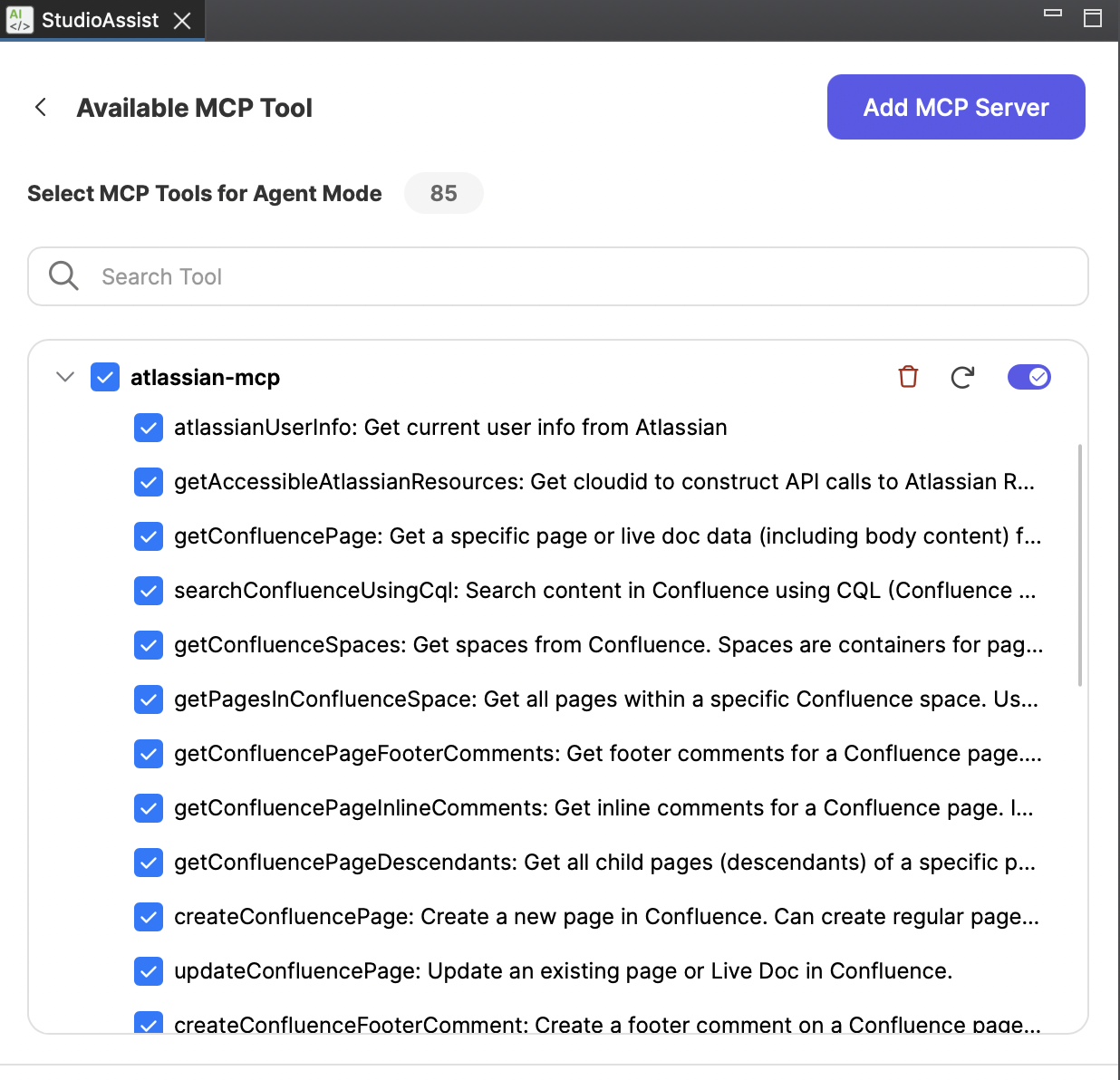
- Browse all the available tools provided by Atlassian MCP:
Best practices steps
Scenario 1: Requirements-driven test generation
To follow this scenario, you are expected to have all relevant test objects captured.
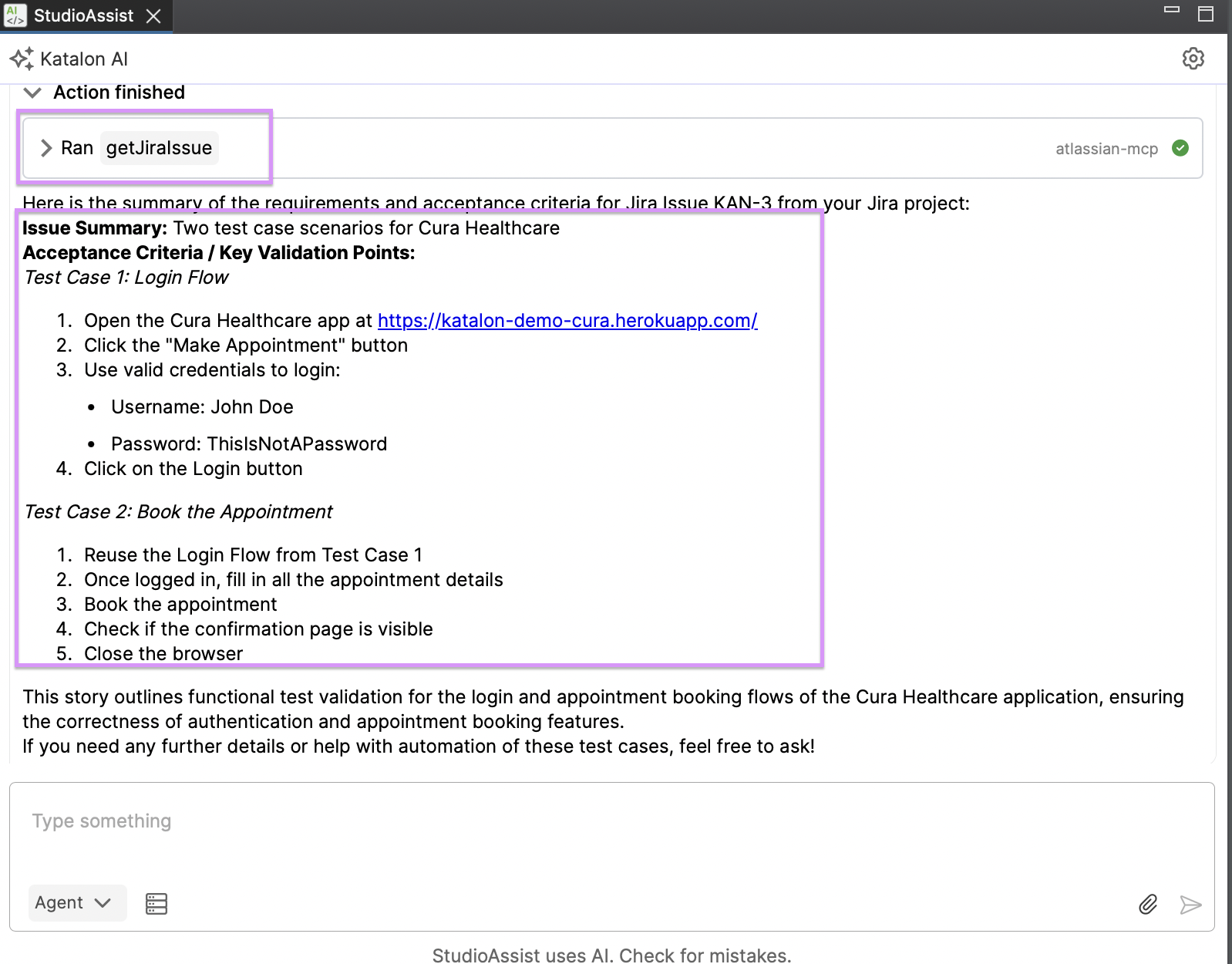
Step 1: Fetch and have Katalon AI Assistant analyze requirements from your JIRA projects:
In your prompt, you should:
- Select the MCP to be used: For example, you might start with: “Using the atlassian-mcp, … actions”.
- Specify the clear JIRA ticket ID
You can try the prompt sample below:
Using the `getJiraIssue` tool, retrieve the requirements and acceptance criteria for Jira Issue "KAN-3" from instance "https://bhavyansh-ameta.atlassian.net/".
Summarize the key validation points.
Step 2: Generate the test case:
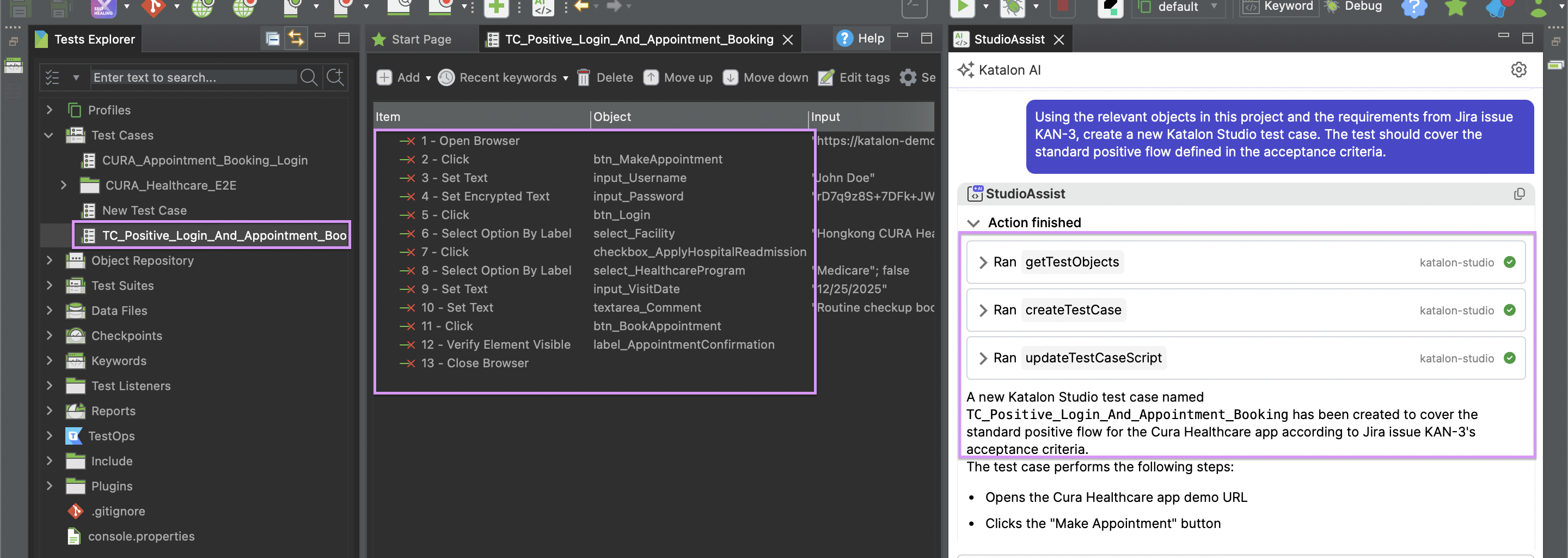
- With Test Objects present in the project and requirements from your JIRA project, you can ask Katalon AI Assistant to create a fully functional test case for you.
You can try the sample prompt below:
Using the relevant objects in this project and the requirements from Jira issue "KAN-3", create a new Katalon Studio test case. The test should cover the standard positive flow defined in the acceptance criteria.
Step 3: Generate Edge cases, boundaries for the requirements:
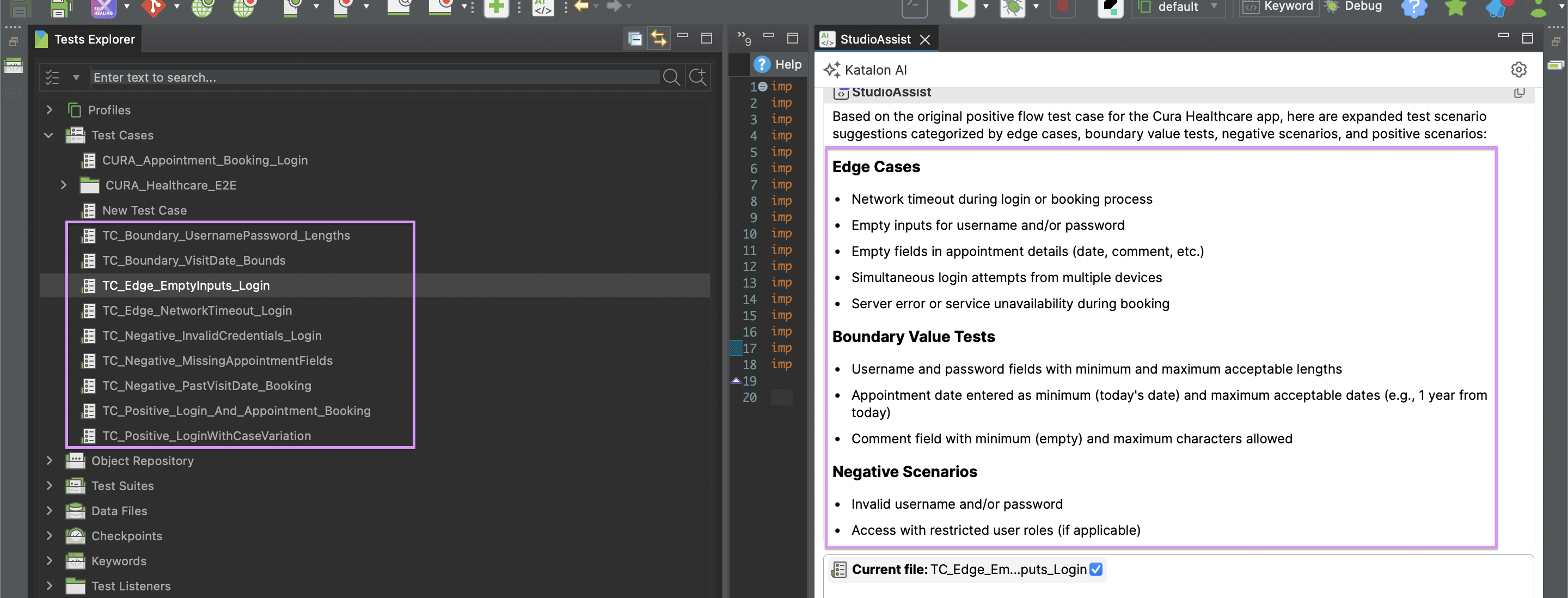
- To make the test flow robust, we can ask Katalon AI Assistant to review the JIRA requirements again, and create:
- Edge cases: (e.g., Network timeout, empty inputs)
- Boundary cases: (e.g., Max character limits, min/max dates)
- Negative cases: (e.g., Invalid credentials, restricted access)
You can try the sample prompt below:
Review the test case generated above. Based on the requirements, generate a list of edge cases, boundary value tests, negative scenarios, and positive scenarios.

- Edge: (e.g., Network timeout, empty inputs)
- Boundary: (e.g., Max character limits, min/max dates)
- Negative: (e.g., Invalid credentials, restricted access)

Create new test cases for each of them.
Scenario 2: Automated Bug Logging from Failure
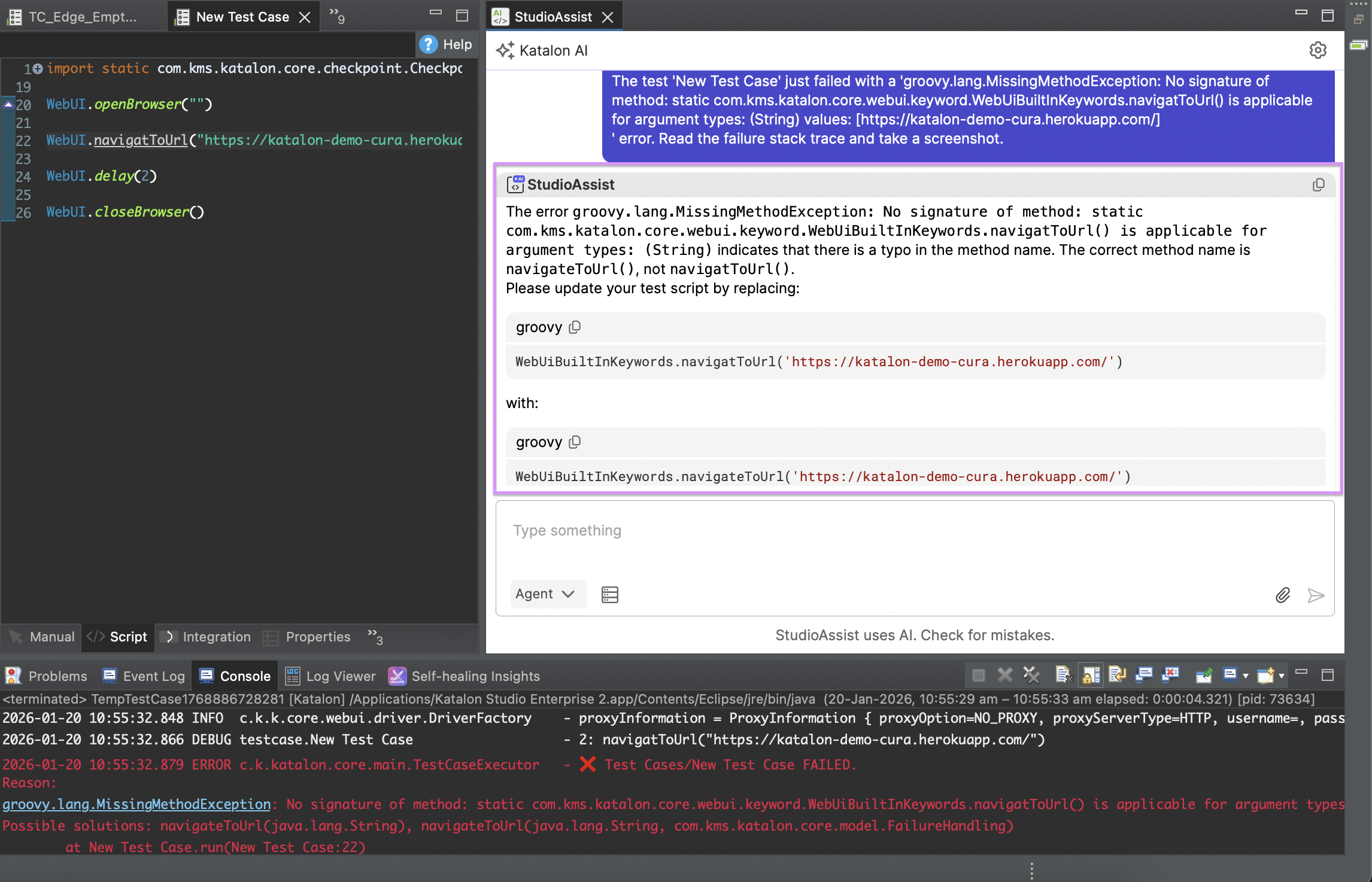
When a test fails in Katalon, Katalon AI Assistant can help you auto-log the bug ticket in your JIRA project.
Step 1: Have Katalon AI Assistant analyze the failure
You can try the sample prompt below:
The test 'TestCase ID' just failed with a 'NoSuchElementException'. Read the failure stack trace and take a screenshot.
Step 2: Create the JIRA Bug ticket
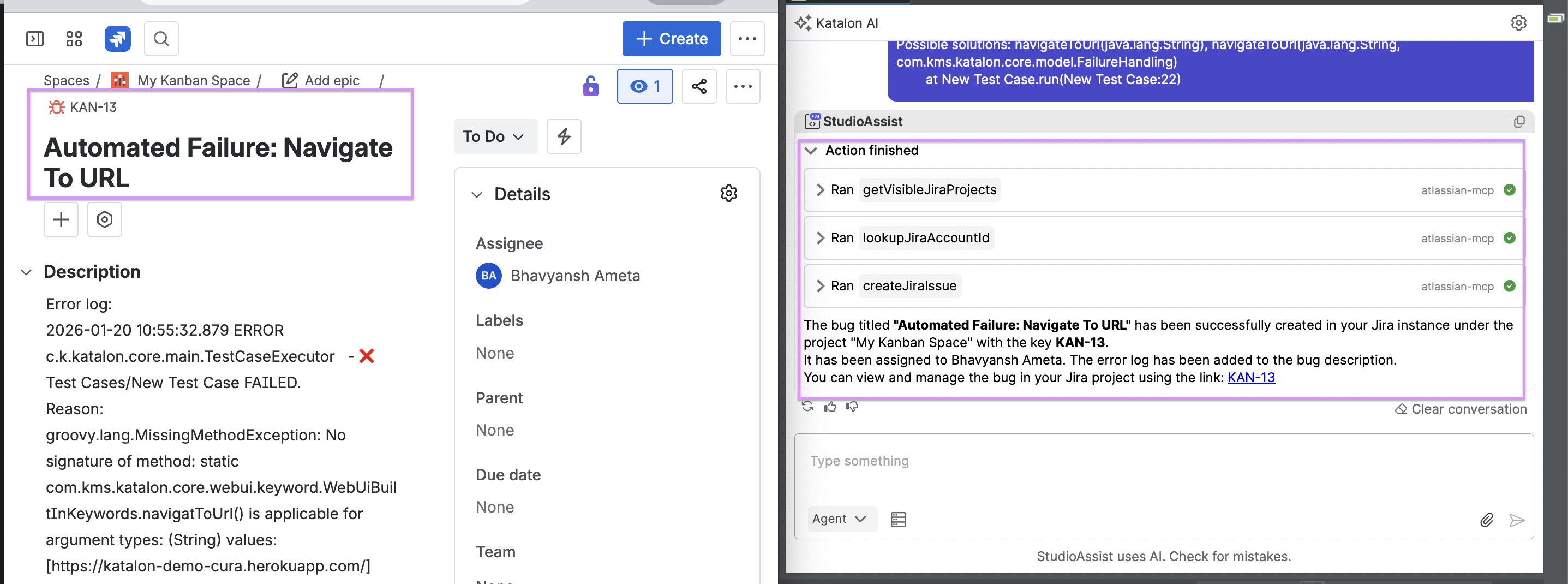
- Now that Katalon AI Assistant has the failure context and understanding, it can use Atlassian MCP tools to create a bug on JIRA project. Try the sample prompt below:
Create a Bug in the Jira instance: "https://bhavyansh-ameta.atlassian.net/" with the title “Automated Failure: Navigate To URL”, assign it to "Bhavyansh Ameta", and include the following description and error log: <Add the error log here.>
Step 3 (Optional): Add comments from Katalon Studio on your JIRA tickets:
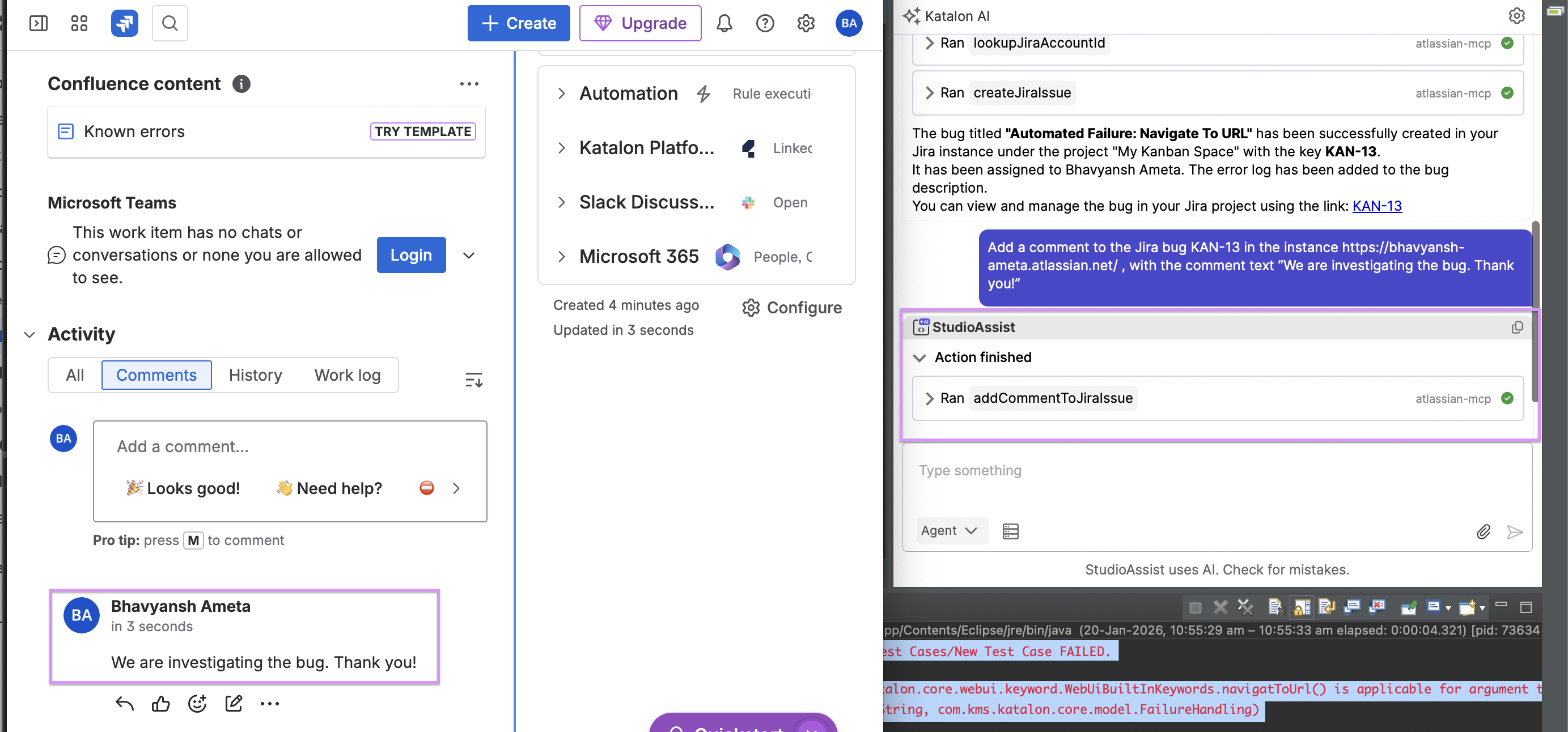
You can try the prompt below:
Add a comment to the Jira bug "KAN-13" in the instance "https://bhavyansh-ameta.atlassian.net/" , with the comment text “We are investigating the bug. Thank you!”
Scenario 3: Confluence knowledge retrieval
Use Confluence as a "Knowledge Base" for complex test data or business logic, and have Katalon AI Assistant retrieve that data for your Katalon Studio project.
Step 1: Query Confluence documentation
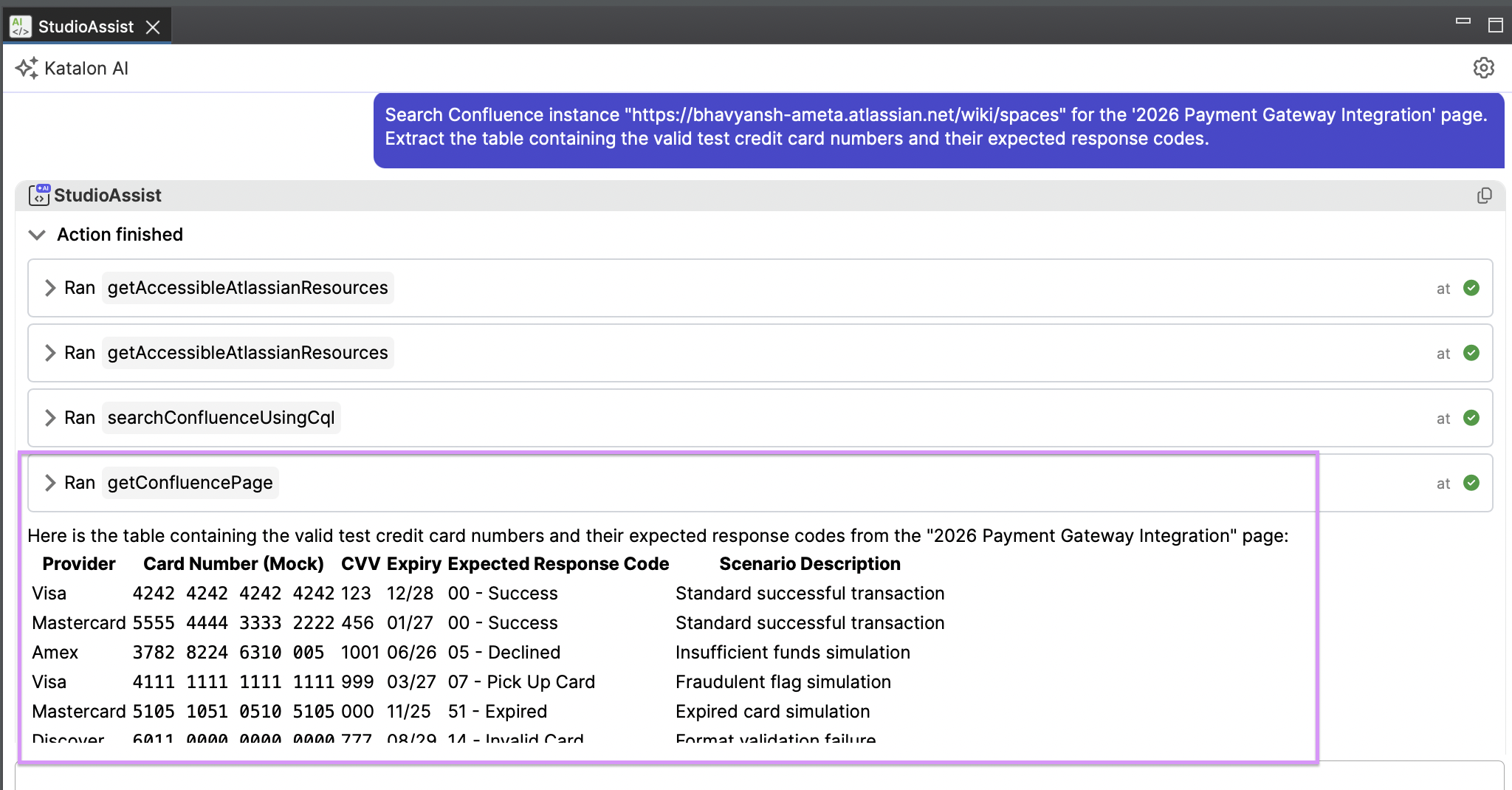
Point Katalon AI Assistant to a specific page and have it extract structured information that would normally require manual reading and copying.
You can try the sample prompt below:
Search Confluence instance "https://bhavyansh-ameta.atlassian.net/wiki/spaces" for the '2026 Payment Gateway Integration' page.
Extract the table containing the valid test credit card numbers and their expected response codes.
Step 2: Update data for data-driven testing
Once Katalon AI Assistant has the data and context, you can bridge that information directly into your Katalon project’s Data Files.
You can try the prompt below:
Use the extracted table values to create a new Internal Test Data file in my Katalon project , with the title as: 'PaymentTestData' file.
Atlassian MCP available tools
Reference: Supported tools | Atlassian Rovo MCP Server Cloud | Atlassian Support