Set explicit private/local testing modes
Currently, Katalon Studio only allows users to enable or disable Private/Local testing. You cannot explicitly configure the approach of whitelisting IPs or tunnel.
With the privateTesting desired capability, you can explicitly define the execution to run with Cloud Execution Tunnel or IP Whitelisting option.
- Make sure your project has enabled Test Execution - Cloud integration. See Enable Test Execution - Cloud integration.
Whitelist mode
-
In Katalon Studio, go to Project Settings > Desired Capabilities > Cloud Execution and set the following desired capability.
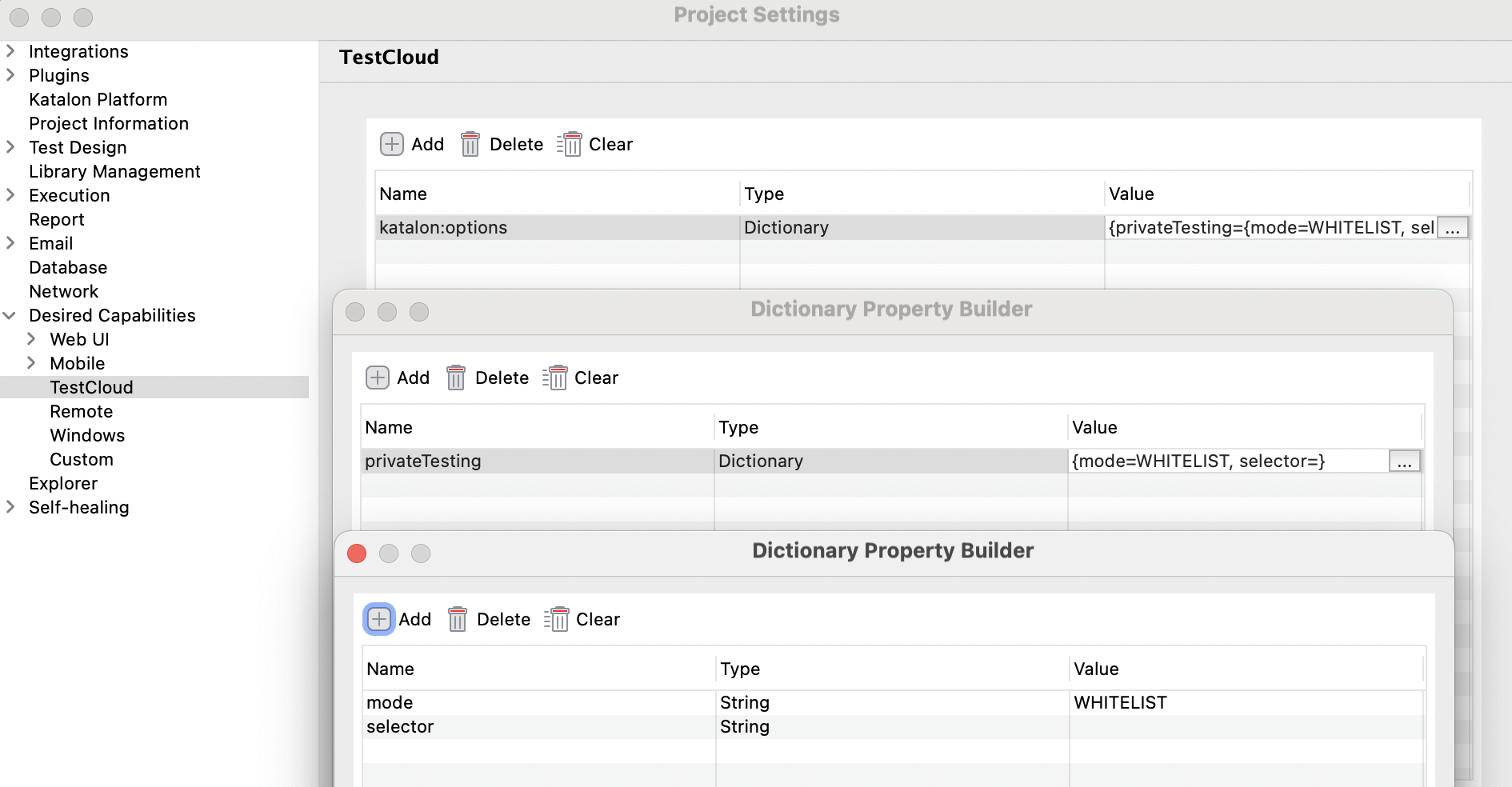
-
Click Apply & Close.
-
Open the Test Execution - Cloud Configuration dialog of the test suite, enable the Private/Local Testing option. You should see the message: "Status: Tunnel is available."
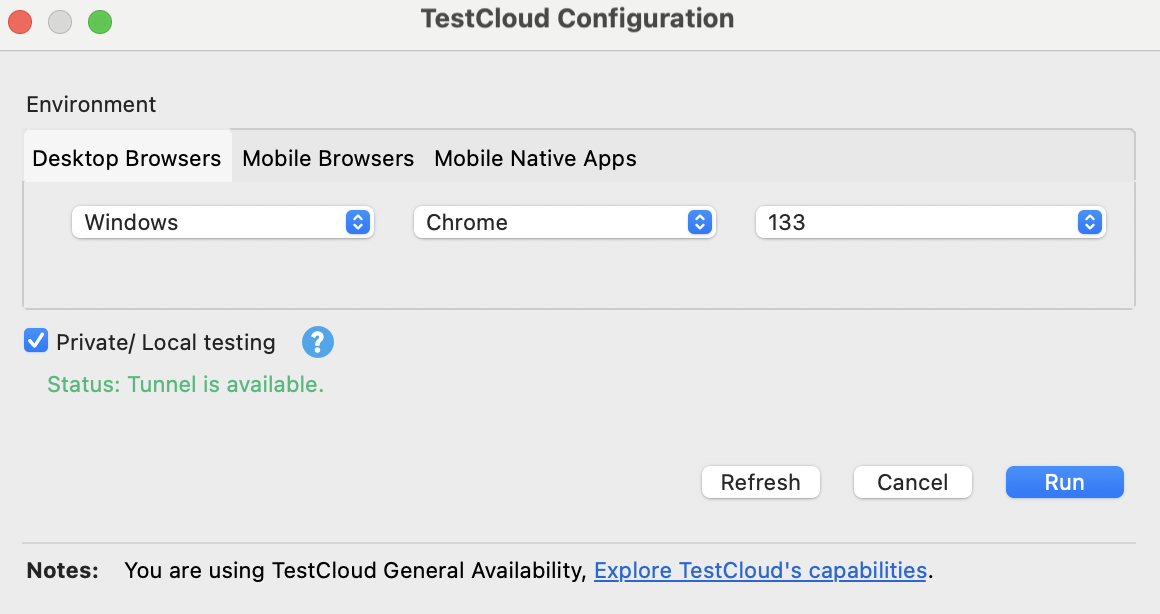
-
Execute your test suite/test suite collection as normal.
Auto-select tunnel mode
-
Go to Project Settings > Desired Capabilities > Cloud Execution and set the following desired capability.
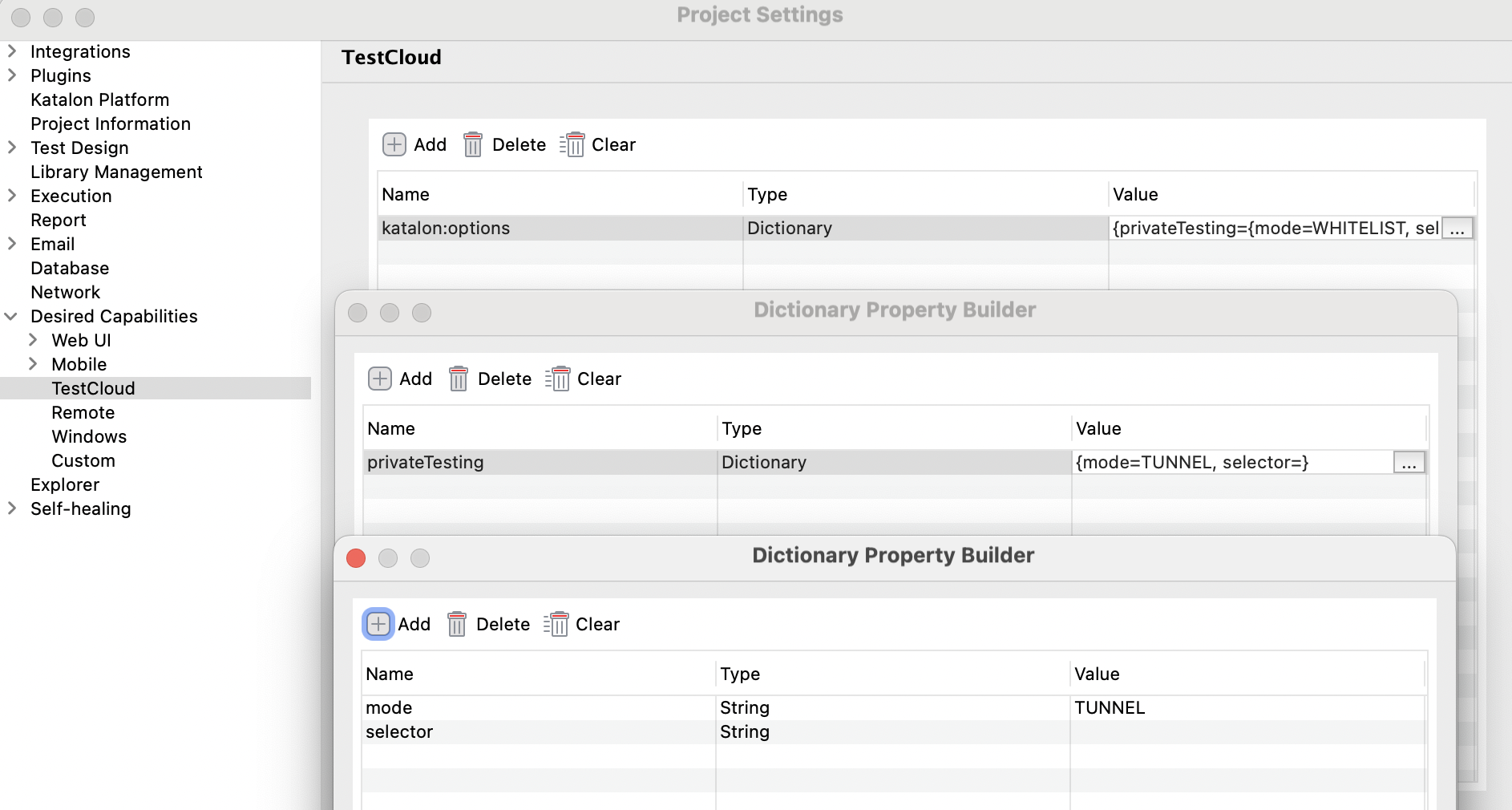
-
Click Apply & Close.
-
In the Test Execution - Cloud Configuration dialog of the test suite, ensure Private/Local Testing is disabled.
-
Execute your test suite/test suite collection.
Specify tunnel
To execute tests with a specific tunnel, you need to retrieve the Tunnel ID from TestOps.
- To retrieve the Tunnel ID, you must have the Account Admin or System Admin role. Refer to this document for more details: Account level roles.
-
In TestOps, go to Admin Settings > System Configuration > Execution.
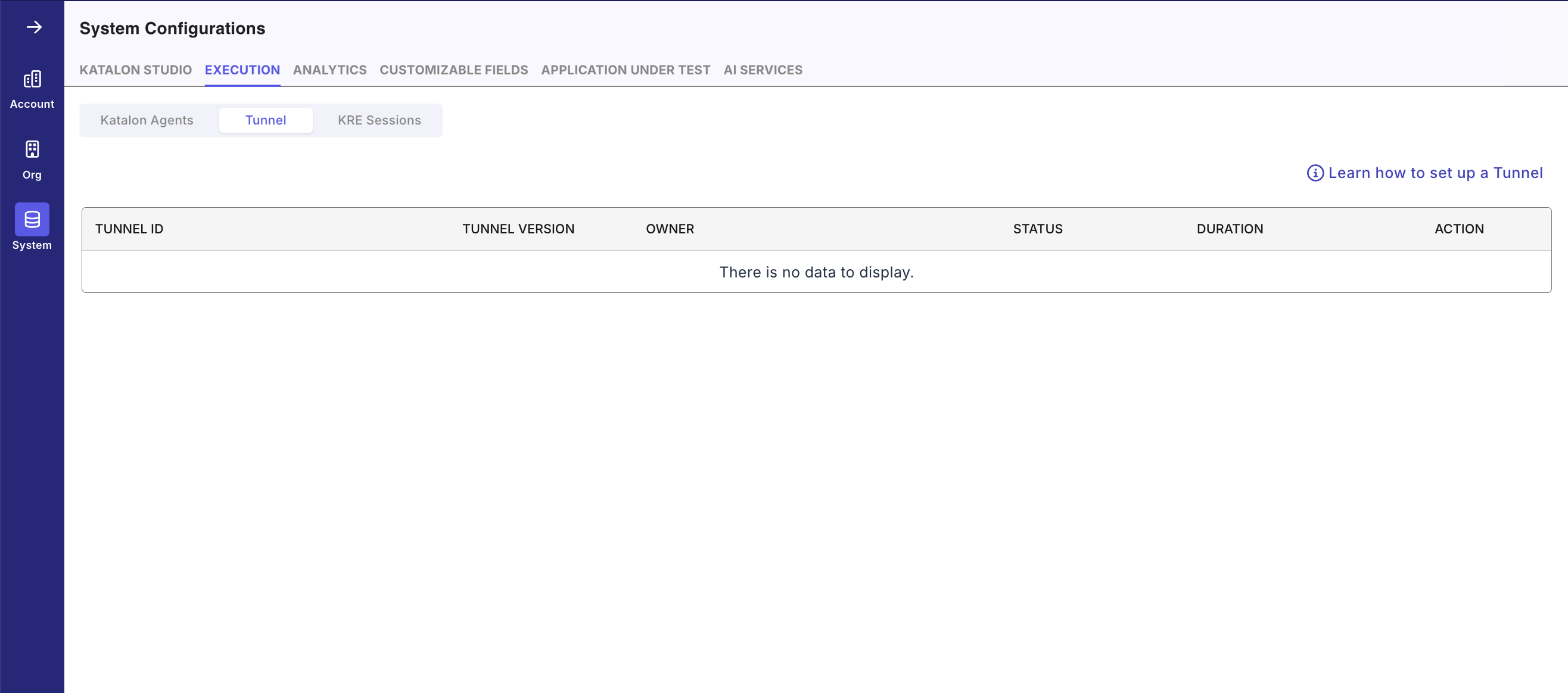
-
In the Tunnel tab, copy the Tunnel ID.
-
In Katalon Studio, go to Project Settings > Desired Capabilities > Cloud Execution.
-
Paste the ID into the
selectorfield.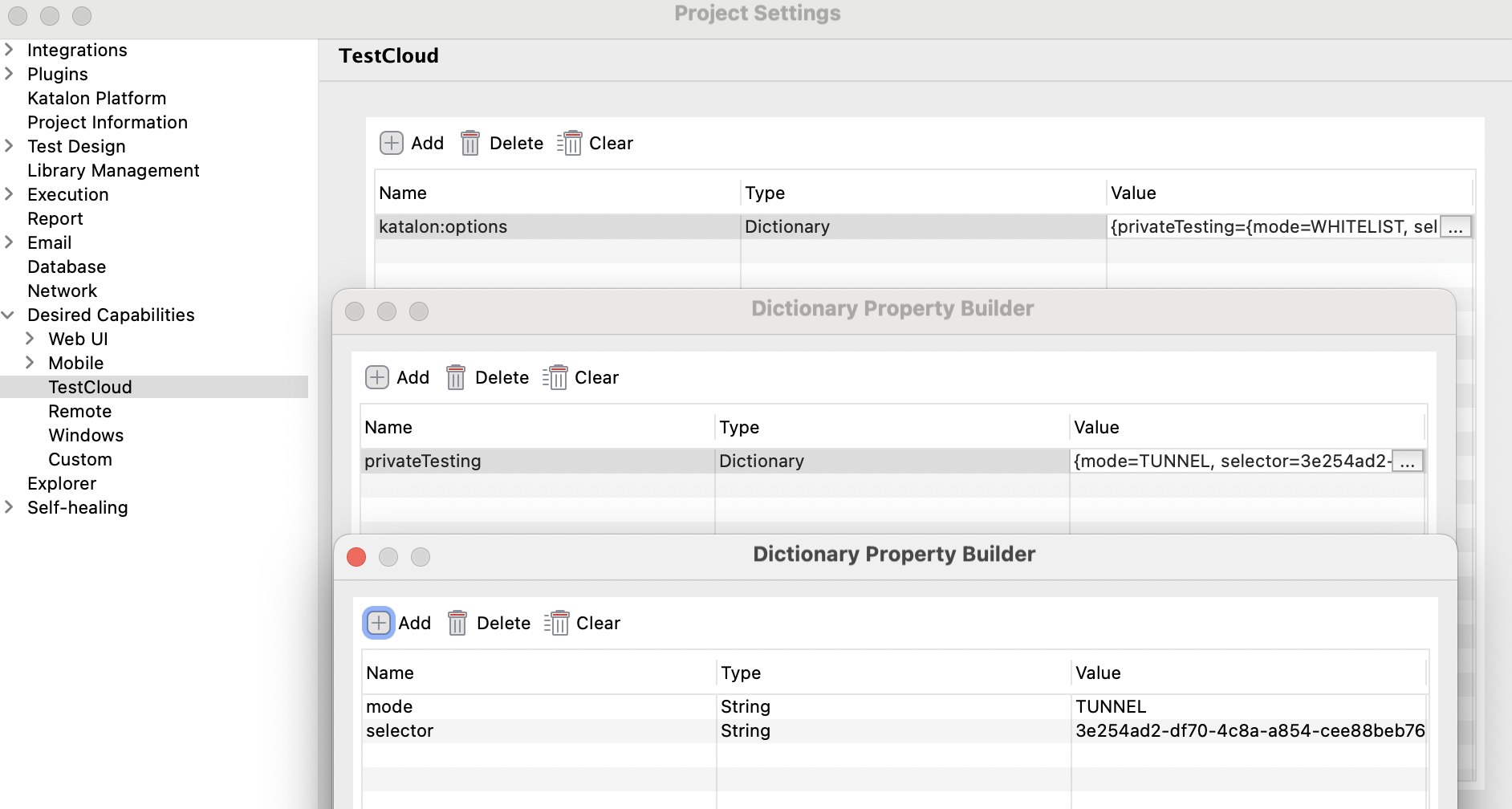
-
Click Apply & Close to save the settings, then execute your tests.