Remote Testkit integration
Last updated: March 2026
This document explains how to configure Remote TestKit for mobile testing using Katalon Studio.
Remote TestKit integration allows you to select Remote Testkit devices hosted in their cloud, for test executing, test recording, or test object spying in Katalon Studio.
requirements
- A registered Remote TestKit account with an active Flat 3 or higher plan. See Remote TestKit account to learn more.
- An access token. Refer to the "How to get the access tokens" section on their Appium Feature Tutorial for more information.
- Application prepared for the device. Refer to "Installing the App" section on their Appium Feature Tutorial for more information.
Steps to Set Up Remote TestKit in Katalon Studio
Follow these steps to use Remote Testkit in Katalon Studio:
- Open Katalon Studio.
- Go to Settings > Desired Capabilities > Custom and add:
| Name | Value |
|---|---|
| custom_name_for_Remote_Testkit | See step 3 below |
- Configure the value field in step 2 and add the following:
| Driver Name | Preferences |
|---|---|
| Remote | See step 4 below |
- Configure the preferences field in step 3, and fill in the following fields:
| Field | Value |
|---|---|
| Remote Server URL | https://gwjp.appkitbox.com/wd/hub |
| Remote Server Type | Appium/Selenium. |
| Appium Driver | Android Driver/iOS Driver. |
Then, add the followings to the table below the fields (see possible params and values for Appium server at Tutorial for Appium Features):
| Param | Type | Value | Description |
|---|---|---|---|
appium:platformName | String | Android | Specify the operating system. Use Android for Android devices. |
appium:automationName | String | UiAutomator2 | Specify the automation engine for Android testing. |
appium:deviceName | String | e.g. Galaxy | Set the device name that you have rented. Remote TestKit will automatically match available devices using forward matching. An error occurs if no matching device is found. |
appium:appiumVersion | String | e.g. 2.11.2 | (Optional) Specify the Appium version. If omitted, the default version is used. |
accessToken | String | e.g. p1H6qA5...vWxYz | Access token linked to your Remote TestKit account. |
appium:app | String | e.g. sample.apk | Name of the prepared application binary (check this doc's requirements at the top) |
appium:Package | String | e.g. com.app.sample | Package name of the application to be launched. |
Your setup should look like this:
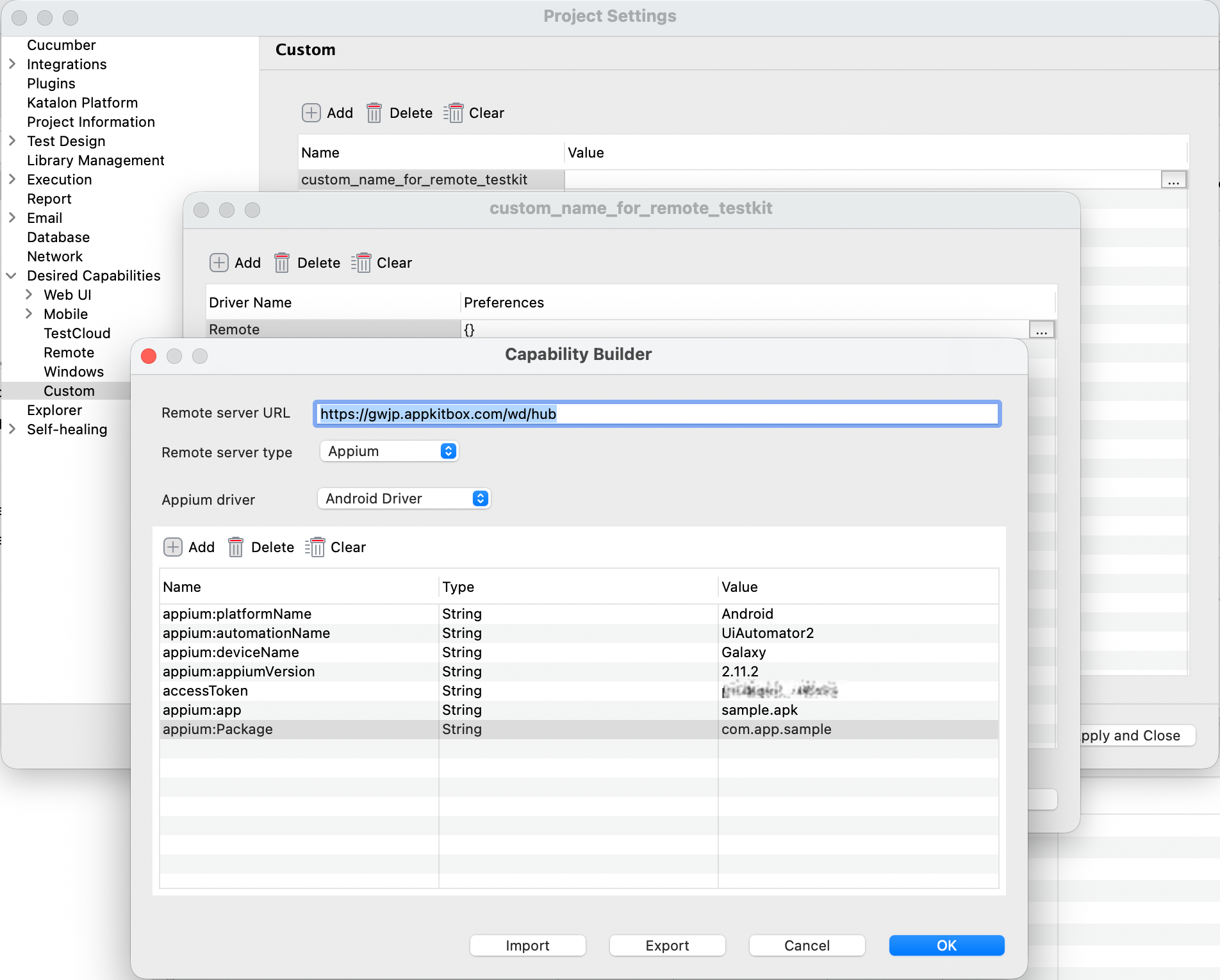
- Save and close.
Result
Remote Testkit devices are now ready. You can use these devices for recording, spying, or executing mobile tests. The device's UI can be viewed using:
- Remote Testkit client app. See Device Operation (for Client app version) for more information.
- Remote Testkit web-client version. See How to operate devices and view screens (Web version) for more information.
note
Device availability may vary; confirm supported devices before running tests.