Set up Google Drive MCP server
This document demonstrates how to integrate the Google Drive MCP server (@piotr-agier/google-drive-mcp) with Katalon AI Assistant in Agent mode, with a focus on the required Google Cloud Platform (GCP) configuration.
When you connect the Google Drive MCP server, Agent mode can work across your Google Workspace:
- Drive: search, read, create, edit, delete, and share files and folders.
- Docs, Sheets, and Slides: read and edit document content to use as context for generating or updating test cases and analyzing requirements.
- Calendar: read, create, and update events.
The server runs through npx with the STDIO transport and authenticates through OAuth on GCP, so the GCP setup is the most important part of this guide.
- Katalon Studio version 11.1.0 or later.
- Katalon Studio Enterprise (KSE) license to use Katalon AI Service, or a personal API key (OpenAI, Azure OpenAI, Google Gemini, or AWS Bedrock).
- Node.js version 18 or later, which includes
npx. Download here. - A Google account with permission to create a project on GCP.
This server exposes a large number of tools (around 100). Because AI providers limit the number of tools per request, enable only the tools you need and narrow the OAuth scope where possible. If you only need to read files as context, the search, readGoogleDoc, getGoogleSheetContent, and getGoogleSlidesContent tools are usually enough.
Configure Google Cloud Platform
The Google Drive MCP server authenticates through OAuth on GCP. Before you connect the server, you must create a Google Cloud project, enable the required APIs, configure the OAuth consent screen, and create OAuth credentials. Follow the instructions from Google below:
- Create a Google Cloud project
- Enable Google Workspace APIs
- Configure the OAuth consent screen and choose scopes
- Create access credentials
As you follow those guides, use the values below so the server works with Katalon AI Assistant:
-
APIs to enable: Google Drive API, Google Docs API, Google Sheets API, Google Slides API, and Google Calendar API. If you only need to read Drive, Docs, and Sheets as context, enable just those APIs.
-
OAuth scopes: Add the full set for the complete Drive, Docs, Sheets, Slides, and Calendar toolset:
https://www.googleapis.com/auth/drive
https://www.googleapis.com/auth/drive.file
https://www.googleapis.com/auth/drive.readonly
https://www.googleapis.com/auth/documents
https://www.googleapis.com/auth/spreadsheets
https://www.googleapis.com/auth/presentations
https://www.googleapis.com/auth/calendar
https://www.googleapis.com/auth/calendar.events
To find the appropriate scope for another Google service or access level, refer to OAuth 2.0 Scopes for Google APIs.
-
OAuth client type: Select Desktop app when you create the OAuth client ID.
-
Credentials file: Rename the downloaded JSON to
gcp-oauth.keys.json, then save it to default config directory at~/.config/google-drive-mcp/gcp-oauth.keys.json.
If you save in other location, set theGOOGLE_DRIVE_OAUTH_CREDENTIALSenvironment variable to the file path.
For the exact click-through these values apply to, see the server's own Google Cloud Setup instructions.
gcp-oauth.keys.jsoncontains a client secret. Do not commit it to Git or share it publicly.- Grant access only to the emails that need it (test users).
Authenticate with Google
Run this step once to sign in to Google and generate a token file from gcp-oauth.keys.json.
-
If you did not place the key file at the default path
~/.config/google-drive-mcp/gcp-oauth.keys.json, declare the path through an environment variable. Adjust the path for your machine.For macOS/Linux:
export GOOGLE_DRIVE_OAUTH_CREDENTIALS="$HOME/.config/google-drive-mcp/gcp-oauth.keys.json"
# Optional: request read-only access
export GOOGLE_DRIVE_MCP_SCOPES="drive.readonly"
For Windows (PowerShell):
$env:GOOGLE_DRIVE_OAUTH_CREDENTIALS="$HOME\.config\google-drive-mcp\gcp-oauth.keys.json"
$env:GOOGLE_DRIVE_MCP_SCOPES="drive.readonly" -
Run the authentication command:
npx @piotr-agier/google-drive-mcp auth -
Sign in with the email you added as a test user in your browser, select the account, then click Allow to grant access.
If you see a Google hasn't verified this app warning, click Advanced, then click Go to ... (unsafe). This is expected for your own app in Testing mode.
-
After the sign-in succeeds, the token is saved (with permission
0600) at:~/.config/google-drive-mcp/tokens.jsonYou can change this location with the
GOOGLE_DRIVE_MCP_TOKEN_PATHvariable. -
Verify the setup by running the server without the
authargument and checking that it starts without credential errors:npx @piotr-agier/google-drive-mcpIf the server waits without throwing an error, the setup is correct. Press
Ctrl+Cto exit.
If your credentials file is not in the default config directory, remember the file path. You need to enter that path again when you add the server in Katalon Studio.
Add the Google Drive MCP server to Katalon AI Assistant
-
Open Katalon Studio, then open Katalon AI Assistant.
-
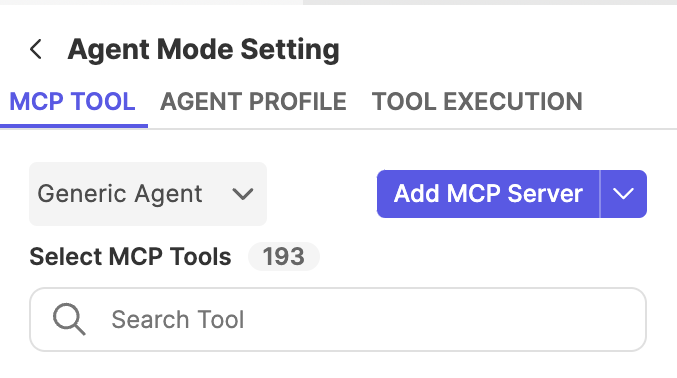
Click the Settings icon, then select Agent Mode settings.
-
On the MCP TOOL tab, click Add MCP Server.
-
Fill in the form:
- Transport Type: Select STDIO.
- Command and Arguments: Paste the following JSON, and replace
<user>with your machine username.{
"command": "npx",
"args": ["-y", "@piotr-agier/google-drive-mcp"],
"env": {
"GOOGLE_DRIVE_OAUTH_CREDENTIALS": "/Users/<user>/.config/google-drive-mcp/gcp-oauth.keys.json",
"GOOGLE_DRIVE_MCP_SCOPES": "drive.readonly"
}
} - Name: Enter
gdrive. Keep it short to adhere to AI providers 64-character limit on the combined length of the MCP server name and tool name ({server_name}_{tool_name}). - Title (optional):
Google Drive.
tipOmit
GOOGLE_DRIVE_MCP_SCOPESif you want full access to Drive, Docs, Sheets, Slides, and Calendar. -
Click OK. The server appears with its tool list.
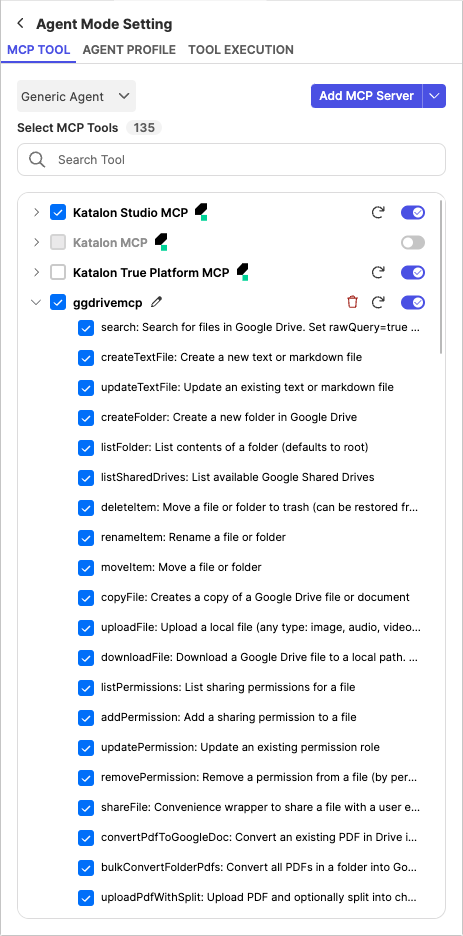
To check the connection status, open Agent Mode settings. On the MCP TOOL tab, the gdrive server shows in the server list with its tools; expand it to enable or disable individual tools. If there is an error, click Reload to reload the server, or use Connect and Disconnect to manage the connection.
Test the connection
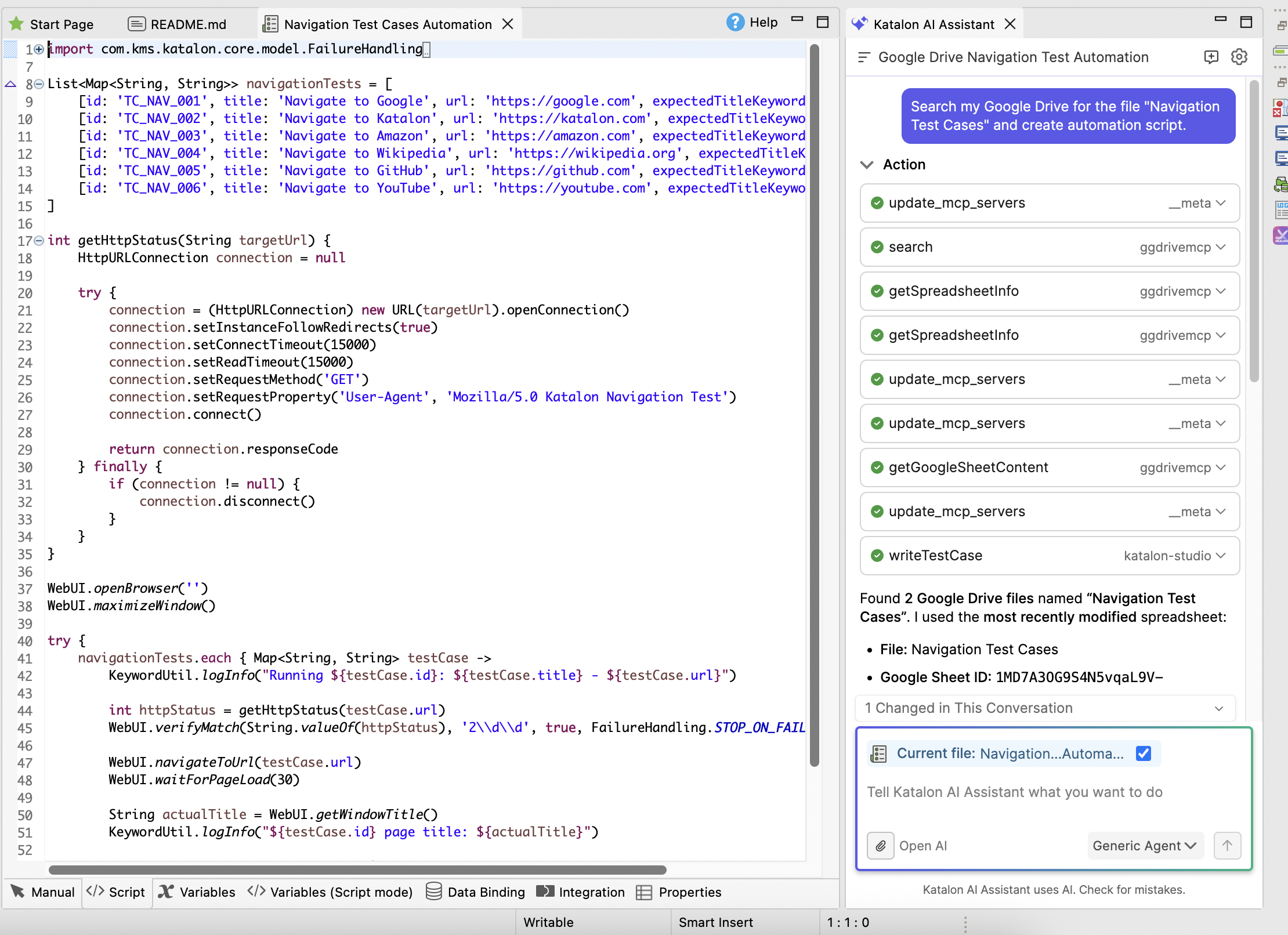
- In Agent mode, enter a prompt that uses a Drive file as context, for example:
Search my Google Drive for the file "Navigation Test Cases" and create an automation script for it. - Approve the tool calls when the agent proposes them. The agent uses the
gdrivetools to find and read the file. - Review the result. When the connection works, the agent reads the Drive file and can combine it with Katalon Studio MCP tools to generate test assets from the content.
Troubleshooting
| Symptom | Cause and solution |
|---|---|
| Cannot find or act on a file | The scope is missing or wrong, or the corresponding API is not enabled. Verify that you enabled the required APIs and scopes, then authenticate again. Use the authGetStatus and authListScopes tools to diagnose. |
| Blocked at the OAuth screen, or the app is reported as unverified or access blocked | The sign-in email is not in the test users list (External app in Testing mode). Add the email to test users, then authenticate again. |
| Token expires after a few days | The app is in Testing mode (about 7 days). Run npx @piotr-agier/google-drive-mcp auth again, or publish the app to production. |
| Auth does not open or hangs at the callback | Ports 3000 to 3004 are blocked. Set GOOGLE_DRIVE_MCP_AUTH_PORT to a different port range, then run auth again. |
| Agent tool call fails because the name is too long | This exceeds the 64-character limit for {server_name}_{tool_name}. Shorten the server Name, for example to gdrive. |
The server reports Connection failed in Katalon Studio | Confirm that the path in env is absolute and the file exists, that the token exists at ~/.config/google-drive-mcp/tokens.json, then click Reload. |
@piotr-agier/google-drive-mcp is a community server. The environment variable names and the auth command can change between versions. If you run into issues, check the official repository README. To view detailed logs, set DEBUG=google-drive-mcp:*.