Advanced configurations for Visual Testing
This document explains how you can configure pixel sensitivity level and ignored zones, to enhance image comparison algorithm in Visual Testing.
Pixel sensitivity level
When comparing checkpoints against baselines, the pixel-based method can pick up minor pixel differences that are unimportant. To reduce the false alarms, you can adjust the pixel sensitivity level.
Follow these steps:
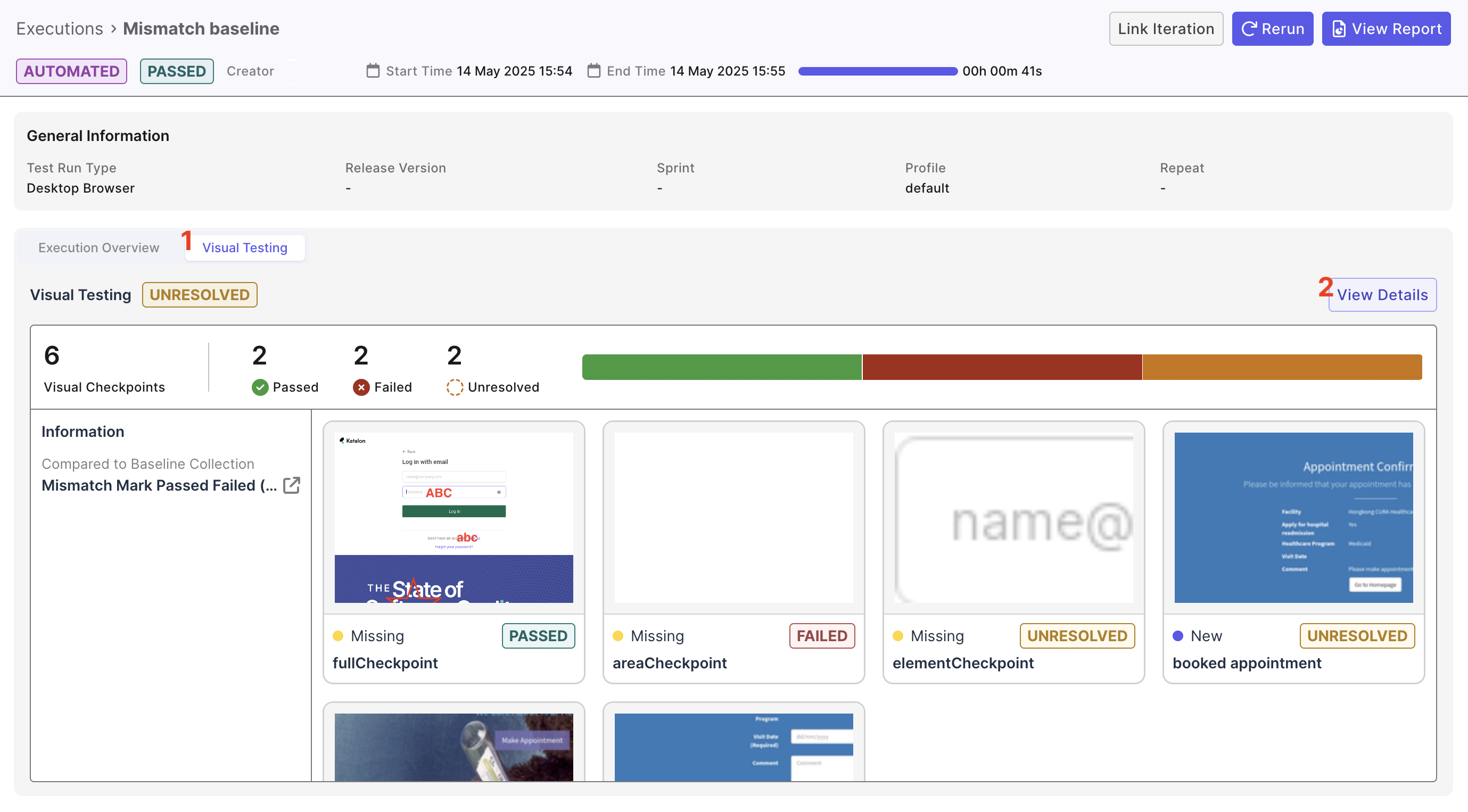
- Go to Executions and select a test run. Click the Visual Testing tab and select a checkpoint with a Mismatch label.
- Select Pixel and click the Settings button to adjust the pixel sensitivity level. A value of
0is the strictest, while100is the most relaxed and ignores all minor pixel differences. You can also choose intermediate values such as25,50, or75.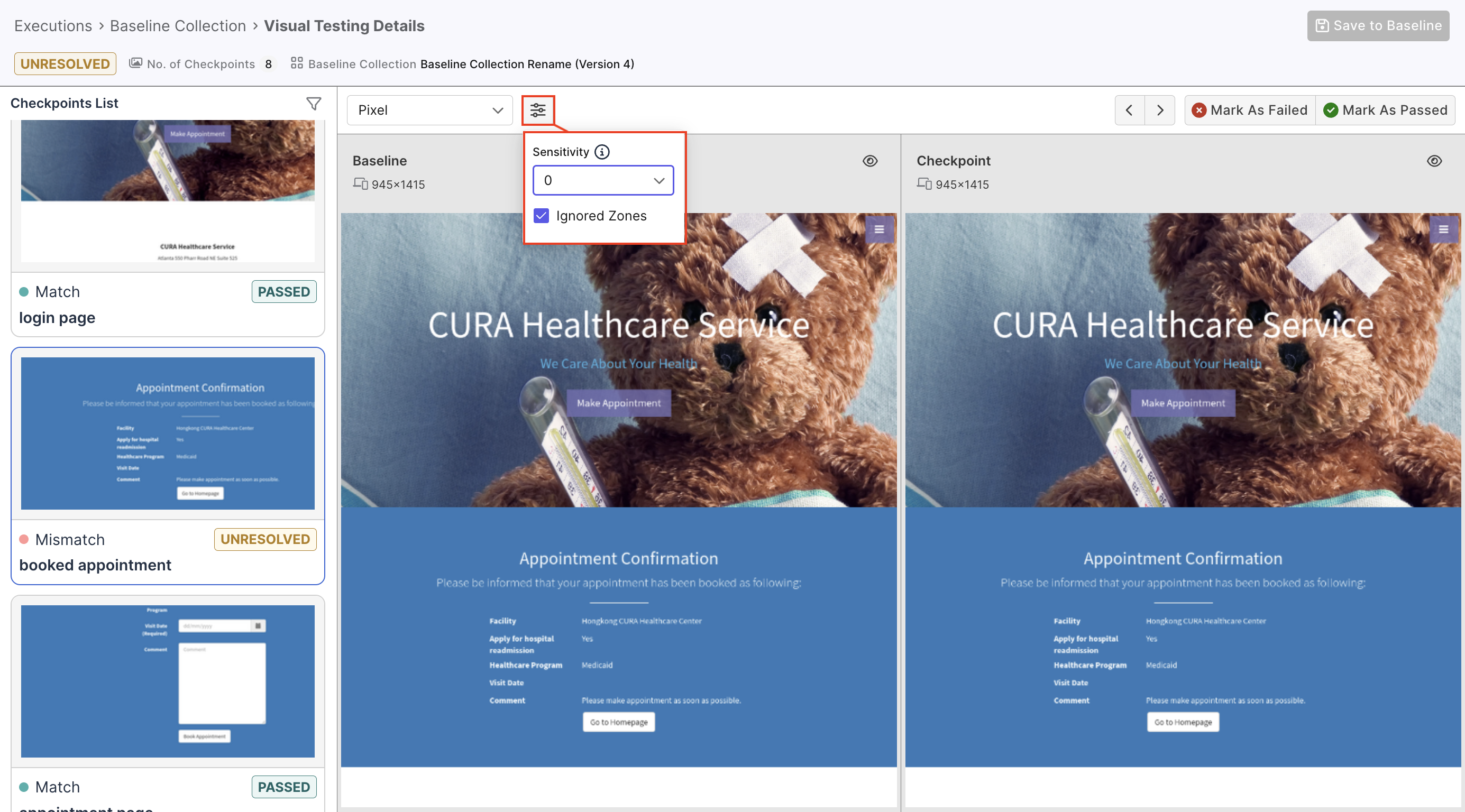
Ignored zones
When comparing the checkpoint image with the baseline image, you have the option to show or hide Ignored Zones in the comparison interface.
Ignored zones are pre-configured zones added to baseline images, letting Visual Testing know to skip these areas when performing comparisons. Specifying ignored zones is especially useful when testing a website with dynamic content, such as pop-up ads, that changes between runs.
Add an ignored zone to a single baseline image
To configure an ignored zone, follow these steps:
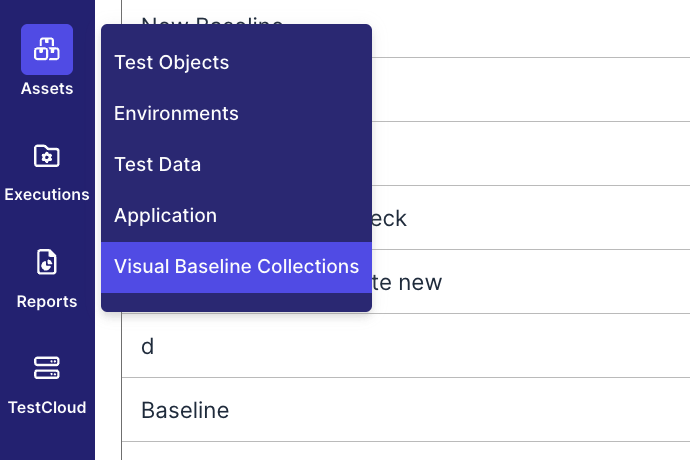
- In your project’s UI, navigate to Assets > Visual Baseline Collections and open the desired collection.
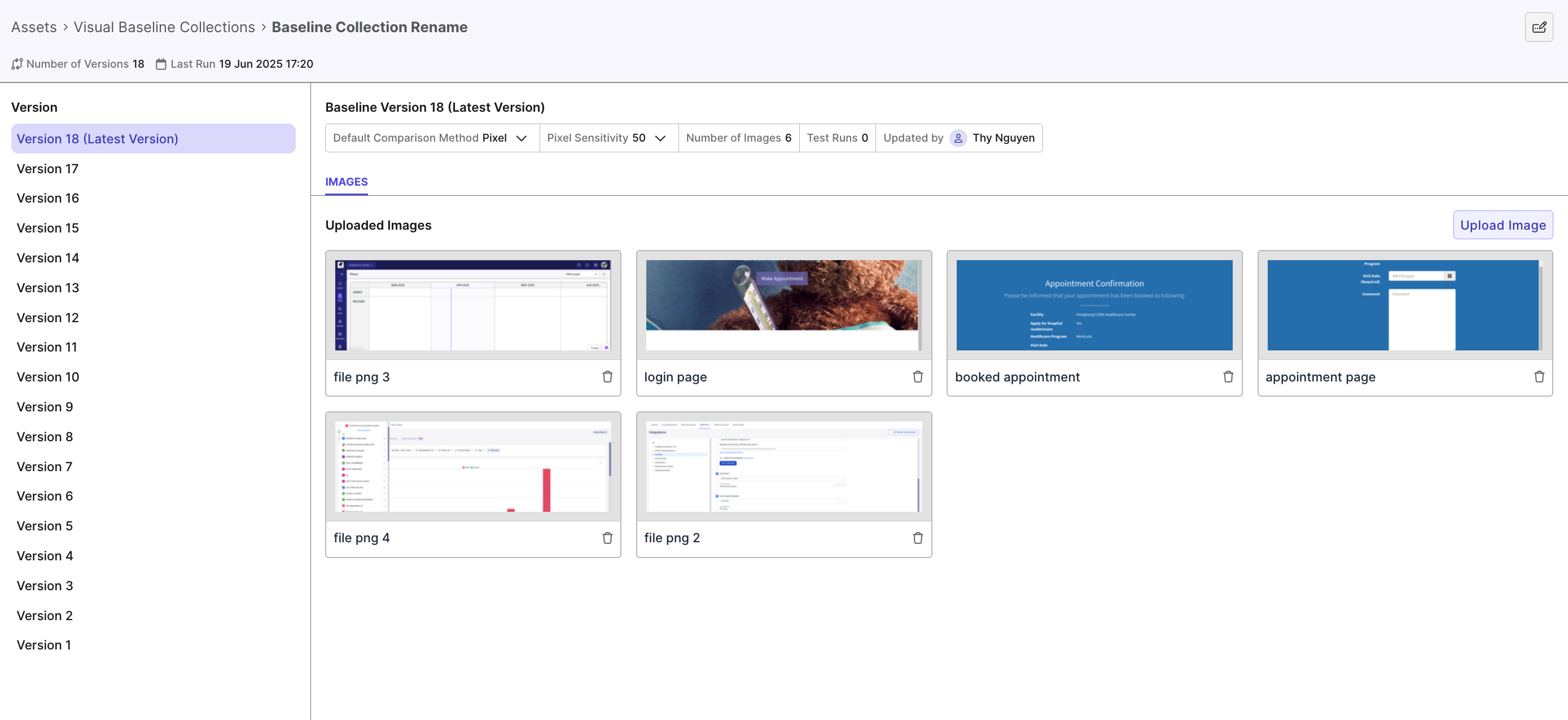
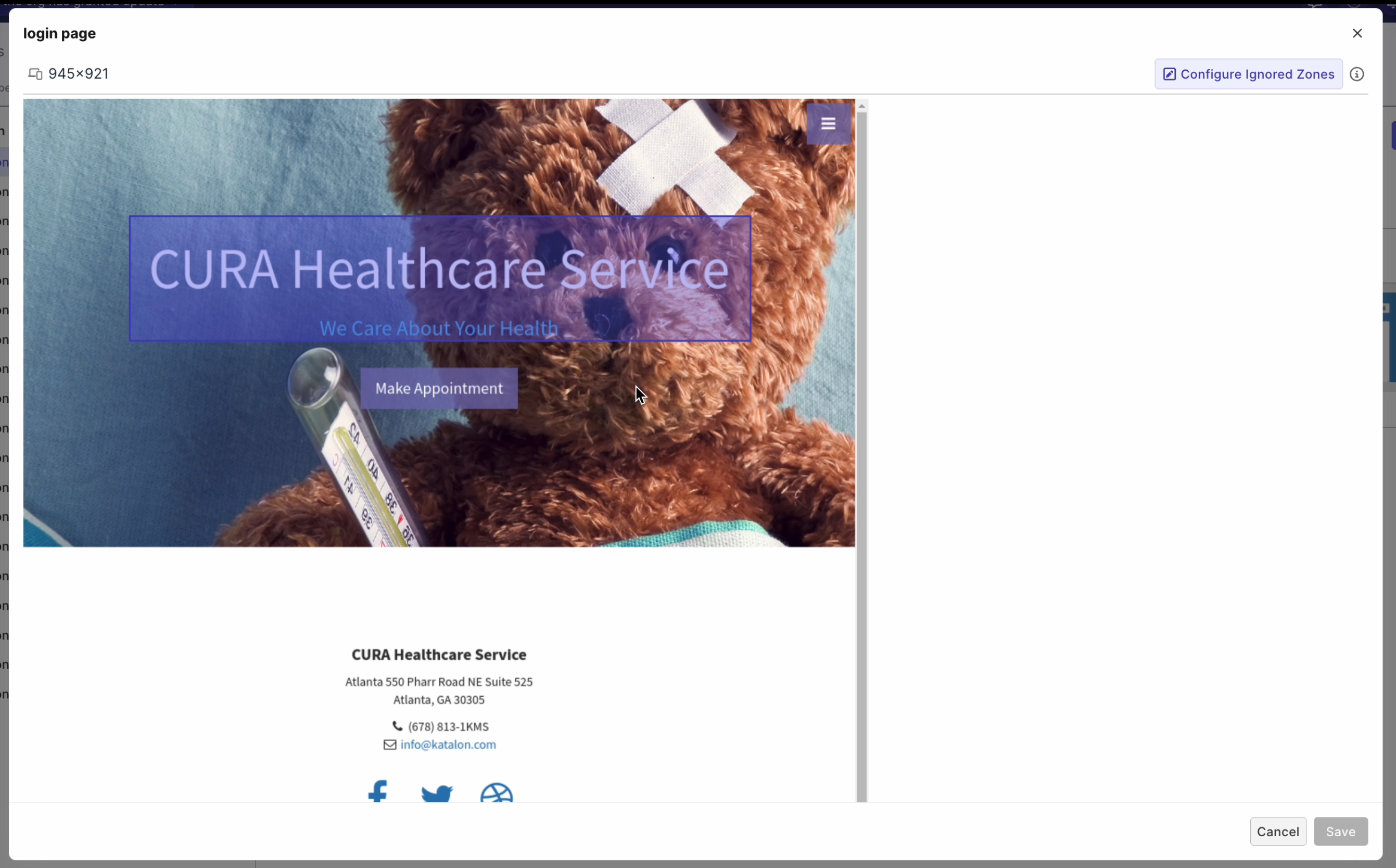
- Click on any images you want to set ignored zone for, and click Configure Ignored Zones.
-
The button is then highlighted, indicating you're in edit mode. Draw (up to 20 rectangles) to specify the area(s) you want Visual Testing to ignore. The ignored zones are highlighted in purple. If you want to apply an ignored zone to all baseline images, see: Apply an ignored zone to all baseline images.
-
Click Save to save your progress as a draft, and then click Save Version to save changes to this collection, as a new version.
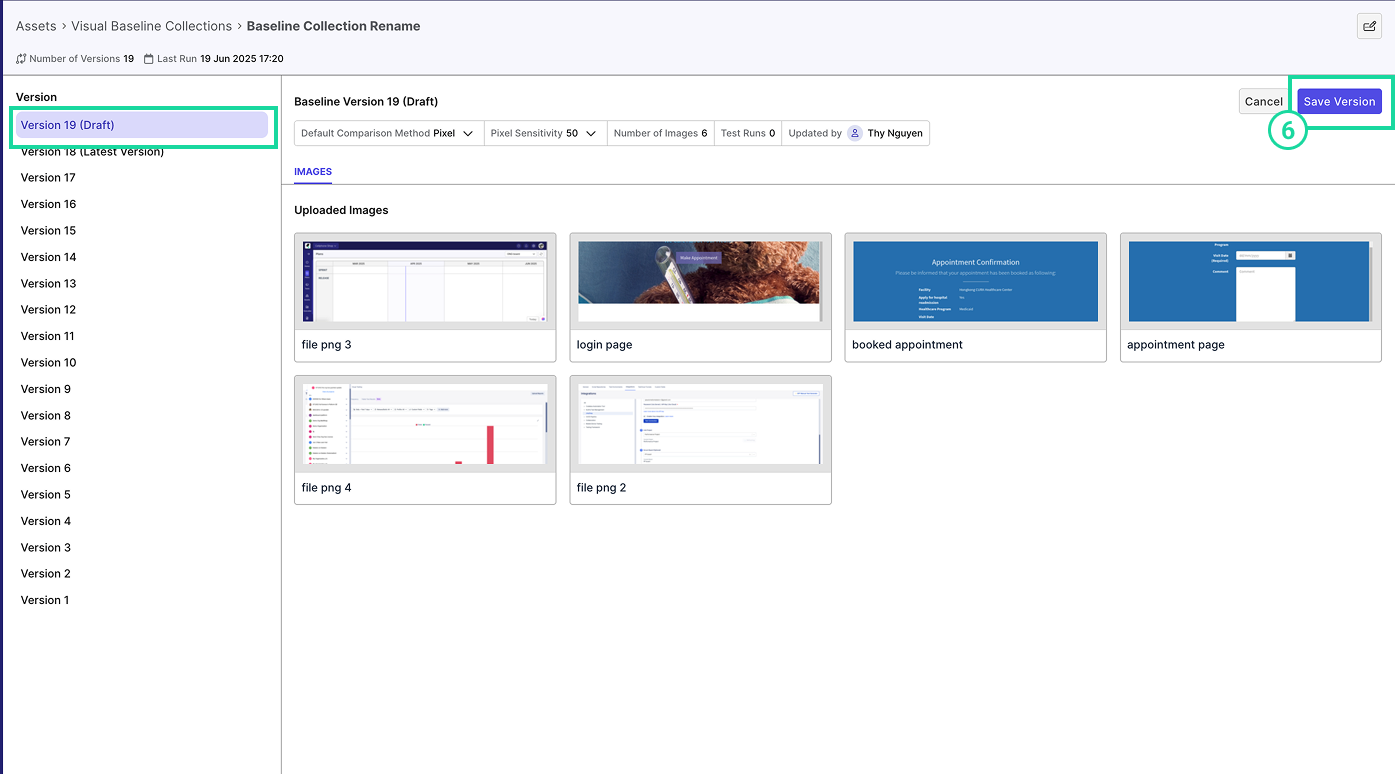
Result
The baseline image now contains the defined ignored zones. During visual comparisons, these zones will be excluded, allowing for more accurate test results by ignoring dynamic or irrelevant content.
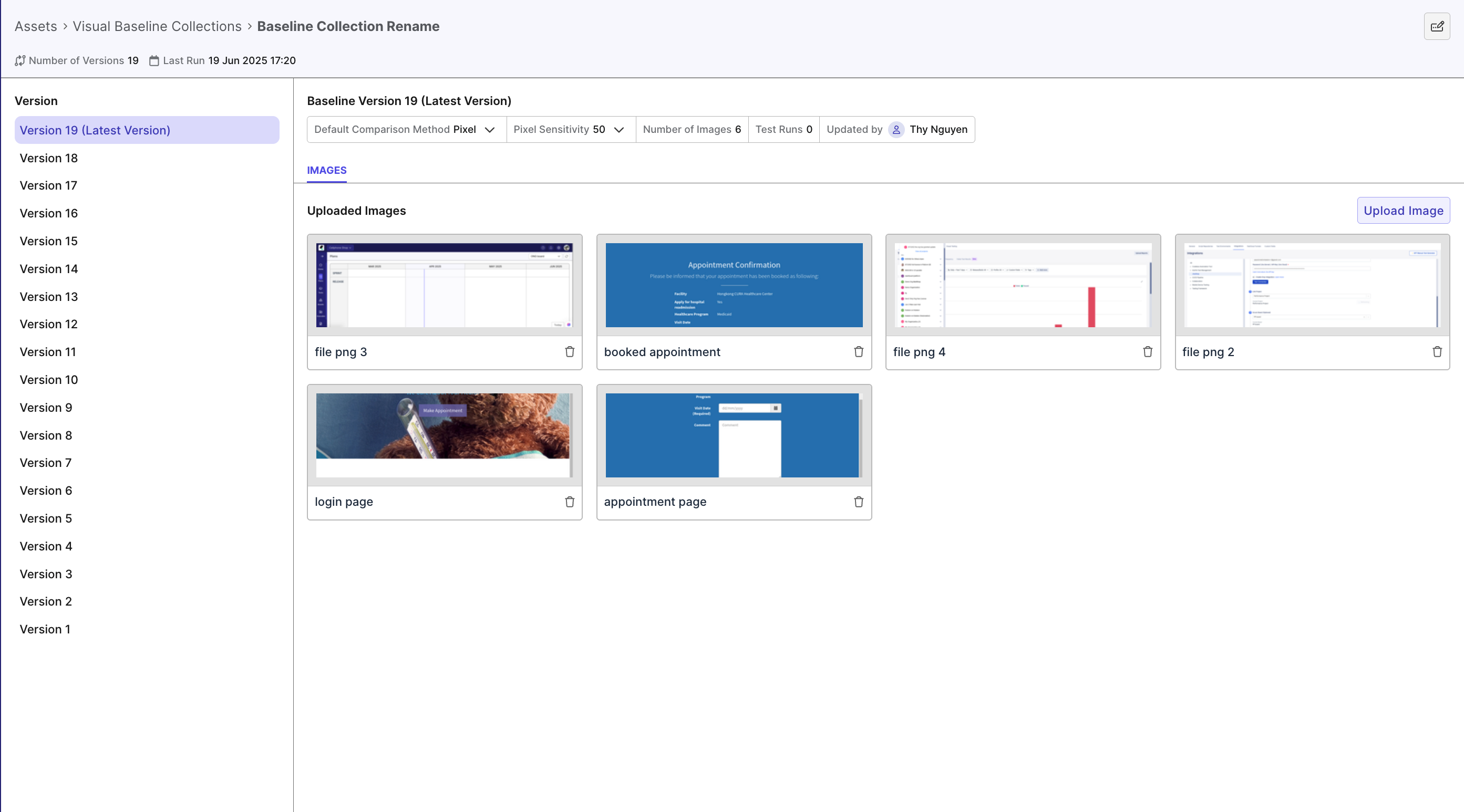
This configuration is now saved under a new version, for example, Version 19 (Latest Version):
Apply an ignored zone to all baseline images
If all images in the collection share the same resolution (e.g., 400×500), you can apply an ignored zone across all baseline images:
- Add an ignored zone to one image.
- Click on the drawn zone, and click the checkmark icon to confirm that you want to apply this zone to all baseline images in the collection:
- Click Save to save your progress as a draft, and then click Save Version to save changes to this collection, as a new version.
Delete ignored zones
You can delete an ignored zone from a single baseline image or from all baseline images in the baseline collection:
-
Click Configure Ignored Zones. The button will be highlighted in purple, indicating that you are in edit mode.
-
Zones should be color-indicative:
- Purple zones indicate ignored zones applied to a single baseline image.
- Green zones indicate ignored zones applied to all baseline images in the collection.
Click on the drawn zone, then click the Delete (trash can) icon to remove it. If you're deleting a Green zone, a Delete All Ignored Zones confirmation dialog will ask you to confirm deletion. Click Delete to confirm.
- Click Save to save your progress as a draft, and then click Save Version to save changes to this collection, as a new version.