Create or manage test suites
A Test Suite is a collection of test cases executed and reported together. Test suites help you organize test coverage, manage execution scope, and analyze results by feature, release, or testing purpose.
Use test suites to:
- Group related test cases (for example, Smoke, Regression, Security)
- Execute a defined scope of tests for a release or milestone
- Track execution results and trends at the suite level
Create test suite manually
This approach allows you to:
- Reuse existing test cases without duplication
- Create purpose-driven suites such as Smoke or Release Regression
- Maintain a single source of truth for test cases
To create a test suite from existing test cases:
-
Go to Tests > Test Suites.
-
Click + Create and select Test Suites.
-
Enter a name for the test suite. Manual test suite names can include these special characters:
(),.-_+&='. -
Below the name, select the test type: Automated or Manual.
You cannot mix automated and manual test cases in the same test suite, as this may cause execution failures.
-
(Optional) Use search and filters to quickly locate test cases by name, repository, type, status, or author.
-
Add test cases in either way. Ensure the test cases match the selected test type (Automated or Manual).
- To add individual test cases, click the Add (+) button in the rightmost column of each row.
- To add every compatible test case in the current filtered view at once, click + All in the column header, then confirm. The confirmation shows how many test cases will be added, across all pages of the view. Test cases already in the suite are added again, so review your filters first.
-
Click Create to finish. The Test Case List tab shows the number of test cases in the suite.
Manage test suite folders
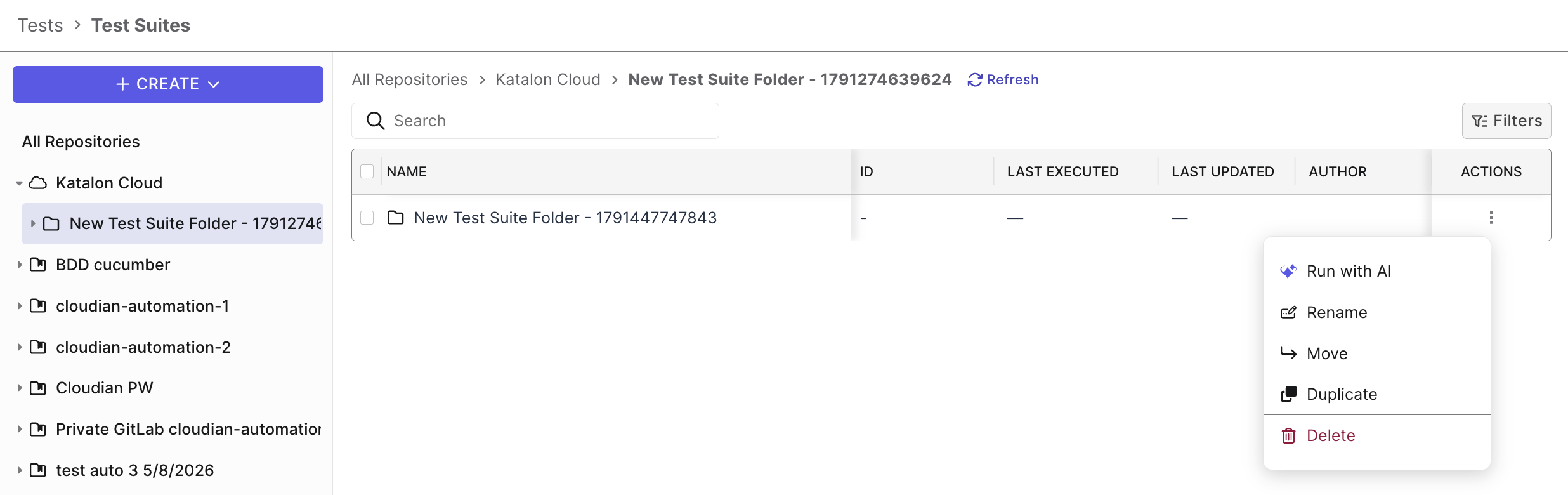
In the Katalon Cloud repository, you can organize test suites into folders under Tests > Test Suites. To manage a folder, open its context menu. The same management actions are available for both test suite and test case folders.
Upload test suite through ZIP upload
If you don’t use any Git-based integration to sync your repository, you can manually upload either a Katalon Studio project or any zip file with .ts or .tsc files to import test suites or test suite collections into a Local repository (ZIP Upload) in Katalon True.
- Click the + Create button and select Upload Repository.
- On the Script Repositories page:
- Enter a Name for the repository (required).
- (Optional) Add a Description to help identify the repository.
- In the Upload section, click Choose File and select a ZIP file that contains:
- A full Katalon Studio project, or
- One or more test suite files (
.ts).
- Click Import to upload and create the repository.
Once the upload is completed, Katalon True extracts the ZIP file and imports all supported test cases while preserving the original directory and folder hierarchy.