Katalon AI Assistant
This document explains how Katalon AI Assistant works in Katalon True to help QA teams move through planning, execution, and analysis in one place.
This page focuses on capabilities available in Katalon True. To learn about AI capabilities in Katalon Studio, see Katalon AI Assistant Overview.
You can also use Katalon AI Assistant in Katalon Studio to write automated test cases, sync those test artifacts to Katalon True, and then create automated executions from the synced repository.
Overview
Katalon AI Assistant is your virtual testing assistant in Katalon True. Through a single conversational UI, it routes your request across multiple agents and uses platform skills and tools to complete tasks such as:
- Refining requirements
- Generating tests from requirements
- Executing manual tests
- Analyzing failures
- Filing bugs
- Providing project insights
With Katalon AI Assistant, QA teams can move between planning, execution, and analysis workflows without switching tools, using automation to spare human effort for where it truly matters.
Get started
Click the Katalon AI Assistant tab, to open the assistant in full-screen mode. Quick chat options are available to get you started quickly.
Available group options:
- Manual Testing
- Automation Testing
- Quality & Release
Click on any option and a list of key suggested prompts along with requirements appears (e.g. Generate test cases for this requirement > Needs ALM).
Alternatively, click the top left corner button to open the assistant as a side panel. The assistant stays active and is aware of the current page you're on, allowing constant context awareness as you move through tasks.
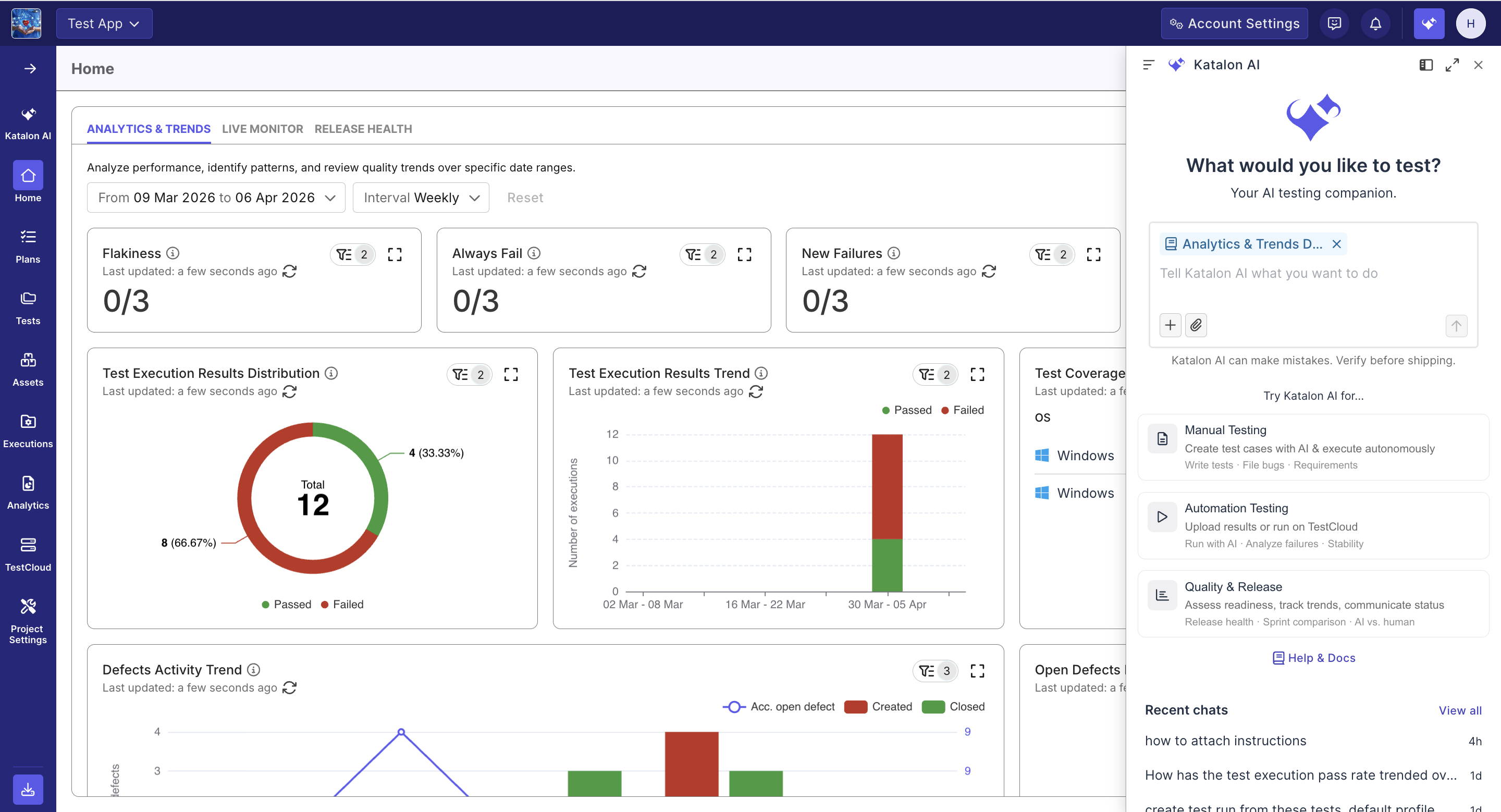
End-to-end workflow
In one conversation, you can move from refining requirements, to generating tests, executing runs, analyzing failures, filing bugs, and reviewing project health.
To allow full control of the workflow, Katalon True extends individual capabilities to dedicated workflows with convenient access points and additional fine-tuning options. Check out our specialized workflows section below for more details.
Specialized workflows
Below are common workflows for using Katalon AI Assistant effectively.
Refine requirements and generate test cases
You can upload a requirement, and work with Katalon AI to refine it, removing ambiguities or add more context. Katalon AI can turn a clear requirement into clear test cases, with a higher chance of it being automated later on (see execute and monitor manual tests workflow below for details).
With Jira or ADO integration, you can also view the requirement in Plans module, and refine the requirement/create tests from it:
- Click the Release or sprint that contains the requirement ticket. The requirement-test workbench appears.
- Read Katalon AI analysis of the requirement. Answer the questions, and provide more context with Add more context button. You can specify test data or AUT URL here.
- Once you're done with clarifying, click Generate Test Cases. Wait while your test cases are being generated.
- Review the test cases, discard/save, or edit if you'd like. Clicking a test case opens a test case detail drawer that allows two editing options: manual editing each step, and AI-assisted regenerating the steps.
- Once you're happy with the test cases, click Save All.
- Result: The test cases are generated, and linked to the requirement.
- Provide AUT URL in the requirement.
- Specify test data, if any, in the requirement or when noting context.
- Use either a test requirement or a feature requirement.
- Supported file types include:
- Documents:
.pdf,.doc,.docx - Text files:
.txt,.md - Spreadsheets:
.xls,.xlsx,.csv - Images:
.png,.jpg,.jpeg,.gif
- Documents:
Review potential conflicts
When Katalon AI Assistant generates test cases or analyzes a requirement using your project's AI knowledge base, it checks the requirement against the documents and related requirements it found. The response ends with a Potential conflicts section, in one of three states:
- Conflict found: each item names the requirement clause and the source that contradicts it, marks whether that source is a declared link or a document retrieved from the knowledge base, and suggests a fix.
- None found: the section lists what it checked against, for example a PRD and three related requirements.
- Could not check: if the knowledge base is empty, rebuilding, failed, or out of date, the section says it could not check. It does not report "None found" in this case.
The section only informs you. Katalon AI Assistant does not change the requirement, your documents, or the generated drafts because of a conflict.
Use cases:
- A requirement says shared costs split equally, while the PRD in your knowledge base says they split in proportion. The conflict appears before you save test cases built on either rule.
- A requirement was updated in Jira, but the spec in the knowledge base still describes the old flow. The conflict points you to the outdated document.
- Before a release, you analyze requirement readiness and see None found with the sources checked, which confirms the requirement agrees with its PRD.
- Upload the PRDs and specs a requirement depends on, and wait until each document shows Completed before you generate test cases.
- Read the Potential conflicts section before you click Save All. Fix the conflict at its source, in the requirement or the document, then regenerate.
- Read None found together with the list of sources checked. If a document you expected is missing from that list, check its status in Document Storage.
- If the section says it could not check, open Project Settings → AI → Knowledge Base and check ingestion status before you rely on the drafts.
Use Jira-mapped requirement fields
Katalon AI Assistant reads the custom fields that your Jira integration's Requirement fields mapping brings into a requirement, including Acceptance Criteria, Steps to Reproduce, and any other mapped field, whatever its type (text, checklist, option, and others). It uses these values when it:
- Answers questions about the requirement.
- Generates test cases for the requirement.
- Asks clarification questions during requirement analysis.
Access is read-only. Katalon AI Assistant does not write back to Jira fields. To choose which fields are mapped, see Requirement fields and value mapping.
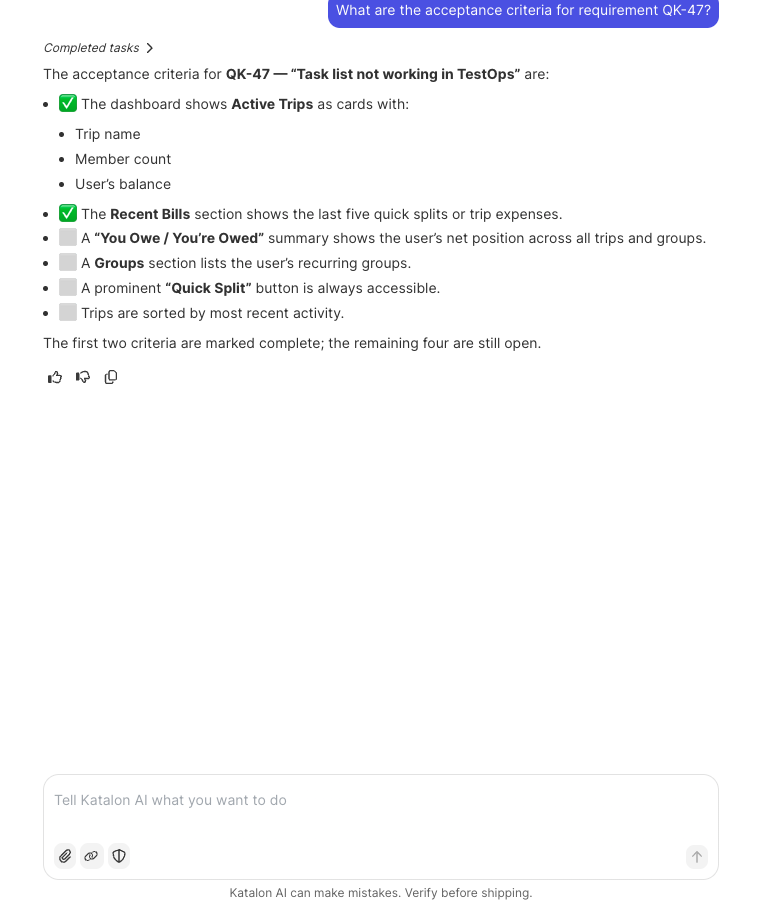
Use cases:
- Ask
What are the acceptance criteria for requirement ABC-123?to get the checklist, with the items already marked complete. - Generate test cases for a requirement and expect coverage of each acceptance criterion.
- Run requirement analysis and answer clarification questions that reference the criteria.
- Map Acceptance Criteria and any other field your team uses for testable details. Fields that are not mapped are not visible to the assistant.
- After you change the mapping, re-sync requirements in Plans so the new fields reach the assistant.
- When the Acceptance Criteria field is empty, the assistant works from the description. Fill in the criteria for the most accurate test cases.
Generate automated test case scripts in Katalon Studio
You can use Katalon AI Assistant in Katalon Studio to write automated test case scripts from prompts, project context, and available test objects. For more details about Studio-side Katalon AI capabilities, check out Katalon AI Assistant Overview.
Execute and monitor manual tests
In addition to creating/scheduling runs from automated test scripts, Katalon AI Assistant can now execute and help you monitor a manual test run so you don't need to stay on the page. During the run, the assistant will ask for your input (if any) via snack bar notifications; otherwise, it will take care of the execution to completion and notify you then.
- Go to Executions > click Create > Create Manual Test Run.
- Select the test suites and provide additional details such as name, sprint or release, and environment.
- If the run needs credentials, emails, passwords, or OTP values, set them up in the Secrets & Variables section while creating the manual test run.
- Click Create Test Run.
- On the test run details page, click Run with AI.
- Monitor the run from the AI Sessions tab. During execution, if Katalon AI needs your input, provide guidance as prompted so it can continue.
- When the execution finishes, review the status of each test case and the result of each test step.
- Review the video, screenshots, and AI log to inspect the execution context and validate each test result.
- Click End test run to end the test.
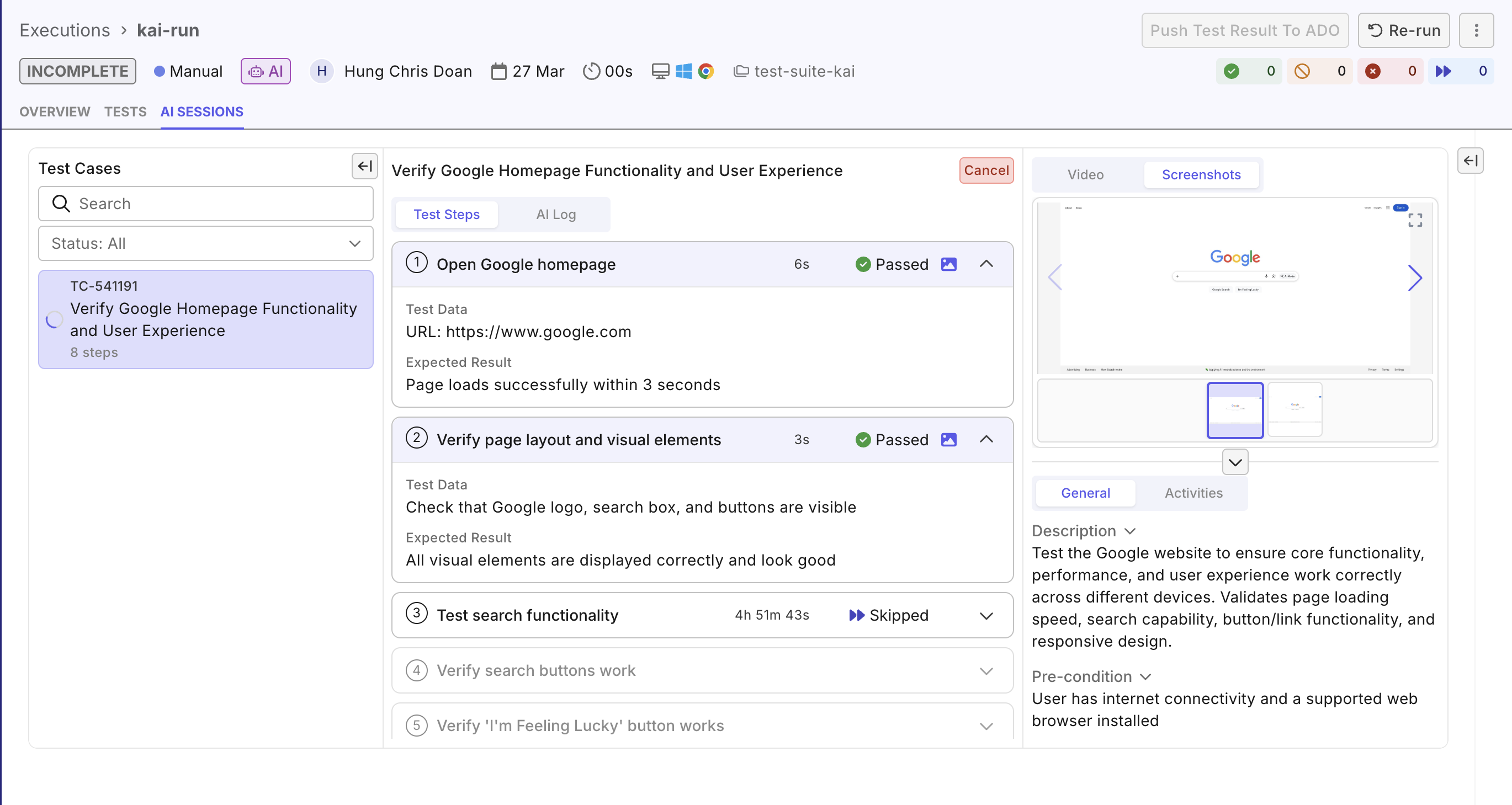
Alternatively, you can also prompt the assistant from the chat window:
- Provide test case IDs, or navigate to the requirement with linked test cases, so the assistant has context.
- Prompt
Create a manual test run from these test cases: [test case ID...]. - Prompt
Run with AIto make the assistant run and monitor the test for you. - If Katalon AI needs your input during execution, provide guidance in the AI session so the assistant can continue.
- Ask the assistant if the requirement is clear, and iterate many times before creating test cases.
- Always specify the AUT URL in the test step.
- For sensitive data, save credentials or OTP values in Secrets & Variables instead of hard-coding them directly in the step text.
- End the run before viewing the final results.
Triage failures quickly
When a test fails, Katalon AI Assistant can analyze the result and provide a concise summary of the likely root cause together with suggested resolution strategies.
You can trigger failure analysis by opening a failed result, then either clicking Analyze or chatting with the agent directly from that failed result (see Reports and Analytics Features for more details).
- This feature is unavailable for manual tests.
- For automated tests, you can ask Katalon AI to determine if this failure indicates a bug, a test script issue, or a flaky test, especially if the initial analysis does not already call it out. For detailed workflows, see Investigate Flaky Tests and Investigate Failures
File bug tickets
If the failure truly suggests a bug in the application, you can prompt Katalon AI Assistant to create a bug ticket in Jira or ADO.
Katalon AI Assistant can draft the ticket from the failed result context, attach screenshots as evidence (fields like videos, reporter, assignee, priority/severity indicators... will be supported in later versions), and link the ticket to the current failure.
- In the Executions list, click on a failed test run.
- Select Tests tab, and click on the failed test case in the run that you want to file a bug ticket. If it's a manual test, make sure that you have ended the test, so its test report becomes available for filing.
- (Optional) Prompt to ask the assistant if the failure could also be a test case issue or a flaky test. This helps prevent creating false bug tickets.
- Prompt the assistant to file a bug ticket. It's helpful to specify these details:
- Title, description: If not given, they will be auto-generated from the execution logs.
- Execution Logs: Useful for automated test cases. For manual tets, the execution log is in plain language.
- Images: Ask the assistant to attach images of the execution. This feature will become available for manual test cases in later versions.
- Videos: Will become available in later versions.
- Priority/Severity and custom fields on the bug ticket: Setting these fields when filing a bug ticket will become available in later versions. This applies to bug-ticket filing only; for reading Jira-mapped fields on requirements, see Use Jira-mapped requirement fields.
- File 1 bug ticket for 1 test case result at a time.
- Make a ticket structure sample file (in
.txt,.md...) that your team often use, then attach to the chat. The assistant will follow the ticket structure to produce a consistent outcome every time.
Analyze project health and readiness
With access to your project's tests, runs, results, and related entities, Katalon AI Assistant can summarize project health and release readiness in natural language.
You can trigger this analysis in two ways:
- Click Insight inside a report or dashboard. See Reports and Analytic - Insights for more details.
- Open the Ask Katalon AI Assistant chat and ask a project-level question directly.
After answering your initial question, Katalon AI Assistant can also suggest follow-up questions so you can continue exploring the same topic in one conversation.
- Provide the following details for accurate analysis:
- Data scope (time period, sprint, release, or current dashboard/report)
- The kind of analysis you want (e.g. readiness, flaky tests, failures, or trends).
- To uncover more targeted insights, open a specific dashboard or report first, then ask a follow-up question about trends or anomalies in that view. For example, in a Test Results Analysis Report, you can ask:
Why did failures spike in the second week?
Common analysis topics
| Overall analysis | Test patterns | Defects | Coverages |
|---|---|---|---|
| Release readiness Project's health | Flaky test causes Test case health Automation progress Run and result trends Failure trends Test publishing trends | Defects trends Defects status | Configuration coverage Traceability Requirement coverage |
Review files that Katalon AI creates
Files that Katalon AI Assistant saves appear as cards at the end of its reply. Select a card to open the file. HTML files open as a rendered preview in the artifact panel, up to 10 MB. For a larger file, a message names the limit and points you to download it.
Interact with testing entities
Katalon AI Assistant integrates with the Katalon True MCP Server and related tools, allowing you to create, update, move, duplicate, delete, and search for Katalon True entities in the same chat window.
To learn more, see Katalon True MCP Server.
Tool permissions and approvals
The assistant reads freely, but it asks before it changes anything. Whenever it is about to create, update, delete, move, or run something — in your project or in a connected external app — an Approval needed card appears with the exact request, and nothing is written until you allow it. You can also add tools you trust to an always-approved list so you're not asked again.
To learn more, see Tool permissions and approvals in Katalon AI Assistant.
Use content from external apps
Katalon AI Assistant can also connect to the external apps your team already uses — Jira, Azure DevOps, GitHub, Google Drive, Figma, and Confluence — and use their content as context. With these connectors you can, for example:
- Generate test cases from a Confluence requirement page, a Jira/ADO/GitHub issue, a Google Drive PRD, or a Figma flow.
- Validate an implementation or existing tests against a Figma design or an updated spec.
- Analyze a GitHub or Azure DevOps pull request, branch, or build to see which tests it impacts, where the coverage gaps are, and what to run.
- Import test cases from an Azure DevOps work item or Test Plan into your project, preserving steps and expected results.
- Run multi-step tracker workflows in one request, such as triaging Jira bugs or reviewing open pull requests.
To learn more, see Connect external apps to Katalon AI Assistant.