Configure Smart Tags
Last updated: April 2026
requirements
- You must have a True Enterprise subscription.
- Only Project Admins can configure Smart Tag settings, including Time Window, Minimum Executions, and thresholds for Flaky and Slow tags.
- Once it is configured, all project members can view Smart Tags.
This page explains how you can configure and use smart tags to quickly gain insights on automated/manual test runs in Katalon True Platform.
Overview
Smart tags are how Katalon True Platform flag troubling test cases based on their past run data. Smart tags include:
- Flaky
- New Failure
- Always Fail
- Slow
All Smart Tags are automatically labeled on executed test cases, once they fit criteria for each. You can also customize configurations for Smart Tags, such as Time Windows, Minimum Executions, Flaky tag, and Slow tag.
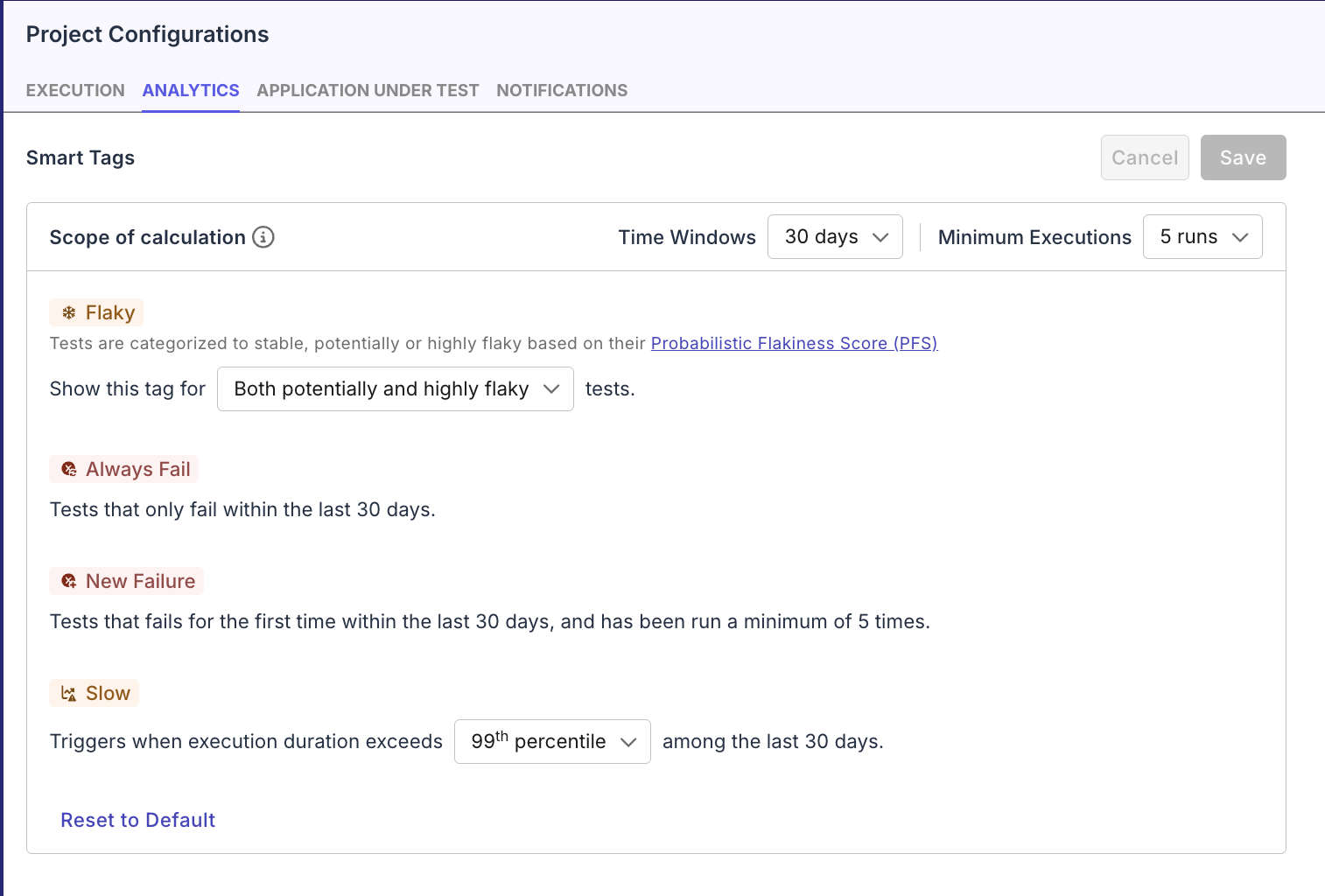
Available configurations:
- Time windows: Days used in calculations for
Always Fail,New Failure, andSlowtags. Learn about their calculations at Test quality metrics. - Minimum executions: Lower execution threshold to start calculation for
New FailureandSlowtags. Flakytag: ShowFlakyfor both Potentially flaky vs Highly flaky, or just for Highly flaky tests. For more details on calculations for the PFS, see Probabilistic Flakiness ScoreSlowtag: ShowSlowfor tests whose most recent run has a duration that falls above99thor95thpercentile, compared to durations of all executions in the Time Window.