Configure email report for a test run
The Email Report control in Advanced Settings sends a test report to a chosen set of recipients when a specific test run completes, and lets you set a custom email subject for that run. Recipients can be project members — by role or as individuals — as well as external email addresses that are not project members. It applies to both ad-hoc automated test runs and scheduled runs.
Use cases
- Notify stakeholders for one release run. Send the report for a single regression or release-candidate run to product owners and managers — including people outside the project — without changing the project-wide notification settings.
- Reach an external audience. Add client or partner email addresses for an acceptance run so people who are not project members still receive the results.
- Reduce notification noise. Keep project-level notifications off or narrow, and enable Email Report only on the specific runs that matter, so your team is not emailed on every execution.
- Route by role for scheduled runs. Send each nightly scheduled run to the current Tester and Test Lead groups so the right people are notified as team membership changes over time.
Configure email report for a test run
Turn on Email Report when you want a specific run to send its report to a custom audience instead of following the project's default notification settings.
- On the Create Automated Test Run screen, scroll to the bottom and expand the Advanced Settings section.
- Turn on the Email Report toggle. The Recipients and Email subject (optional) fields appear.
By default the toggle is disabled. In this case, the run follows your project's notification settings. See Project Notifications.
- Click the Recipients field.
- Select one or more Role Based Users groups (Test Lead, Project Admin, Tester, Member), pick individual people from the Individual Members list.
Use Select all or Clear all to select or clear every member at once.
- Type an external email address and press
Enterto add a recipient who is not a project member. - Remove a recipient by clicking the × on its chip, or by pressing
BackspaceorDeletewhen the input is empty to remove the last chip.
Set the email subject
Email subject is an optional field that lets you label the email so recipients can identify the run at a glance.
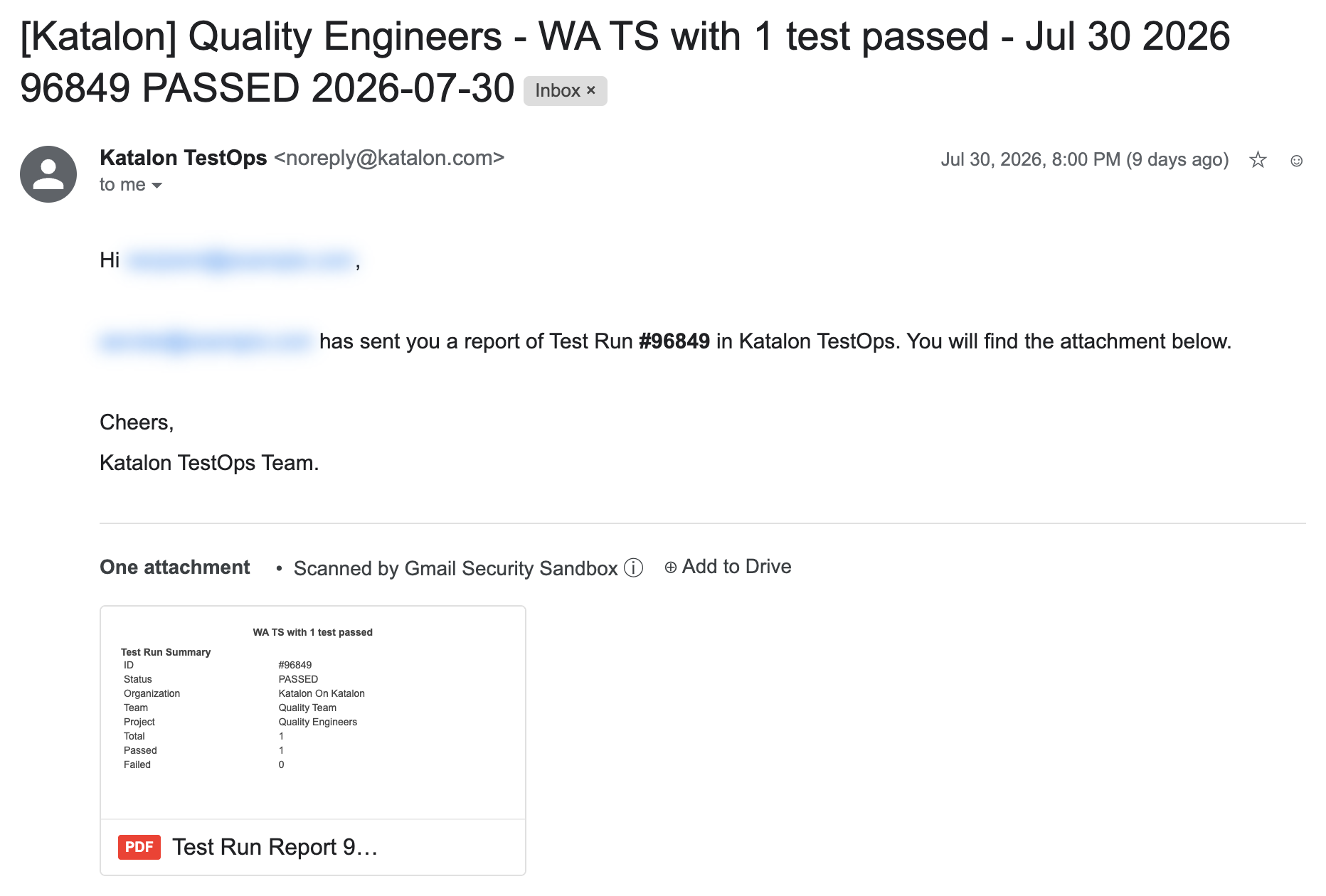
If you leave the field unchanged, the email uses a default subject built from the template [Katalon] {projectName} - {testRunName} {runID} {status} {date}, with the tokens replaced by the run's values when the email is sent. For example, it resolves to [Katalon] Quality Engineers - WA TS with 1 test passed - Jul 30 2026 96849 PASSED 2026-07-30. To use your own subject, replace the template with any text.
What the emailed report contains
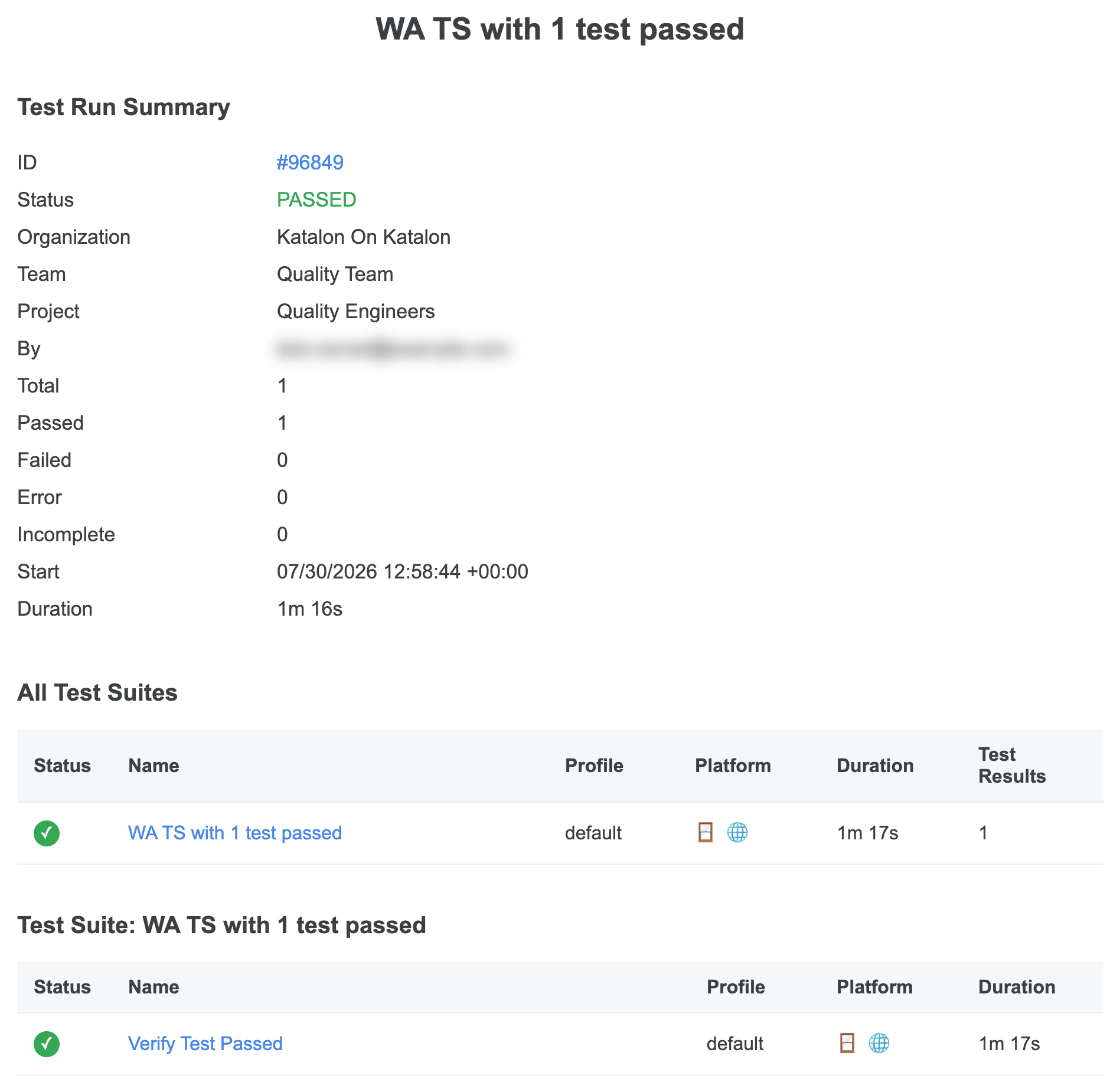
The email reuses the current Katalon True report format and contains a PDF file of the test run result.