Secrets and variables in test runs
Secrets and variables let you store reusable key-value pairs—such as base URLs, usernames, passwords, API keys, and access tokens—once per project and use them in your test runs. They work as one project-level vault with two value types: variables for readable values and secrets for sensitive values that must stay hidden.
You can add these values inline while creating an automated or manual test run, or manage them centrally in your project settings. Anything you add is saved to the project and becomes available to every test run in that project, including Run with AI for manual test runs.
Secrets and variables are scoped to the project and only support test runs in cloud-hosted environments.
When to use secrets and variables
Use secrets and variables when your tests need values that can change by project, environment, or credential rotation, and you do not want to hard-code those values in test scripts.
Common examples include:
- Store an application URL, tenant name, or environment label as a variable so the value is easy to reuse and read.
- Store a password, API key, access token, or client secret as a secret so the value can be used during execution without being exposed in normal reads.
- Update a shared test value once at the project level instead of editing multiple test cases or execution profiles.
- Keep sensitive values out of scripts, logs, screenshots, and reports while still passing them to automated runs.
Secrets and variables functionality
Secrets and variables share the same lookup and usage flow. Choose the type based on whether the value is sensitive.
| Type | Use it for | How it appears | How it is stored |
|---|---|---|---|
| Variable | Non-sensitive values you reuse across runs, such as a base URL or an environment name. | Plain text. Anyone who can view the project can read it. | Plain text. |
| Secret | Sensitive values such as passwords, API keys, or access tokens. | Masked as *** after you save it. The value is never shown again. | Encrypted. |
After you save a secret, you cannot view its value again. To change it, delete the secret and create it again with a new value.
When a run starts, Katalon resolves the matching secrets and variables for the project and passes them to the execution as global variable overrides. Variables are passed as readable values. Secrets are decrypted only for execution and remain marked as sensitive so their values can be masked in logs and reports. If Katalon cannot resolve the required values, the run does not continue with missing credentials.
Where you manage secrets and variables
You can work with a project's secrets and variables in three places.
- Automated test run page
- Manual test run page
- Project settings
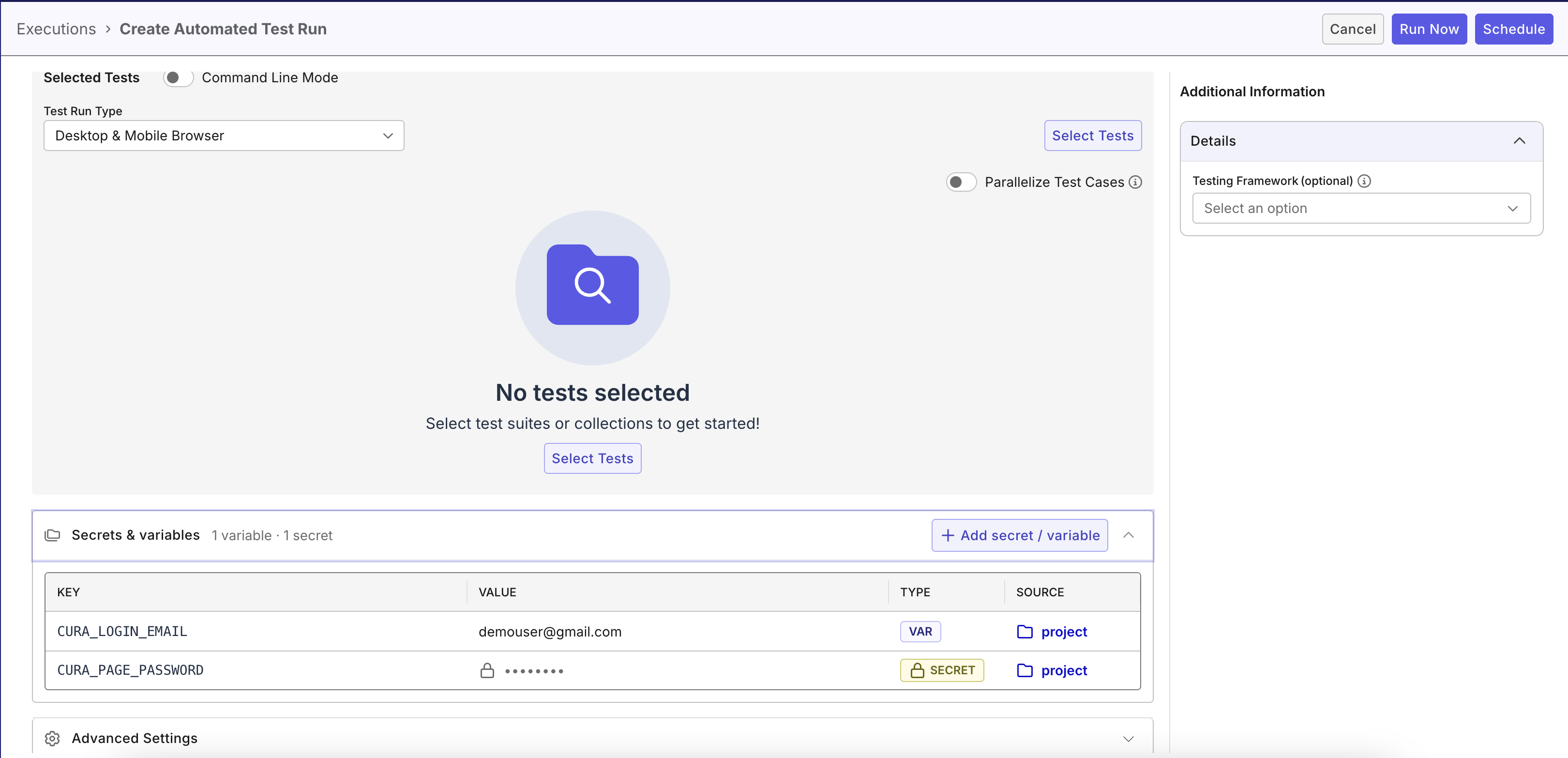
Expand the Secrets & Variables section to see the existing entries. Use the inline Secrets & Variables section when you create an automated test run. This allows you to view existing project values or add a value quickly without leaving run setup.
You can view and create secrets and variables from the test run page.
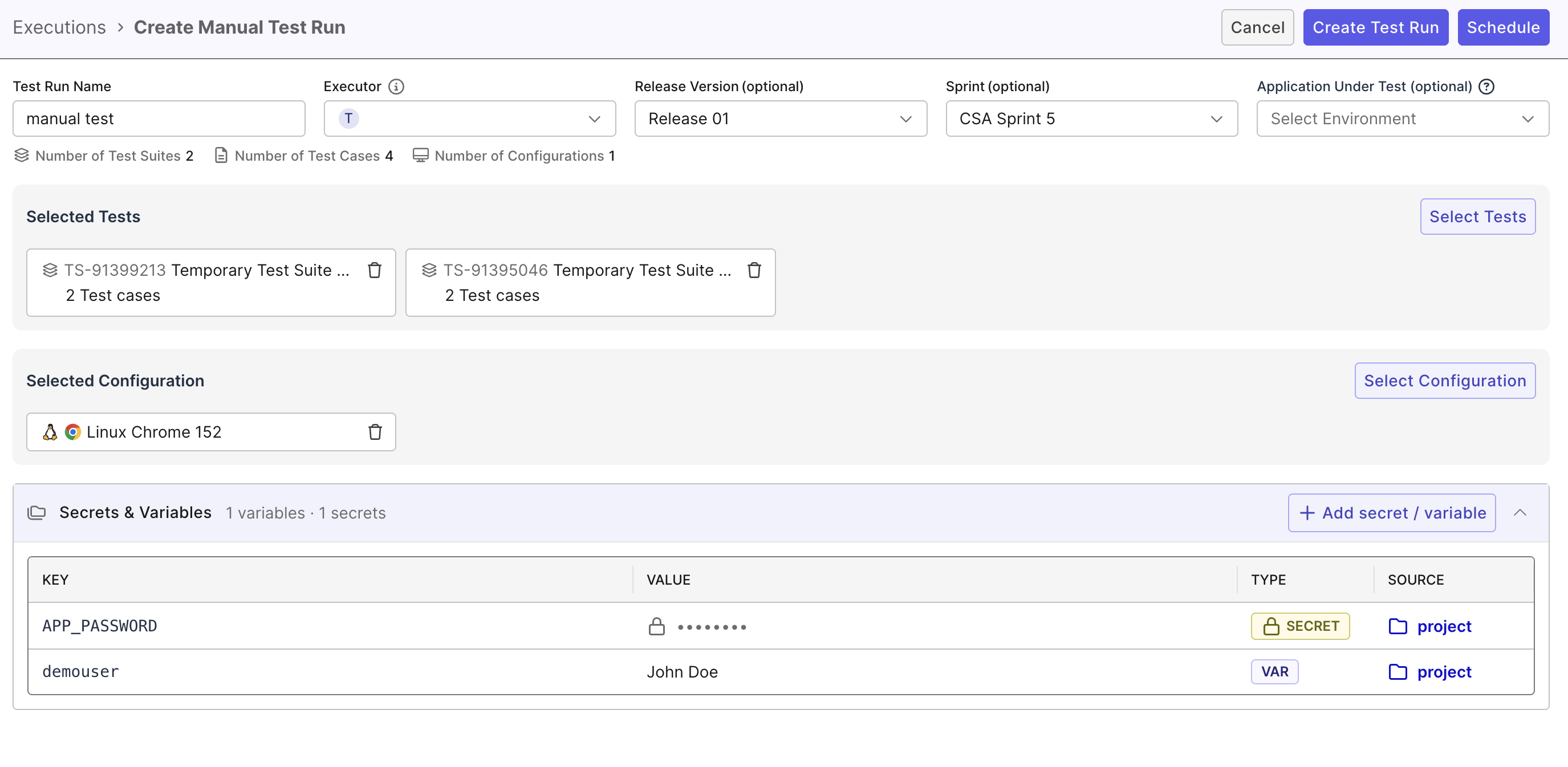
Expand the Secrets & Variables section when you create a manual test run. This allows you to review existing project values or add a value before starting the run manually or with Run with AI.
You can view and create secrets and variables from the manual test run page.
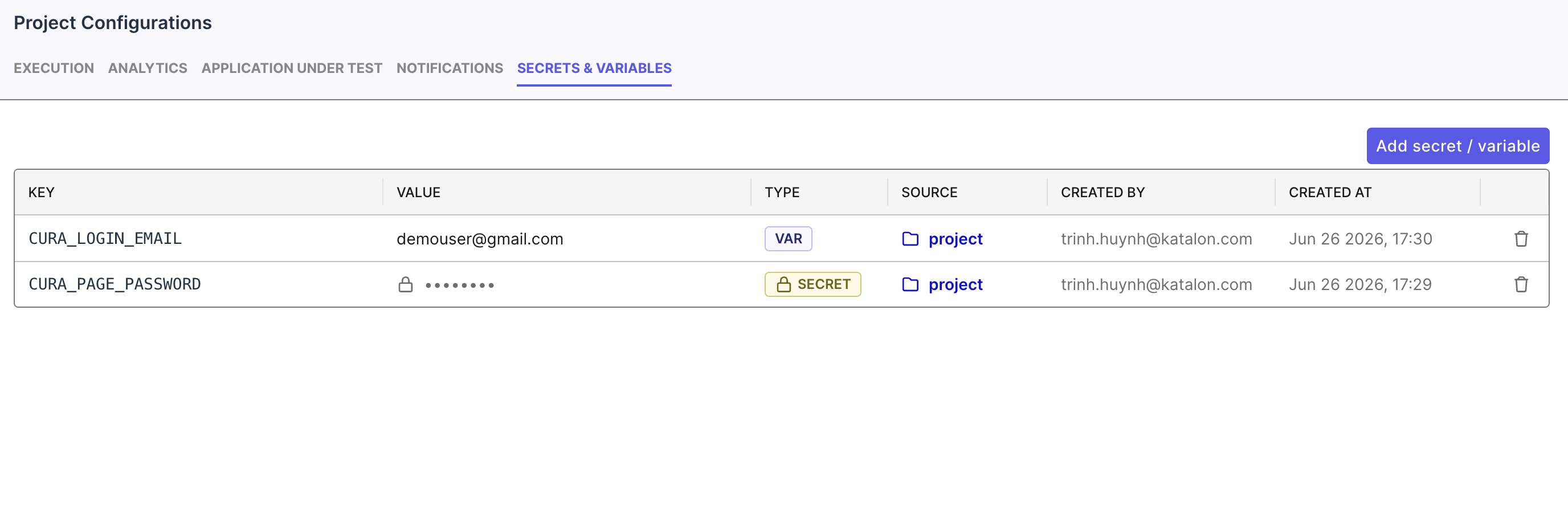
Go to Project Settings > Configuration > Secrets & Variables to manage the project's saved values centrally.
You can view, create, and delete secrets and variables from project settings.
Add a secret or variable
- Add a secret or variable from one of the following locations:
- Go to Project Settings > Configuration > Secrets & Variables.
- On the Create automated test run page, expand the Secrets & Variables section.
- On the Create manual test run page, expand the Secrets & Variables section.
- Click Add secret / variable.
- In the dialog, choose the Secret or Variable type.
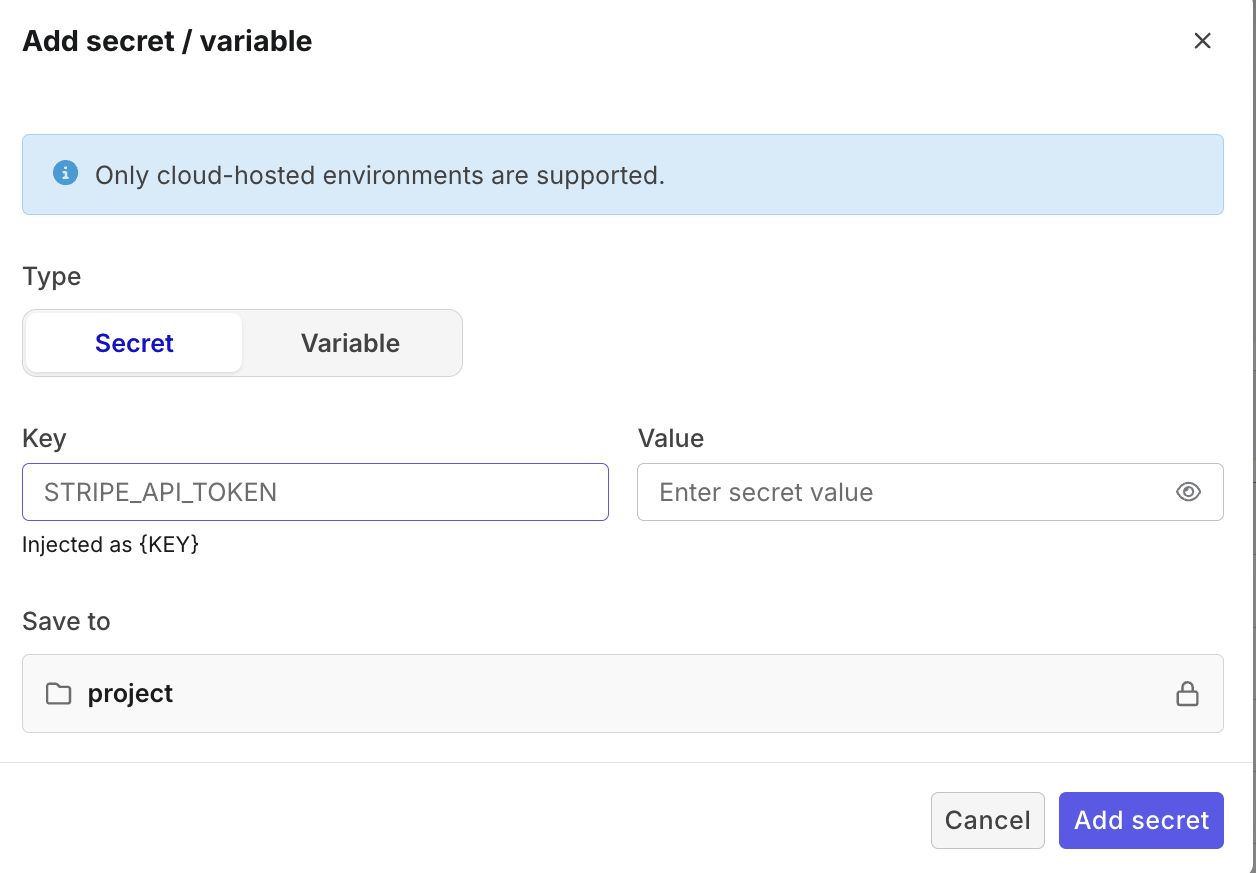
- Enter a Key Name. Use a clear, descriptive name, such as
admin_passwordorbase_url. - Enter the Value. For a variable, the value is stored and shown in plain text. For a secret, their value is masked as
***. - Click Add. The secret or variable appears in the list and is available to every test run in this project.
Use a name that is unique within the project. A secret value cannot be viewed again after you save it. Store the original value somewhere safe if you need it later. Values cannot be edited in place. To change a secret or variable, delete it and create it again with the new value.
Use a secret or variable in your automated test run
Secrets and variables you add are applied automatically to the test run by their name. You do not enter the values again at run time.
-
In Katalon Studio, create global variables with the same keys in the execution profile, for example:
G_UsernameG_Password
-
In Katalon True > Secrets & Variables, create entries with the exact same keys. For example:
- Variable or secret:
G_Username - Secret:
G_Password
Every secret and variable in the project is passed to the run as a global variable.
- Variable or secret:
-
In Groovy test script code, reference the values with the
GlobalVariable.<key>syntax. For example:
 import static com.kms.katalon.core.testobject.ObjectRepository.findTestObject
 import com.kms.katalon.core.webui.keyword.WebUiBuiltInKeywords as WebUI
 import internal.GlobalVariable as GlobalVariable

 WebUI.openBrowser('')
 WebUI.navigateToUrl('https://opensource-demo.orangehrmlive.com/web/index.php/auth/login')

 WebUI.setText(findTestObject('Page_OrangeHRM/input_Username'), GlobalVariable.G_Username)
 WebUI.setEncryptedText(findTestObject('Page_OrangeHRM/input_Password'), GlobalVariable.G_Password)
 WebUI.click(findTestObject('Page_OrangeHRM/button_Login'))
You can build one value from another by referencing it inline with <<other_key>>. For example, a db_dsn variable can include <<db_host>>. A variable cannot reference a secret.
Use a secret or variable in a manual test run or Run with AI
Secrets and variables also work in manual test runs, including Run with AI.
- Add the values when you create the manual test run.
- Write your manual test steps in plain language so Katalon AI Assistant can use the saved values during execution.
- You can either describe the value naturally, such as
Enter the test lead email in the Email field, or reference a saved key directly, such asEnter {testleadPassword} in the Password field. - This is especially useful for credentials and one-time passwords (OTP) that should not be hard-coded in the test step itself.
When Run with AI executes the step, Katalon resolves the matching project value and uses it during the interaction. Sensitive values remain protected and should be redacted in AI-visible outputs.