Manage manual test case versions
Katalon True Platform keeps an immutable history of manual test case definitions. A version records the description, precondition, test steps, and step attachments. Changes to metadata, such as priority, do not create a version or switch a published test case back to Draft.
| Type | Numbering | Status badge | Meaning |
|---|---|---|---|
| Draft (minor) | v1.1, v1.2, v2.1, … | Draft | Work in progress, saved as a version. |
| Published (major) | v1, v2, v3, … | Published | A version published for the team. |
You can review and compare earlier versions, restore one as a new version, and choose which version to run. A manual execution records the version it uses; if a newer version becomes available during a TestPak execution, the run owner can explicitly update that test case.
Save, publish, or discard changes
The editor does not auto-save definition changes. The header shows Unsaved changes, and navigating away prompts you to confirm.
- Save as version saves changes as the next Draft minor version. Editing published
v2, for example, createsv2.1 (Draft). - Save & publish saves and publishes the next major version. Publishing after
v2.3, for example, createsv3 (Published).
To discard unsaved edits, select Discard working changes from the header's overflow menu and confirm. This restores the latest saved definition without changing metadata or creating a version.
Saving an unchanged definition reuses the existing version. Saved versions are immutable.
Review version history
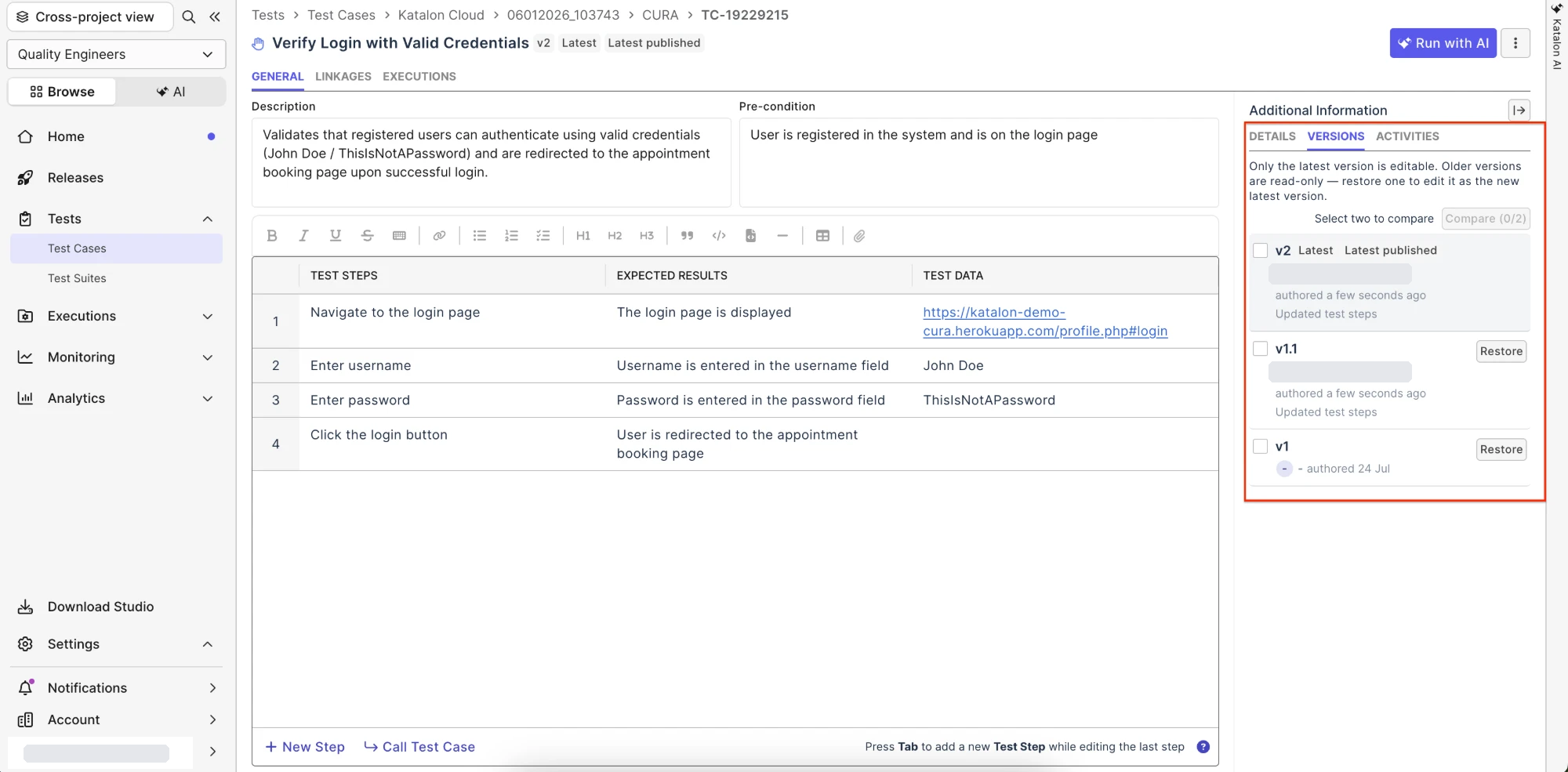
Open the Versions tab in the test case's Additional Information panel. Each version card shows its number, state badges such as Latest and Latest published, author, time, and a short change summary. The summary notes when a binary attachment is added or removed, but does not compare attachment contents. A chip in the header shows the version you are viewing.
Each card also identifies its source as Human, AI, or API. AI-authored versions link to the agent run that produced them. Earlier versions are read-only; only the latest version is editable.
Compare two versions
- In the test case's Additional Information > Versions panel, select two versions under Select two to compare. The Compare (n/2) button becomes available when two versions are selected.
- Click Compare.
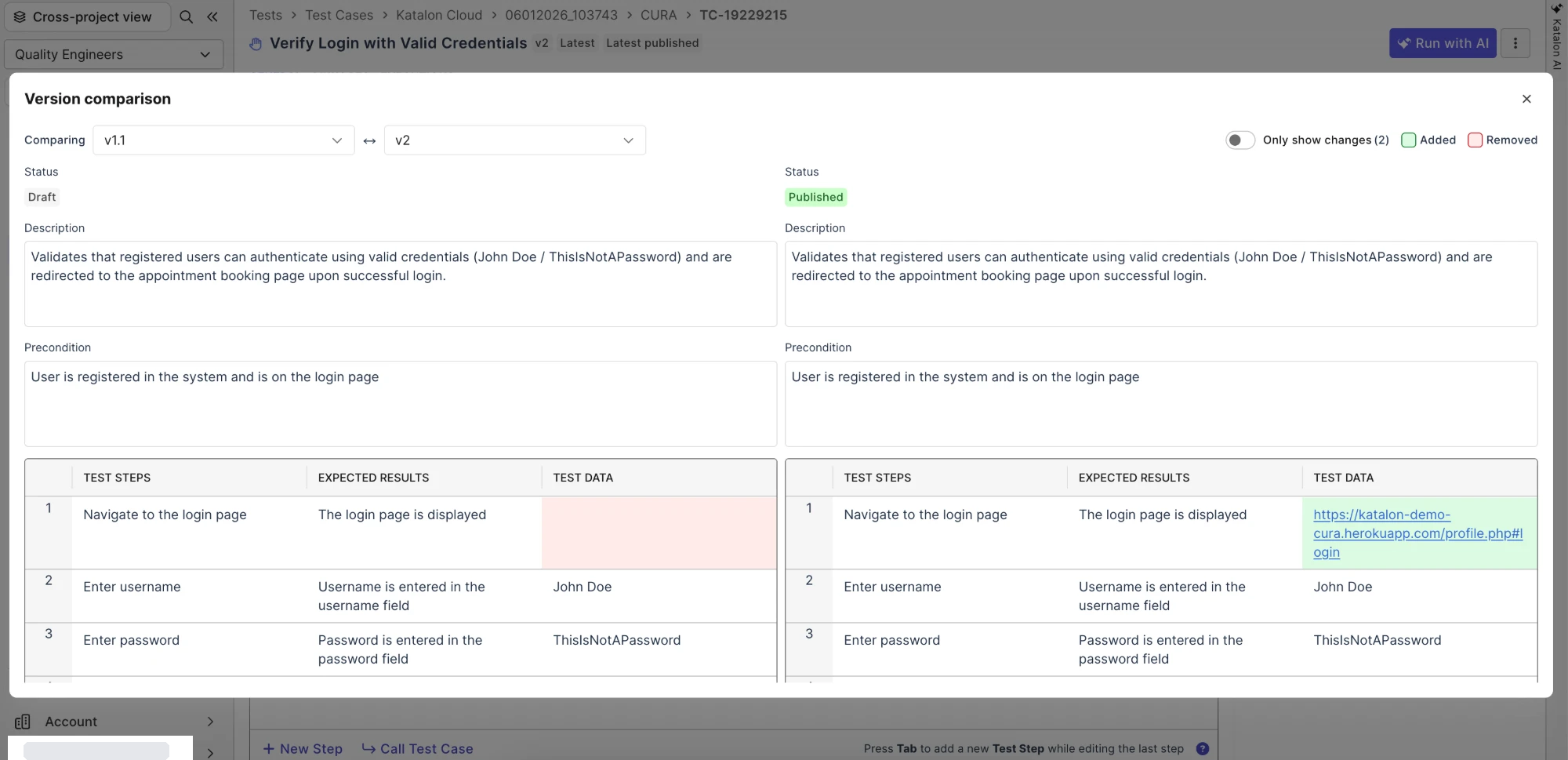
The Version comparison dialog shows Status, Description, Precondition, and Test steps side by side. Added and Removed highlights and a legend show the differences. Use the dropdowns to change either version, or turn on Only show changes to hide identical content.
Restore a previous version
Restoring copies an earlier version into a new latest version. It preserves the full history.
- In the Versions tab, click Restore on the version you want to bring back. The latest version has no restore action.
- In the confirmation dialog, click Restore as new version.
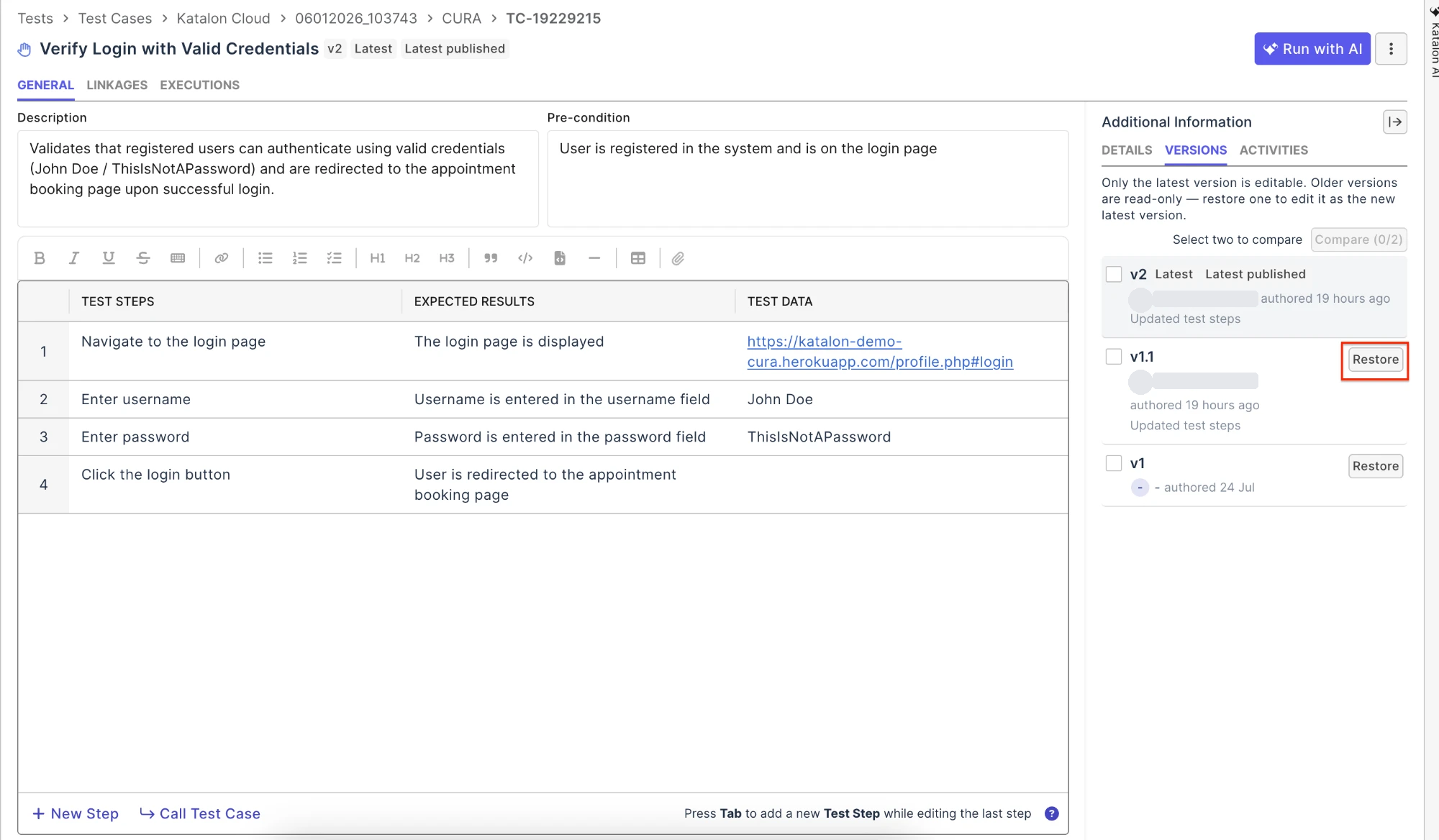
For example, restoring v2 while the latest version is v3 creates v4 with the content of v2. All earlier versions remain available.
Track test case activity
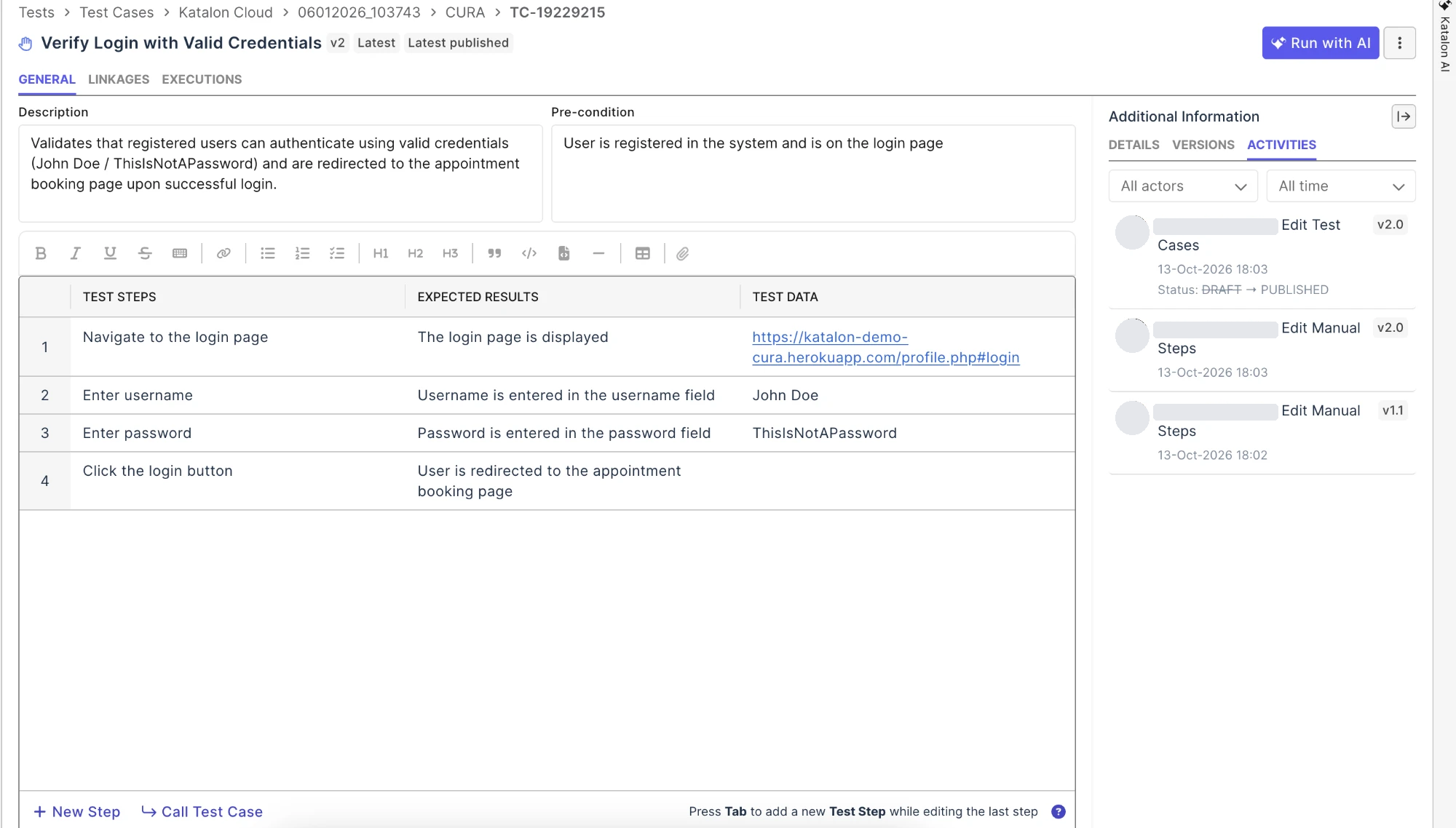
The Activities tab in the Additional Information panel shows the test case's activity trail, including changes beyond saved definitions. Entries appear newest first and show the actor, timestamp, change detail, and a chip for the related version. You can filter by actor and date range; long histories are paginated.
Use a version in a manual execution
Choose which version to run
When creating a test run, use the version selector for each test case in the Select Tests dialog:
| Option | What runs |
|---|---|
| Latest (default) | The newest version, whether draft or published. |
| Latest Published | The newest published major version. |
| A specific version | Exactly that version, whether published or draft, such as v1 or v1.1. |
You can run a draft to try it before publishing or select an earlier version to repeat a run with the same steps. See Create a manual test run for the rest of the run setup.
See which version ran
The execution record identifies the version used, for example Ran v2, and links to that version. Editing the test case later does not change the definition shown for a completed execution. TestPak also runs the version selected for the execution unless the run owner explicitly updates it while the run is in progress.
Update a test case in a running TestPak execution
When you create a manual execution, each test case is pinned to its selected version. A newer version does not sync into an active TestPak execution automatically. If one becomes available, the run owner can update that test case while keeping results for unchanged steps:
- Open the test case in the running TestPak execution. Its detail shows the pinned version and, when available, a newer version indicator, such as
Executing v0.12 · v0.17 available. - Click Update to latest version.
- Review the confirmation dialog's preview of which steps keep their recorded results and which reset, then confirm.
The test case in this run now shows the latest version's steps. Identical steps keep their status, evidence, attachments, and comments. Added or changed steps start as Not Run. The run's activity log records who updated the version, when, and the old and new version numbers.
The update affects only this test case in this run. It does not change other test cases, the source test case, or automated executions. If the execution already uses the latest version, no update action appears.