Call a manual test case from another test case
Use Call Test Case to reuse the steps of one manual test case in another manual test case. For example, you can create a shared Login test case and call it from every test case that requires authentication.
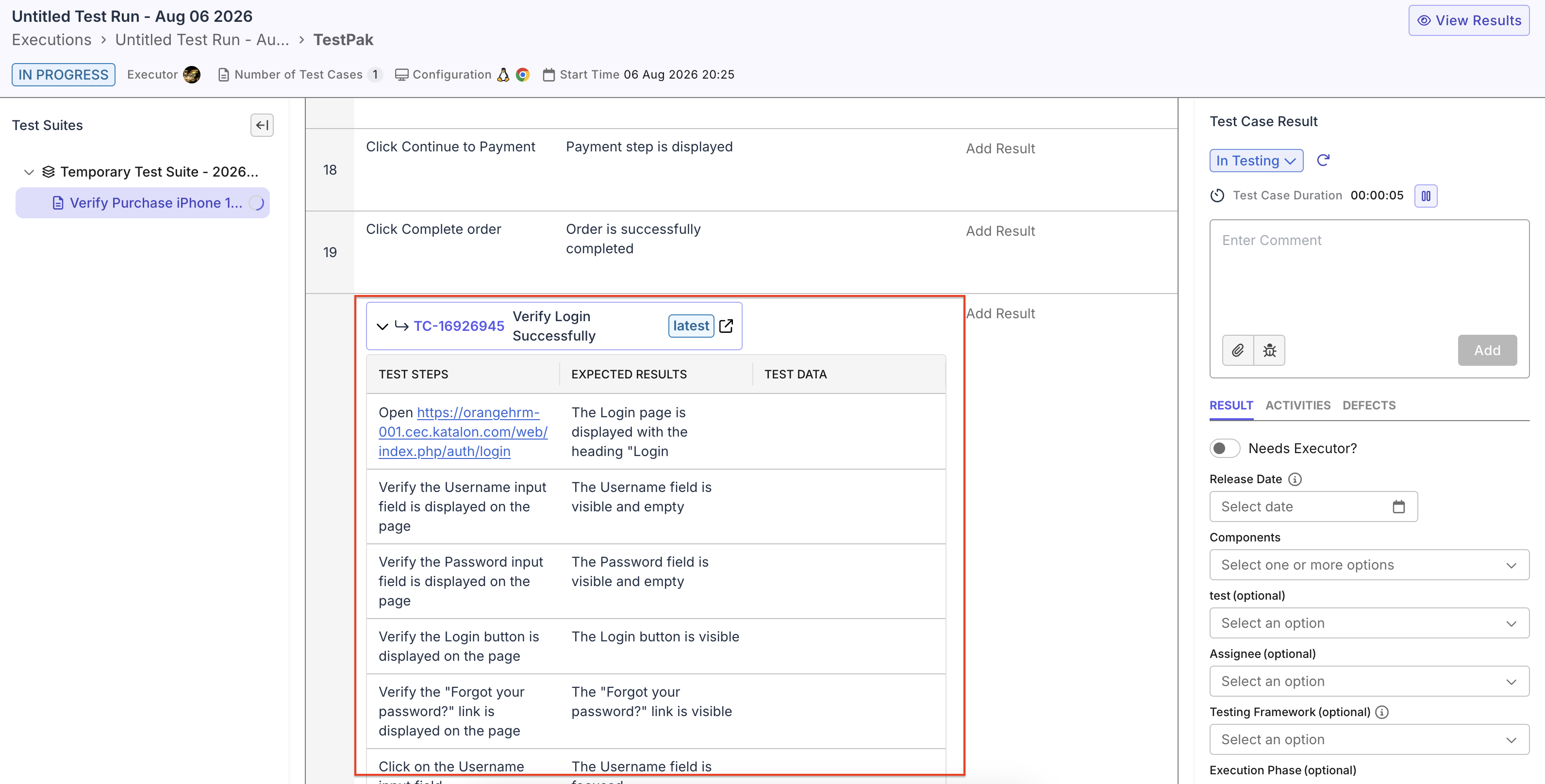
The called test case appears as a read-only, collapsible group of steps in the calling test case. During execution, Katalon True expands those steps into the test run so you can record the result of each step.
Use Call Test Case when you need to:
- Reuse common setup or teardown flows, such as Login, Create test data, or Log out.
- Maintain a shared flow in one place instead of updating copied steps in multiple test cases.
- Recreate callable test cases or shared steps when migrating from another test management tool.
- Trace dependencies in the Linkages tab before changing a shared test case.
- The calling and called test cases are manual test cases. Automated test cases are not supported.
- Both test cases belong to the same Katalon True project. Cross-project calls are not supported.
Call a manual test case
Add a call step where you want the shared flow to run:
- Go to your project, then go to Tests > Test Cases.
- Open the manual test case you want to add the call step to.
- On the Steps tab, at the bottom of the steps table, click Call Test Case. The Call Test Case picker opens.
- Select the repository that contains the test case. Search by name or ID, or select a test case from the Recently Used list.
- Select one or more test cases to call.
A test case cannot call itself. Circular calls are also not supported. For example, if A calls B and B calls C, C cannot call A. Katalon True prevents calls that would create a cycle.
- Click Add. Katalon True inserts one call step for each selected test case.
- Click Save to save the test case with its new call steps.
Each call step uses the latest version of the called test case. You cannot pin it to an earlier version.
Review or update a called test case
After adding a call step, you can review or update its source test case:
- To review the called steps, expand the dropdown arrow on the call step.
- To update the called test case, click Open in a new tab. Edit and save the source test case there. The changes apply the next time any calling test case runs.
- If the called test case has been deleted, a warning icon identifies the invalid reference. Select a valid test case before saving the calling test case.
View call relationships
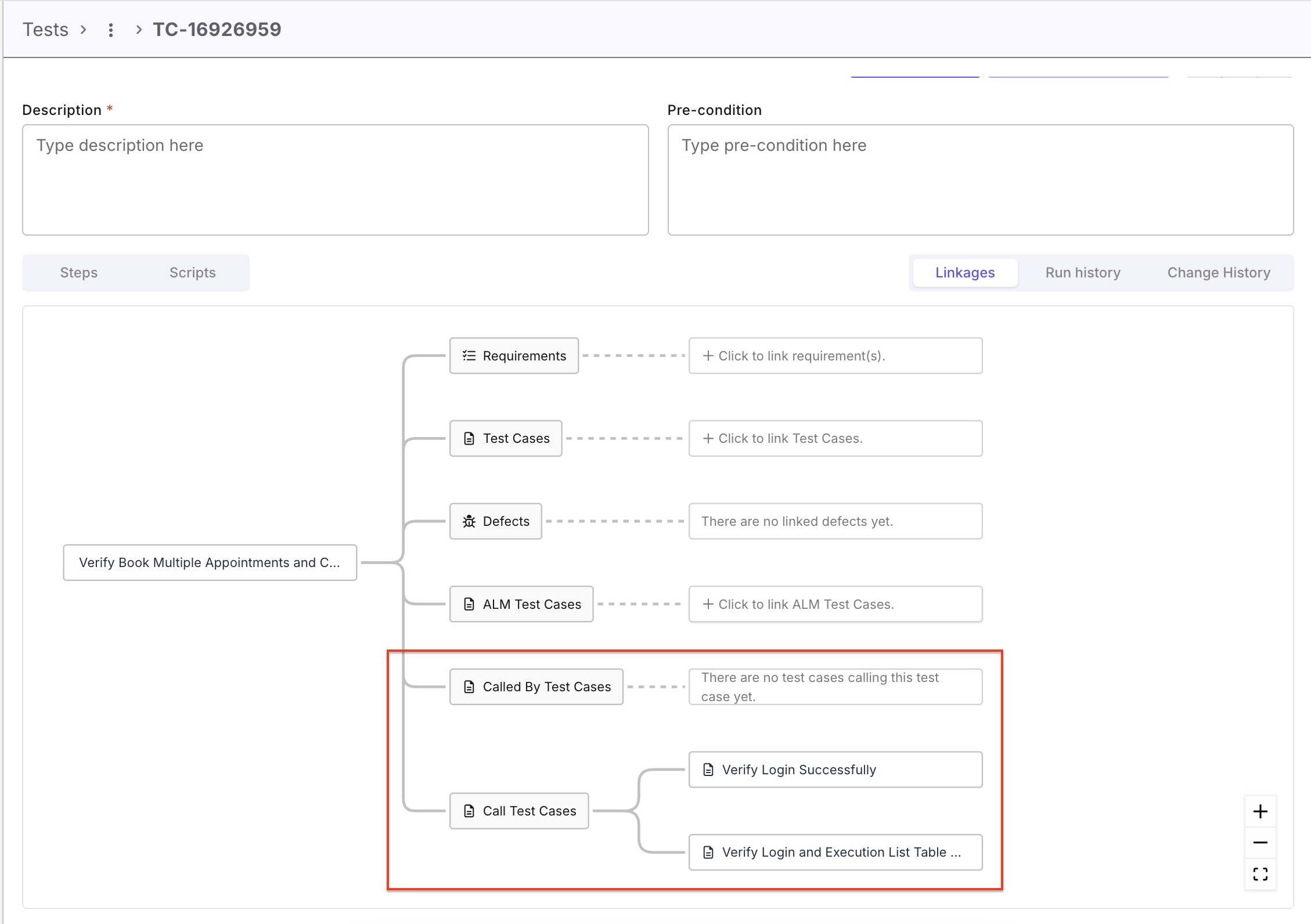
Use the Linkages tab to identify a test case's callers and dependencies.
- Called By Test Cases: Test cases that call the current test case.
- Call Test Cases: Test cases called by the current test case.
Run a test case with call steps
Run the test case that contains the call step. You do not need to start a separate run for the called test case.
In the following example, Verify Purchase iPhone calls Verify Login Successfully. During the run, expand the call step to view and perform the login steps in order. After completing them, click Add Result on the call step to record their overall result.