Custom Widgets
This document explains how to create custom widgets in Katalon True Platform analytics.
- You must have either the Project Admin or Test Lead role to create custom widgets. Created widgets can then be viewed by those with access to the project.
- Custom widgets can be edited by different users, with the Project Admin or Test Lead role.
You can create your own custom widgets to address specific data needs for your projects:
- Track custom KPIs
- Analyze specific data subsets
- Visualize trends unique to your workflows
Custom charts are project-scoped. Available datasets depend on the features enabled for your account:
- Execution Test Results — one row per test result.
- Test Cases — one row per test case.
- Test Runs — one row per test run: run identity (ID, name, number, project), method (manual or automated), overall status, start/end time and duration, per-status totals, executor, release and sprint, build label and URL, and the run's source (Katalon Agent, TestCloud, CI, or uploaded). Use it to chart pass/fail trends and durations at run level, instead of reconstructing them from test results.
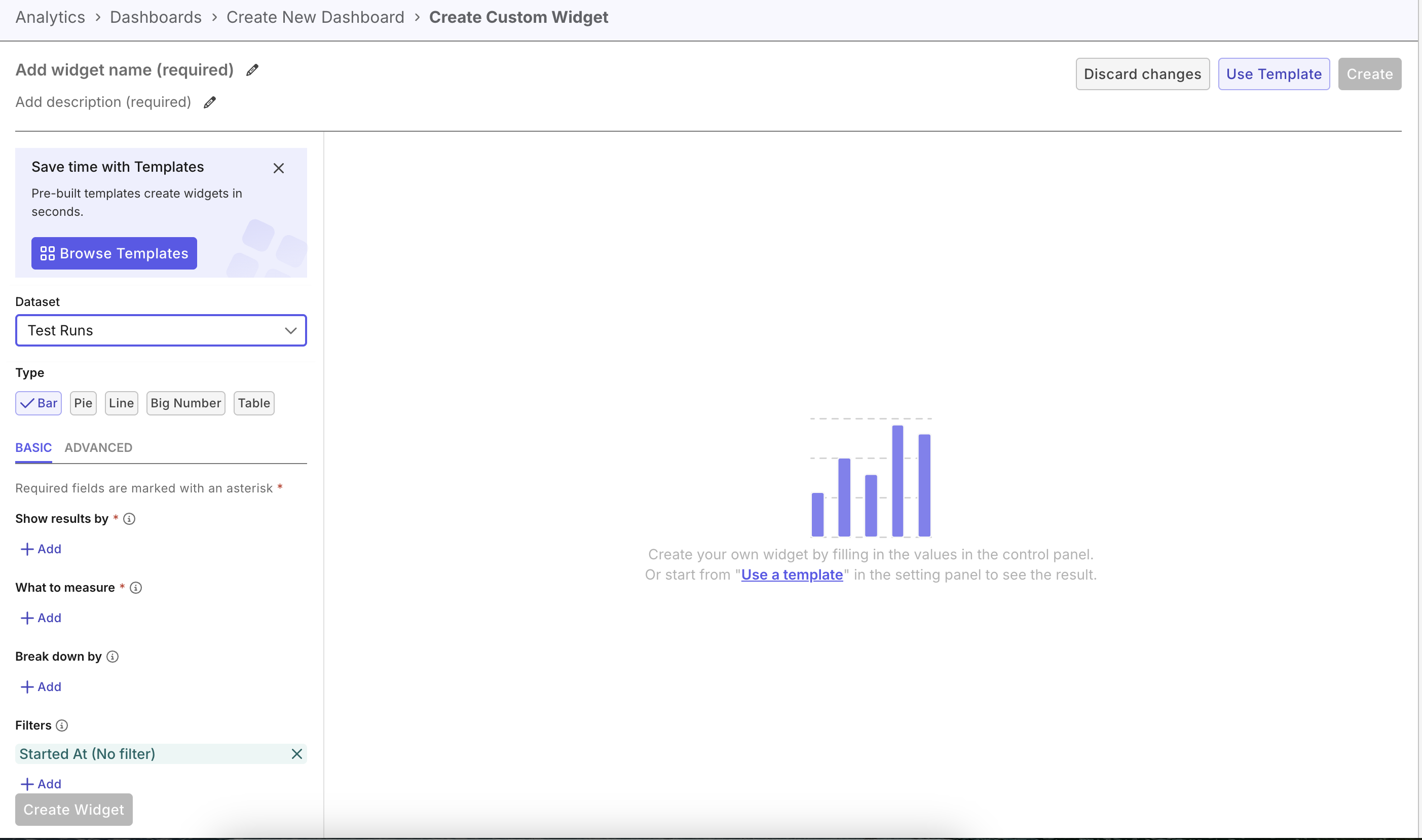
Create custom widgets
Custom widgets are created from the Widget Library while creating or editing a custom dashboard under Analytics > Dashboards. Select Create widget to open the chart builder.
Choose an available Dataset and visualization Type that match the question you want to answer. Configure the measures, breakdowns, grouping, or table columns relevant to your chart, along with time settings and filters where applicable. Available fields and controls vary by dataset and chart type. Use Advanced for chart-specific display and formatting options.
Choose a custom widget template to start with preconfigured settings, then adjust them for your needs.
Review the chart preview before saving. After changing data settings, use Create Widget or Update Widget to generate or refresh the preview; these buttons do not save the widget. A widget name and description are required. Select Create to save a new widget, or Save when editing an existing one.
After creating a widget, you return to the dashboard editor with the Widget Library filtered to the Custom category and the new widget's name. Clear the name search to see other custom widgets, and change or clear the Widget type filter to browse other categories.
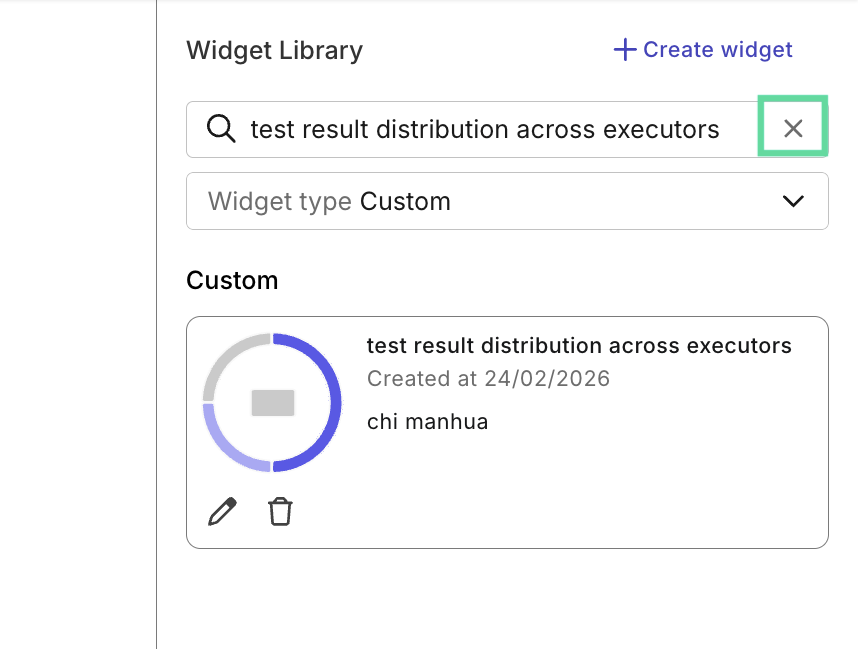
Drag the saved widget from the library onto your dashboard, then save the dashboard to retain its placement. Use Save Draft or Save and Publish for an unpublished dashboard, or Save for a published dashboard.
Dashboard filters and time settings apply to widgets within their scope where supported by the dataset and chart configuration. Widget-specific filters may still apply; conflicting filters can leave a widget with incomplete or empty data. Learn more at Create & Manage Dashboards.
Example custom widgets
- Team Performance Dashboard: Bar chart showing each member's execution count and average pass rate.
- Sprint Velocity Tracking: Line chart displaying daily test runs, filtered to your current sprint.
- Cross-Browser Coverage: Pie chart showing test case distribution across browsers and OS combinations.
- Detailed Execution List: Table with raw data, showing test case name, status, executor, duration, and datetime, filtered by recent runs.
- Test Suite Summary: Table with aggregated data, displaying execution counts, pass rates, and average duration, filtered by test suite.
Custom widget templates
Custom templates are a helpful starting point for exploration and brainstorming while creating widgets.
You can build a widget from scratch, or select Use Template to choose from our sample widget templates:
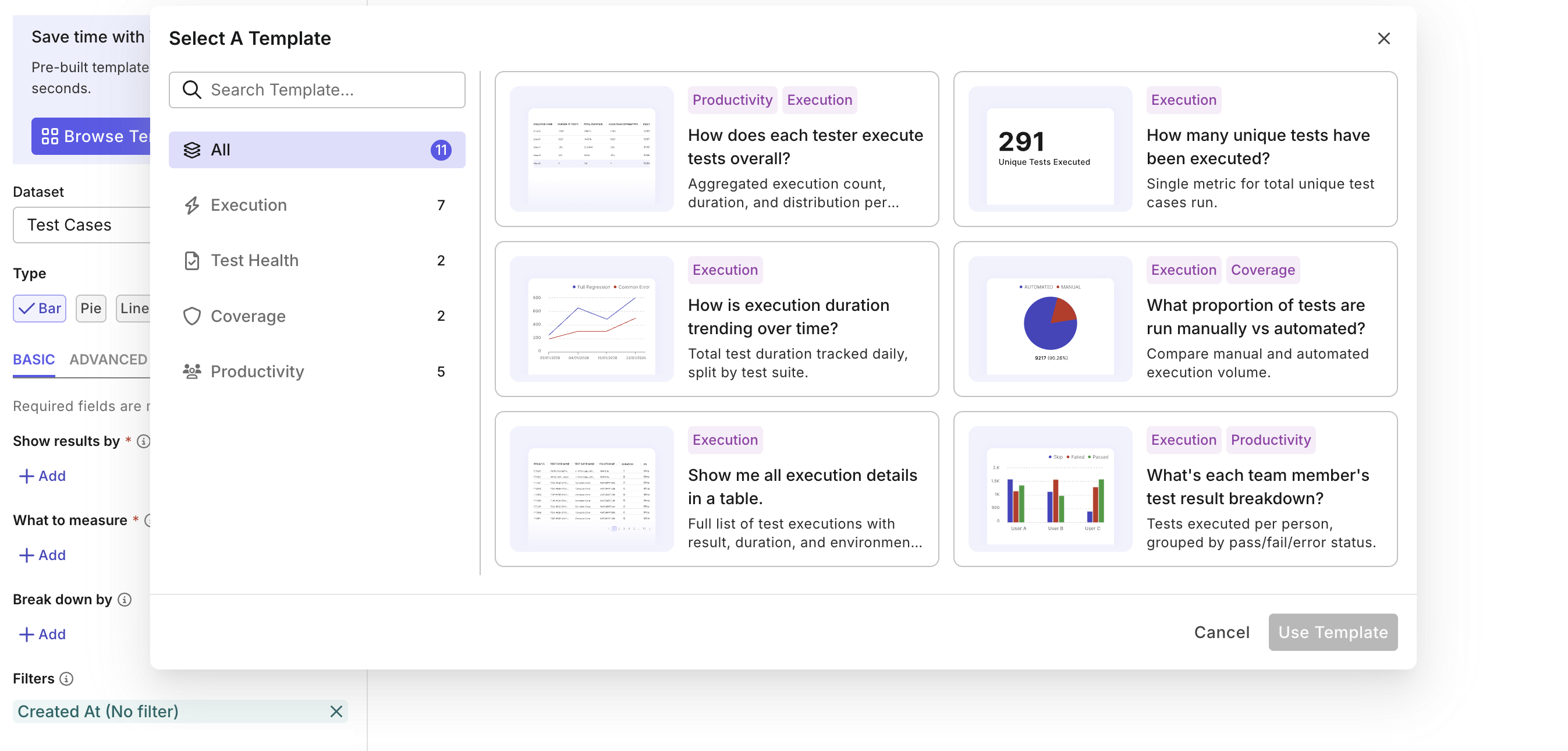
- Click Use Template. A library pops open with pre-set templates.
- Select a template.
- Click Use Template. Pre-configured fields will be applied for the template. You’ll then see a preview just like manual creating, for adjustments.