Custom Roles
- You must have a True Enterprise subscription.
- You must be assigned the Account Admin role to perform this action.
Custom Roles let you define Account roles and Project roles that match how your team works, without giving everyone full admin access.
Key Benefits
- Granular Control: Define precise permissions for each module and feature
- Enhanced Security: Limit access to sensitive areas based on user responsibilities
- Flexibility: Create roles tailored to your organization's specific workflows
- Scalability: Easily onboard new team members with pre-configured role templates
If you’re looking for the built-in Account and Project roles in Katalon True Platform, refer to this document for a complete list of available permissions and actions for each role.
Understand permission “sets”
Katalon permissions are based on predefined permission sets, not fully custom combinations. This ensures consistency and prevents potential security conflicts across the system.
That means:
- ✅ You can select from options such as None, R, RU, CRUD, CRUDA.
- ❌ You cannot create “custom mixes” like:
- RUD (Read + Update + Delete without Create)
- C only
- UD only
- Any other hand-picked combination
What do the permission sets mean?
- C = Create
- R = Read
- U = Update
- D = Delete
- A = Archive
Katalon groups these into selectable sets. Common ones you may see:
- None: No access
- R: View only
- RU: View + Edit (no create/delete)
- CRUD or CRUDA: Full access
The key rule is: you can only choose from the dropdown’s predefined sets.
Create a New Custom Role
- Go to Account Settings in Katalon True Platform.
- Navigate to System → Permission.
- You will see two role types:
- Account Roles: Permissions that apply across the entire account (organization-wide capabilities).
- Project Roles: Permissions that apply within individual projects (day-to-day testing activities).
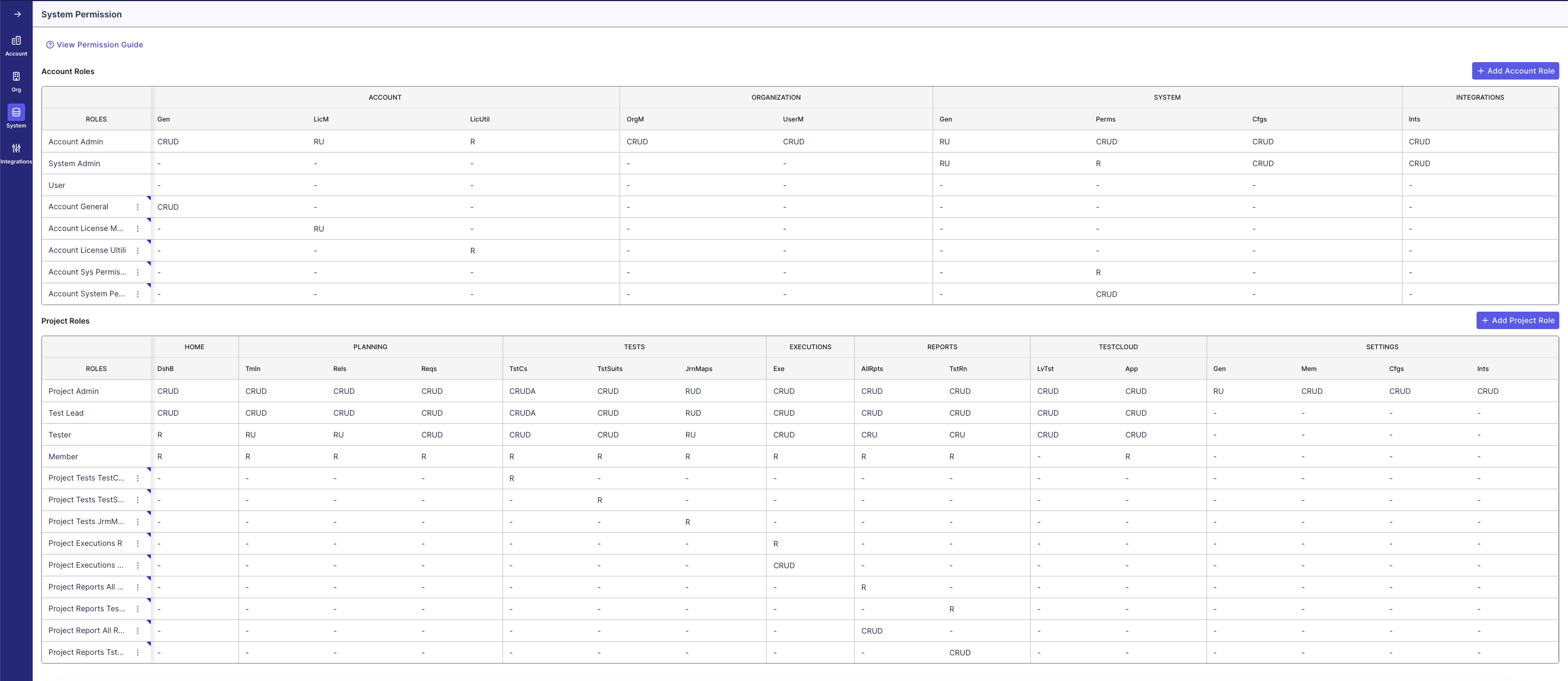
- Click:
- + Add Account Role to create a new account-level role, or
- + Add Project Role to create a new project-level role.
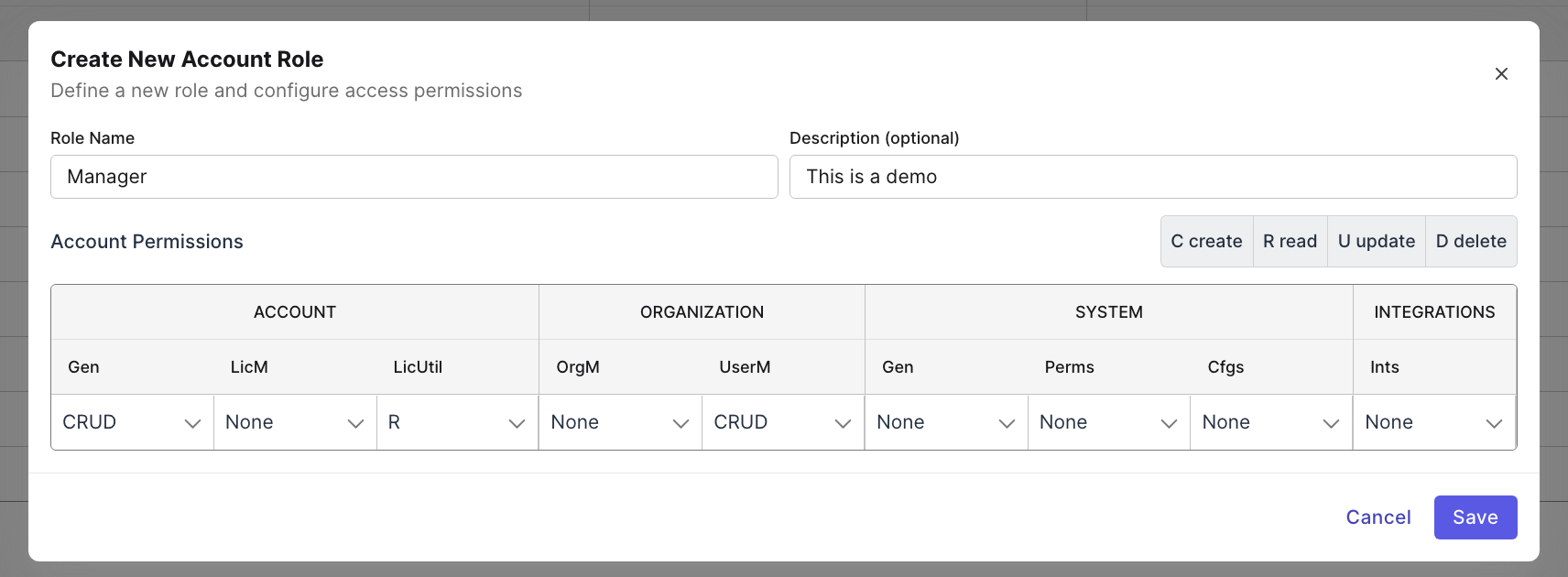
- In the pop-up window:
- Role Name (required): Enter a clear and descriptive name (e.g.,
QA Manager). - Description (optional): Provide a brief explanation (e.g., “For contractors who can execute tests but cannot modify settings.”).
- Under Account Permissions, configure access according to the required admin configurations.
- Under Project Permissions, configure access by module (e.g., Home, Planning, Tests, Executions, Reports, Cloud Execution, etc.).
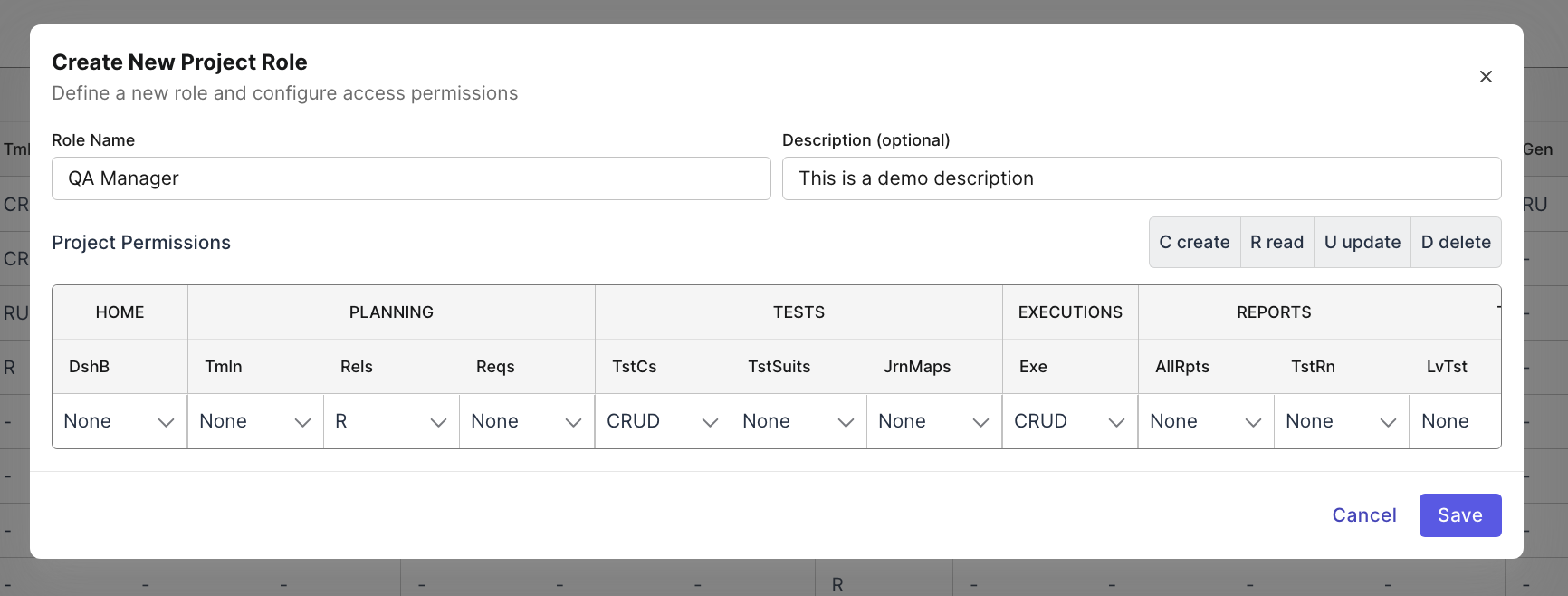
- Role Name (required): Enter a clear and descriptive name (e.g.,
- Click Save to create the role.
Clone a Role
If you have an existing role and need something similar, you can clone it instead of starting from scratch:
- Click the 3 dots next to the role you want to clone.
- Select Clone.
- Give the new role a name and adjust permissions to fit your needs.
Edit a Custom Role
To modify an existing Custom Role:
- Click the 3 dots next to the role you want to edit.
- Select Edit.
- Update the name or permissions, then save your changes.
Delete a Custom Role
To permanently remove a Custom Role:
- Click the 3 dots next to the role you want to delete.
- Select Delete.
- Confirm the deletion when prompted.
Note: This action cannot be undone. Ensure no users are assigned to the role before deleting it.
Best practices
- Start from least privilege: assign R or RU first, then expand if needed.
- Naming Convention: Keep role names action-oriented:
Viewer,Executor,Test Editor,Project Admin (Limited). - Review Regularly: Periodically audit custom roles and user assignments to ensure they still meet your organization's needs.
- Test Before Deployment: Create and test custom roles with a test user before assigning them broadly across your organization.
- Use Standard Roles When Possible: Consider whether existing standard roles (Account Admin, System Admin, Project Admin, Test Lead, Tester, Member) meet your needs before creating custom ones.
- Use the View Permission Guide link on the page to help users interpret modules and permission levels.
Limitations
- Cannot Modify Standard Roles: Built-in roles (Account Admin, System Admin, User, Project Admin, Test Lead, Tester, Member) cannot be modified. You must create new custom roles if different permissions are needed.
- Role Assignment Required: Creating a custom role does not automatically assign it to any users. You must separately assign users to the role through user management.