Tool permissions and approvals in Katalon AI Assistant
Tool approval is being rolled out organization by organization. Contact Katalon Support if approval controls do not appear in your project.
Katalon AI Assistant keeps a human in the loop before performing actions that create, update, delete, move, or run resources. The assistant reads freely, but it does not write on its own. Before it changes anything — in your Katalon project or in a connected external app, it pauses and shows you exactly what it is about to do. Nothing is written until you approve.
This document explains how tool approval works in Katalon True, what you see on the approval card, and how to auto-approve the tools you trust.
- Access to Katalon AI Assistant in your Katalon True project.
- Permission on the entity or connected app you're acting on. Approval does not grant you access you don't already have — the assistant acts on your behalf and is limited to what your account can do.
How tool approval works
Every tool the assistant can call is classified as either a read or a write.
- Reads — searching test cases, opening a result, reading a Jira issue, listing repositories — run immediately with no prompt.
- Writes — anything that creates, updates, deletes, moves, or triggers an execution — are held. The assistant stops, shows an Approval needed card, and waits for your decision.
While an approval is pending, the message box shows Review the approval above to continue and is unavailable. Decide on the card first, then keep chatting.
Approve or deny an action
When the assistant needs to write, an Approval needed card appears. Click Allow to proceed or Deny to discard — the assistant stops without writing anything. You can then correct the request and ask again.
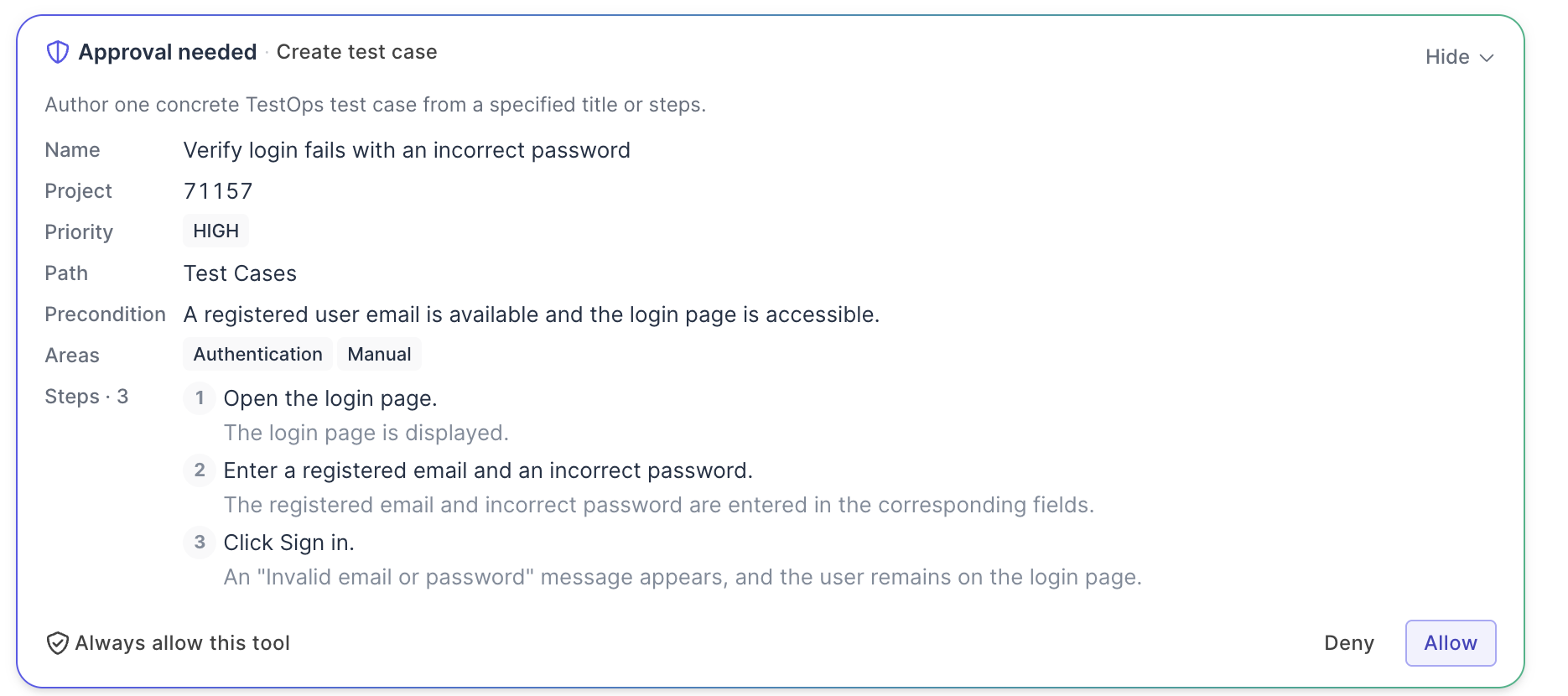
Check the details on the card before approving. For actions like creating a test case, the assistant fills in fields you never specified — Priority, Precondition, Areas — and the card is your only chance to catch them. If anything is wrong, deny and clarify.
- Delete cards show an ID, not a name — for example
Test case id: 591714. There's no title to sanity-check against, so confirm the ID is correct before approving. If unsure, deny and ask the assistant to show you that test case first.
After you decide, the card collapses to a one-line record in the conversation — create_test_case - approved or create_test_case - denied.
Example: creating a test case
Suppose you ask:
Create a manual test case titled "Verify login fails with an incorrect password" with steps: 1. Open the login page. 2. Enter a registered email and an incorrect password. 3. Click Sign in. Expected result: an "Invalid email or password" message appears and the user stays on the login page.
The assistant holds the write and shows Approval needed · Create test case. Expanding Details reveals more than you asked for:
- Project and Path — where it will be saved, resolved from your current project.
- Priority — set to
HIGH - Precondition — written by the assistant from the context of your request.
- Areas — tags such as
AuthenticationandManual, inferred from the title and steps.
If the priority is wrong, deny and clarify: Same test case, but set priority to Medium and leave Areas empty.
Once you click Allow, the conversation records create_test_case - approved and the assistant reports the result - so you can verify what was actually saved.
Review several actions in one request
When one request produces more than one write — for example, Delete test cases 591721 and 591722 — the assistant groups them into a single card that you step through.

The card shows one action at a time, with a progress bar and a counter such as 1 of 2. Moving to 2 of 2 swaps the summary line to the second action, so you can read each one before deciding.
- Use ‹ and › to move between actions.
- Use ✕ and ✓ to deny or approve the action you're currently viewing.
- Use Deny (n) or Allow (n) to apply one decision to every action in the group.
All decisions are submitted together. The conversation then records the outcome for the group, for example delete_test_case - approved ×2.
- Step through the group before deciding in bulk — a batch can mix a harmless create with a destructive delete.
- Approve deletes one at a time rather than with Allow (n).
Always allow a tool
If you approve the same kind of action repeatedly, you can stop being asked for it.
On any approval card, click Always allow this tool. This does two things at once: it approves the pending action, and it adds the tool to your always-approved list.
From then on, writes through that tool run without a card. The conversation still records them, marked create_test_case - auto-approved, so nothing happens invisibly — you just aren't asked first.
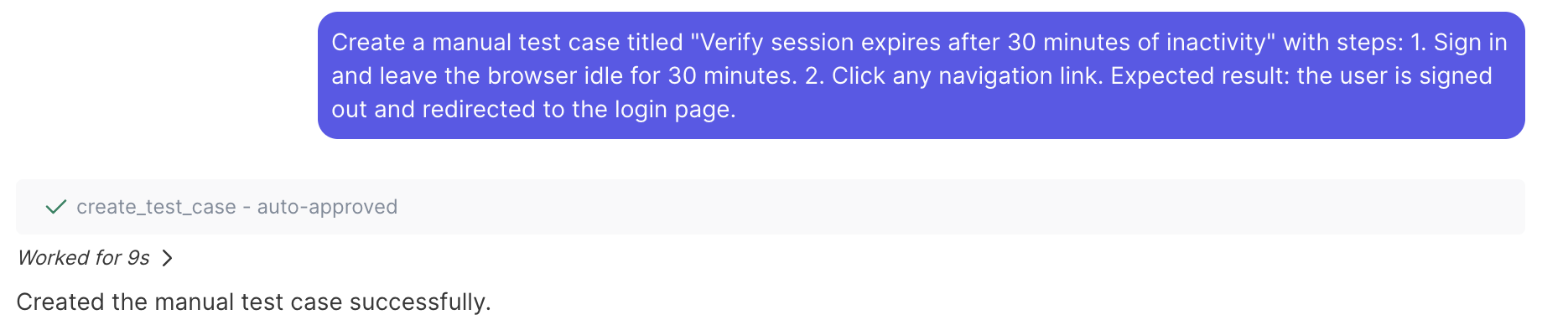
The list is per user and per browser. It is stored locally in the browser you're using, so:
- It doesn't apply to your teammates.
- It doesn't follow you to another browser, another device, or a private window.
- Clearing your browser data removes it, and every tool is gated again.
Always-allow is tool-level, not action-level. Adding a tool auto-approves every future write through it — including on entities you weren't thinking of at the time. Don't add tools that delete, such as Delete test case.
Manage approved tools
Review and revoke your always-approved tools at any time.
- In the message box toolbar, click the shield icon (Manage approved tools).
- The Always-approved tools panel lists every tool you've auto-approved, by its plain-language name — for example Create test case. When the list is empty, it shows No tools are auto-approved yet.
- Remove entries:
- Click the bin icon next to a tool to remove just that tool.
- Click Remove all to clear the list.
Removing takes effect immediately: the very next write through that tool is held for approval again. Removing a tool does not undo anything already written.

Actions that require approval
The assistant asks for approval before any of the following. Everything else — search, list, read, and report actions — runs without a prompt.
| Area | Actions that need approval |
|---|---|
| Test cases | Create a test case · Update test cases · Duplicate a test case · Move a test case · Delete a test case · Replace test case steps with a call |
| Test organization | Manage test folders (create, delete, duplicate, move, rename) · Manage test suites (create, rename, move, duplicate, delete, add test cases) · Link or unlink test cases and requirements |
| Execution | Create a test run · Re-run an execution · Open an AI-assisted manual session · Update a schedule's configuration |
| Defects | Create a defect in Jira or Azure DevOps and link it to a result |
| Test Execution - Cloud | Create a Cloud app · Get an app upload URL · Manage dynamic apps · Delete Cloud apps · Start a Katalon tunnel · Stop a Katalon tunnel |
| Connected external apps | Any write to an external app — for example adding a comment, creating an issue or page, or creating a Drive file or folder |
| Multi-step workflows | Running an external task workflow, such as triaging Jira bugs, unless you ask for a preview run |
Preview-only calls are treated as reads and are not gated, because they don't change anything. Asking for a dry run or a preview of a workflow returns the proposed changes without writing them — a useful way to inspect a large operation before approving it.