Analyze requirement coverage
This document explains how to assess the testing extent of project requirements for a sprint or release, for product readiness evaluation. It provides insights into testing completeness, test case execution, and pass rates.
For data to appear, make sure there are:
- Requirements loaded from ALM integration (Jira or Azure DevOps).
- Configure requirement-test linkages to view requirement coverage in this report.
- Test executed in the selected time frame or iteration (sprint/release).
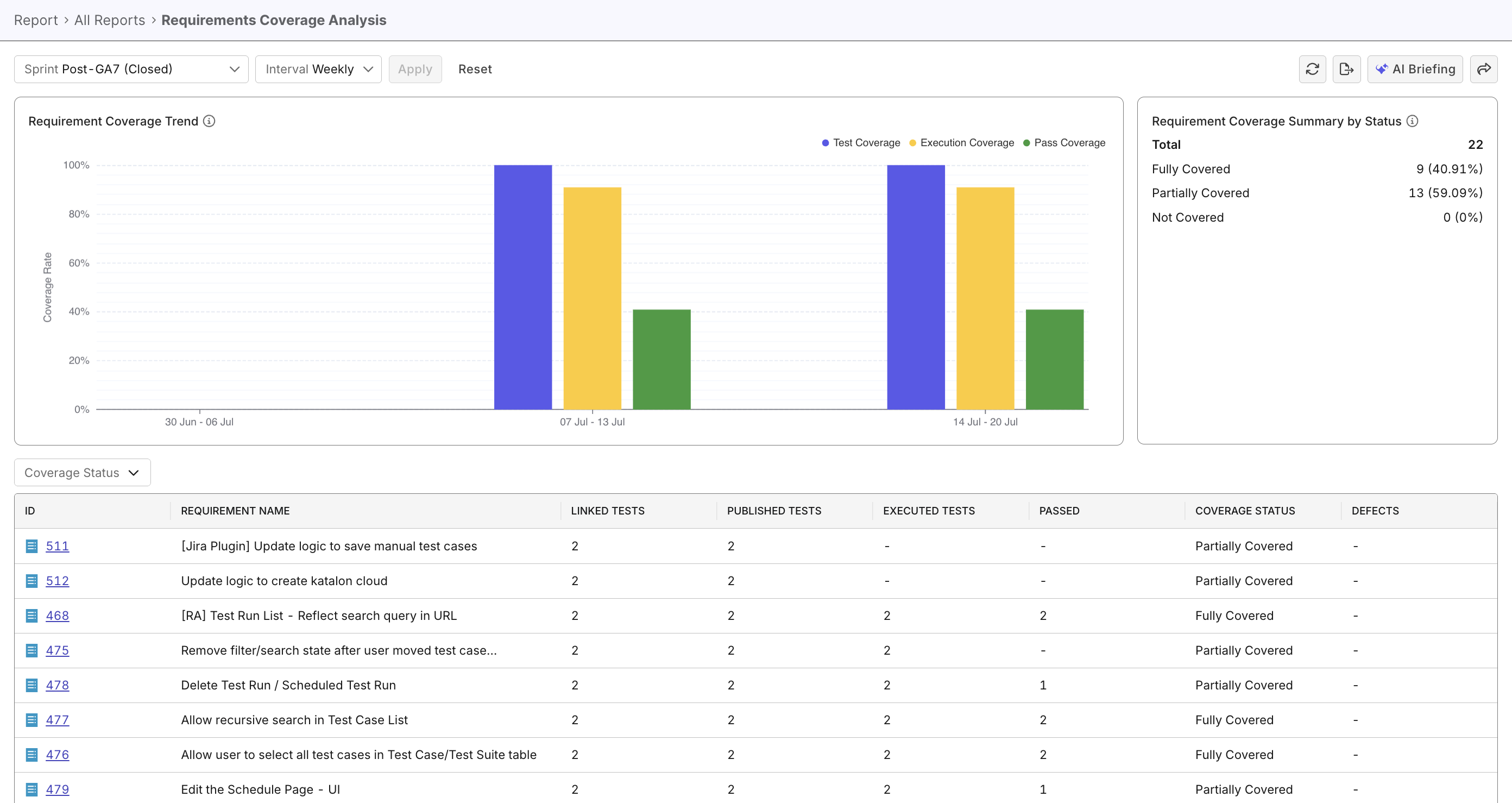
Overview
Evaluating the coverage of your project's requirements is essential for product readiness. With the Requirements Coverage Analysis Report, you no longer need to manually cross-reference in your ALM tools (Jira, ADO). Simply select a project and time range, to instantly visualize coverage metrics and analyze progress.
Steps to track requirement coverage
For data to appear, make sure there are:
- Requirements loaded from ALM integration (Jira or Azure DevOps).
- Test cases linked to requirements. See Linkages for more details.
- Test executed in the selected time frame or iteration (sprint/release).
In Katalon True Platform, you can access the Requirement Coverage Analysis Report through multiple routes:
-
Via the Release Health Dashboard: the Requirement Coverage Summary and Requirement Coverage Trend widgets can be expanded to navigate to the Requirement Coverage Analysis Report.
-
Via Analytics > Reports > Requirement Coverage Analysis Report.
Once you've accessed the report, follow these steps to track requirement coverage.
Step 1: Select a release/sprint
The Requirement Coverage report allows selecting one sprint OR one release at a time (not multiple). Closed sprints or released releases can also be selected for retrospecting.
Step 2: Select an interval
Available intervals:
- Daily: Show coverage metrics for each day (best for short sprints or detailed tracking)
- Weekly: Show coverage metrics for each week (best for standard 2-week sprints)
Step 3: View requirement coverage
Requirement status may change from Fully Covered to Partially Covered, if a test known to pass suddenly fails in the most recent run.
- Check the gap between coverage percentages (Test Coverage, Execution Coverage, and Pass Coverage) throughout the period for quality control. Learn more about these metrics at Coverage metrics.
- View Requirement Coverage Summary by Status to learn about coverage status, and re-allocate efforts if needed.
- Check coverage growth rate to rate team's performance, and re-allocate efforts if needed.
- Towards the sprint/release end, check if %Pass Coverage is reaching a threshold. If yes, this is a sign to check release readiness.
- View requirement page in the data table for deep-diving. Apply filter by status if needed.
- Sort the data table by Coverage Status, Ascending to easily view Not Covered requirements at the top.
- Share/Export report view if needed.
Step 4: Take action on requirements based on status
| Requirement status | Action |
|---|---|
| Not Covered | - Identify root cause - Prioritize by risk - Create/Link test cases. Learn more about creating/linking test cases to requirements at ... - Publish test cases - Verify linkage |
| Partially Covered | - Drill down to requirements - Identify gaps: all scenarios covered? Published test cases not executed? Failing test cases? - Take action: review test cases, publish test cases, execute test cases, investigate failed/flaky test cases. Learn about these processes at Investigate Failure and Investigate Flaky Tests. |
| Fully Covered | - Include linked test cases in regression suites - Monitor for failures and investigate - Create new defects (if any) and update once defects resolved. |
For pointers, ask Katalon AI Assistant to quickly summarize uncovered or partially covered requirements and decide what to do next.