Use Katalon app for Jira
The Katalon app for Jira connects a Jira project to a Katalon True Platform account so you can see linked test results on an issue, open them in Katalon, and generate test cases from an issue with Katalon AI, without leaving Jira. A Jira admin connects the project once, and project members work with the results from each issue.
- You have set up Jira integration in your Katalon True Platform Account. See Jira integration.
- You have the Katalon app for Jira installed on your Jira Cloud site.
- You have an API Key generated in your Katalon account. Follow this guide to get an API key: Katalon API Key.
- Generating test cases with AI requires the Jira issue to be synced to Katalon as a requirement.
Connect a Jira project to Katalon
Connect each Jira project to one Katalon project before your team can view results or generate test cases.
- From the Jira project sidebar, click More actions
...> Space settings. - Under Apps, select Katalon Settings and open the Connection tab.
- Enter the email associated with your Katalon account in the Email field.
- Enter your Katalon API Key in the API Key field.
- Select the account you want to connect in the Account field.
The Account field appears only when your email is associated with more than one account.
- Select the Katalon project to link to this Jira project in the Project field.
- Click Save. The message
Your setting has been saved.appears.
View Katalon test results on a Jira issue
-
Open a Jira issue in the linked project.
-
Under the issue summary, click View app action.
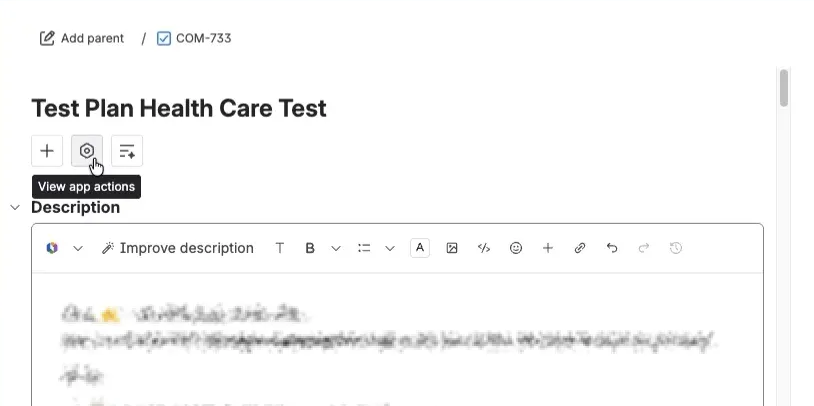
-
Select Katalon Test Results to track the linked Katalon test result fields on the issue.
-
Scroll down to the Katalon Test Results section to view:
- Linked Test Cases lists the Katalon True Platform test cases linked to the issue, each with its ID, name, and status. AI-generated test cases are listed in this table when available.
- Katalon Defect Results shows the linked test run results for the issue.
- Katalon Studio Test Results shows the Katalon Studio results attached to the issue.
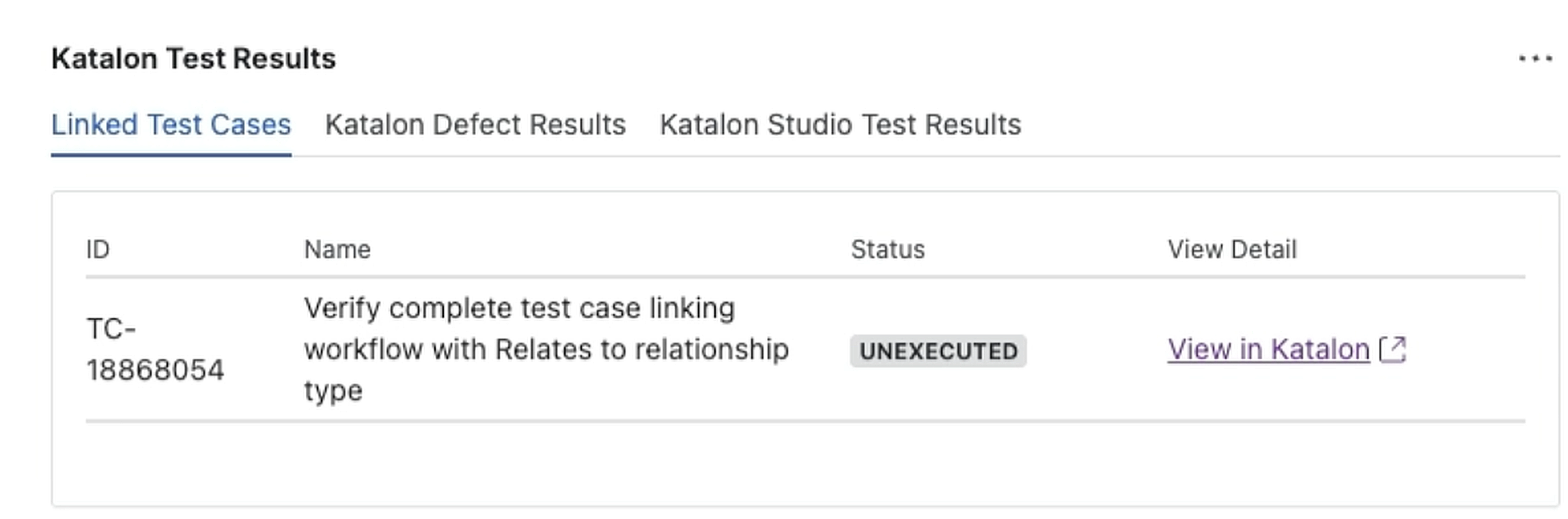
A test case appears on the Linked Test Cases tab after you link it to the issue in Katalon True Platform. Test cases you accept from Katalon AI generation are linked automatically.
Generate test cases from an issue with Katalon AI
Generate draft test cases from a Jira issue, review them, and save the ones you want to your Katalon project.
- Open a Jira issue in the linked project.
- Under the issue summary, click View app actions, then select Generate Test Cases with Katalon AI.
- Scroll down and click Generate Test Cases. If Katalon asks for more information, answer the clarification questions to continue.
- When generation finishes, choose a folder in Save accepted test cases to.
- Review each generated scenario, then click Accept to save and link it to the Jira issue, or Reject to remove it.
- To start over, click End session. Katalon discards any generated test cases you have not accepted or rejected, then resets the session.
- The Jira issue must be synced to Katalon as a requirement before you can generate test cases from it.
- Syncing a new or updated issue to Katalon is not instant. If you start generation too early, the panel shows
This issue isn't synced yetand you can retry.