TrueTest License Usage
Last updated: June 2026
TrueTest License Usage helps you monitor your TrueTest license period, activated agents, and usage outcomes across applications under test (AUTs). Use this page to review license totals, compare activated and not activated agents, inspect AUT-level activity, and export usage data.
Requirements
- You can access Account Settings and view License Utilization.
- Your Account has TrueTest licenses.
Open TrueTest License Usage
- Sign in to Katalon True Platform.
- Go to Account Settings > Account > License Utilization.
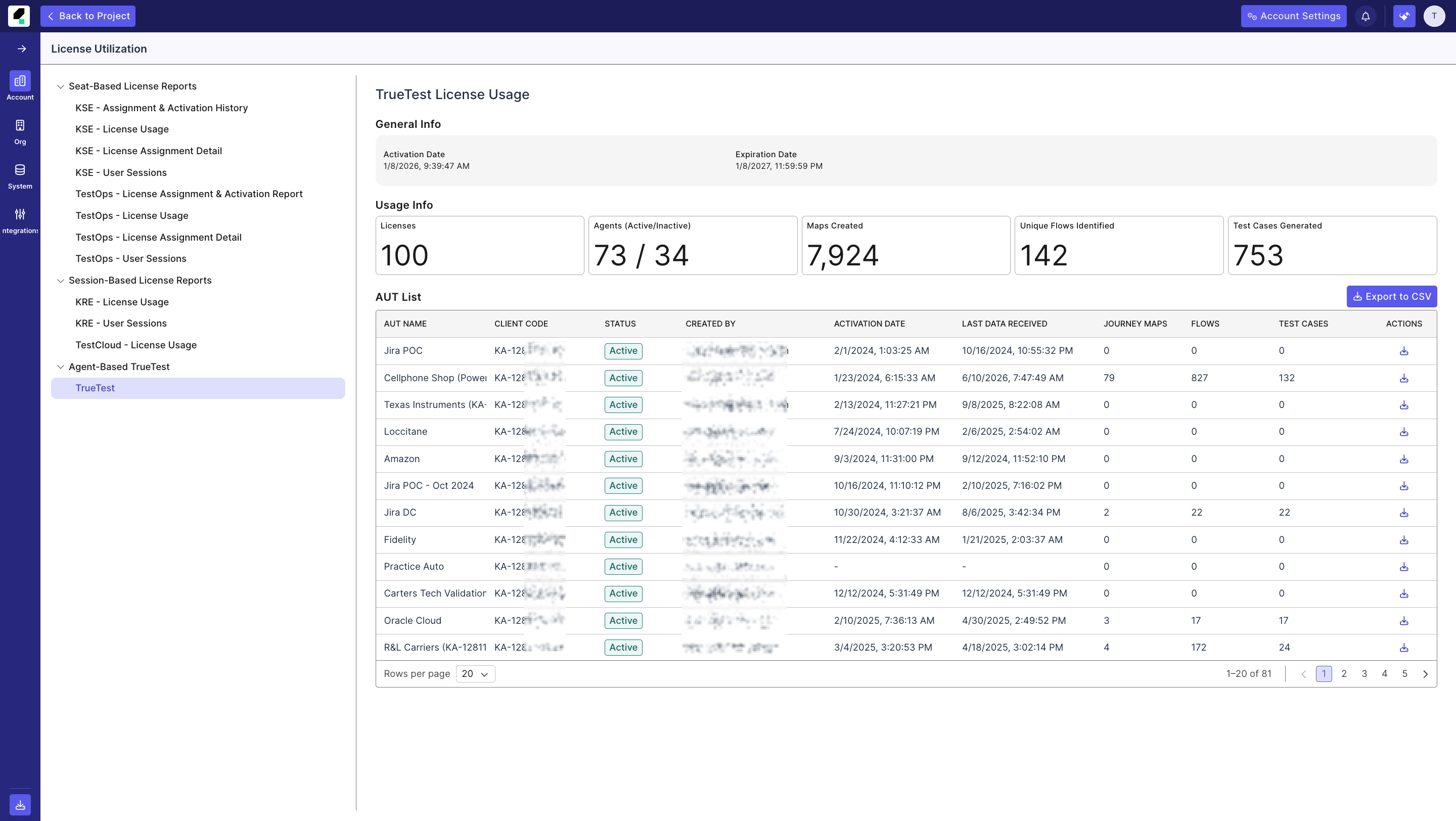
- Select TrueTest. The TrueTest License Usage page appears with three info sections: General Info, Usage Info and AUT List.
Review license and agent information
In General Info, you review:
- Activation Date: The start date of the TrueTest license period.
- Expiration Date: The end date of the TrueTest license period.
In Usage Info, you review:
- Licenses: The number of TrueTest licenses for AUTs.
- Agents (Activated/Not Activated): The number of activated agents compared with not activated agents.
- Maps Created: The number of journey maps created from tracked TrueTest data.
- Unique Flows Identified: The number of unique flows identified from journey maps.
- Test Cases Generated: The number of test cases generated from TrueTest flows.
note
An agent is Activated when it starts receiving data from your application. An agent is Not Activated when it has not received any data.
Review AUT usage details
Use the AUT List to review usage by application under test. The list includes:
- AUT Name: The name of the application under test.
- Client Code: The TrueTest client code for the AUT.
- Status: The activation state of the agent.
- Created By: The email address of the user who created the AUT.
- Activation Date: The date when the agent was activated.
- Last Data Received: The latest time TrueTest received tracked data from the AUT.
- Journey Maps: The number of journey maps created for the AUT.
- Flows: The number of flows identified for the AUT.
- Test Cases: The number of test cases generated for the AUT.
- Actions: Available row actions, such as exporting unique flows.
Export usage data
- Click Export to CSV to download the AUT list. The file downloads as
license-usage-aut-list.csv. - In the Actions column, click the download action for an AUT to export unique flows for that AUT.