Guest Licenses
A Guest license grants project-level, view-only access to Katalon True Platform via Read permission. It's designed for users who need visibility into testing activities without participating in test execution or configuration.
When to use: Guest licenses are well-suited for stakeholders and external viewers who need monitoring access but don't actively participate in testing. A single user can hold Guest access across multiple accounts, organizations, or projects — providing consistent visibility and reporting access wherever it's needed, without granting edit permissions.
What Guest Users Can Access
At the project level, Guest users have Read permission across the following modules:
- Katalon AI: No access.
- Home: Guest users can view dashboards and widgets but cannot create custom dashboards.
- Plans: Guest users can view existing releases and plans but cannot create releases, plans, or anything related to ALM integrations.
- Test Management: Guest users can view test cases and test suites but cannot create, edit, or delete them.
- Asset: Guest users can view visual testing assets but cannot create or modify them.
- Execution: Guest users can view test run results but cannot trigger or modify manual or automated test runs.
- Analytics: Guest users have read-only access to analytics data and can only create their own analytics view.
- TestCloud: Guest users can view uploaded APK files but cannot upload, configure, or manage them.
Project Settings and Katalon AI service are disabled for Guest users and display a No Permission box.
Grant a Guest license
To grant a Guest license to a user:
-
Go to Account Settings > Organization > User Management.
-
Click + Add user.
-
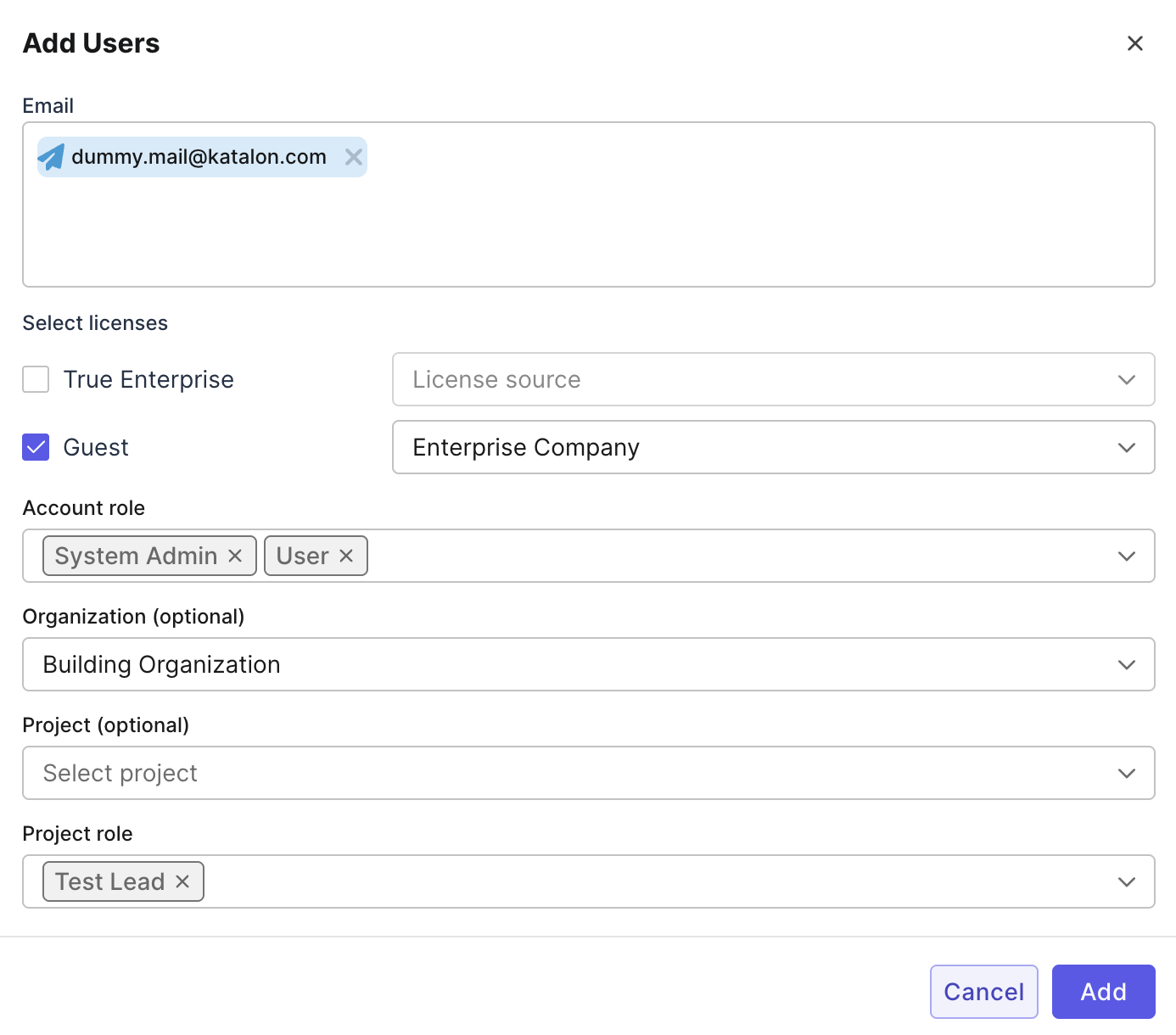
In the Add Users dialog, enter the user's email address.
-
Under Select licenses, select Guest and the license source for the Guest license.
-
In Account role, assign an account-level role to the user.
The account-level role determines what the Guest user can view. For details about roles and permissions, see Administration Overview.
-
Click Add.