Configure Katalon Tunnel
- You must have the Account Admin or System Admin role to configure this feature.
Katalon Tunnel establishes a secure connection between Katalon Platform and your private network, enabling Katalon to reach locally hosted applications or internal resources without exposing them to the public internet.
Katalon Tunnel can:
- Scale with team size and concurrent testing workloads.
- Minimize latency using QUIC technology.
- Prevent overload when running many tunnel clients simultaneously.
- Restrict access to authorized users via API keys.
- Support multiple concurrent sessions through multiple Edge servers.
The tunnel client runs on a machine inside your private network. Once started, it connects to the Katalon Tunnel server and opens a session used exclusively for your tests. By default, a tunnel session closes after 30 minutes of inactivity.
The tunnel uses HTTPS and QUIC protocols. For required domains and IP addresses, see Network configuration for Test Execution - Cloud.
Set up Katalon Tunnel
-
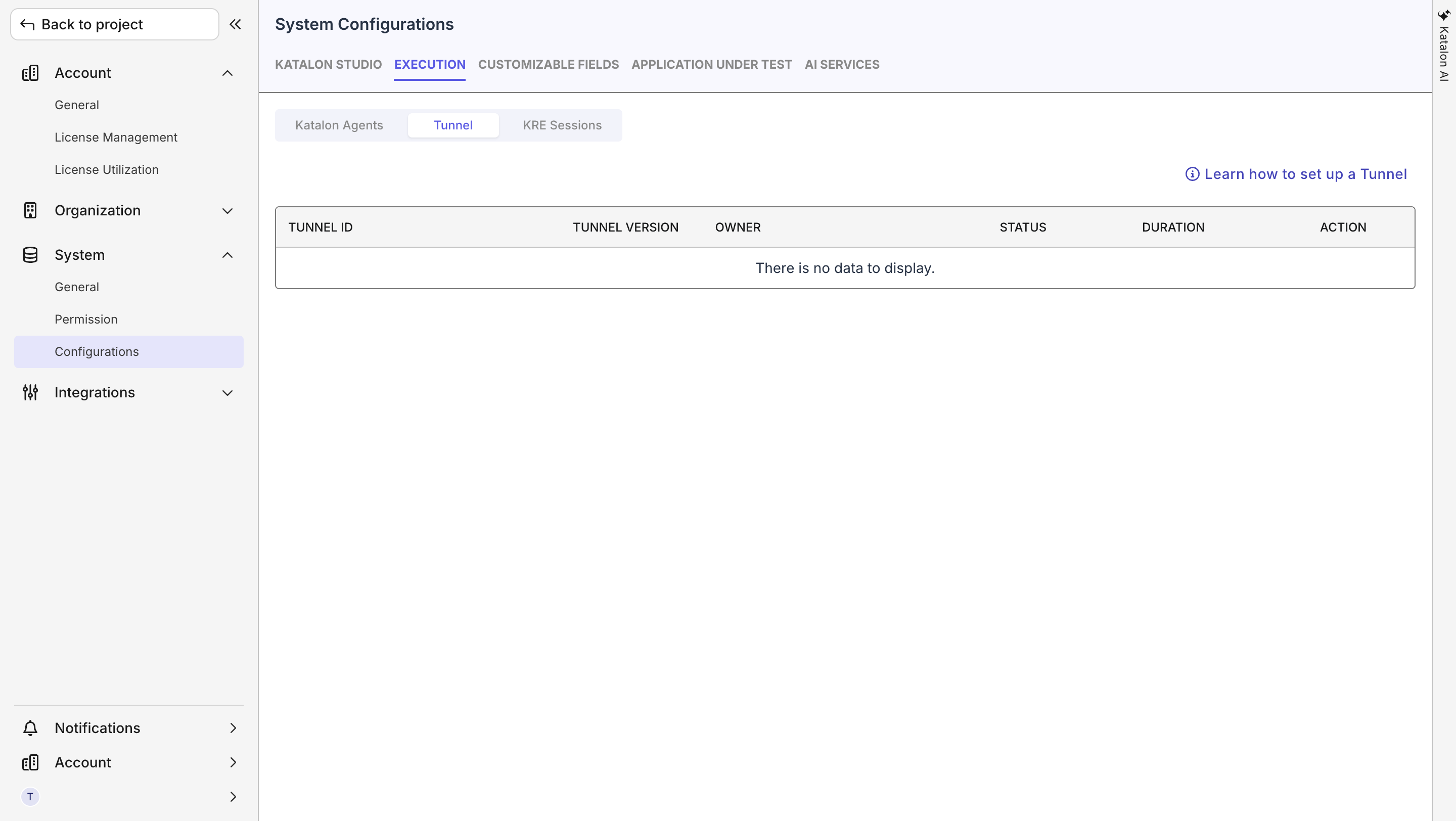
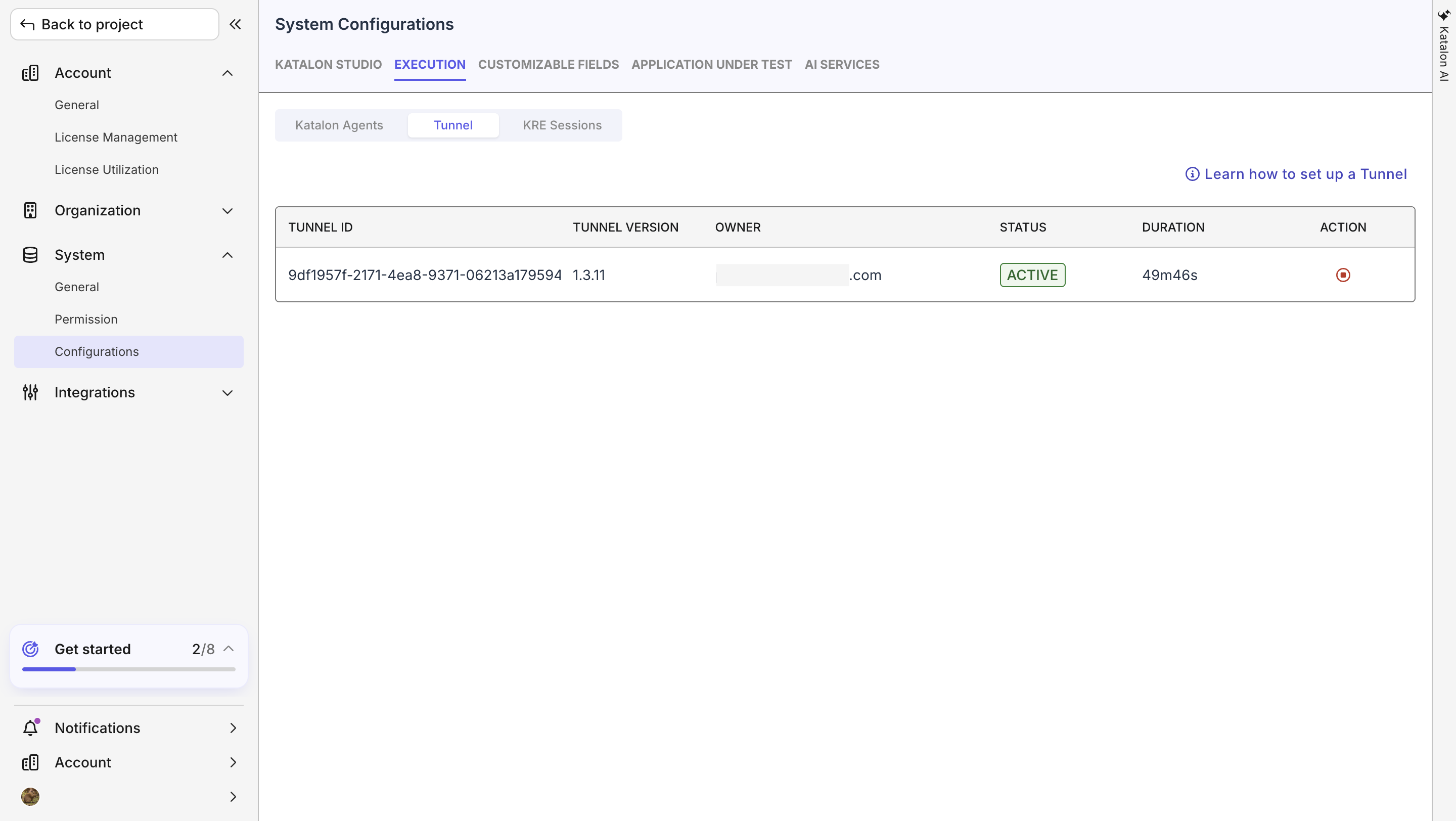
In Katalon True Platform, go to Admin Settings > System > Configurations and select the Tunnel tab.
-
In the upper-right corner, select Learn how to set up a Tunnel to open the setup dialog.
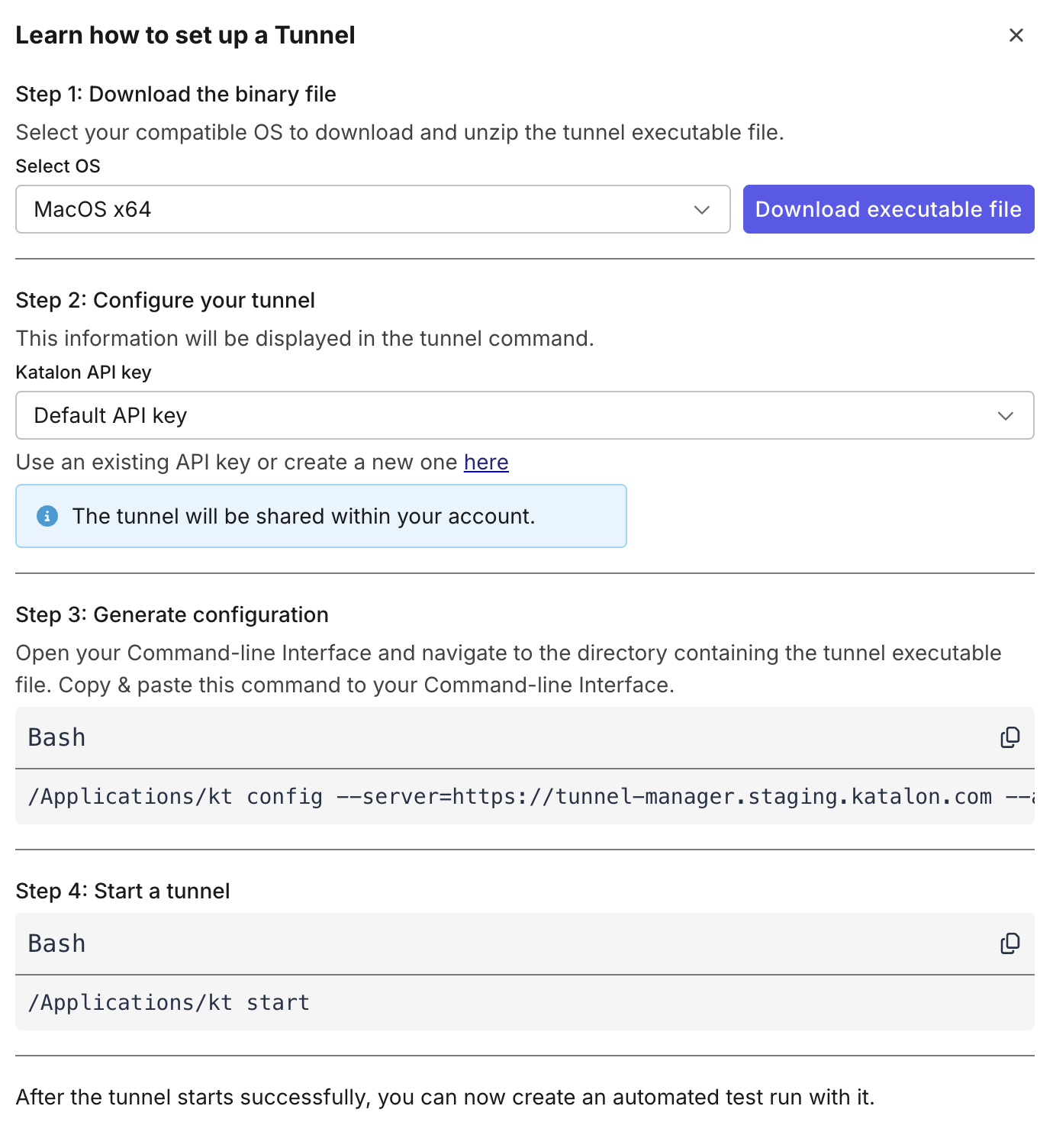
Follow the on-screen instructions:
- Select your OS, download the binary file, and unzip it.
- Open the file in a terminal (macOS) or in
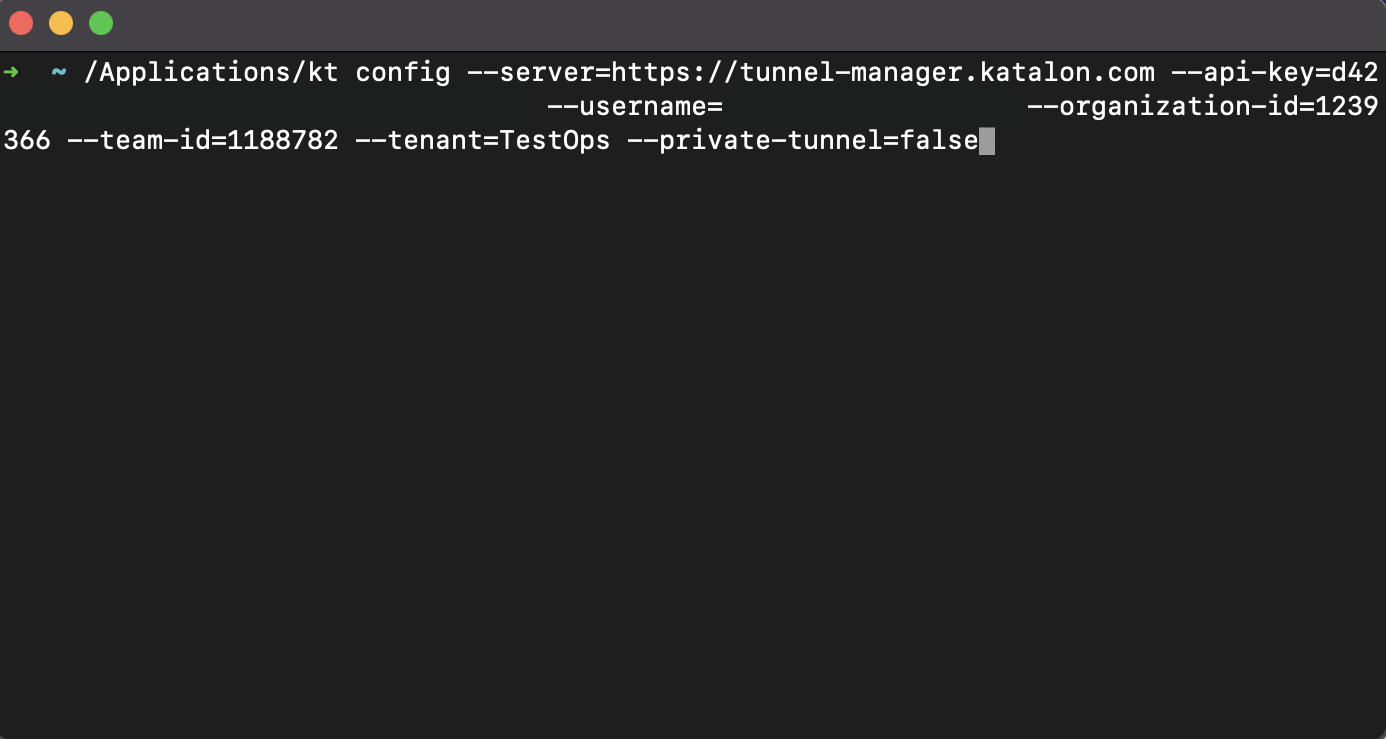
cmd.exe(Windows). - Copy the command from the Generate configuration section and run it in a terminal or Command Prompt.
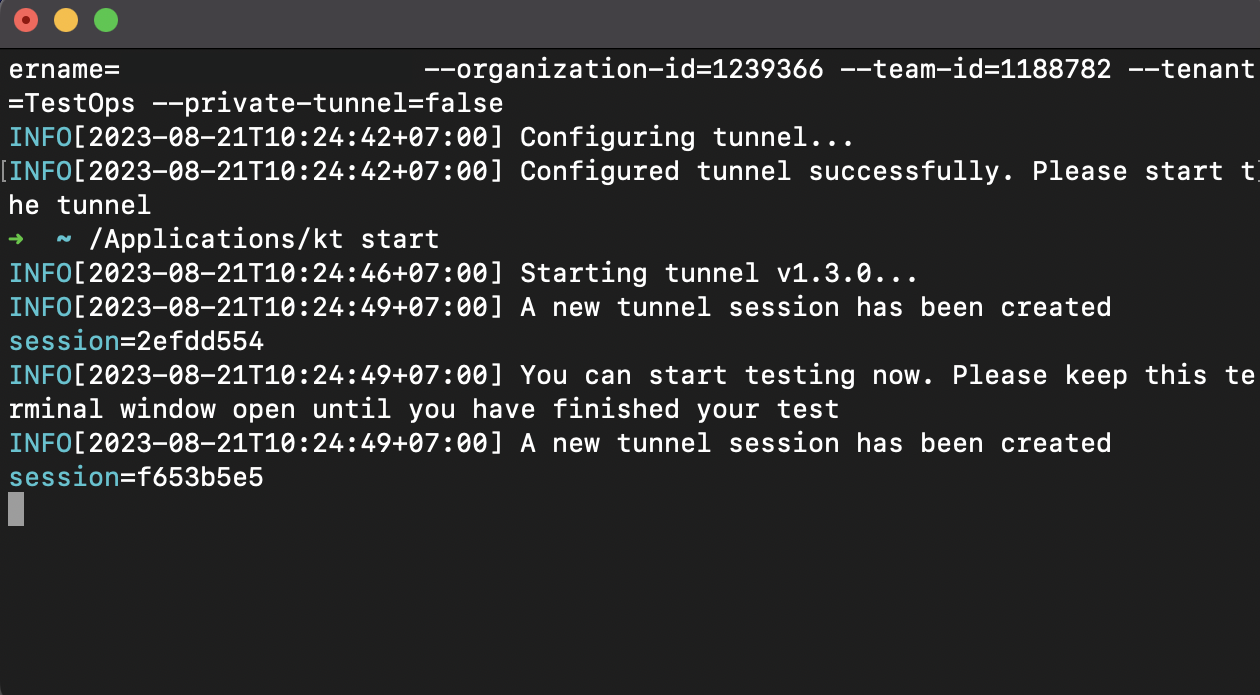
- Copy the command from the Start a tunnel section and run it to start the tunnel.
-
To confirm the tunnel is running, verify it shows Active status in the tunnel list.
Manage active tunnels
From the Tunnel tab, admins can view all tunnels created across the organization, including their status, owner, and last-active time. You can use this view to audit tunnel usage or deactivate unused tunnels.
Tunnels created in Katalon True Platform and Katalon Studio are shared and interchangeable — a tunnel started in one can be selected in the other.
Configure the tunnelconfig file
When you run ./kt config, the tunnel client generates a tunnelconfig file that stores connection settings. Edit this file to tune traffic routing and proxy behavior.
Optimize traffic with allow_hosts
By default, all traffic from the test environment may be routed through the tunnel, including requests to hosts outside your application under test (AUT). Use allow_hosts to limit tunnel routing to only the hosts you need:
- Requests matching a pattern in
allow_hostsare routed through the tunnel. - All other requests go directly through Katalon infrastructure, bypassing the tunnel.
Proxy settings
If the tunnel client runs behind an HTTP/HTTPS proxy, set the following fields:
proxy_host,proxy_port: Address and port of the proxy (e.g.,localhost:9070).proxy_username,proxy_password: Credentials if the proxy requires authentication.
Example tunnelconfig
allow_hosts = ['*.your-private-host.com', '*.another-private-host.com']
api_key = "your-api-key"
group = "your-group-id"
inactive_tunnel_timeout = 0
organization_id = 704xxx
private_tunnel = false
proxy_host = "localhost:9070"
proxy_password = ""
proxy_port = ""
proxy_username = ""
retry = 3
server = "https://tunnel-manager.katalon.com"
team_id = 644xxx
tenant = "TestOps"
username = "john.doe@katalon.com"
Update server URL
For users outside the US region (e.g., EU), update the server field in the tunnelconfig file before starting the tunnel.
- Open the folder where your terminal or command prompt is currently running.
- Locate and open the
tunnelconfigfile in a text editor. - Update the
servervalue to match your region.
EU region:https://tunnel-manager.eu.katalon.com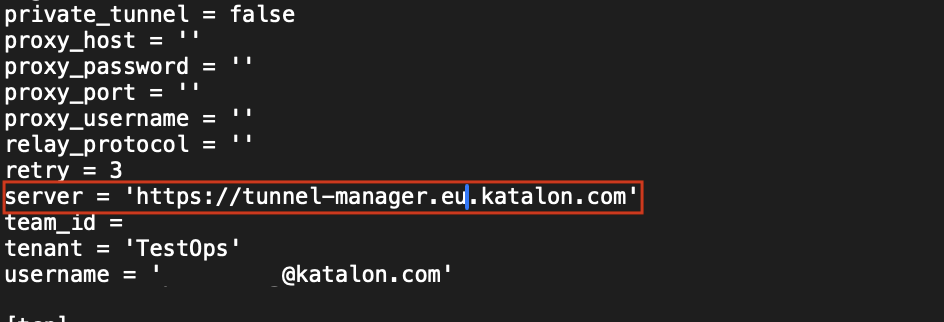
- Save the file, then continue with starting the tunnel.
Troubleshoot tunnel connectivity
If you experience connectivity issues, start the tunnel client in debug mode to view verbose logs:
./kt start -vvv
Usage recommendations
- Use one tunnel or tunnel pool per test suite or build, then shut it down when the suite finishes.
- Start the tunnel before triggering the test suite and stop it once the suite completes.
- Run the tunnel client on a machine with a stable, high-bandwidth internet connection to avoid test failures.
- Use a machine with sufficient CPU and RAM when running many concurrent tests.
- Run one tunnel client per machine to avoid timeout and bandwidth conflicts.
- To stop quickly, press
Ctrl+Cin the CLI after tests complete. - To reuse a tunnel configuration on a new machine, copy the
tunnelconfigfile to the new machine, then delete theclient_idfield before starting.
Tunnel with Firewall
If your tunnel client runs inside a restricted network or behind a corporate firewall, see Tunnel with Firewall for required endpoints and firewall configuration examples.